Procédure
Objective
This documentation explains how to upload your website files to your LWS web hosting using FTP software.
You will learn how to retrieve your FTP credentials, configure your connection software, transfer your website files to your hosting account, and check that your site displays correctly online.
Who is this documentation for?
This documentation is for anyone who has web hosting and wants to manually publish their website files via FTP.
It applies regardless of your control panel, as long as you have your FTP settings.
The publishing procedure is then the same in principle, whichever panel is used. Only the method for finding your FTP credentials and settings changes depending on the interface.
Before you start
Before putting your site online, make sure you have the following:
- an active web hosting account;
- a domain name linked to this hosting, or failing that, the server IP address;
- FTP connection settings;
- your website files saved on your computer;
- FTP software installed on your computer.
Recommended software
The recommended software in this documentation is FileZilla, as it is widely used and easy to get started with.
Popular alternatives
What is FTP used for?
FTP is a method of transferring files between your computer and your web hosting.
It can be used for example to:
- put a site online;
- replace existing files;
- download a backup of your site;
- delete or rename files on the server.
In practice, you prepare your site on your computer, then use FTP software to send it to your hosting account.
Step 1: retrieve your FTP settings
Before you can publish your site, you need to retrieve the login details for your FTP space.
These settings are as follows:
- FTP server / host;
- FTP username;
- FTP password;
- sometimes a port;
- sometimes a recommended encryption type.
The path to find these settings depends on your control panel.
Documentation adapted to your panel
If your domain name does not yet point to your hosting, it may be necessary to use the server IP address instead of the domain name for the FTP connection.
Step 2: prepare your site files
Before publishing, check that your website files are ready on your computer.
Depending on your site, this may be:
- an
index.html file and its associated folders;
- an
index.php file;
- a set of folders and files exported from your website builder.
Important check
Your homepage should generally be named index.html or index.php (see default.aspx for ASP sites)
If your homepage has another name, your site may not display correctly, even if the files have been transferred properly.
Good practice
Place all your website files in a clear folder on your computer before you begin.
This will help prevent you from accidentally uploading unnecessary or incomplete files.
Step 3: install your FTP software
Install the FTP software of your choice on your computer:
Once installation is complete, open the software.
Publish your site with FileZilla
Why choose FileZilla?
FileZilla is a well-known free software, suited to publishing websites via FTP.
It allows you to connect quickly to a hosting account and easily transfer files between your computer and the server.
Step 4: configure the connection in FileZilla
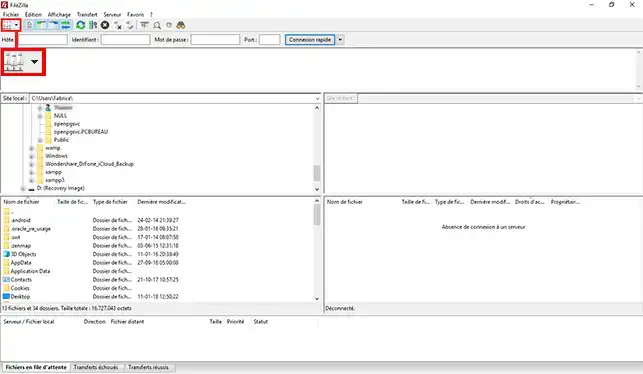
11. In FileZilla, open the Site Manager at the top left.
22. Click New site.
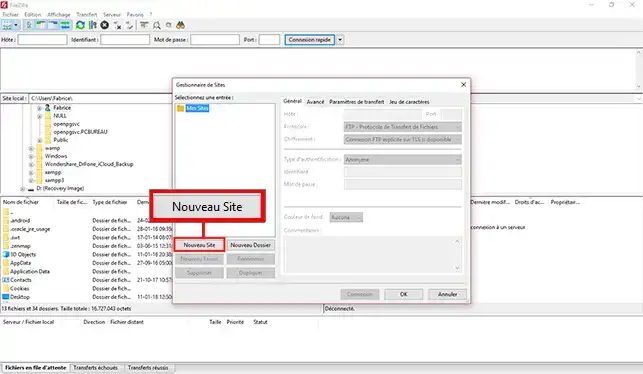
Give it a simple name, for example:
- My site
- Main site
- Example domain
33. Then fill in the fields with the information retrieved from your control panel.
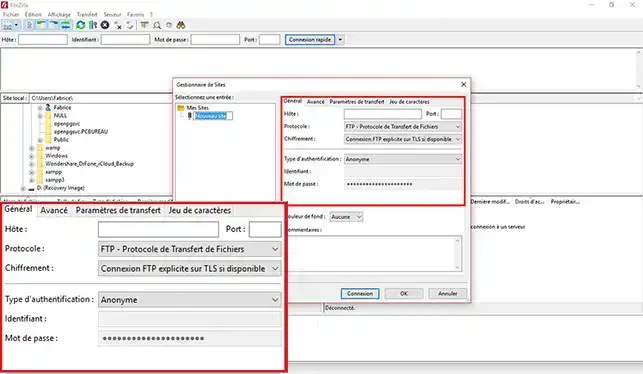
Fields to fill in
- Host: enter your FTP server
Example: ftp.yourdomain.tld or the server IP address
- Port: leave blank if no specific port was provided
- Protocol: choose FTP - File Transfer Protocol
- Encryption: choose the recommended option in your settings
- Logon type: choose Normal
- User: enter your FTP username
- Password: enter your FTP password
If your domain does not yet point to your LWS hosting, enter the web server IP in the host name instead of ftp.domain.tld.
44. Click Connect according to the desired behavior.
55. During the first connection, a window related to the security certificate may appear.
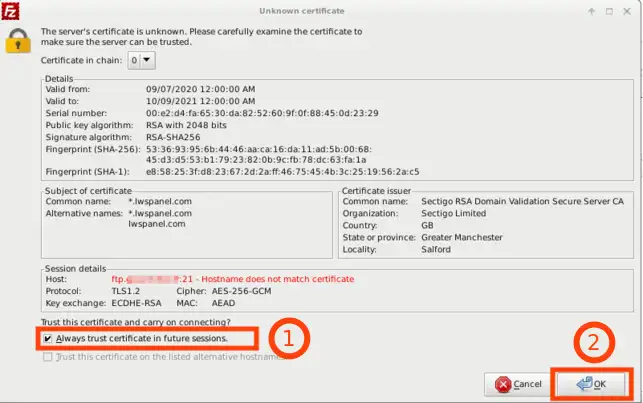
In that case, confirm the connection if the information matches your server.
Step 5: understand the FileZilla interface
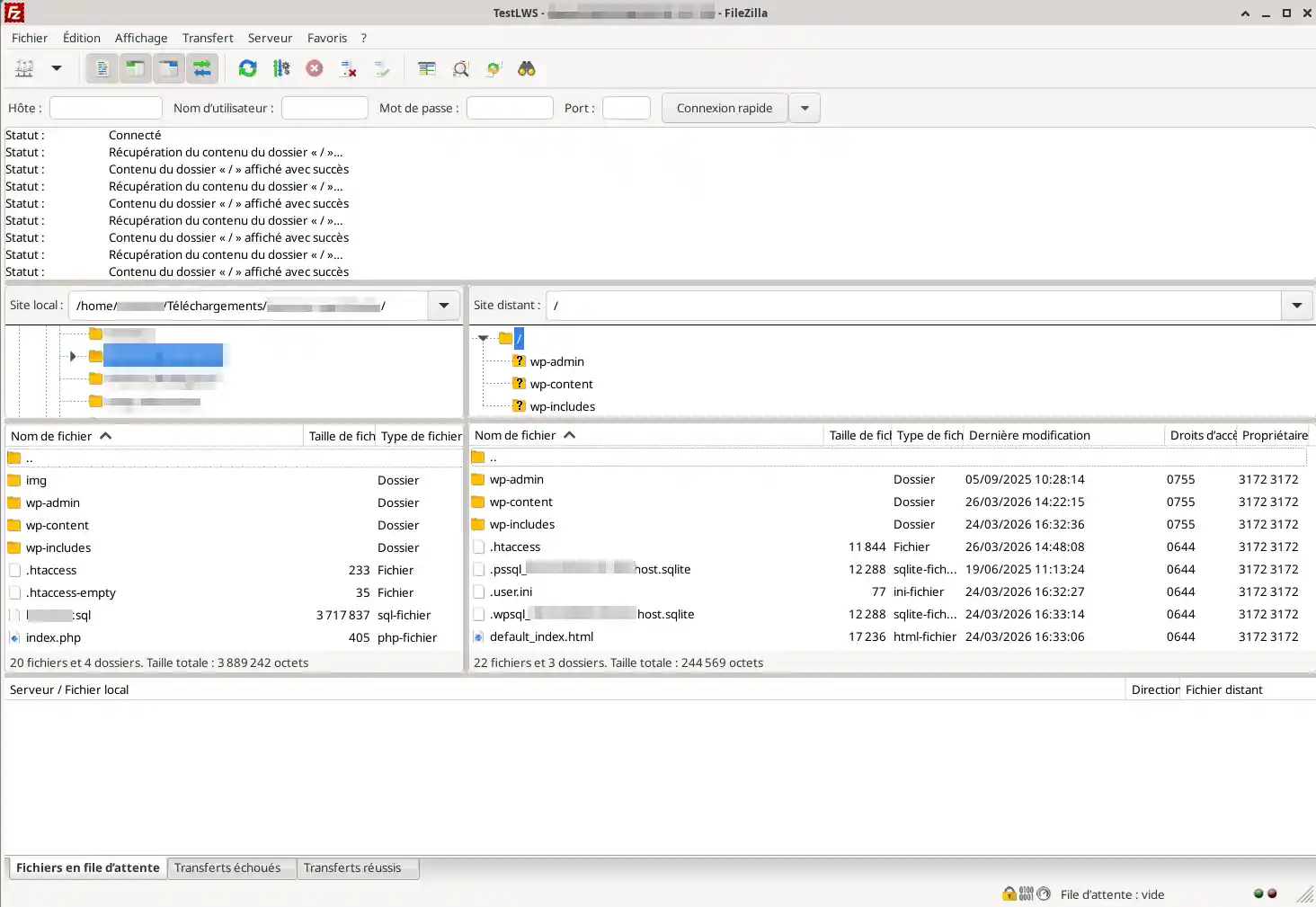
Once connected, FileZilla generally displays two main areas:
- left: files on your computer;
- right: files on your web hosting.
To put your site online, you must send the files from left to right.
Step 6: send your site files
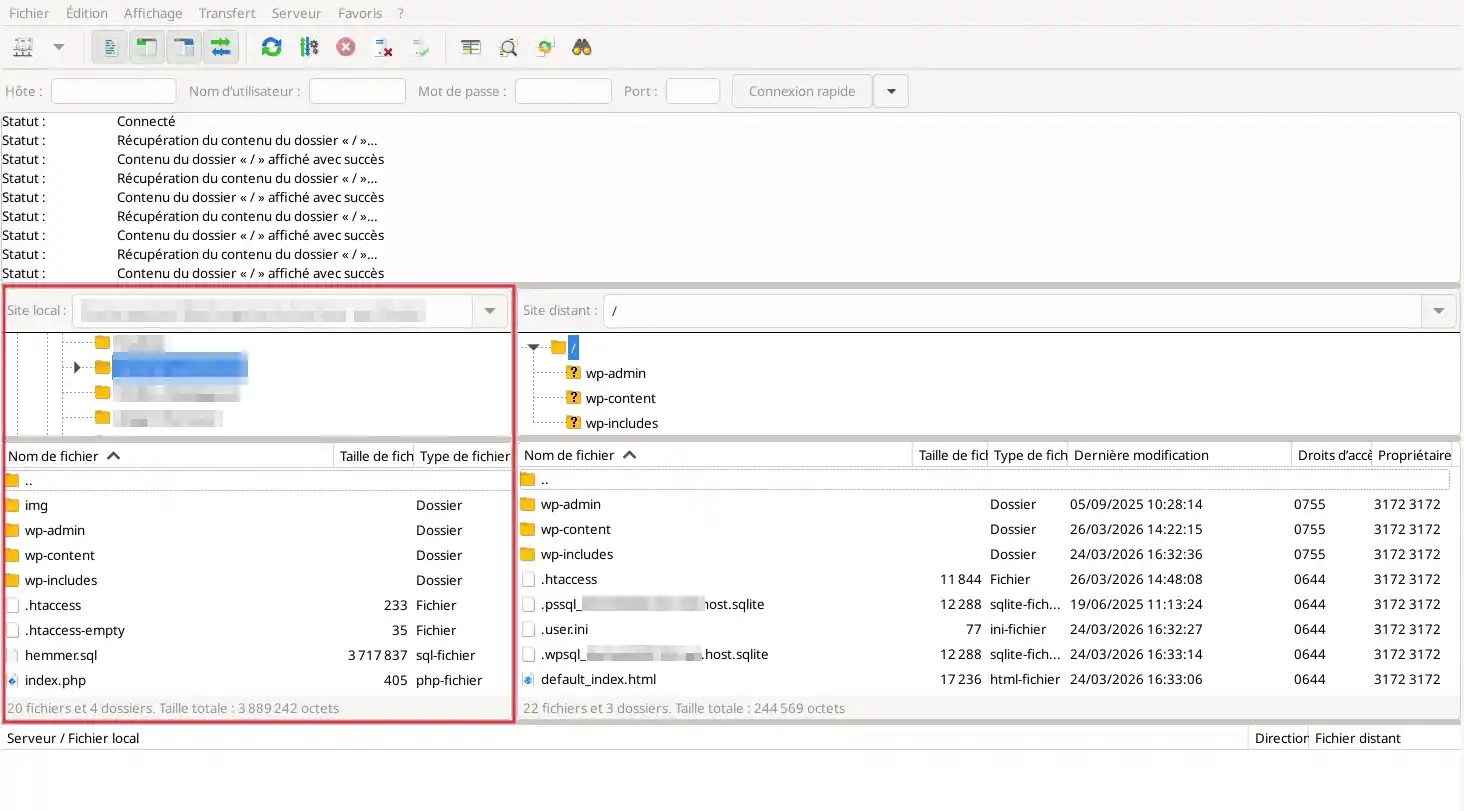
11. In the left part of FileZilla, open the folder containing your site files.
22. In the right part, open the destination folder for your site on the hosting account.
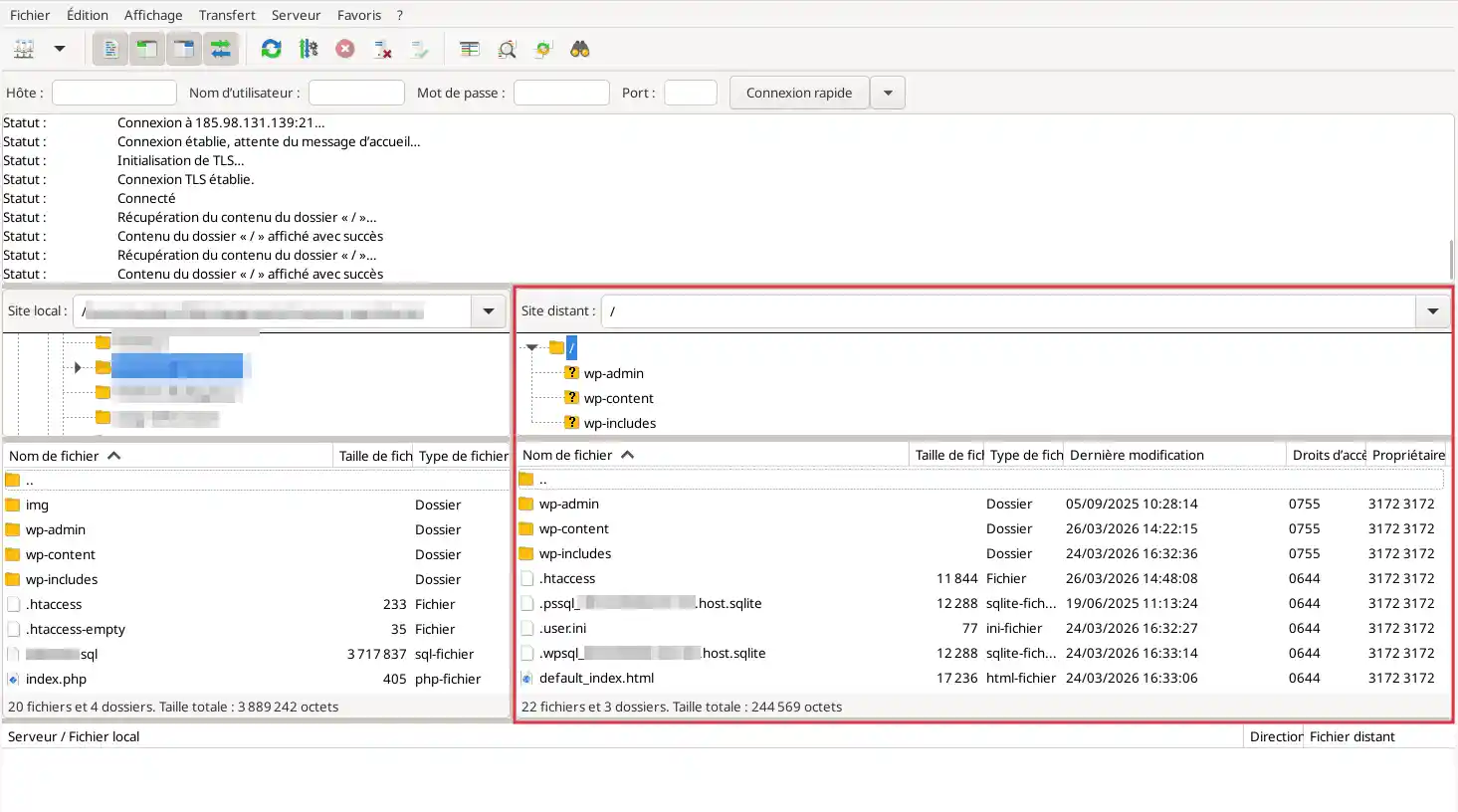
You must publish the files in the web folder intended for displaying the site.
The exact name of this folder may vary depending on the hosting or control panel. That is precisely why retrieving the settings and identifying the correct location must be checked in your environment’s documentation.
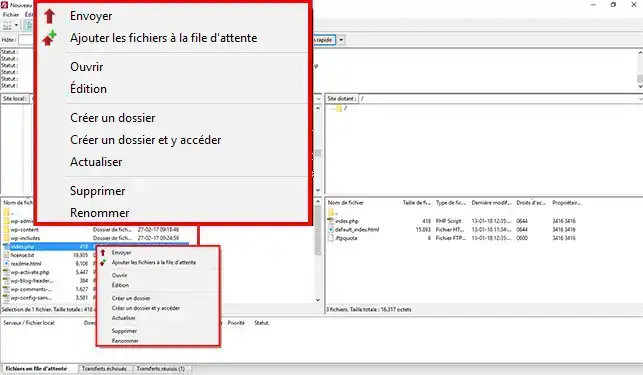
33. Select your site files in the left part, then:
- drag and drop them to the right part;
- or right-click and choose Upload.
44. Wait for the transfer
Wait until all files have been transferred.
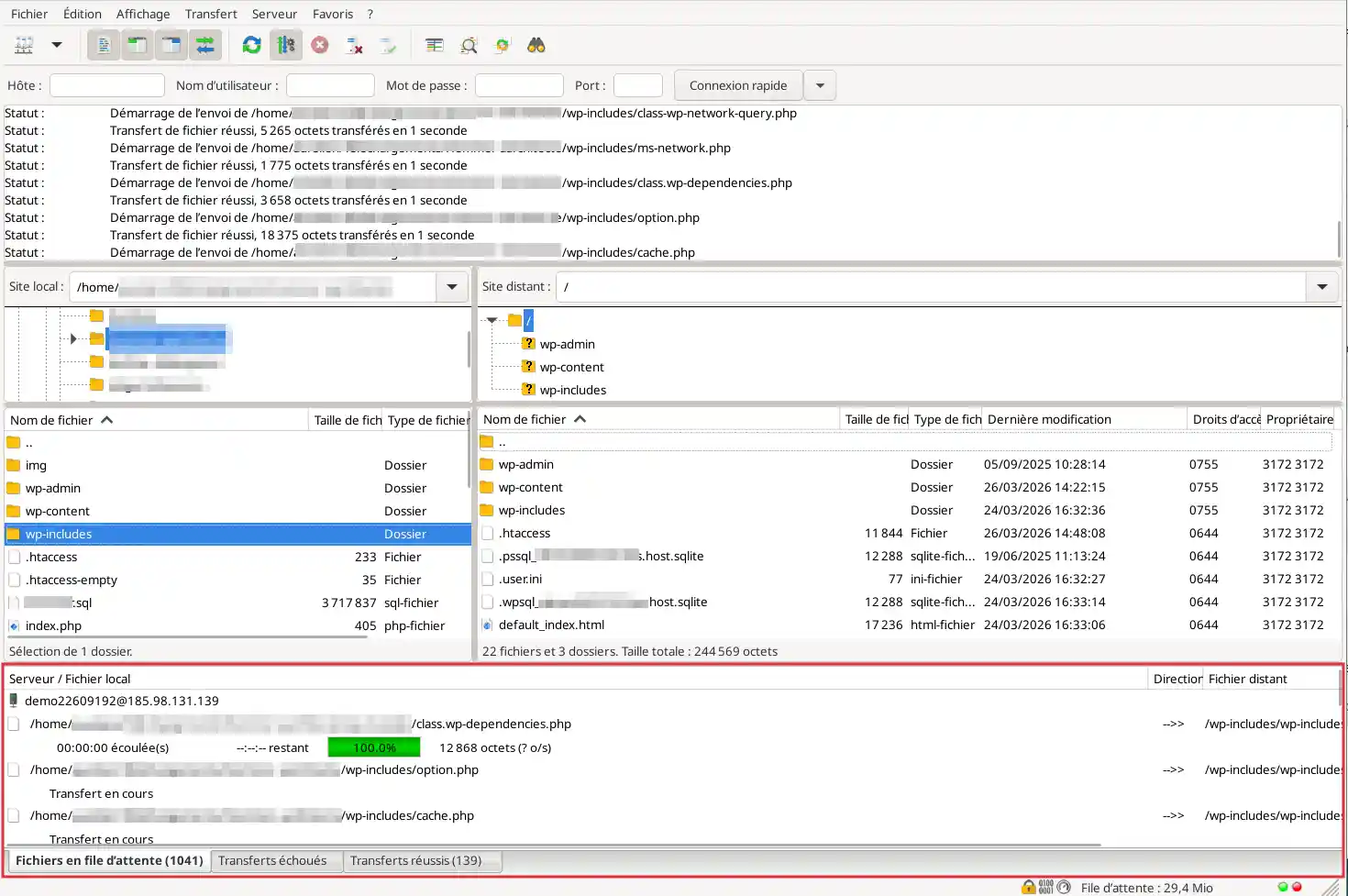
The time required depends on:
- the number of files;
- their size;
- the speed of your Internet connection.
55. Check that no error is reported
Once the transfer is complete, make sure the files appear in the right part and that no blocking error is shown in the transfer queue.
Step 7: replace an existing site
If your hosting already contains a site or a default page, you may need to replace the existing files.
Before replacing files
It is strongly recommended to:
- back up the existing files;
- check that you are in the correct folder;
- make sure you are actually replacing the old site.
LWS also provides dedicated documentation for backing up web files, which makes it a relevant step before any major change.
If FileZilla asks for confirmation
When FileZilla detects that a file already exists, it may ask whether you want to:
- replace the file;
- skip the transfer;
- apply the choice to all affected files.
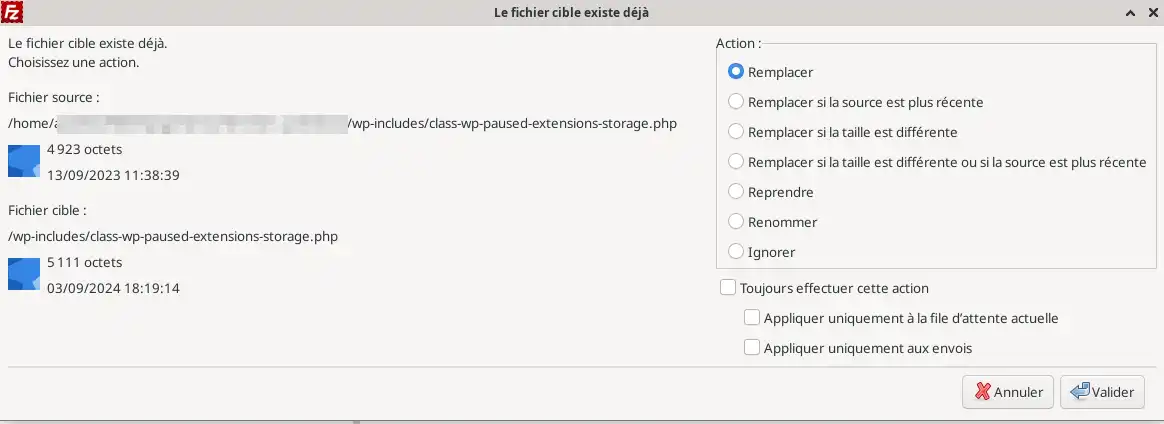
Read the window carefully before confirming.
Publish your site with Cyberduck
When to use Cyberduck?
Cyberduck is a popular alternative to FileZilla.
Its interface is often seen as simpler, especially for users who want to get straight to the point.
Step 4: configure the connection in Cyberduck
11. Launch the software.
22. Click the button to open a new connection.
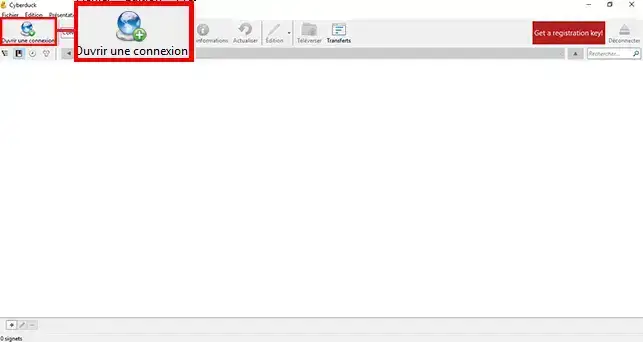
33. Enter the FTP settings (1)
Indicate:
- the FTP or secure FTP protocol according to the provided settings;
- the server / host;
- the username;
- the password;
- the port if necessary.
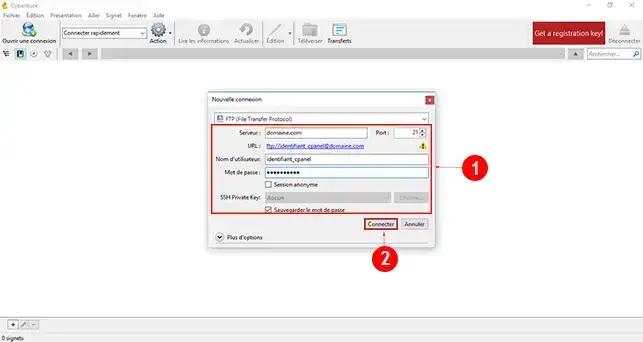
44. Connect to the server by clicking the "Connect" button (2)
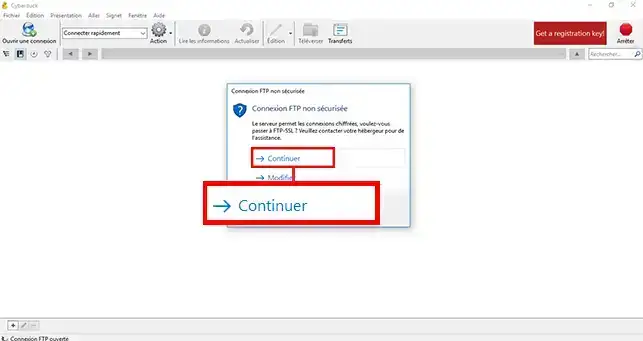
55. If a new window tells you that the connection is not secure, click the "continue" tab.
55. Once connected, go to the folder that should contain the site files. (1)
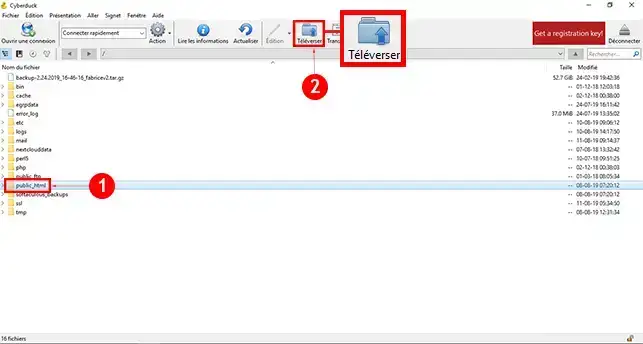
66. Drag your site files into the Cyberduck window or click the "Upload" button (2) then select the files on your computer.
77. Check that all files were uploaded before closing the software.
Publish your site with WinSCP
When to use WinSCP?
WinSCP is another very popular alternative, especially on Windows.
It also allows you to connect via FTP and manage your web hosting files.
Step 4: configure the connection in WinSCP
11. Launch the software.
22. On the welcome screen, create a new connection.
33. Enter the settings
Fill in:
- Host name: your FTP server or the server IP;
- Port: if a specific port was provided to you;
- Username: your FTP username;
- Password: your FTP password;
- File protocol: FTP.
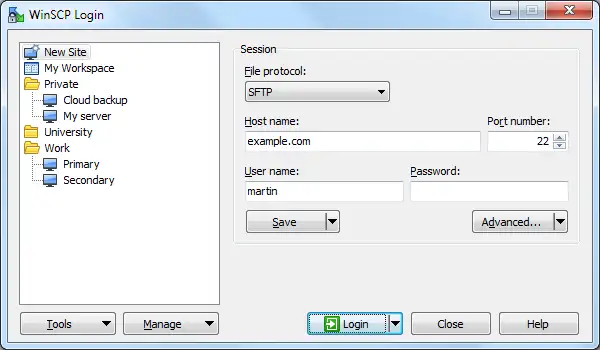
44. Confirm the connection.
55. Understand the interface
As in FileZilla:
- the left side corresponds to local files;
- the right side corresponds to server files.
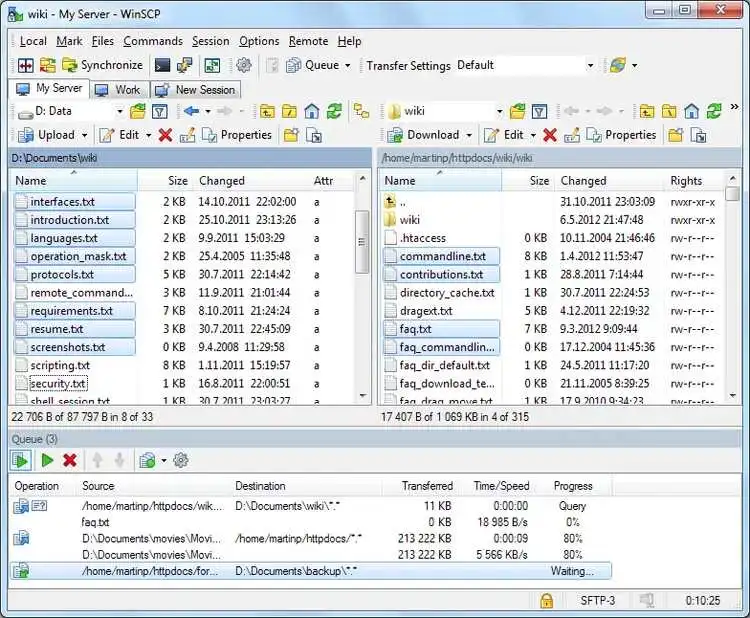
66. Transfer your site files to the destination web folder on the server by dragging the items from left to right
77. Wait until the transfer is completely finished before closing WinSCP.
Check that your site is published correctly
Once the files have been uploaded, you must verify that your site is accessible online.
1. Open your browser
Enter your domain name in your web browser.
2. Check the displayed result
Your site should now display.
The expected result is as follows:
- your homepage loads;
- your images, links and styles display correctly;
- you no longer see the old default page, if there was one.
3. If your site still does not display
Check the following:
- the files were uploaded to the correct folder;
- your homepage is named
index.html or index.php;
- the domain name points to the correct hosting account;
- the files were not uploaded into a subfolder by mistake;
- your browser is not showing an older cached version.
4. If the domain was just configured
If you have just changed the DNS configuration or linked your domain, the display may not be immediate. A propagation delay of a few hours should be observed before checking that everything works.
Common problems and solutions
I can’t connect via FTP
First check:
- the server entered;
- the FTP username;
- the password;
- the protocol chosen;
- the selected encryption.
A simple typing mistake can prevent any connection.
If your domain does not yet point to the correct server
Try connecting with the server IP address instead of the domain name.
A certificate window appears
During the first connection, your software may display a warning related to the security certificate.
If the information matches your hosting, you can confirm the connection.
The transfer fails or gets stuck
In this case:
- restart the transfer;
- check your Internet connection;
- check that your FTP settings are correct;
- try a smaller number of files to test the connection.
I’m connected, but I can’t see my site online
This problem is often due to one of the following cases:
- files uploaded to the wrong folder;
- homepage named incorrectly;
- old site still present;
- domain not linked to the correct hosting account;
- browser cache.
What should you do?
- check the destination folder;
- check the name of the home file;
- refresh the page;
- clear your browser cache;
- compare the files on the server with those on your computer.
My old version of the site still appears
This may be due to:
- browser cache;
- an old file left on the server;
- a domain name that still points to another hosting account.
To do
- force refresh the page;
- clear your browser cache;
- check that the new files have properly replaced the old ones;
- check that the domain points to the correct hosting account.
I can’t find my FTP settings
In that case, go back to the documentation adapted to your panel:
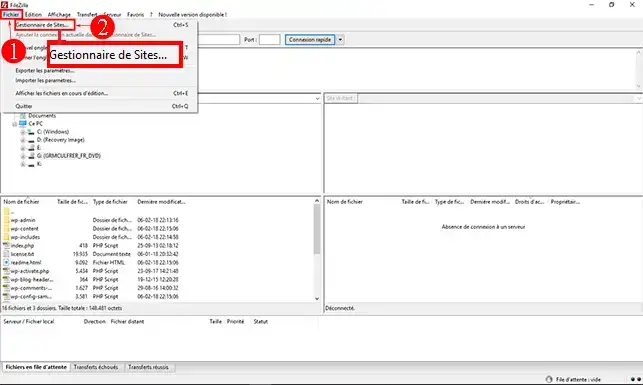
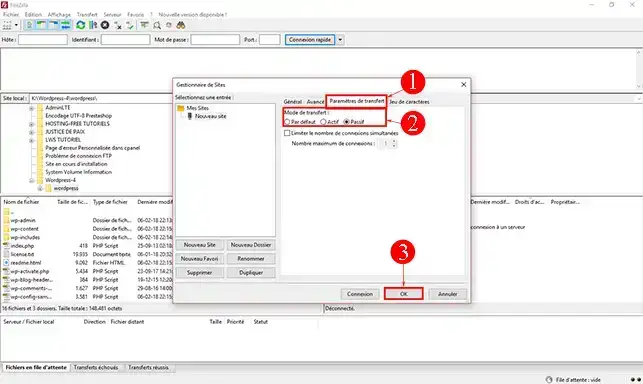
How do I enable passive mode in FileZilla?
11. Open your FileZilla software, click the "File" tab then "Site Manager"
22. Click the "Transfer settings" tab, check the "Passive" box then click "Ok" to save your choice.
Disabling TLS in FileZilla
In some cases, you may encounter the following error:
Command: MLSD Error:
Connection timed out after 20 seconds of inactivity Error: Failed to retrieve directory listing
The TLS connection was non-properly terminated
If so, you need to disable TLS in your FileZilla FTP software.
Best practices before and after publishing
Before going online
- keep a complete local copy of your site;
- check the name of your homepage;
- make sure you publish to the correct folder;
- make a backup if a site is already online.
After going online
- test your site in a browser;
- check a few important pages;
- check the display on desktop and mobile;
- make sure images, forms and links work correctly.
Conclusion
You now know how to publish a website via FTP using dedicated software.
The recommended method is to use FileZilla, but you can also use Cyberduck or WinSCP if you prefer.
In all cases, the principle remains the same:
- retrieve the FTP settings from your control panel;
- configure your FTP software;
- send your site files to the server;
- check that the site displays online.
If your site does not appear immediately, first check the publishing folder, the name of the home file, and your domain’s linking to the hosting account.



 Yes
Yes No
No About
About 