
Online help
The web host accessible to all
Procédure
The WP Manager snapshot is in addition to the automatic backups included with your hosting. Check the full policy to understand which backups are kept by default.
When working on your WordPress website, you may encounter some inconveniences such as, for example, the replacement or deletion of unwanted data. To avoid any problems, WP Manager allows you to perform an instant backup (snapshot) of your site, which you can restore at any time if you need it.
In this section, we will explain how to create a snapshot of your WordPress site. A snapshot is a temporary backup that you can create at any time and restore whenever you need it.
First, you need to log in to your LWS account and access the shared hosting where your WordPress site is hosted.
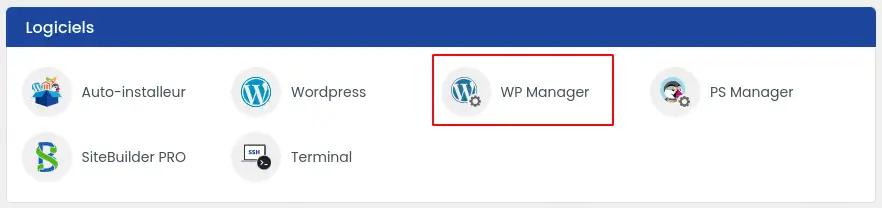
Then click on "WP Manager" located in the "Software" section of your Web hosting account.
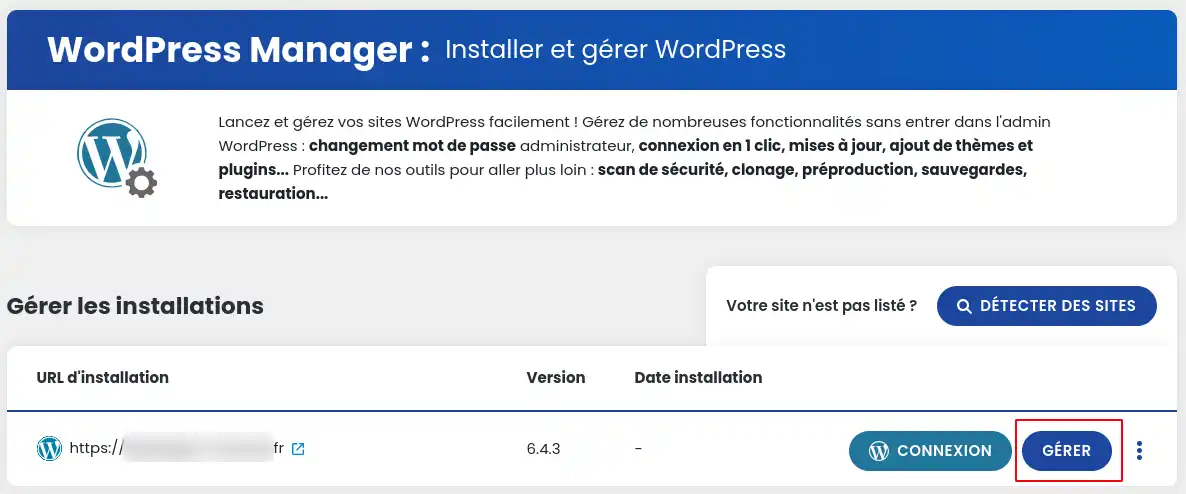
Then click the "Manage" button for the site you want to back up.
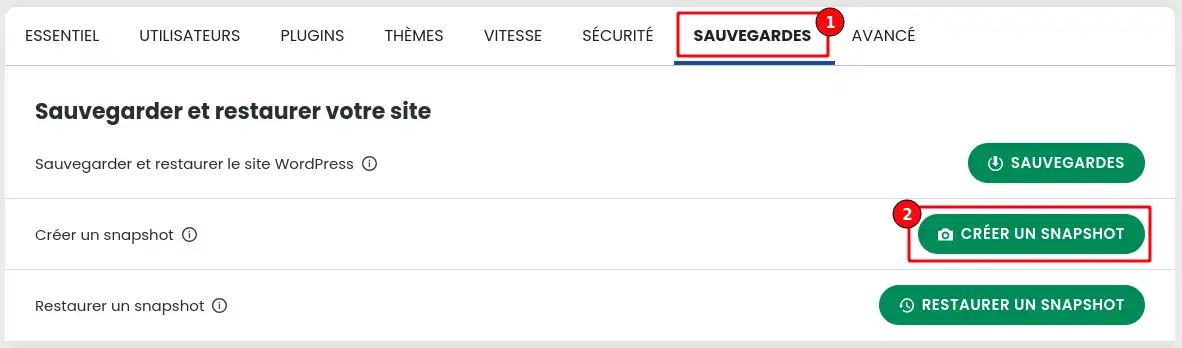
Once in your WordPress site's Manager, click the "Backups" tab, then the "Create a Snapshot" button.
A window opens where you can create a backup of web files only, the database only, or both. You can also add a short description to help you find the Snapshot to restore more easily if you need it.
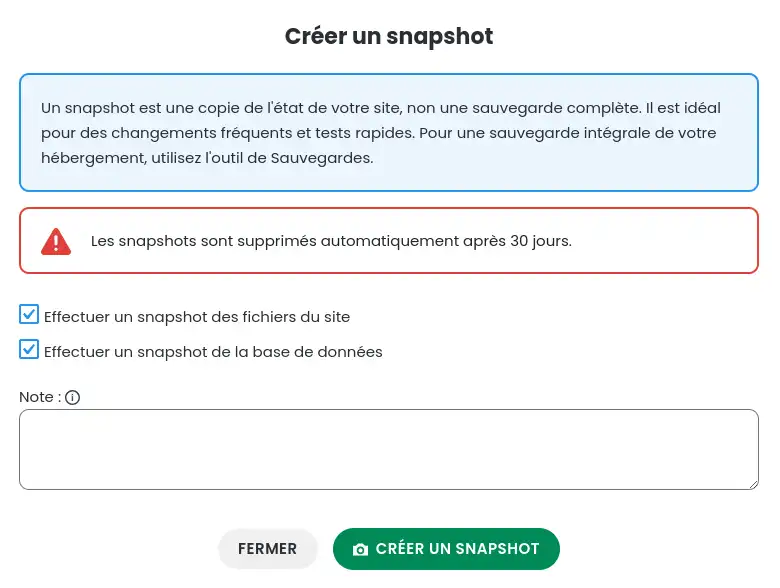
Snapshots are automatically deleted 30 days after their creation. Their use can therefore only be temporary.
After showing you how to create a snapshot, we will explain how to restore it if needed.
First, you need to log in to your LWS account and access the shared hosting where your WordPress site is hosted.
Then click on "WP Manager" located in the "Software" section of your Web hosting account.
Then click the "Manage" button for the site you want to restore.
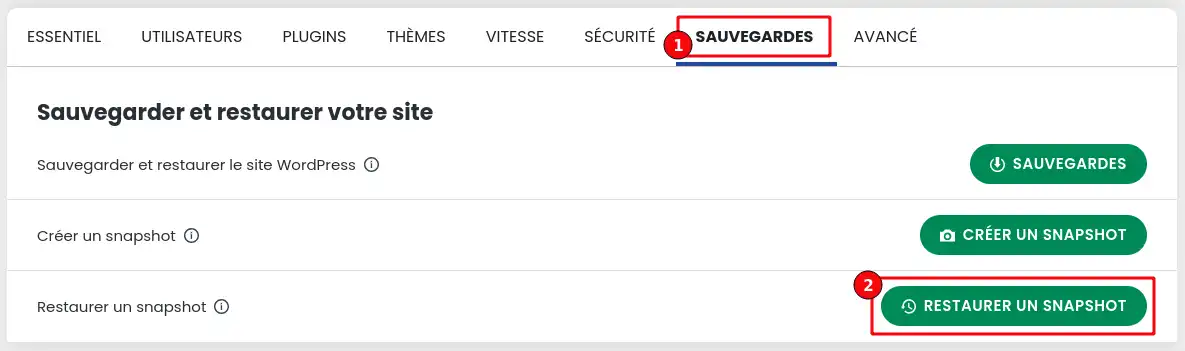
Once in your WordPress site's Manager, click the "Backups" tab, then the "Restore a Snapshot" button.
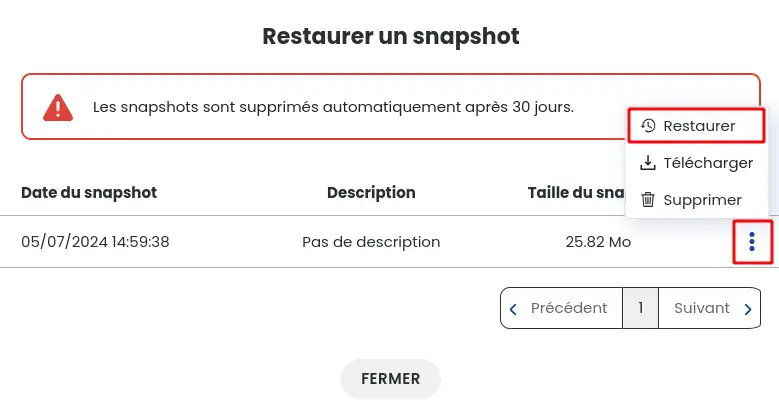
A window opens where you can restore a previously created snapshot. To do so, you must first click the icon with the three dots (1) of the snapshot you want to restore, then select the "Restore" option.
You now know how to:
Whether you want to prevent data loss or restore your site after an incident, these essential steps ensure peace of mind and control over your online content. Don’t forget that snapshots are ephemeral and that it is wise to create them regularly 👍.
Thank you for reading this article to the end! If you have any questions or would like to share your experience with WP Manager, feel free to leave a comment below. Your feedback is valuable and can help the entire community! 😊
Ask the LWS team and the community. Answers are published after moderation.
 About LWS :
LWS is a 100% French web hosting company that focuses on quality and innovation and offers a responsive and competent technical service at affordable prices.
About LWS :
LWS is a 100% French web hosting company that focuses on quality and innovation and offers a responsive and competent technical service at affordable prices.



 Yes
Yes No
No