
Online help
The web host accessible to all
Procédure
A DNS server stores a database of different domain names, network names, internet hosts, DNS records, and other related data. The most basic function of a DNS server is to translate a domain name into its respective IP address. When a domain name resolution request is made, the DNS records are searched and, if found, the domain name record is returned.
If the domain name is not registered or added to this DNS server, the request is then forwarded to other DNS servers until a domain record is found.
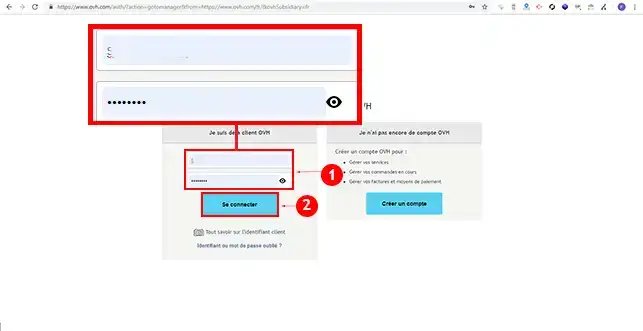
1. Log in to your OVH client area.
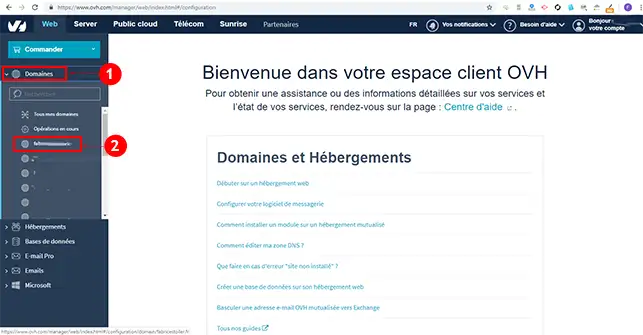
2. Click on the "Domain" tab in the left-hand menu of your client area to view all the domains you have. Click on the domain for which you want to change the DNS servers.
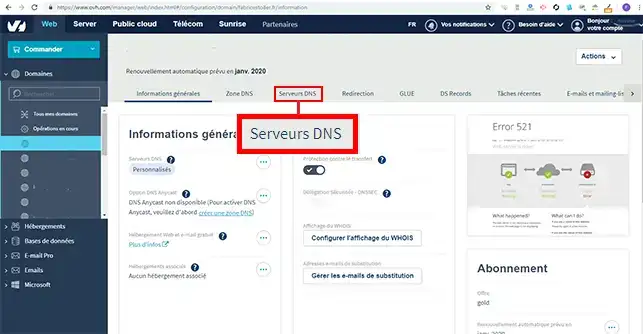
3. Click on the "DNS Servers" tab.
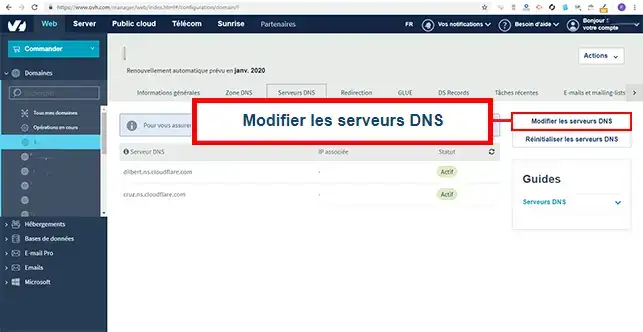
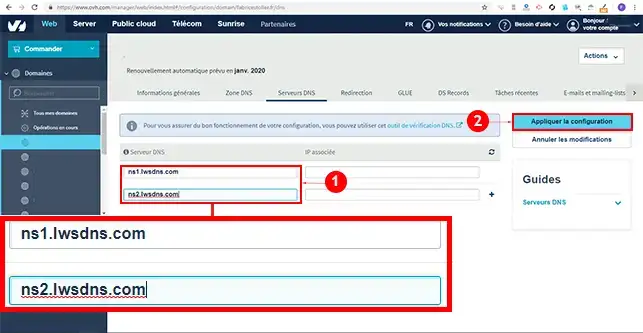
4. Click on the "Modify DNS servers" button to change them to those of your LWS Web Hosting plan. The DNS servers linked to your plan can be found in your LWS client area: the "Domain(s) & Hosting(s)" tab, the "Manage" button opposite your domain, then the "Domain management" section > "DNS servers". They are also listed again on the domain dashboard, in the "Information" block (Dns1 to Dns4 lines).
5. Change the DNS servers at OVH and click the "Apply configuration" button. The servers shown in the screenshot (ns1 and ns2.lwsdns.com) are just an example: enter the ones displayed in your LWS client area, which may be different.
You will need to wait up to 24 hours for the DNS servers to propagate and for your domain to be linked to your LWS Web Hosting plan.
You are now able to change a domain's DNS servers at OVH in order to link it to your LWS Web Hosting. You can also retrieve the Auth code for your OVH domain in order to transfer it to your LWS client area.
Feel free to share your comments and questions.
Ask the LWS team and the community. Answers are published after moderation.
 About LWS :
LWS is a 100% French web hosting company that focuses on quality and innovation and offers a responsive and competent technical service at affordable prices.



 Yes
 No