
Online help
The web host accessible to all
Procédure
The "ERR_CONNECTION_REFUSED" connection error is a generic error message indicating that your web browser's connection to the website was refused. Several reasons could be behind this, such as a connection problem, a block imposed by a firewall, ... This documentation will help you diagnose the problem and provide a solution.
One of the common reasons for the block is that your device's public IP address has been blocked by the cPanel server firewall. To check this, first retrieve your device's public IP address by visiting our dedicated tool: https://monip.lws.fr:
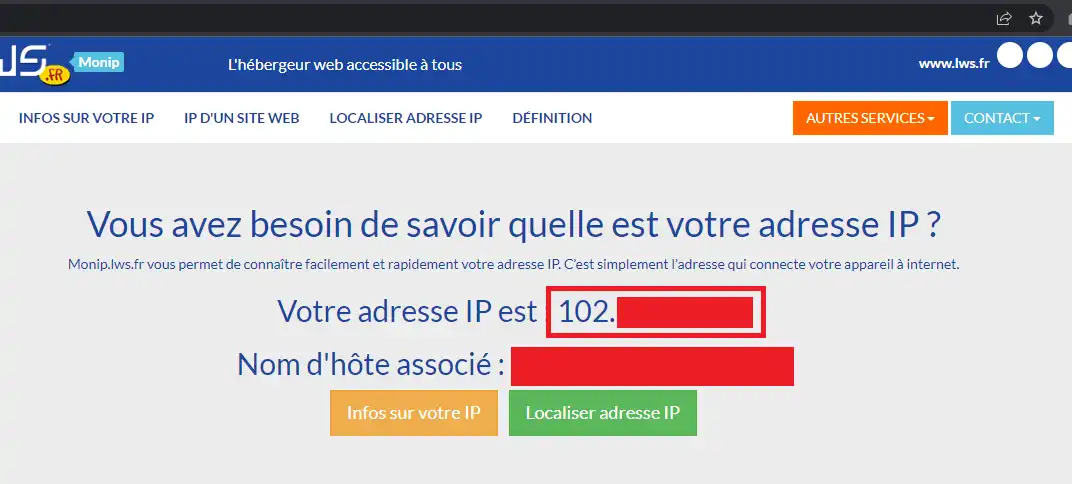
Then, from another device, connected with a different internet connection, check whether your IP address is blocked by the server.
It is very important to use another internet connection for the check, because the same internet connection will most likely share the same public IP address across all of your connected devices (the NAT principle).
If your IP address is regularly blocked by a cPanel server firewall, this would mean that one or more devices on your network are carrying out malicious actions such as brute-force attacks, DDoS attacks, or too many failed connection attempts on the server. Among the events that can trigger a firewall block:
You may also contact support so that a technician can check the server log files to determine why your IP address was blocked.
If the Firewall tool in your cPanel interface does not detect any IP address block, then the block could be at another firewall between your web browser and the cPanel server: the firewall/antivirus on your PC, your router firewall, your Internet service provider's firewall, the upstream firewall in the datacenter hosting the cPanel server, the firewall securing the link between your Internet service provider and one of LWS's network providers, or even an upstream firewall on the LWS network.
First, you can disable the antivirus and/or firewall on your computer to see whether the problem is coming from that side. We have notably observed home/small-business security solutions (antivirus/firewall) that are aggressive enough to block, for example, HTTPS traffic on port 2083, the port you must use to connect to the cPanel interface.
If this is indeed the case, we then invite you to reactivate your antivirus/firewall security solution and add the blocked URL to the exceptions list (whitelist).
If, however, the block is neither on your side nor on the cPanel server side, it will be necessary to identify the blocking point; To identify the blocking point, it will be necessary to trace the route of your network traffic.
Unfortunately, Windows's tracert tool does not allow you to simulate authentic traffic such as TCP traffic. This tool only traces the path of an ICMP request. However, ICMP traffic is heavily filtered on the LWS network because it can be used to carry out DDoS attacks. Thus, the result of Windows's tracert tool could be inaccurate.
For greater accuracy, we invite you to download the nmap tool, which includes a more powerful traceroute tool. Once downloaded and installed, open your command prompt (or PowerShell) and run the following command:
nmap --traceroute -p T:443 yoursite.com
To perform a traceroute on Linux or Mac, open your terminal and run the following command:
traceroute -T -p 443 yoursite.com
Of course, replace "yoursite.com" with the domain name that cannot be accessed (your website or the server hostname, if you cannot access a particular service such as the cPanel interface or webmail). Replace port "443" with the port you are having an issue with:
Once the traceroute is complete, you will see the IP address of the last router/server your computer was able to contact. A successful network connection will show the IP address of your cPanel server, while an interrupted network connection will show timeouts (connection timed out) and the last IP address displayed in the list would potentially be the router/server causing the block (or the router/server immediately after it). If you recognize the IP address and you have access to that router/server, check your routing and/or firewall settings on it. This may in particular be a network configuration set by the network administrator of your local network.
If the detected IP address is the IP address of a router/server belonging to your Internet service provider, then the block would be at their level and it will be necessary to contact them to have it unblocked;
If the IP address is part of the LWS network or one of LWS's network providers, it will be necessary to contact LWS support so that we can examine the problem on the router/server in detail and proceed with the unblocking.
In all cases, you can send the traceroute or nmap command result to our support technicians if you would like help identifying the blocking point.
Ask the LWS team and the community. Answers are published after moderation.
 About LWS :
LWS is a 100% French web hosting company that focuses on quality and innovation and offers a responsive and competent technical service at affordable prices.
About LWS :
LWS is a 100% French web hosting company that focuses on quality and innovation and offers a responsive and competent technical service at affordable prices.



 Yes
Yes No
No