Procédure
What is Moodle?
Moodle is a CMS (online website editor) that makes it quick and easy to manage the content of a website. This CMS is suitable for both small and large companies.
Moodle also adds a number of tools for pedagogical and communicative interaction, creating an online learning environment: this application enables interaction between teachers, learners and teaching resources to be created via the network.
Is Moodle included in all packages?
Moodle is included in all Linux hosting packages.
How do I install Moodle using the autoinstaller?
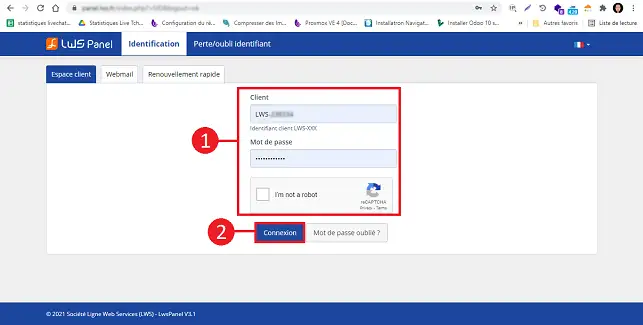
1. Log in to your web hosting administration area
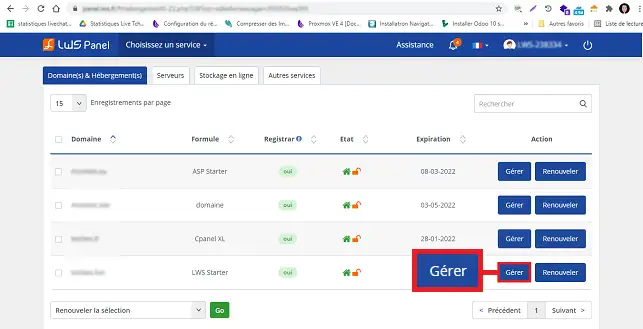
2. Click on the "Manage" button behind the package on which you wish to install the Moodle CMS.
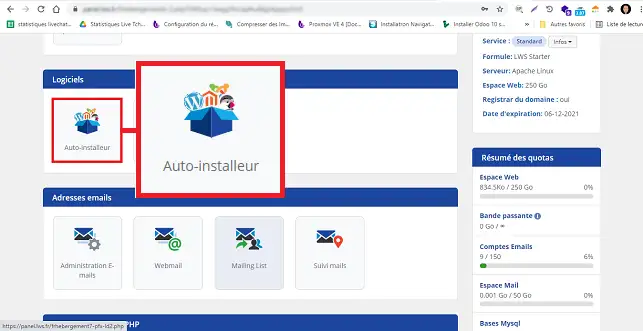
3. Click on the"Auto-installer" button in the"Software" section.
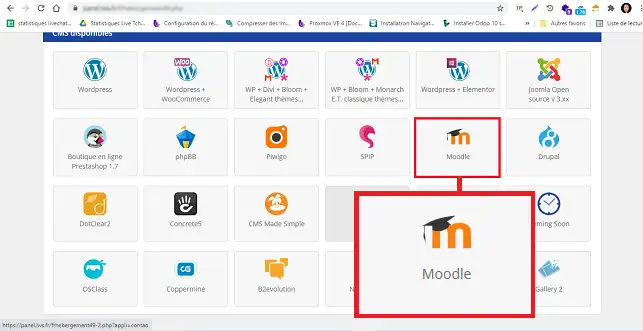
4. Choose Moodle by clicking on the relevant icon.
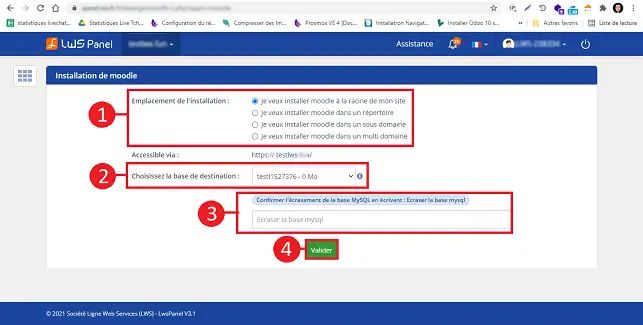
3. Indicate where you would like to install Moodle. You can choose between :
- I want to install Moodle in the root directory
- I want to install Moodle in a directory
- I want to install Moodle on a sub-domain
- I want to install Moodle on a multi-domain
Then choose the database to be used for the installation and fill in the field to confirm that the database to be used can be overwritten.
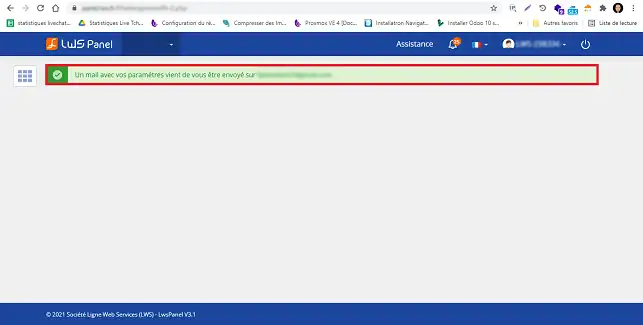
4. Once the installation is complete, the login details for your Moodle interface will be emailed to you.
How do I access Moodle?
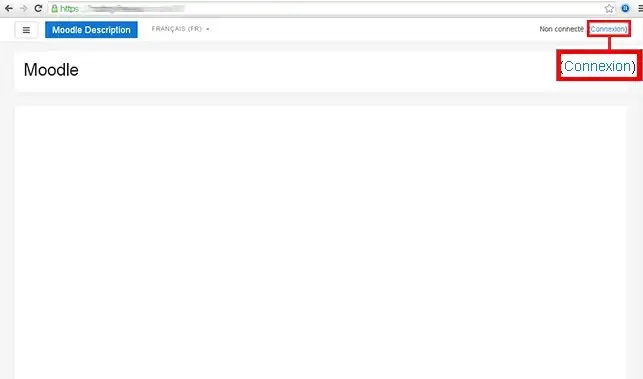
1. Click on Login (the address was sent to you by email during installation)
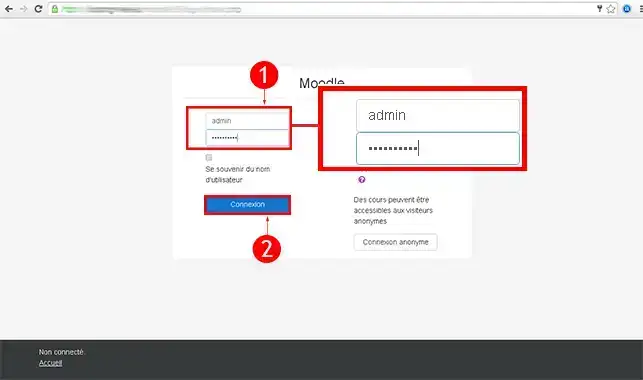
2. Enter the default login details you received in your email. Then click on Connection
3. Click on "System Administrator".
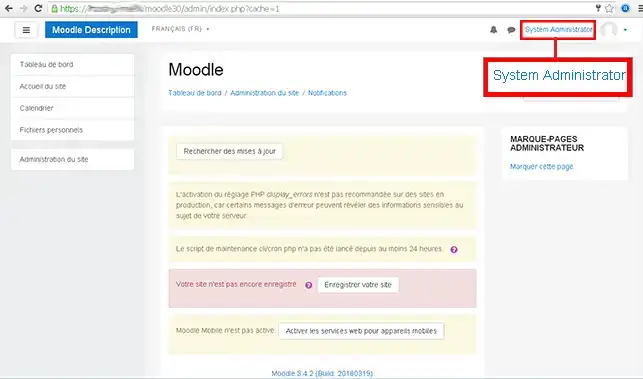
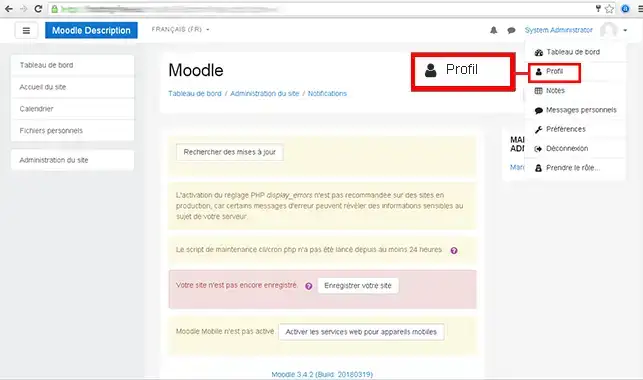
4. Click on the"Profile" tab.
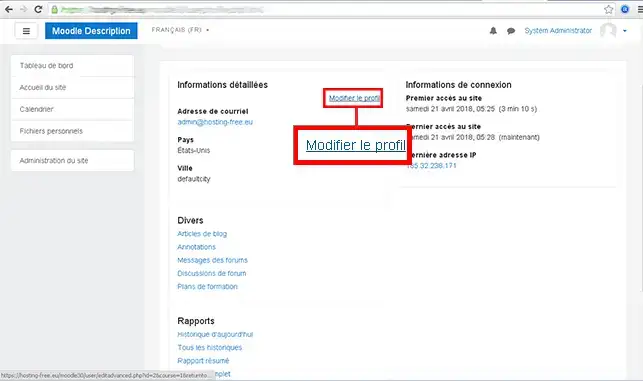
5. Click on Modify my profile
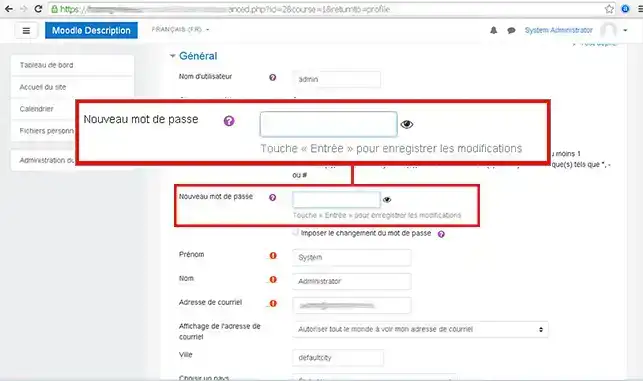
6. Enter your new password and click on Save profile.
How do I create a course in Moodle?
1. Click on Login (the address was sent to you by email when you set up your course)
2. Enter the default login details you received in your email. Then click on Connection
3. Click on the"Home page" button in the left-hand menu.
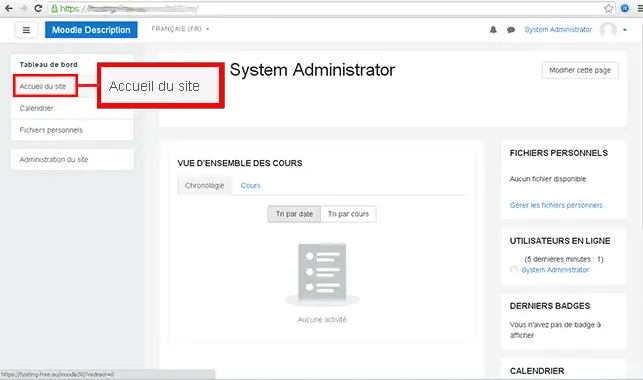
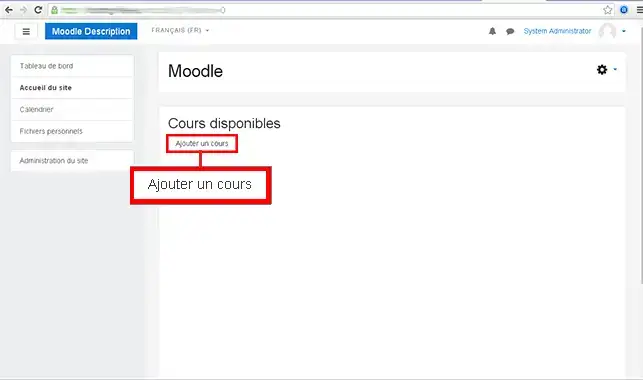
4. Then click on Add a course
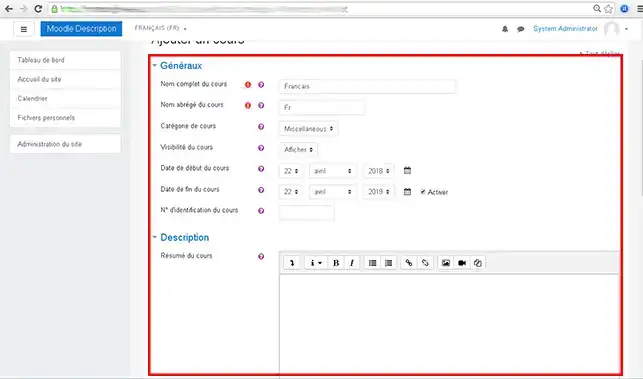
5. Fill in the details of your course then click on Save and display.
How do I create an event in Moodle?
1. Click on Login (the address was sent to you by email when you set up your Moodle account)
2. Enter the default login details you received in your email. Then click on Connection
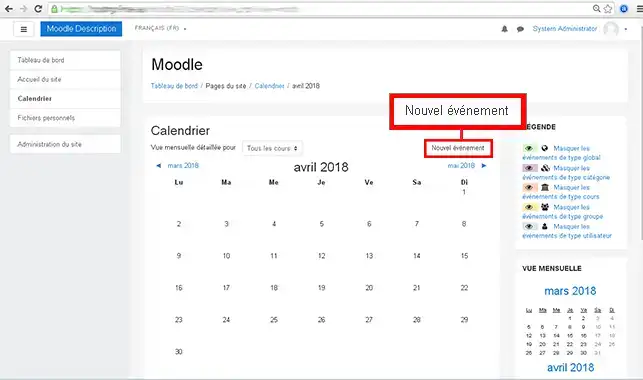
3. On the right-hand side click on Calendar.
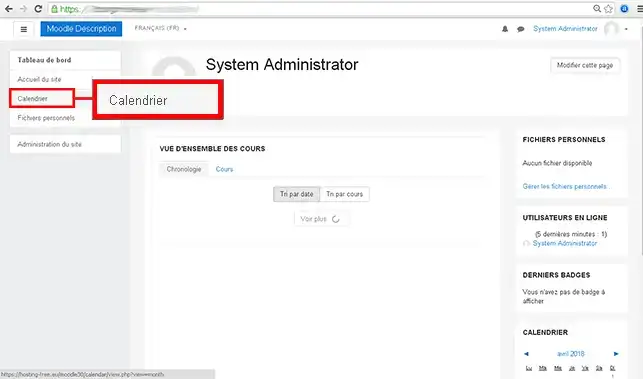
4. Click on the"New Event" button.
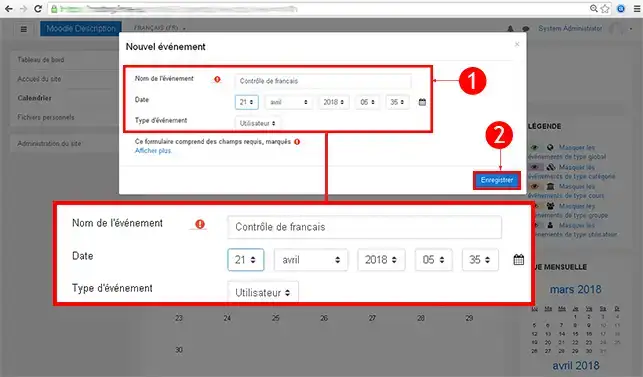
5. Enter the Event Name and the Event Type, then click Save.
How do I add a block in Moodle?
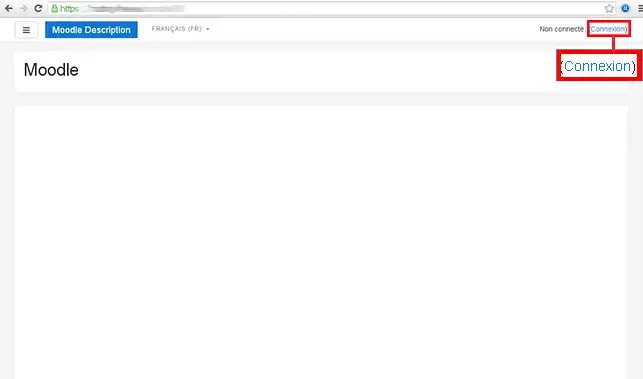
1. Click on Connect (the address was sent to you by email when you installed Moodle)
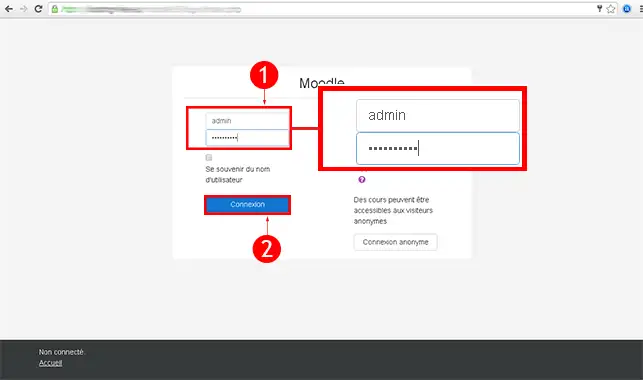
2. Enter the default login details you received in your email. Then click on Connection
3. Click on Modify this page.
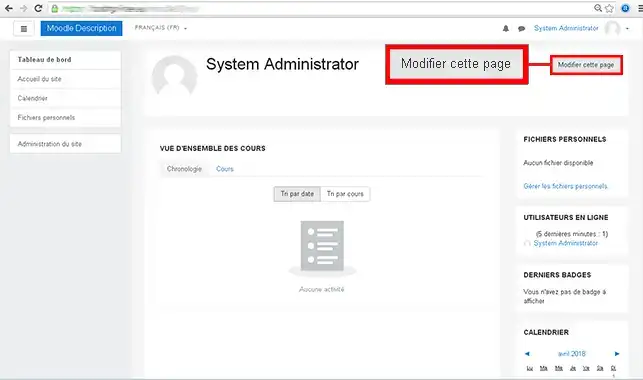
4. Click on Add a block in the left-hand menu .
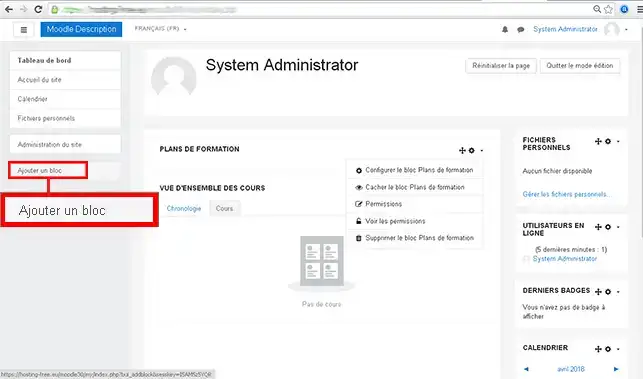
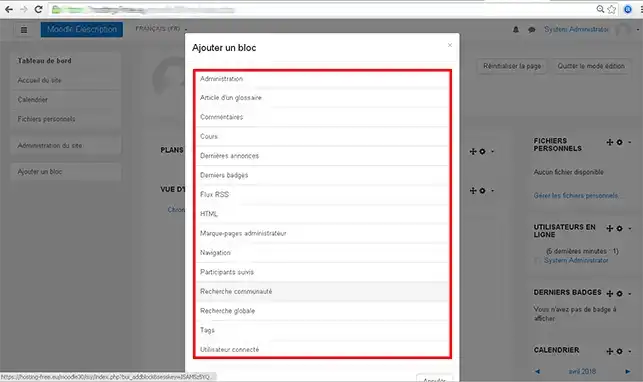
5. Click on the block you wish to add to your page.
How do I change the settings in Moodle?
1. Click on Login (the address was sent to you by email when you installed Moodle)
2. Enter the default login details you received in your email. Then click on Connection
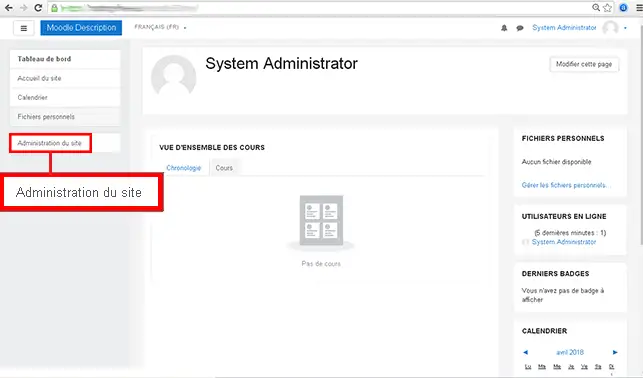
3. Click on the"Site administration" button in the left-hand menu.
4. Click on the "Advanced functions" tab.
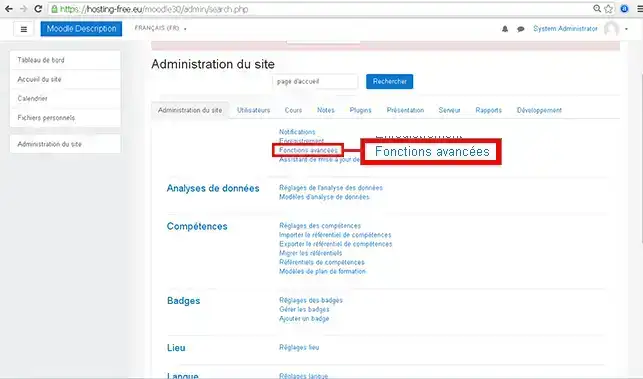
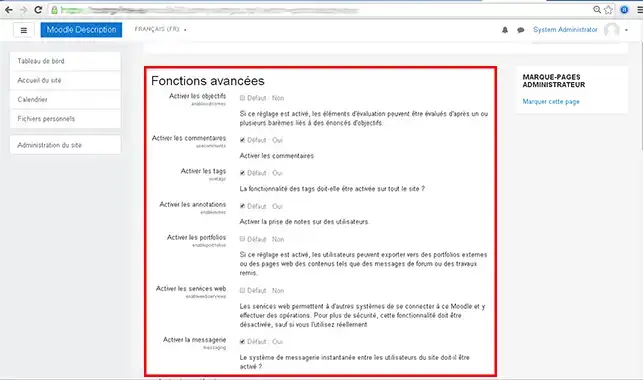
5. Choose the settings you want for your website and click the"Save" button to confirm your changes.
How do I install an extension in Moodle?
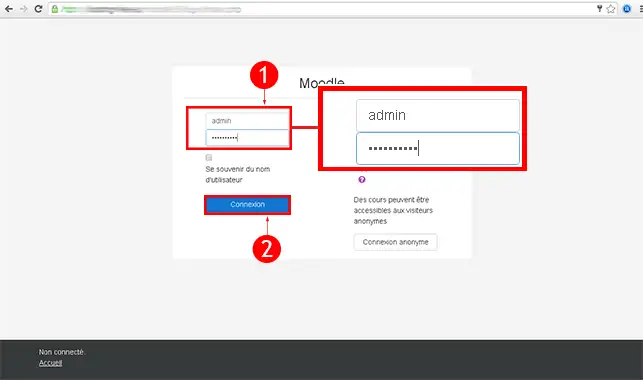
1. Click on Connection (the address was sent to you by email during installation)
2. Enter the default login details you received in your email. Then click on Connection
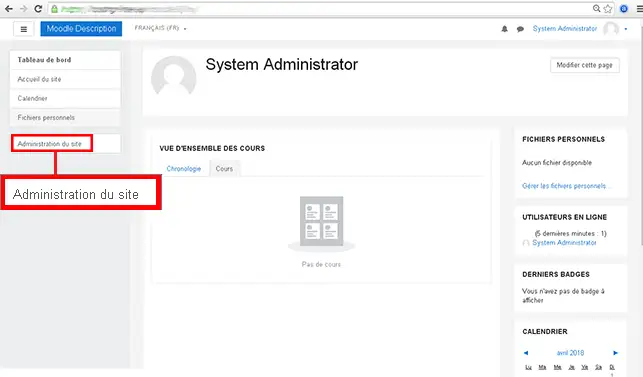
3. Click on the"Site administration" button in the left-hand menu.
4. Click on the"Plugins" tab.
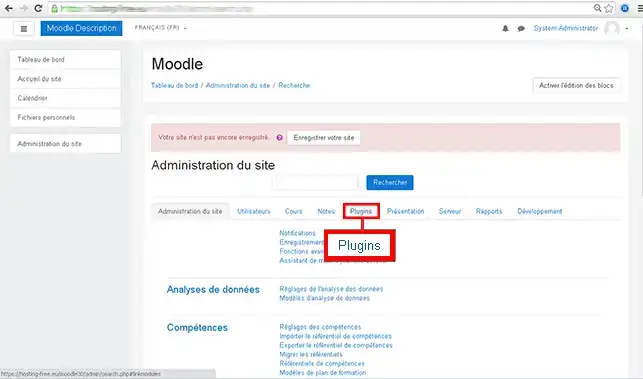
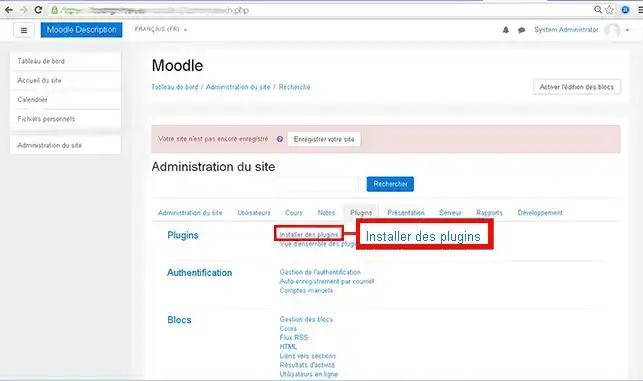
5. Click on the"Install plugins" tab in the"Plugins" section.
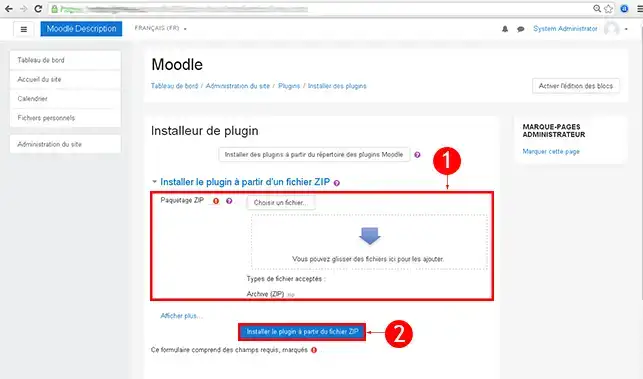
6. Choose whether you want to use the Moodle plugins directory or install the plugin from a ZIP file. If you are installing from a zip file, simply click on Install plugin from ZIP file to confirm.
How do I create a Moodle website?
How can I get help with Moodle?
To find out more about Moodle you can consult the official resources:
Conclusion
You can now create your Moodle site using the auto-installer available on your LWS shared hosting.
Moodle allows you to create a website quickly and without knowledge thanks to its intuitive interface.
Don't hesitate to share your comments and questions!

 Contact us
 Customer Area


 Visit LWS


 Yes
Yes No
No Article read
48935 once
Article read
48935 once Merci ! N'hésitez pas à
poser des questions sur nos documentations si vous souhaitez plus d'informations et nous aider à les
améliorer.
Merci ! N'hésitez pas à
poser des questions sur nos documentations si vous souhaitez plus d'informations et nous aider à les
améliorer.
 About
About 