
Online help
The web host accessible to all
Procédure
LWS AI WP Studio creates a WordPress site for you from a short description of your business: you answer a few questions, choose images and a style, and the assistant builds the pages and their text. It is launched from the LWS Panel Auto-installer, using the card « WordPress with LWS AI WP Studio ». This guide explains how to launch it, what to check afterward, and what to do if the message « Limit reached » appears.
In your customer area, under « Domain(s) & Hosting(s) », click « Manage » next to your domain, then, in the « Software » section, click « Auto-installer ».
You can also start from WP Manager: in the « Install a new WordPress » block, the « WordPress + LWS AI » shortcut and its « INSTALL » button lead to the same tool.
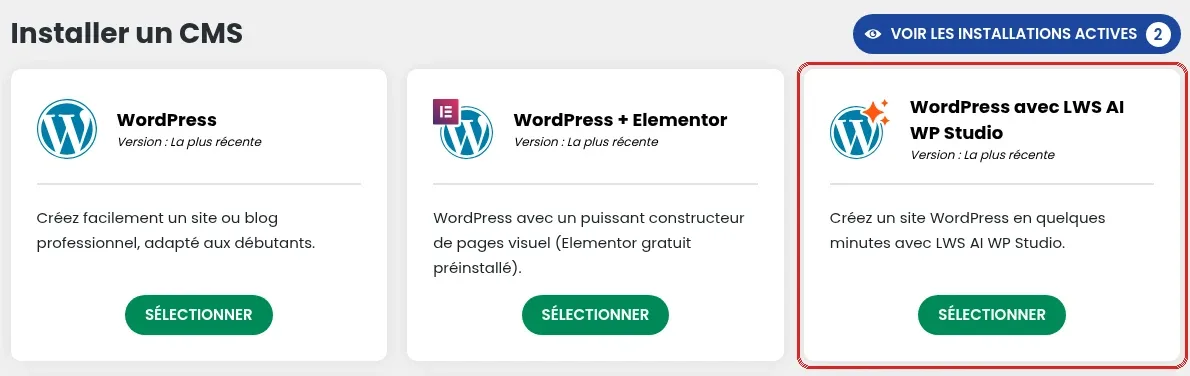
In the « Install a CMS » section, find the « WordPress with LWS AI WP Studio » card (« Create a WordPress site in a few minutes with LWS AI WP Studio. ») and click « SELECT ».
Like any application in the Auto-installer, the site can be installed on your main domain, on a subdomain, on an additional domain (multi-domain), or on one of its subdomains. Choosing the address is explained in the guide How do I install WordPress with the LWS auto-installer?.
The assistant guides you through five steps:
Take the time to complete each step carefully: the site is built from these answers.
Open the chosen address in your browser: your WordPress site should appear with its pages. It also appears in WP Manager, where the « LOGIN » button opens its admin area without a password.
Then review each page before promoting your site: the text and images are generated automatically, so you must correct anything that does not match your business (contact details, prices, opening hours…). You can then edit them like any other WordPress site.
If your site does not appear in WP Manager, click « DETECT SITES ».
The AI website creator for WordPress is included in all three LWS web hosting plans: Perso, Starter and Performance.
This message says: « You have reached the maximum number of sites allowed to be created. Please contact your host to create more sites. » Contact LWS technical support from your customer area, providing your domain name and attaching a screenshot of the message.
In the meantime, you can install a standard WordPress site with the « WordPress » card in the Auto-installer.
The assistant creates a new site based on your answers. If your current site is already a WordPress site, migrate it instead: see how to migrate your WordPress site from another server to your LWS hosting. If your site was made with another tool, create the new site with the assistant, then copy your text and images into it.
Yes: in the last step of the assistant, activate the shop. An AI-generated shop uses the WooCommerce or SureCart extension, at your choice, with an Astra theme suited to your business.
The domain plan has neither PHP nor a database: WordPress cannot run on it, and the Auto-installer displays « Plan change required ». To use LWS AI WP Studio, switch to a Perso, Starter or Performance plan with « Change plan » in the LWS Panel, after backing up your site.
Ask the LWS team and the community. Answers are published after moderation.
 About LWS :
LWS is a 100% French web hosting company that focuses on quality and innovation and offers a responsive and competent technical service at affordable prices.


 Yes
 No