
Online help
The web host accessible to all
Procédure
Concerned service : LWS Panel hosting package with SiteBuilder Pro
Concerned panel : LWS Panel / SiteBuilder Pro
Level : beginner
This help article explains how to remove the published version of a site created with SiteBuilder Pro from your [ADDRESS] hosting account.
The deletion is done from your hosting file manager by removing only the files generated when the site was published.
This action is not used to modify your site in the SiteBuilder Pro editor. It simply removes the files visible online on your hosting account.
This operation may make your site inaccessible if no other site is present on the hosting account. Before deleting the files, make sure you are removing only the items indicated in this help article.
This operation consists of deleting the files currently published on your hosting account by SiteBuilder Pro.
You can make a backup of your data before starting. LWS also performs a daily backup of your hosting files, which you can restore if needed by following this procedure:
https://aide.lws.fr/a/108
If you republish your site from the SiteBuilder Pro builder, the necessary files will be recreated on your hosting account and your site will become visible to visitors again.
You must delete only these items at the root of the relevant site:
sitepro folder;.htaccess file;index.php file.If needed, follow this help article: https://aide.lws.fr/a/1316
On an LWS Panel hosting account, the main site is located in the htdocs folder.
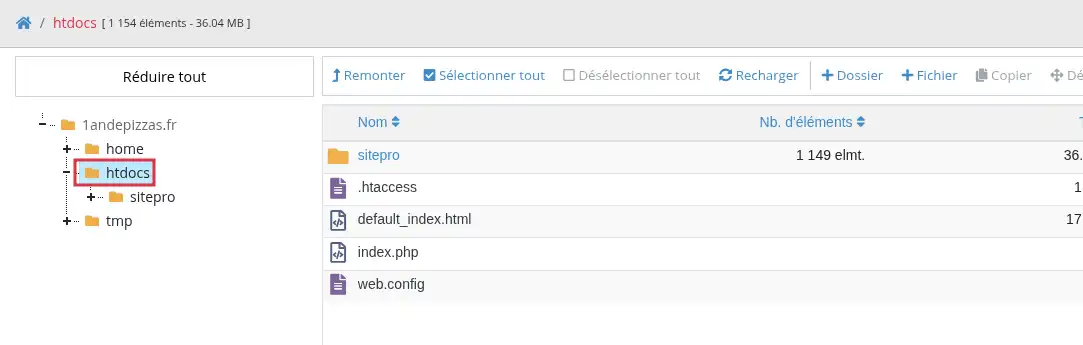
sitepro folder.Select only this folder, [PERSON_NAME]>
index.php file.Select only this file, [PERSON_NAME]>
.htaccess file.Select only this file, [PERSON_NAME]>
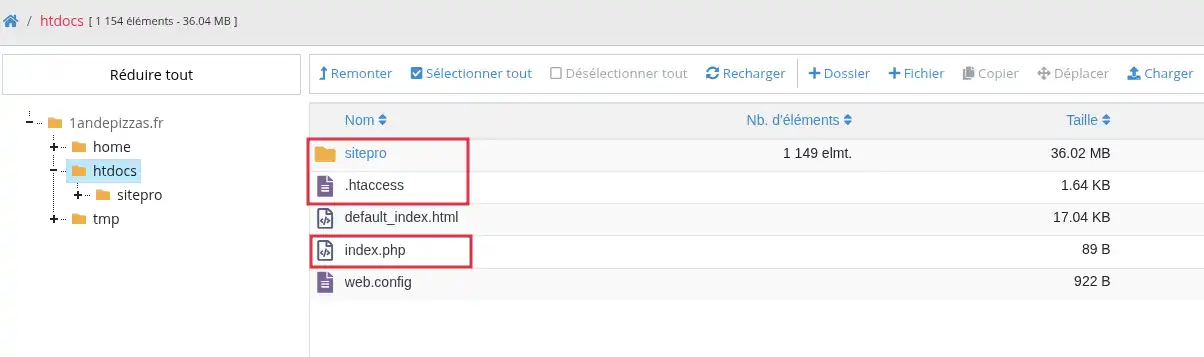
Do not delete any other folders or files if you are not sure what they are for. Files belonging to another site, a CMS, or an application may be present in the same hosting account.
Open your domain name in a browser.
If the SiteBuilder Pro files have been [ADDRESS], the site published with SiteBuilder Pro should no longer be displayed.
The result may vary depending on what remains in the site folder:
index.php file, it should take precedence over the SiteBuilder Pro site.The SiteBuilder Pro publication is removed when the sitepro folder and the index.php and .htaccess files generated by the publication are no longer present in the site folder.
Do not open SiteBuilder Pro to click the Publish button, unless you want to put your SiteBuilder Pro site back online.
Indeed, a new publication will recreate the necessary files on your hosting account, including the sitepro folder, the index.php file and, depending on the configuration, the .htaccess file.
I still see my SiteBuilder Pro site after deletion
Check that you have [PERSON_NAME] in the correct folder. If your domain points to a subfolder or if the site concerns a subdomain, the files may not be in the main folder.
Then refresh [ADDRESS] page in your browser. You can also test from a private browsing window to avoid displaying an older cached version.
My site shows an error after deletion
This is normal if no other site has been put back in place. The deletion removes the version published by SiteBuilder Pro, but it does not automatically publish another site instead.
To display another site, you must put its files back in the site folder or publish another version.
The SiteBuilder Pro site comes back after a few steps
This usually happens if you clicked Publish in SiteBuilder Pro after deletion. In that case, SiteBuilder Pro recreated the publication files. Repeat the deletion only if you want to remove the published site again.
Ask the LWS team and the community. Answers are published after moderation.
 About LWS :
LWS is a 100% French web hosting company that focuses on quality and innovation and offers a responsive and competent technical service at affordable prices.
About LWS :
LWS is a 100% French web hosting company that focuses on quality and innovation and offers a responsive and competent technical service at affordable prices.



 Yes
Yes No
No