Procédure
Before restoring your web files, consult the Backup Policy for your shared web hosting to understand which backups are available depending on your plan and how long they are retained.
Objective
This documentation explains how to retrieve a backup of your web files or restore a previous version of your site from the LWS Panel.
Use this procedure if files from your site have been deleted, modified by mistake, or if you want to revert to an earlier state of your hosting.
Services concerned
This documentation is intended for customers with:
Management is done from the LWS Panel.
Before you begin
Prerequisites
Before performing a backup or a restoration, make sure:
- you have access to your LWS customer account
- you understand that a restoration replaces existing files
Things to know before choosing an action
It is important to distinguish between the two available actions:
Download a backup
This action allows you to retrieve a copy of your web files.
It does not modify your hosting.
Restore a backup
This action allows you to reinject the backed-up files onto your hosting.
The existing files will be replaced.
The web files do not always represent the entirety of your site.
If your site also uses a MySQL database, restoring the files alone may not be enough to get the site back exactly in the desired state. In that case, you will also need to restore the database to a consistent date.
In which cases should you use this documentation?
You can follow this procedure if:
- your site no longer displays correctly after an incorrect action
- one or more files have been deleted
- you want to recover an older version of your web space
- you want to download a backup to keep it locally
- you want to restore only a file, a folder, the home page, or an added domain on your hosting
Step 1: Check that your plan allows restoration
The LWS Panel offers a backup and restoration feature for web services.
Depending on the subscribed plan, the backup retention period may vary from 30 or 90 days.
Before going further, make sure that:
- your plan includes web backups
- the desired backup period is still available
If you do not know the backup level included in your plan, consult the LWS documentation dedicated to your hosting backup level.
Step 2: Access the backup service in the LWS Panel
11. Log in to your LWS account
22. Open the relevant hosting account
33. In the Files section, click the button: Backups / Restorations

44. Then click the tab: Web Backups
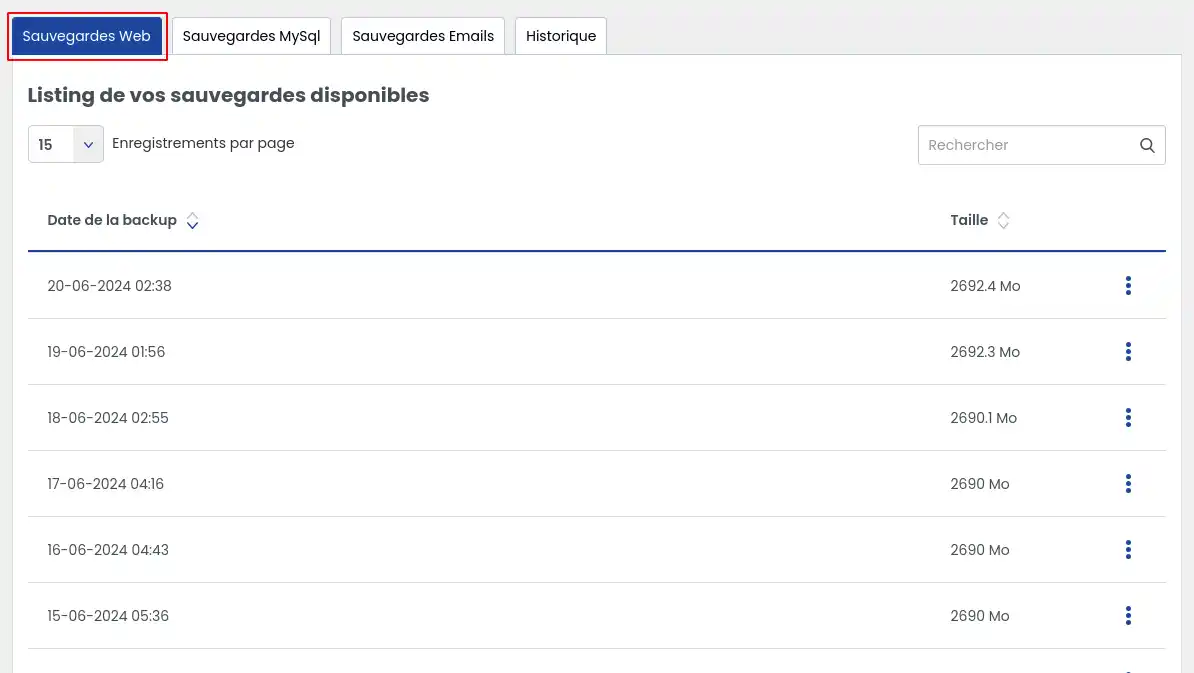
You will then access the list of backups available for your hosting.
Option A - Download a backup of your web files
When should you use this option?
Choose this action if you want to:
- keep a copy of your site
- retrieve your files without modifying the hosting
- analyze the files before deciding on a restoration
Detailed steps
11. In the Web Backups tab, locate the backup date you want to retrieve.
22. On the line corresponding to the chosen backup, click the action button on the right. (3 vertical dots)
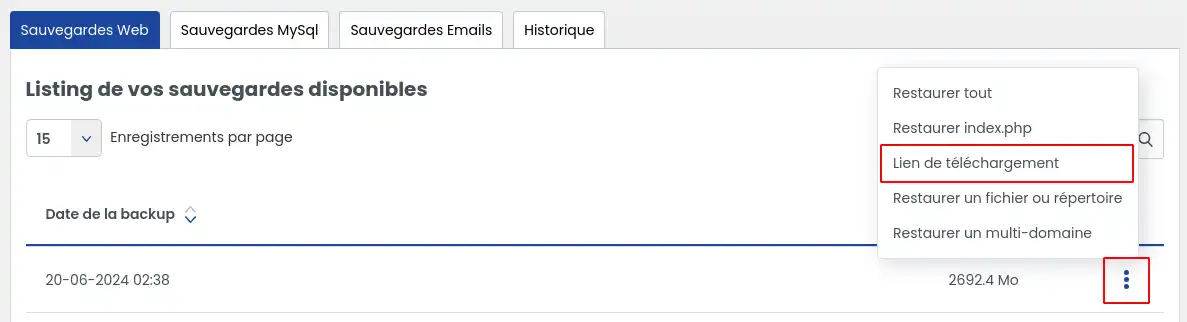
33. Choose the option: Download link
44. A window opens. Click Generate link
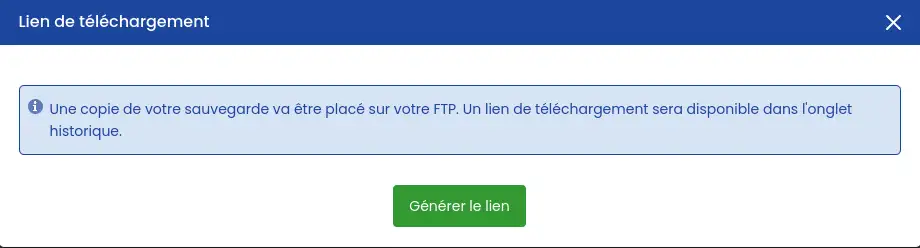
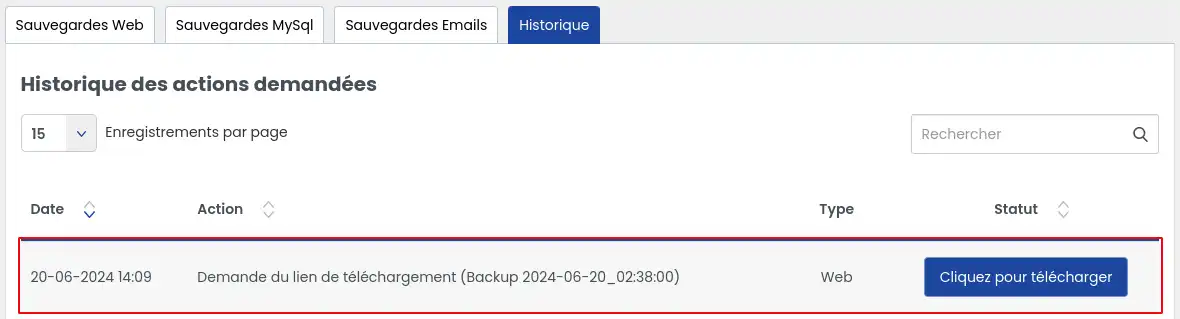
55. Then open the History tab
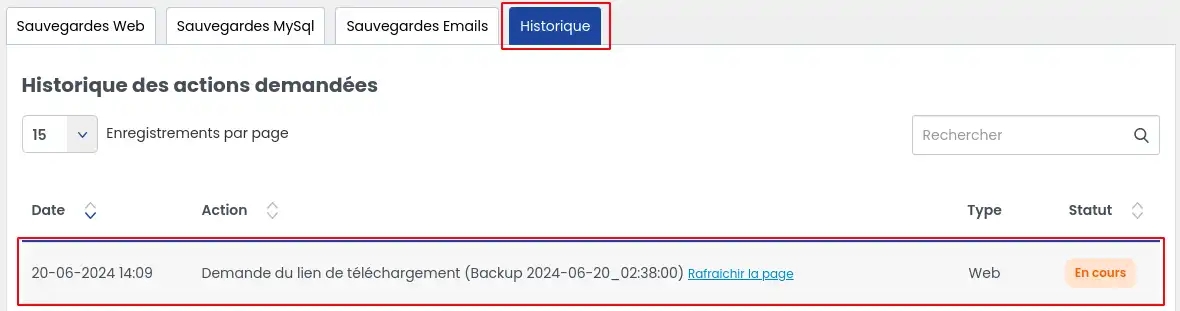
There you can check the progress of the link generation. This operation may take several minutes, depending on the amount of data involved.
Refresh the page regularly to check whether the status has changed.
77. Once the link is ready, a download button "Click to download" appears. Click it to retrieve your backup.
Alternative recovery method
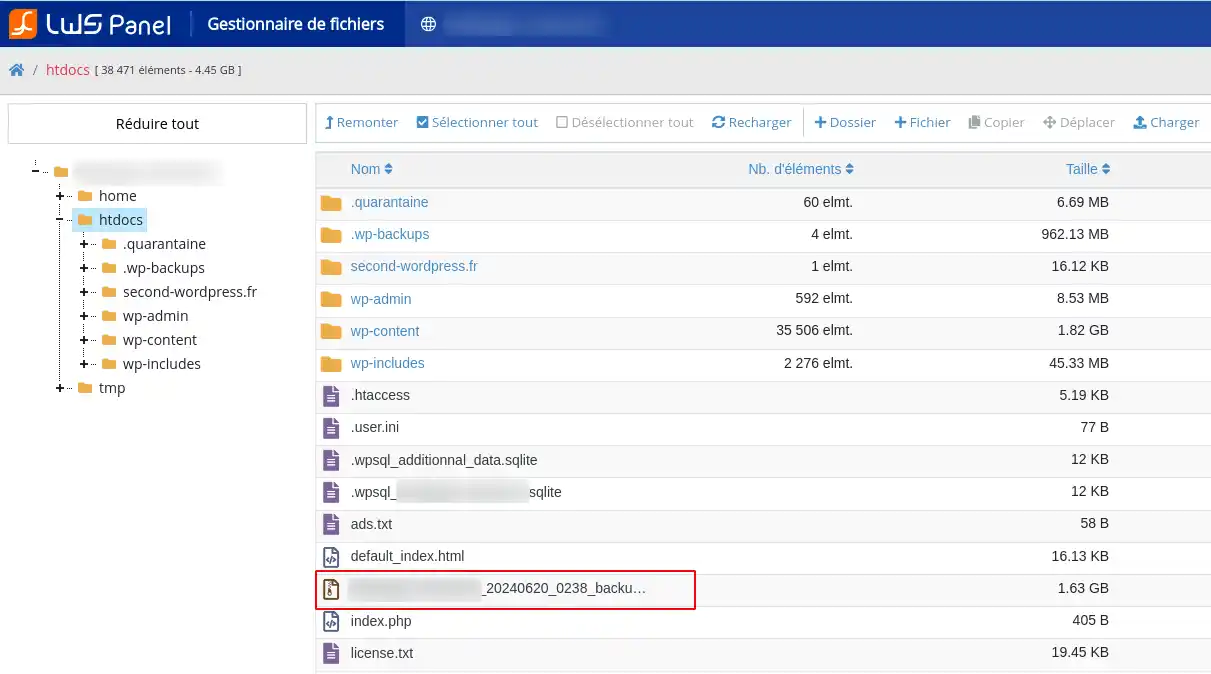
The generated backup can also be found in the root folder of your hosting. You can then download it:
If you use this method, make sure you download the correct backup file.
Limitations to know
Important limitations:
- only backups of less than 20 GB can be restored using this method
- for a larger backup, you must use a Business support option or a managed hosting service
- files larger than 500 MB placed on the FTP space may be deleted automatically if you leave them there too long
These points must be taken into account before generating or keeping a backup on the hosting account.
Option B - Restore a backup of your web files
Before restoring
Before starting a restoration, take a moment to identify what you actually need to put back in place.
You can restore:
- the entire hosting account
- only the index.php file
- a specific file or folder
- an additional domain or a subdomain
Choose the right option
Restore all : Use this if the entire site has been damaged, deleted, or replaced.
Restore index.php : Use this if only the site’s main home page is affected.
Restore a file or folder : Use this if you know exactly which item needs to be recovered.
Restore a multi-domain : Use this if the issue concerns an additional domain or a subdomain hosted on the same plan.
Common procedure to access restoration options
11. From the LWS Panel, access the list of available backups.
22. Choose the date that matches the state of your site you want to recover.
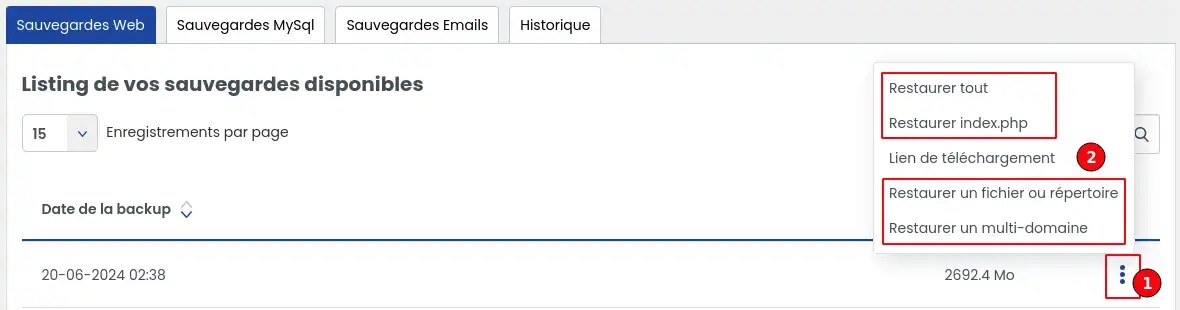
33. Click the button located to the right of the chosen backup (1).
44. Select the restoration option corresponding to your need. (2)
1. Restore the entire hosting account
When should you use this option?
Choose this option if you want to restore all web files on your hosting account.
What this restoration does
All files on the hosting account are deleted, then the backup files are restored to the web space. This is therefore the most drastic option.
Steps
- Click the Restore all action.
- A confirmation window opens.
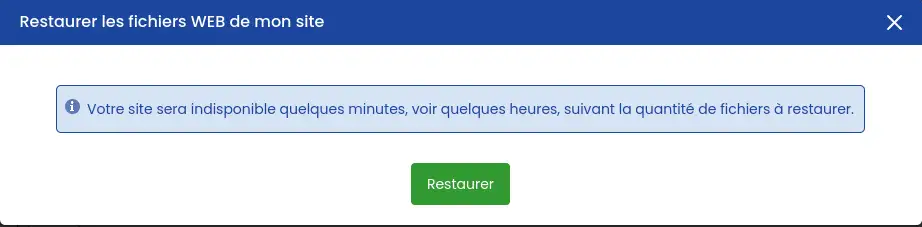
- Check that you have selected the correct backup date.
- Confirm the action by clicking the "Restore" button
This operation replaces the current state of your hosting with that of the selected backup.
Do not use it if you only want to recover a specific file or folder.
2. Restore only the index.php file
What does index.php refer to?
The index.php file is generally the main home page file of the site, located at the root of the hosting account.
When should you use this option?
Use this restoration if:
- the main home page has been deleted
- it has been modified by mistake
- you do not want to affect the site’s other files
Steps
- Click the Restore index.php action.
- A confirmation window opens.
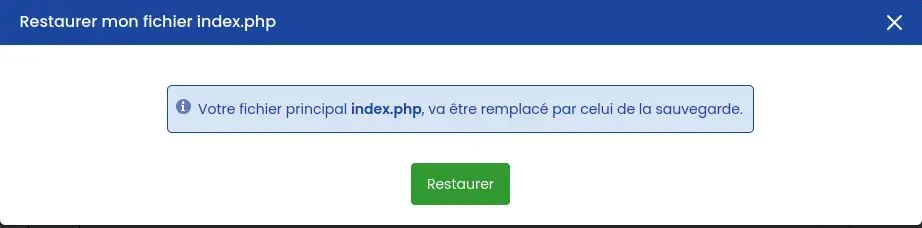
- Check that you have selected the correct backup.
- Confirm the action by clicking the "Restore" button
This option concerns only the home page file of the main domain.
It does not allow you to restore an entire folder or the other site elements. This scope is the one described in the source article.
3. Restore a specific file or folder
When should you use this option?
This is the most suitable option if you want to recover only part of the site, for example:
- a deleted page
- a file modified by mistake
- an image folder
- a directory containing a plugin, theme, or specific resources
Steps
- Click the Restore a file or directory action.
- A confirmation window opens.
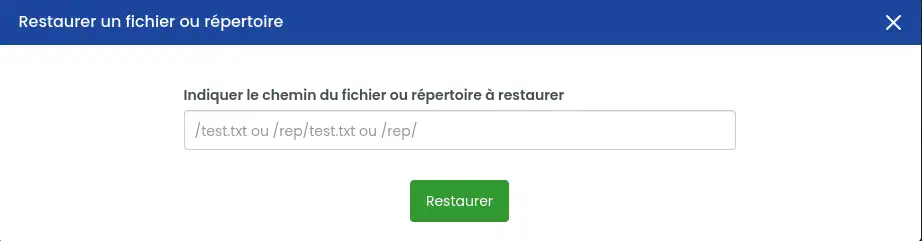
- Enter the path of the file or folder to restore.
- Carefully check the indicated location.
- Confirm the action by clicking the "Restore" button
Examples of paths to enter
-
text.html
restores the text.html file located at the root of the backup
-
/myfolder/text.html
restores the text.html file located in the myfolder folder
-
/myfolder/
restores the contents of the myfolder folder
-
/myfolder/mysubfolder/
restores the contents of the mysubfolder subfolder located in myfolder
What this option actually does
This restoration:
- puts back the files present in the backup if they no longer exist on the hosting account
- replaces existing files with those from the backup when they have the same name
- does not delete additional files that are present on your hosting account but absent from the backup
If you want to restore exactly the contents of the folder as they were on the backup date, you must first manually delete the extra files before starting the restoration. This behavior is explicitly described in the article.
4. Restore a multi-domain or subdomain
What is a multi-domain?
A multi-domain is an additional domain added to your hosting account.
A subdomain corresponds for example to an address such as blog.yourdomain.ext.
When should you use this option?
Choose this restoration if the problem concerns only:
- an additional domain hosted on your plan
- a specific subdomain
Steps
- Click the Restore a multi-domain action.
- A confirmation window opens.
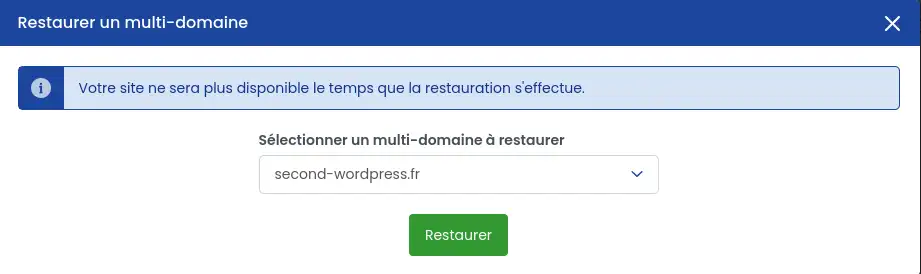
- Select the relevant domain or subdomain.
- Confirm the action by clicking the "Restore" button
What this restoration does
As with folder restoration:
- files present in the backup are restored
- files with the same name are replaced
- additional files already present on the hosting account are not deleted automatically
If you want to restore exactly the state of that domain or subdomain on the backup date, you will first need to remove the files that should no longer be present. Again, this point is indicated in the current article.
Whatever option you choose, once the action is confirmed, it is no longer possible to interrupt the restoration before it finishes.
Track the progress of a restoration
How can you tell if the restoration is finished?
After launching a restoration:
-
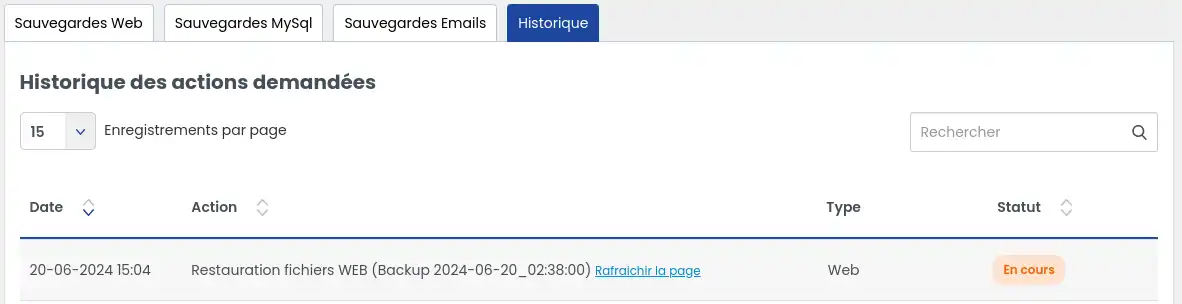
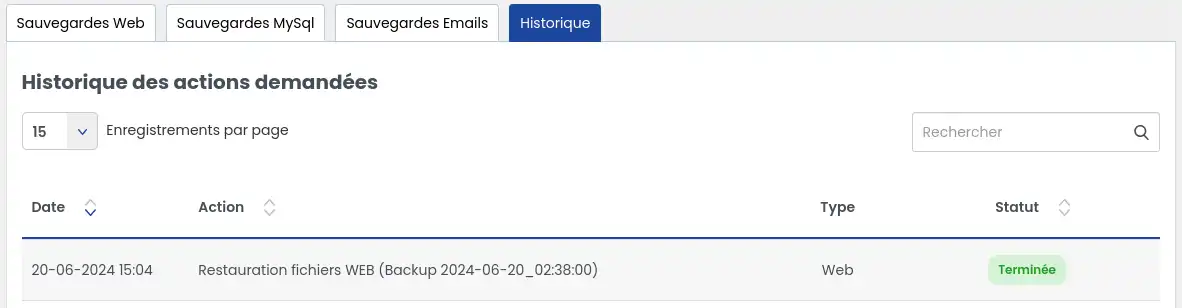
open the History tab
-
check the operation status
-
refresh the page if necessary; the restoration is finished when the status "Completed" appears.
Verification after restoration
Once the restoration is complete, check the following points:
- The status displayed in the History tab should indicate that the operation is completed.
- If you restored a specific file or folder, check that it is present again on your hosting account.
- Open your site in a web browser and check that it works properly.
- If the site seems unchanged, clear your browser cache or refresh the page several times.
- If your site works with a database, also remember to restore it to a consistent date with the web backup. Without this, the site may remain partially inconsistent.
What if the desired backup does not appear?
If the backup you are looking for is not displayed, several reasons are possible.
The desired date likely exceeds the retention included in your plan: some offers give access to 30 days of backups, others to 90 days. If the date you need is too old, it may no longer be available.
If you need a backup older than your plan allows (+ 30 days without a business support option within the limit of 90 days) or a special intervention, it is possible to subscribe to:
These solutions involve additional handling by LWS services.
Common problems and solutions
The download link does not appear right away
Link generation may take several minutes (several hours in some cases), especially if the backup is large.
What should you do?
- open the History tab
- refresh the page after a few moments
- check that the action is in progress or completed
The backup you are looking for is not listed
The requested date may be outside the retention period available for your plan.
What should you do?
The site does not seem changed after restoration
This is often a display problem or an inconsistency between the files and the database.
What should you do?
I chose the wrong type of restoration
If you launched a partial restoration when a full restoration was necessary, or vice versa, the result may be incomplete.
What should you do?
- identify precisely what is still missing
- then choose the correct restoration method
- if you need to restore a folder or domain exactly, remember to delete the no-longer-needed items beforehand before a new partial restoration
It is not possible to cancel a restoration action once it has been launched.
An error appears during the restoration
If an error occurs during restoration, you must contact LWS technical support for analysis and handling if the action remains possible.
Before contacting support
Prepare the following information:
- the name of the hosting account concerned
- the chosen backup date
- the restoration type launched
- the error message displayed
- the approximate time of the operation
This will make it easier to process your request.
My backup is very large
Some operations are limited when the backup exceeds 20 GB, and files larger than 500 MB placed on the FTP space may be deleted automatically.
What should you do?
Conclusion
You now know how to access the web backup service in the LWS Panel, download an existing backup, and restore your files according to several scenarios: full restoration, restoration of the home page, a file, a folder, a multi-domain, or a subdomain.
If your site also uses a database, remember to restore it to a consistent date as well in order to recover normal operation.



 Yes
Yes No
No About
About 