
Online help
The web host accessible to all
Procédure
The LWS Client API is a gateway designed to facilitate integration with the services and products offered by LWS (Ligne Web Services). This API allows users to order and efficiently manage their services, such as purchasing hosting, changing DNS, and more.
In this documentation, we will guide you through the steps needed to obtain your API key and start using the Client API features. [PERSON_NAME] more geared toward developers, even a [PERSON_NAME] can use it.
To prevent abusive access to the API, you will need to obtain an API key linked to your LWS account and define one or more IPs authorized to use the API. It is mandatory to have an LWS account in order to use the API. If this is not the case, go to the official LWS website to register as a new customer.
To obtain your API key, log in to your account from the LWS Panel and go to the "Api LWS" page by clicking on your LWS number (LWS-XXXXXX) at the top right.
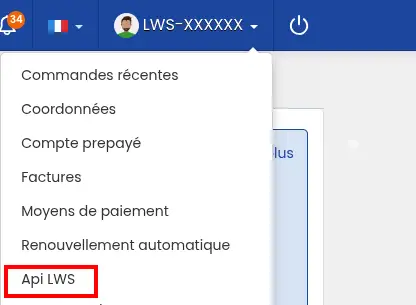
On this page, you can see all the IPs authorized to use the API with your credentials as well as the balance of your prepaid account, which can be used to purchase or renew your domains and hosting purchased via the API. To generate your API key, click the "view" button opposite the "API key in PRODUCTION mode" option to open a modal allowing you to generate it.

Here, click the button to generate the key. Store it carefully so as not to lose it. [PERSON_NAME], go back to this modal and click the button again.
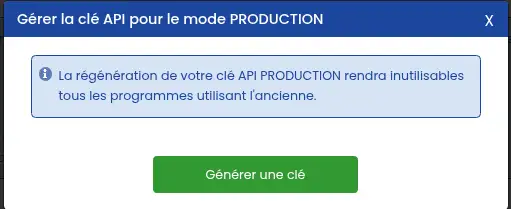
This key allows you to use the full API in its normal mode. If you want to use the API in an isolated environment to test it, you will need to use a key in TEST mode, which you can create in the same way as the Production ones, simply by clicking "view" opposite the "API key in TEST mode" line. It is not possible to use the test key in production and vice versa.
[ADDRESS] to be able to use the LWS API is to authorize one or more IPs to use the API. This is an additional protection method so that someone who has managed to get hold of your key cannot place unwanted orders, such as buying domains on your behalf.
[PERSON_NAME] goes to the same place as for the API key; this time, click the "Add an IP address" button to open the IP addition window.

In this window, select "Production" then enter your IP address. [PERSON_NAME], you can use a website to obtain your current IP. Depending on the network you are connected to, your IP may be different, so you may need to specify several IPs to use the API everywhere. If you want to add the IP to use it in Test mode, select "Test" instead.
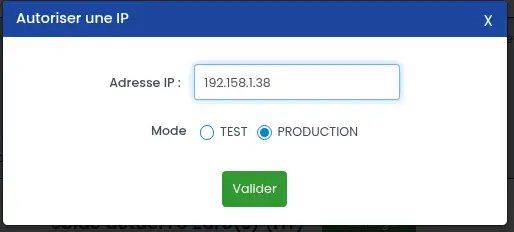
Once validated, you can view and delete the IPs currently authorized to use the API in a table on the page. Up to 3 IPs can be added for each mode. If you want to add more, you will need to delete some.

You can find the official documentation, with the list of all available commands and usage examples to discover how to use our API.
Select a category and a command in the left menu to get more information about them. Each page consists of several parts; the top of the page contains a summary of the action as well as the URL to use for this command:
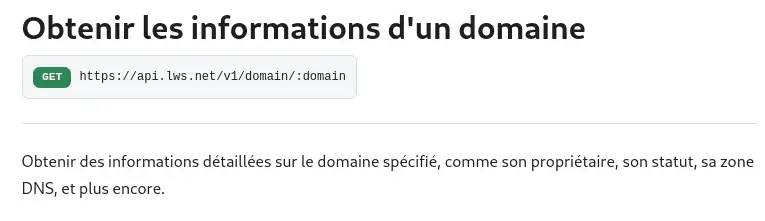
If the command requires an additional parameter, it will be indicated below, [ADDRESS] in the "Request" section. In the case of our example, [ADDRESS] expects a domain name in the "PATH", the command URL (in place of :domain):
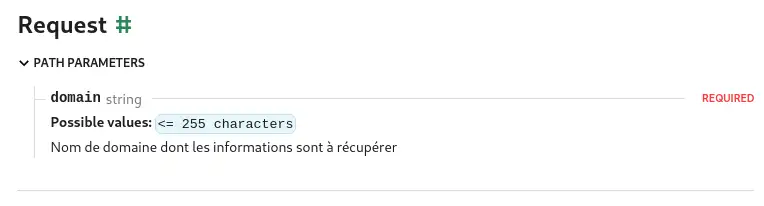
If other parameters are needed, especially in the request body, they will also be indicated in the "body" category.
All commands will return a message once executed. [PERSON_NAME] can be an error message, a confirmation message, or the requested data (in our example, information about the domain). You can find all possible responses for a particular command in the "Responses" section of the page:
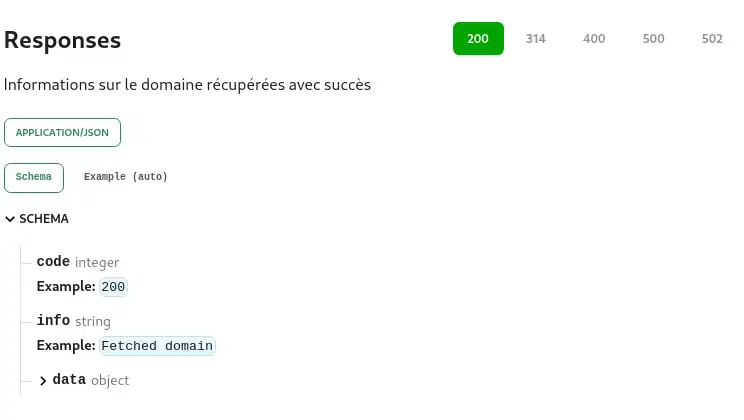
For a [PERSON_NAME], this information is all they will need to comfortably use the API. However, with the goal of offering the API to as many people as possible, [PERSON_NAME] whether beginners or experts, usage examples are available in several programming languages, such as PHP:
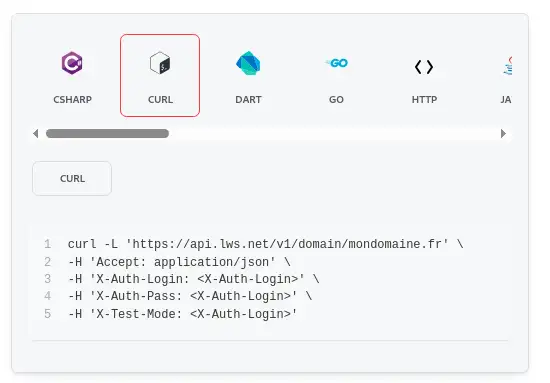
Here, this is an example of a cURL command to run in the Terminal. The X-Auth-Login and X-Auth-Path fields are to be filled in with, respectively, your LWS ID and your API key, obtained earlier.
The X-Test-Mode field is optional and can be removed if unnecessary. If set to "true", it allows the command to be run in a test environment without taking any action on your account. [PERSON_NAME] how the API works without performing any operations on your account. You will need to enter a Test API in the X-Auth-Pass field if you choose to use test mode.
[PERSON_NAME], it is possible to use the API directly from the documentation:
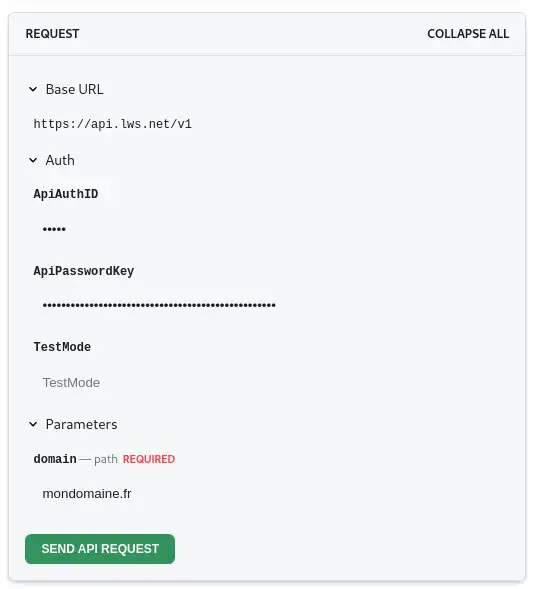
To do this, enter your LWS ID and your API key respectively in the ApiAuthID and ApiPasswordKey fields as well as all the parameters required by the command, then click "SEND API REQUEST". [PERSON_NAME] test, enter "true" in the TestMode field.
You will then get the result of the executed command below:
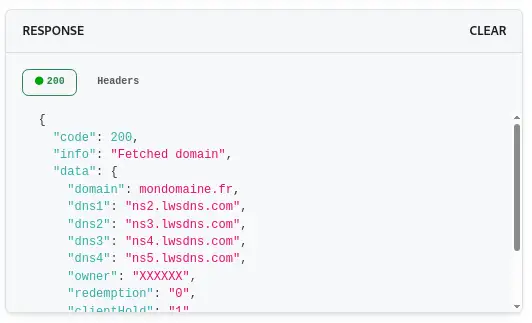
[PERSON_NAME], some API commands will not work without prepaid credit on the account. Purchasing a domain, renewing hosting, changing a plan, ... As soon as the action requires payment, the corresponding amount will be deducted from your LWS prepaid credit (only if the action succeeds). No rollback is possible once the command has been executed. Make sure you know what you are doing before using paid commands.
The prepaid account is currently the only payment method accepted by the API. [PERSON_NAME] not enough funds on your account, you can top it up on the dedicated page.
You now know how to:
Thanks to this information, [PERSON_NAME]>LWS Client API for optimal management of your online services. 🚀💻
Thank you for reading! [PERSON_NAME] have any questions or would like to share your experience with the LWS Client API, feel free to leave a comment. Your feedback is valuable to us and to the community. [PERSON_NAME]📢
Ask the LWS team and the community. Answers are published after moderation.
 About LWS :
LWS is a 100% French web hosting company that focuses on quality and innovation and offers a responsive and competent technical service at affordable prices.
About LWS :
LWS is a 100% French web hosting company that focuses on quality and innovation and offers a responsive and competent technical service at affordable prices.



 Yes
Yes No
No