
Online help
The web host accessible to all
Procédure
Welcome to this comprehensive guide that will help you understand and manage the dedicated IP option for your mail service at LWS. We will define what a dedicated IP is, why it is useful for sending emails, how it differs from a shared IP, and how to order, configure, and cancel this option at LWS. Our goal is to help you optimize your mail service for a better user experience.
A dedicated IP address, exclusive to your mail service, is similar to having your own digital postal code. This protects you from the impact of other mail users' actions, a phenomenon that can occur with a shared IP.
The main contrast between a dedicated IP and a shared IP lies in how they are used. With a dedicated IP, your messaging service benefits from its own unique digital identifier, whereas a shared IP is used by various mail services. The latter may have its reputation affected by all its users. Thus, if one of them uses the IP inappropriately, it can disrupt your email sending capability.
Using a dedicated IP for sending your emails offers several benefits. Mainly, it strengthens the reputation of your IP, protecting it from the actions of other mail users. In addition, it gives you complete control over your messaging activity. If you experience email delivery issues, you are able to detect and resolve the problem quickly, since your IP is associated only with your emails.
Before ordering a dedicated IP for your mail service, we invite you to follow the steps below:
Step 1 : First, you must log in to your LWS account and access the shared hosting or mail service for which you wish to order a dedicated IP option.
Step 2 : Go to the "Email Addresses" section and click on the "Emails" icon.
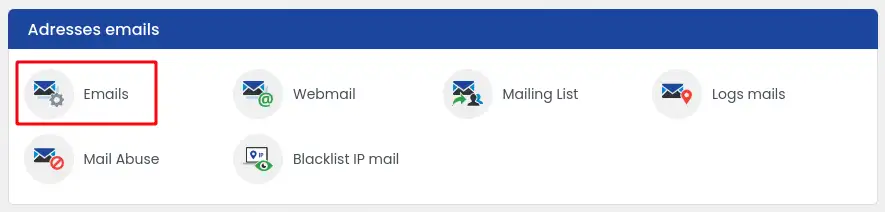
You are redirected to another page.
Step 3 : To order the dedicated IP option, click on the "Modify my mail plan" link.
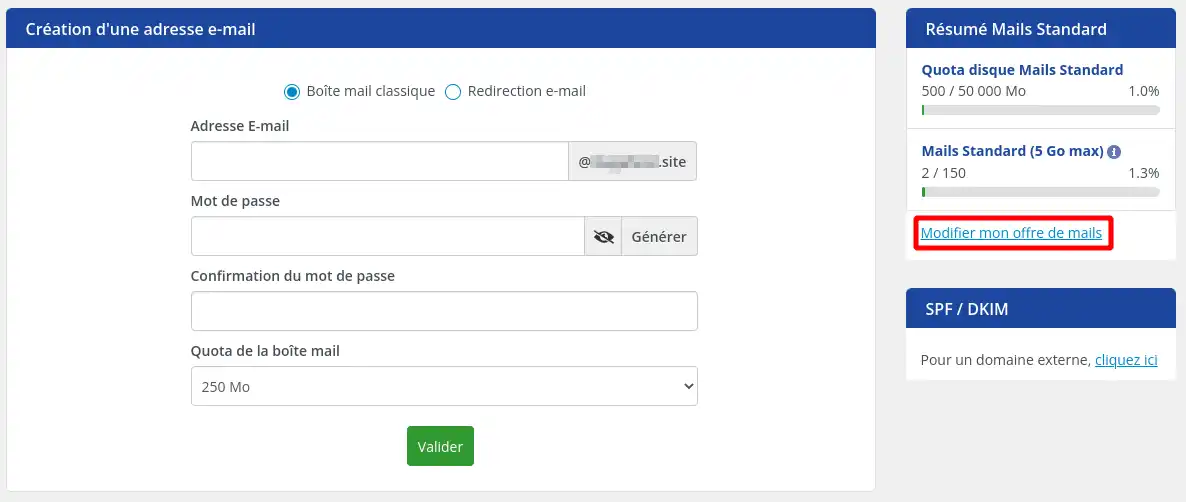
A new window appears, where you can now order your dedicated IP option by checking the corresponding box.
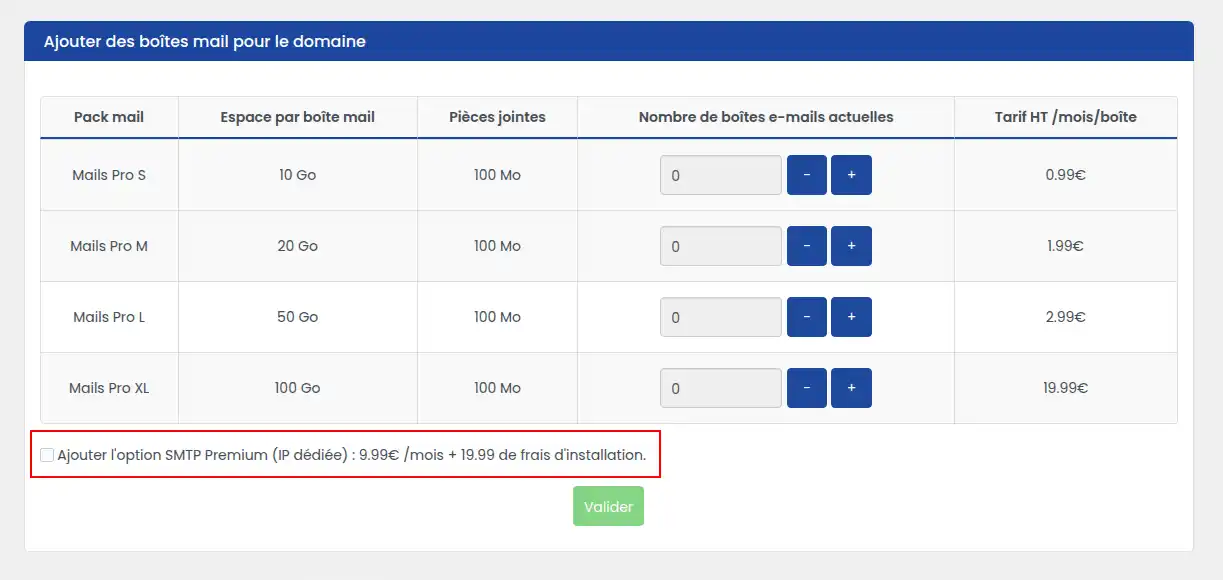
You can also order professional email addresses from this form, but this is not mandatory to benefit from a dedicated IP for sending your emails.
The dedicated IP option is offered at a cost of €9.99 excl. VAT / month. When subscribing, installation and setup fees of €19.99 excl. VAT are applied to the first payment.
Once your choice has been made, complete your order by clicking the "Validate" button.
Step 4 : You are then redirected to the quote corresponding to your order. We invite you to make the payment using the payment method of your choice in order to finalize the process and start the installation of the dedicated IP.
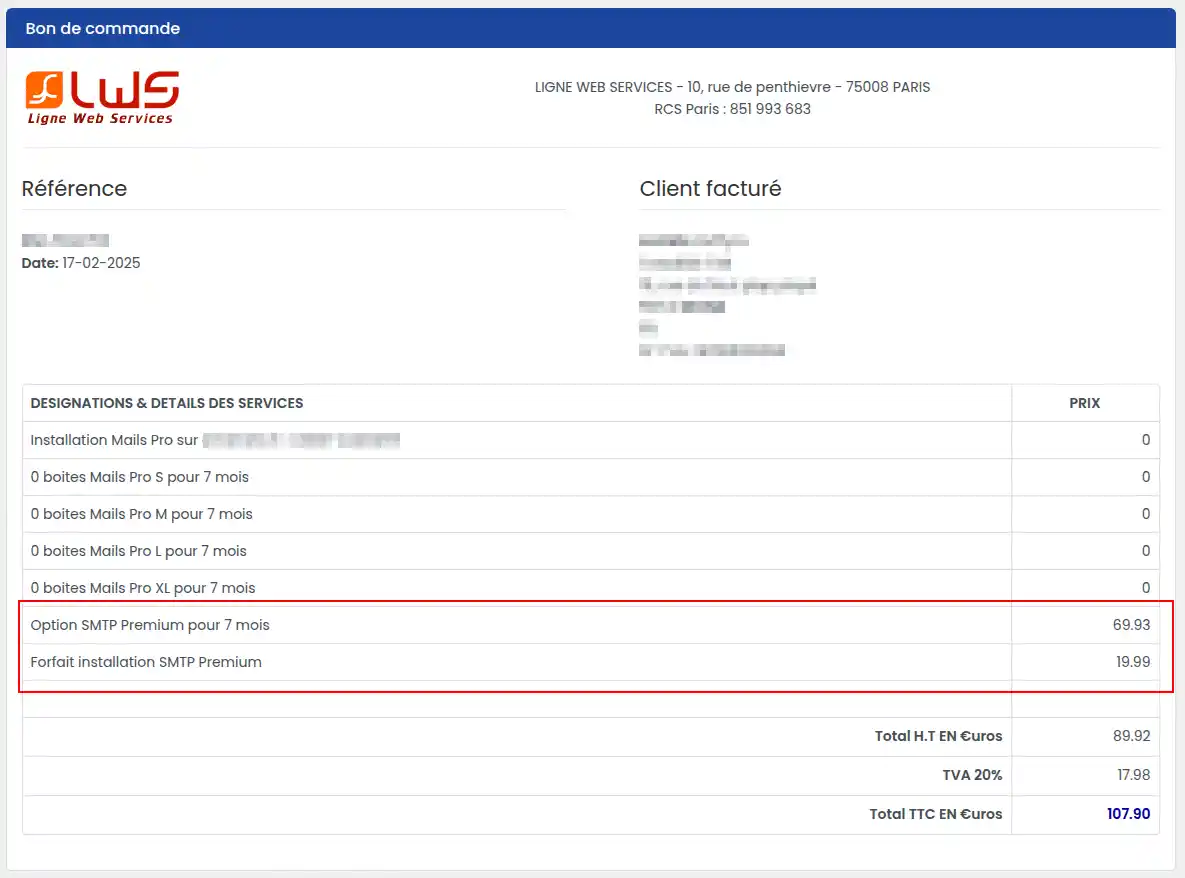
The option will be activated within the hour.
The configuration of your dedicated IP option depends on where the DNS zone of your domain is managed. Indeed, configuring the option requires modifying and adding records in your domain's DNS zone.
If your domain's DNS zone is managed by the LWS Panel, you will not need to perform any configuration; LWS will automatically handle the configuration upon delivery.
However, in the following cases, you will need to perform the configuration manually:
If you are in one of the cases listed above, you must carry out two actions for your Dedicated IP to function.
To manage the DNS zone of your domain name, please refer to these guides:
If your domain's DNS zone is managed by another provider, please contact their support team and provide them with the information below so they can make the DNS zone changes on your domain.
To find out the Dedicated IP for your option, you must go to the administration page of your mail service on the LWS Panel. The Dedicated IP is displayed with your email quotas as shown in the screenshot below:
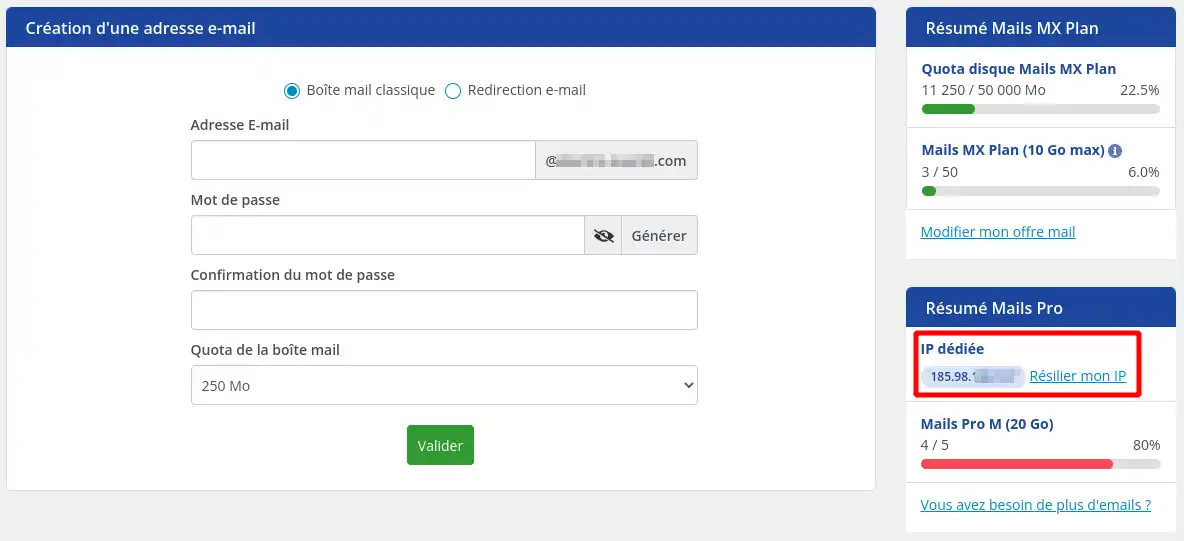
In the rest of this procedure, the indication [domain.ext] must be replaced with your domain name (for example: lws.fr), and the indication [dedicated ip] must be replaced with the actual value of your Dedicated IP.
1. Modifying the SPF record in the DNS zone.
Step 1 : locate the TXT record named "@" or [domain.ext] and having the value: v=spf1 ... -all (the "..." represents a sequence of parameters that may be more or less long)
Step 2 : without removing the parameters already recorded, add the Dedicated IP of the subscribed option by adding the parameter: IP4:[dedicated ip]
2. Adding an A record
Step 1 : go to the DNS record creation form in the DNS zone of your domain name
Step 2 : add the record named ipdediee.[domain.ext] of Type A and having the value [dedicated ip]
After making the DNS record changes, you will need to wait between 1 hour and 24 hours for the DNS records to propagate before seeing that everything is working properly
Step 1 : First, you must log in to your LWS account and access the shared hosting or mail service for which you wish to order a dedicated IP option.
Step 2 : Go to the "Email Addresses" section and click on the "Emails" icon.
Step 3 : On the page that appears, click on the "Cancel my IP" link
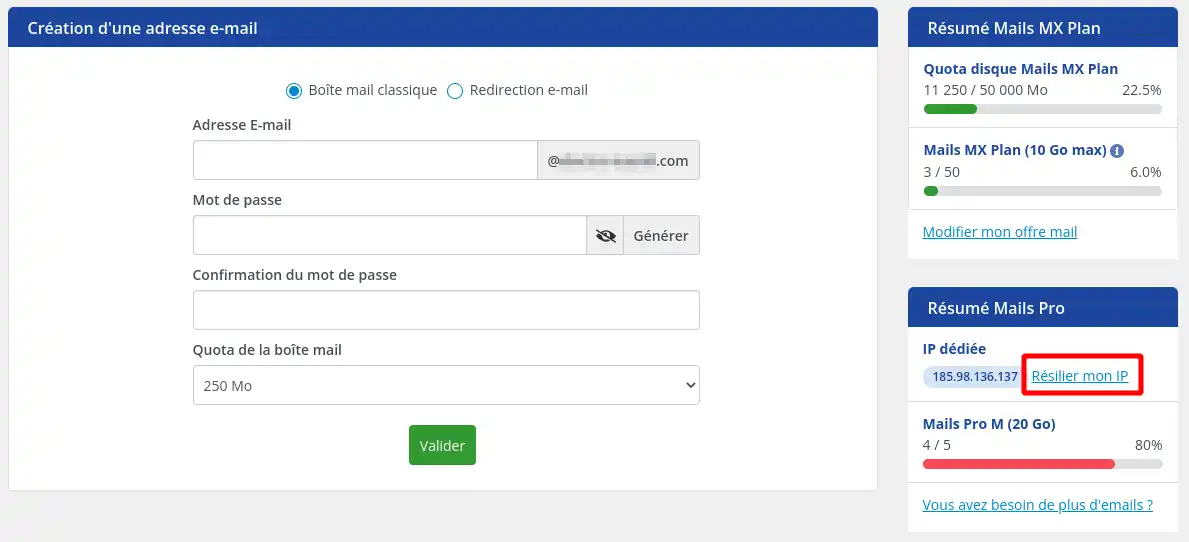
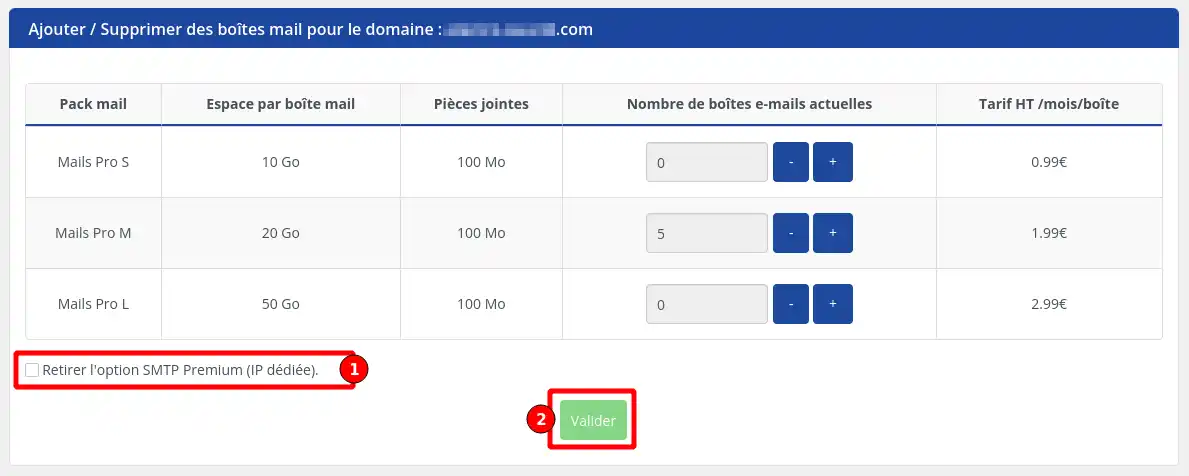
Step 4 : The configuration page for your mail service will then appear. You will need to check the box "Remove the SMTP Premium option (Dedicated IP)" (1) then click on the "Validate" button (2)
Step 5 : You are then redirected to the quote that will allow you to complete the operation by clicking on the "Validate your order" button
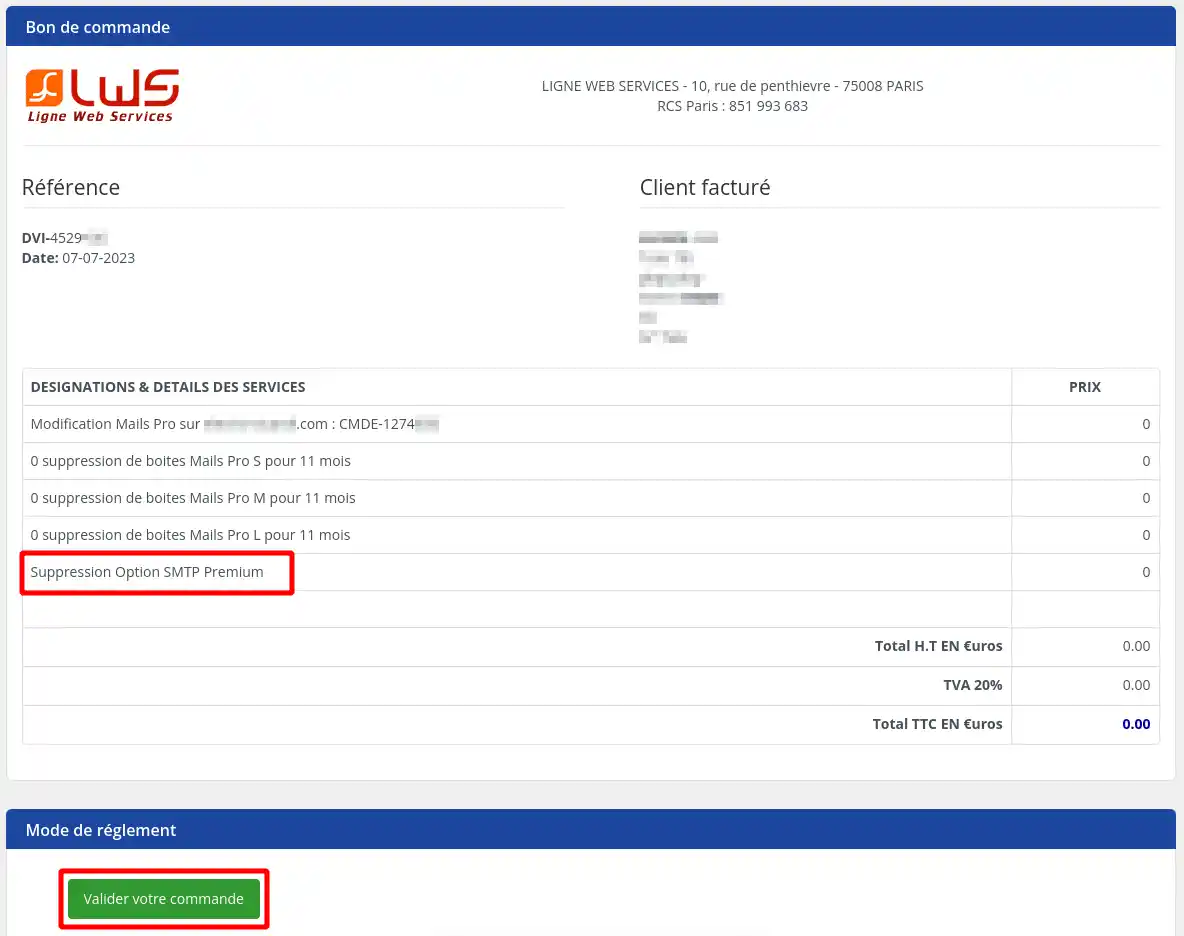
The removal of your Dedicated IP option will then be carried out within the hour.
The removal of the Dedicated IP option is free of charge. However, you will lose the commitment paid at the time of your order. If you wish to reactivate the option later, you will need to pay again €9.99 excl. VAT per remaining month of commitment + €19.99 excl. VAT in installation fees. We therefore invite you to make sure, before removing this option, that you truly no longer wish to use it.
You now know how to:
🌟 By following the detailed steps in this article, you now have everything you need to optimize your email campaigns and ensure better deliverability. Remember that every aspect of managing your mail service contributes to your company's professional image. 🚀
💌 We thank you for reading carefully and hope this guide has been useful to you. Feel free to share your feedback or ask your questions in the comments; our team remains at your disposal to assist you. Thank you and see you soon at LWS!
Ask the LWS team and the community. Answers are published after moderation.
 About LWS :
LWS is a 100% French web hosting company that focuses on quality and innovation and offers a responsive and competent technical service at affordable prices.
About LWS :
LWS is a 100% French web hosting company that focuses on quality and innovation and offers a responsive and competent technical service at affordable prices.



 Yes
Yes No
No