
Pomoc online
Host dostępny dla wszystkich
Procédure
Backup online LWS (technical formula « rsyncscpdrive ») is a remote space in which you send your backups with your own software, via FTP(s), SFTP, SCP, Rsync, SMB or WebDAV. Its plans are called Cloud Drive S, M, L and XL, like those of Nextcloud online storage, but they are two different services: this help concerns only Backup online.
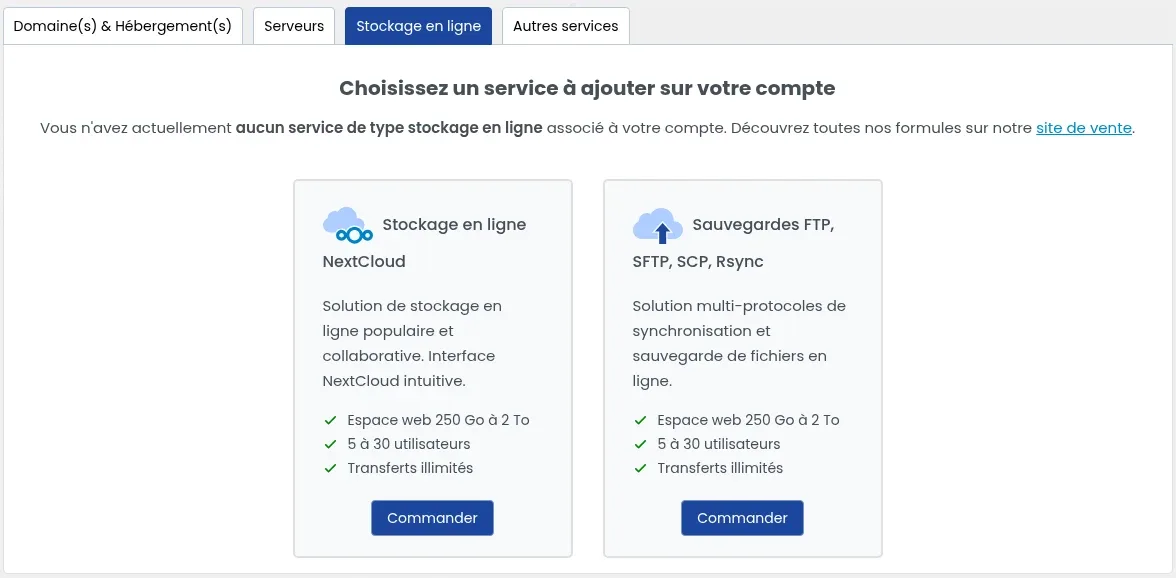
The Cloud Drive plans of Backup online allow synchronization and online backup of your various files. Many configurations are possible in order to have convenient access to all your data.
The backup space is accessible with the FTP(s), SFTP, SCP, Rsync, SMB and WebDAV protocols.
You can access the SFTP protocol through the ssh, rsync and scp utilities.
It is important to use the host names assigned to you (for example: rs1.cloudlws.com) instead of the underlying IP address, as well as your username and password.
The download speed of the backup space depends on the number of other clients simultaneously accessing the same backup server. Consider running your backups at another time if you encounter performance issues.
The sending of your files and folders is done in the “files” folder of your backup server. Note also that only the “files” directory is writable on the server. To designate directories or folders on the backup server, we therefore recommend using relative paths. For example, a file licornes.png sent to the “files” folder is downloaded from the backup server at /files/licornes.png.
It is not possible to create files and folders upstream of the “files” folder on the backup server.
Interactive SSH access is not allowed.
It is not possible to access your backup space with the same host name via IPv6.
For SFTP, it is possible to authenticate with an SSH public key. For more information, consult the documentation How to add an RSA key on the Rsync SCP drive service?
To create an SSH key on GNU/Linux-based systems:
ssh-keygen -b 4096 -t rsaTo access the backup server through a graphical interface, there are solutions such as FileZilla or WinSCP.
In the commands below, the user of the “rsyncscpdrive” plan named cdXXXX is used as an example.
You can use rsync to synchronize the state of your directories with your backup server. For example, to synchronize a local directory with the backup server, you can use rsync as in the following example:
rsync -avP images/ cdXXXX@rs1.cloudlws.com:/filesYou can also use scp. To send the contents of a folder via scp, you can run the following command:
scp -r images/ cdXXXX@rs1.cloudlws.com:/filesAccessing your backup space via SFTP is similar to accessing it with an FTP client. To start an SFTP session, run the following command:
sftp cdXXXX@rs1.cloudlws.com:/filesYou can then send files using put and download them using get. With ls, you get a list of directories:
sftp> put licorne.png
Uploading licorne.png to /files/licorne.png
licorne.png                                   100%   56KB 474.9KB/s   00:00
sftp> ls -ahl
drwxr-xr-x    0 1001     1000           3B Aug  2 17:41 .
drwxr-xr-x    0 0        0              9B May 28 09:30 ..
-rw-r--r--    0 1001     1001        55.9K Aug  2 17:41 licorne.png
sftp> get licorne.png
Fetching /files/licorne.png to licorne.png
/files/licorne.png                            100%   56KB 637.1KB/s   00:00
sftp>
The plans differ by disk space and the number of users; they all provide access to the same protocols (FTP(s), SFTP, SCP, Rsync, SMB and WebDAV) with unlimited transfers.
| Plan | Cloud Drive S | Cloud Drive M | Cloud Drive L | Cloud Drive XL |
|---|---|---|---|---|
| Disk space | 250 GB | 500 GB | 1000 GB | 2000 GB |
| Users | 5 max | 10 max | 20 max | 30 max |
Prices change regularly: consult the up-to-date prices on the Backup online LWS website page.
By following this documentation, you are thus able to authenticate via different methods and back up your various files.
Zadaj je zespołowi LWS i społeczności. Odpowiedź zostanie opublikowana po moderacji.
 O LWS :
LWS to w 100% francuska firma hostingowa, która koncentruje się na jakości i innowacyjności oraz oferuje responsywną i kompetentną obsługę techniczną w przystępnych cenach.



 Tak
 Nie