
Online help
The web host accessible to all
Procédure
Service concerned : LWS Web Hosting with WordPress
Concerned panel : WordPress
Level : beginner
Bloom is a WordPress plugin developed by Elegant Themes. It allows you to create newsletter signup forms and connect them to different email marketing services.
You can install Bloom on a WordPress site hosted by LWS from the ZIP file provided by Elegant Themes.
LWS does not provide an Elegant Themes license with its hosting offers. To download Bloom, receive updates, and benefit from the publisher's support, you must have your own Elegant Themes account giving access to Bloom.
You must have the Bloom installation file.
Log in to your Elegant Themes member area, then download Bloom to your computer. The resulting file is normally named bloom.zip.
Do not unzip the ZIP file before uploading it to WordPress. Some browsers may automatically extract downloaded files. In that case, re-compress the Bloom folder into ZIP format before continuing.
Log in to your site's WordPress admin dashboard.
In the left menu, click Plugins, then Add Plugin.
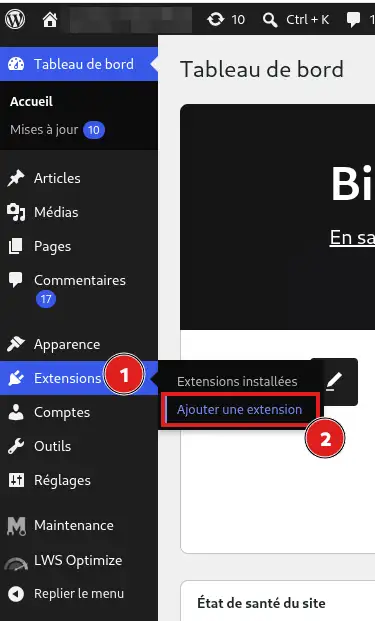
Click Upload Plugin at the top of the page.
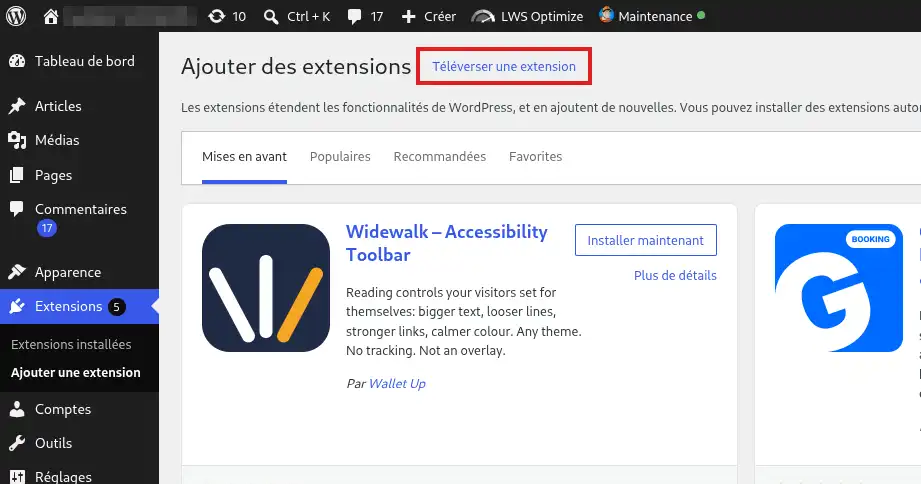
Then click Choose File
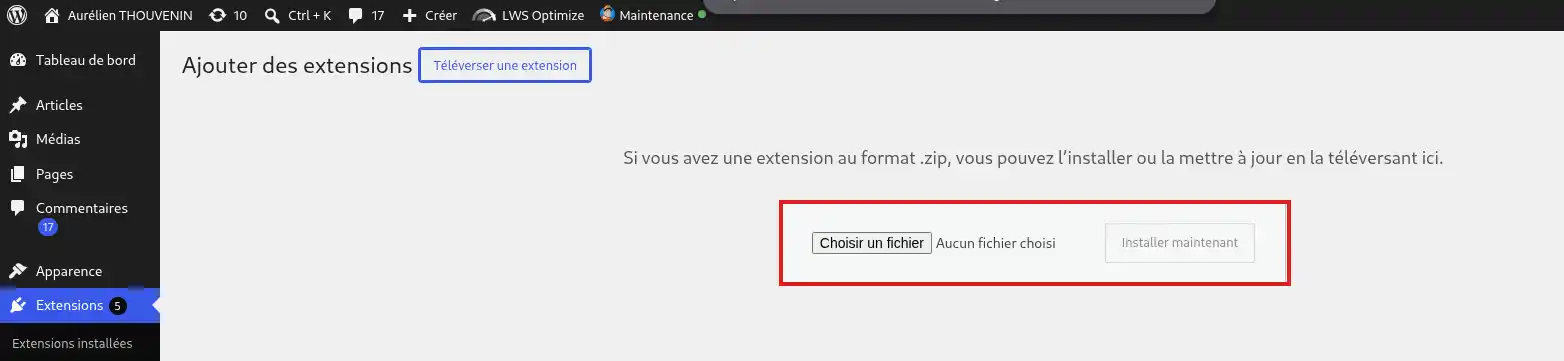
Select the bloom.zip file downloaded from your Elegant Themes account.
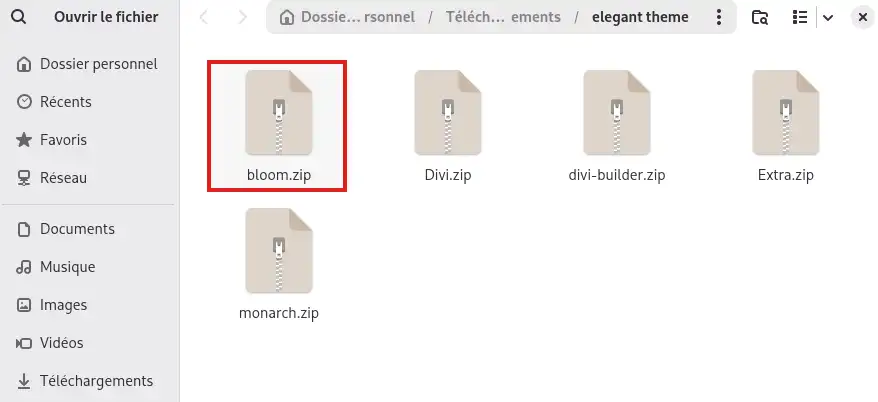
Click Install Now.
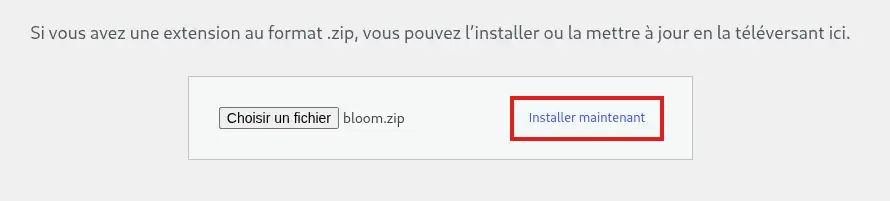
WordPress transfers the Bloom files to your hosting account and automatically installs the plugin.
Once installation is complete, click Activate Plugin.
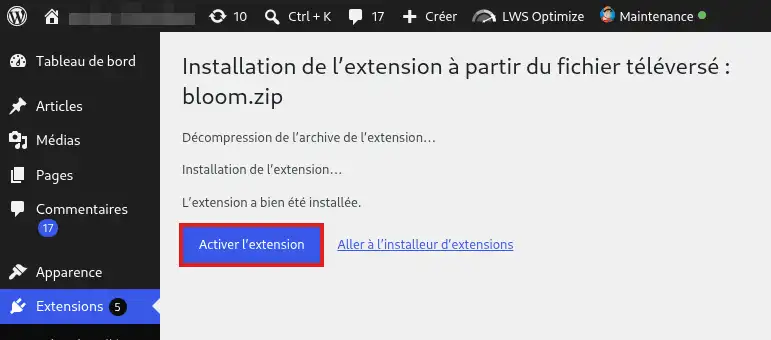
Bloom is now installed and activated on your WordPress site. A new Bloom menu is available in the WordPress dashboard.
To receive new versions of Bloom directly from WordPress, you must authenticate your Elegant Themes account.
In the WordPress dashboard, go to Bloom > Optin Forms.
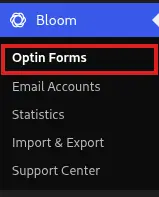
Click the padlock icon at the top of the interface.
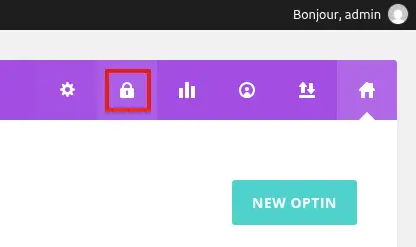
Then enter:
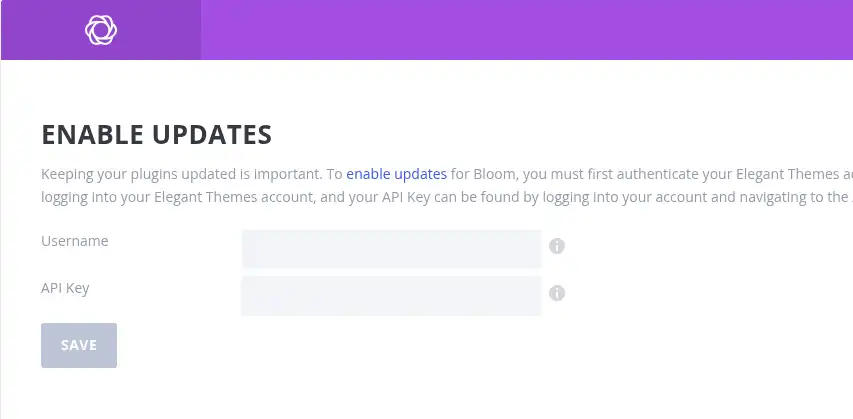
You can create or retrieve your API key from your Elegant Themes member area.
Then save the information. Once your account is authenticated, new versions of Bloom can be offered in WordPress's update system.
The Elegant Themes API key is different from your account password. It is used in particular to authenticate your site in order to access Elegant Themes product updates.
In the WordPress dashboard, click Bloom > Optin Forms.
If the Bloom interface appears, the plugin is correctly installed and activated.
You can then connect Bloom to your email marketing service and create your first signup forms. Bloom must be linked to a newsletter or email marketing service so that the addresses entered in your forms can be added to a contact list.
Future Bloom updates may appear in Dashboard > Updates if your Elegant Themes account is correctly authenticated and still provides access to updates.
I do not see the Bloom menu in WordPress
Go to Plugins > Installed Plugins and check that Bloom appears in the list.
If the plugin is installed but deactivated, click Activate.
If Bloom does not appear, repeat the installation with the ZIP file downloaded from your Elegant Themes account.
WordPress refuses the file I am trying to install
Make sure you selected the bloom.zip file and not the unzipped plugin folder.
If your browser automatically extracted the download, re-compress the Bloom folder into ZIP format or download the file again from your Elegant Themes member area.
I am not receiving automatic Bloom updates
Bloom updates are distributed by Elegant Themes. Your Elegant Themes account must provide access to updates and be authenticated in Bloom with your username and an active API key.
If you do not yet have a license or subscription giving access to Bloom, you must subscribe directly with Elegant Themes.
If you already have valid access, check in Bloom > Optin Forms that your username and API key are correctly saved.
For any issue related to your license, your Elegant Themes account, or the distribution of updates, contact Elegant Themes support.
Bloom does not work properly or I am encountering a bug
If Bloom is correctly installed and activated but a feature does not work as expected, consult Bloom's documentation or contact Elegant Themes support.
Since Bloom is developed and maintained by Elegant Themes, their support can help you with using the plugin, its features, its settings, and any plugin bugs.
LWS support can help you when a problem concerns your hosting, WordPress, PHP, or server resources. For Bloom's internal operation, its features, its license, or its updates, support is provided by Elegant Themes.
My Bloom form does not submit signups
Bloom must be connected to an email marketing service to record the people who fill out your forms.
Check in Bloom's settings that your email marketing account is correctly configured and that the form is using the correct contact list.
If the connection to your email marketing service is correct but Bloom still does not work as expected, consult Elegant Themes documentation or support.
Ask the LWS team and the community. Answers are published after moderation.
 About LWS :
LWS is a 100% French web hosting company that focuses on quality and innovation and offers a responsive and competent technical service at affordable prices.
About LWS :
LWS is a 100% French web hosting company that focuses on quality and innovation and offers a responsive and competent technical service at affordable prices.



 Yes
Yes No
No