
Online help
The web host accessible to all
Procédure
Service concerned: email addresses included with cPanel hosting
Panel concerned: cPanel
Level: beginner
This guide explains how to add a cPanel email address in an email client or application, such as Outlook, Thunderbird, Mail on Mac, an iPhone or an iPad.
Depending on the device used, cPanel may provide an automatic configuration script. If no compatible script is available, you can manually enter the IMAP, POP and SMTP settings shown in your interface.
To check your messages from a browser, see the guide: How do I connect to Roundcube Webmail on cPanel?
This guide applies to email addresses managed with cPanel.
Are you using another environment?
The email address you want to configure must already have been created in cPanel.
You must also know the password for this mailbox. It is not the password for your LWS client area or your cPanel interface.

In the Mail Client Automatic Configuration Scripts section, look for the software or device you want to configure.
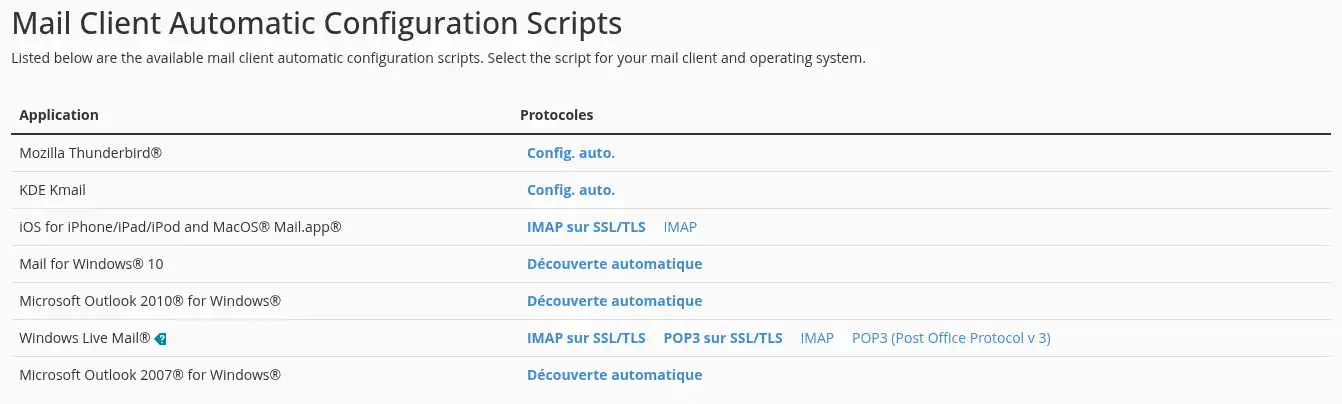
When a compatible script is offered:
Depending on your browser, the file may open directly or be saved to your downloads folder.
The script automatically adds the main email account settings to the compatible application. However, you may still need to enter the account password the first time you connect.
Only use a script downloaded directly from your cPanel interface. Also verify that the displayed email address matches the one you want to add.
If your software or device does not appear in the list, it means that no compatible script is offered. Use the manual configuration settings shown further down the page instead.
Find the section dedicated to manual settings, then use the information shown under Secure SSL/TLS Settings (Recommended).
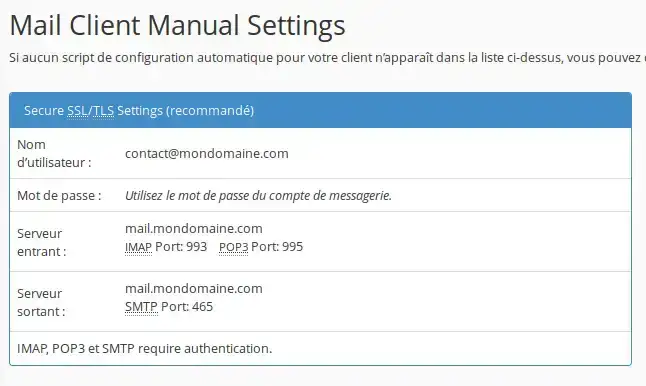
Use the SSL/TLS configuration recommended by cPanel. It protects your password and the exchanges between your device and the mail server.
You generally need to enter the following information in your software:
contact@votredomaine.fr;Copy the server names shown in cPanel exactly. They may be different from mail.votredomaine.fr, especially when cPanel uses another name to ensure a secure connection.
SMTP server authentication must also be enabled. Use your full email address and the account password to log in.
Your software may offer two protocols for receiving your messages.
IMAP
The IMAP protocol synchronizes messages and folders between the server and your various devices.
When you read, move or delete a message from one device, that change is also visible on the other devices using the same account.
IMAP is recommended in most cases, especially if you check your messages from several computers, phones or tablets.
POP
The POP protocol downloads messages to the device.
It is mainly suitable for use from a single computer. Depending on the software settings, downloaded messages may no longer be available on the server or on your other devices.
Once the address has been added to your software:
If you use the IMAP protocol on several devices, also check that read, sent or moved messages are synchronized correctly.
Your address is configured correctly if you can send and receive messages without errors.
No script is offered for my software
The available scripts depend on the software and device used.
The absence of a script does not prevent you from using your email address. Note the information in the Secure SSL/TLS Settings (Recommended) section, then enter it manually in your software.
The downloaded file does not open
Check your device's downloads folder.
The file type and how it opens depend on the system used. On some devices, you must allow profile installation or confirm that you want to open the configuration file.
If the script remains unusable, perform a manual configuration using the settings shown in cPanel.
I can't find the “Connect Devices” button
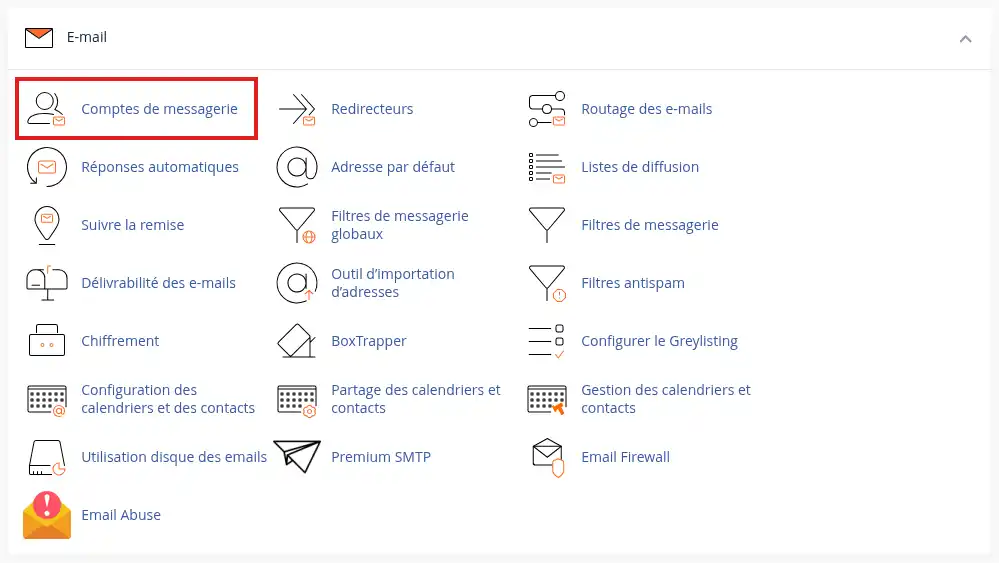
Make sure you are in cPanel > Email > Email Accounts.
Depending on your screen size or the cPanel version, some actions may be grouped in a menu located to the right of the address.
Also make sure this is indeed an email account. A simple forwarder does not have a password or IMAP or POP connection settings.
My software rejects the password
Use the password for the email account, not the one for your LWS client area or cPanel.
The username must be your full email address.
If you no longer know the mailbox password, you can change it from the Email Accounts tool in cPanel. The new password will then need to be saved on all devices using this address.
A certificate warning appears
Do not automatically accept this warning.
Go back to Connect Devices and check that the server name entered in your software exactly matches the one shown in the SSL/TLS configuration recommended by cPanel.
I receive messages, but I cannot send any
Check the outgoing SMTP server settings:
Messages are not synchronized between my devices
Make sure all your devices use the IMAP protocol.
A POP setup may download messages to one device only without synchronizing their reading, moving or deletion with the other devices.
Ask the LWS team and the community. Answers are published after moderation.
 About LWS :
LWS is a 100% French web hosting company that focuses on quality and innovation and offers a responsive and competent technical service at affordable prices.
About LWS :
LWS is a 100% French web hosting company that focuses on quality and innovation and offers a responsive and competent technical service at affordable prices.



 Yes
Yes No
No