
Online help
The web host accessible to all
Procédure
Panel concerned: LWS Panel
Level: intermediate
This help article explains how to prepare an LWS email address while your domain name is being transferred to LWS.
The goal is to be able to create your new address in advance, then point the domain to the LWS mail service at the right time.
During a transfer, the domain’s DNS management may still depend on the previous provider. This is the factor that determines where you must modify the records required for email to work.
Are you using another environment?
Before changing your domain’s mail configuration, check these points:
Log in to your LWS customer area, then open the relevant service.
In the Actions to perform block, find the first step:
If you had email addresses, please recreate them via this pageClick the this page link to access the email address creation interface linked to this domain.
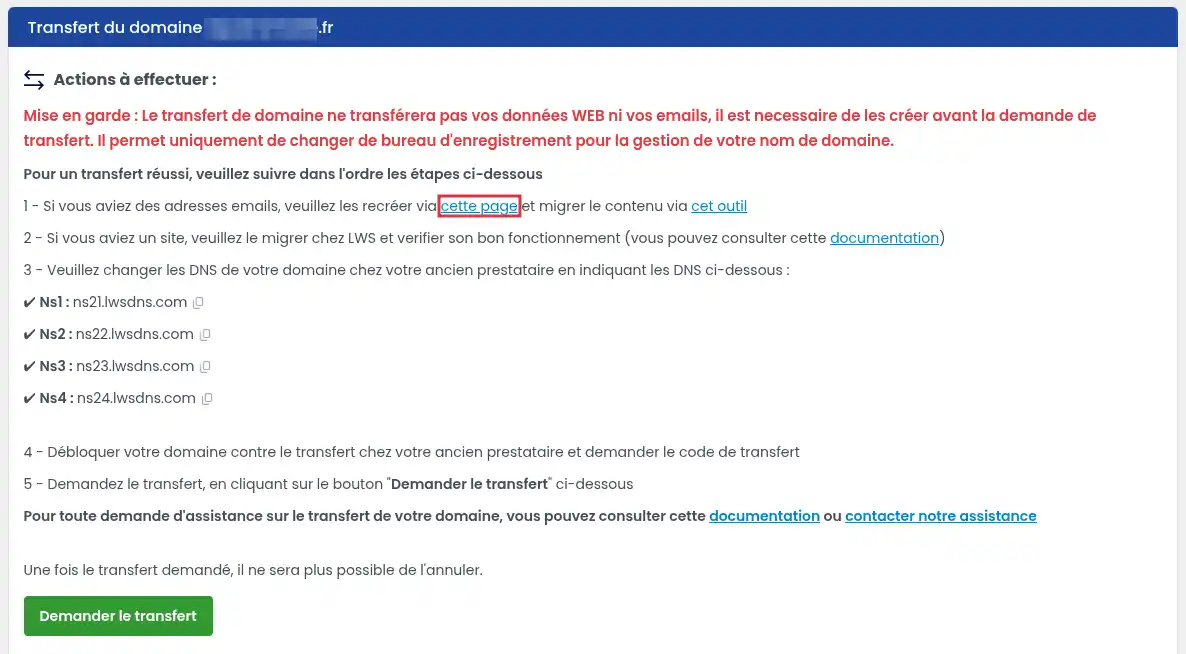
Then continue, create your email address as usual.
The address is created on the LWS side. It will be able to receive emails when the domain’s DNS records point to the LWS mail service.
Once the address is created, it exists on the LWS side. However, it will only be able to receive emails for the domain when the domain’s DNS records correctly point to the LWS mail service.
Email operation mainly depends on the domain’s MX records. These records indicate which service the emails should be delivered to.
In the case of a domain being transferred, two situations are possible.
If the transfer has not yet started, you can prepare the configuration before launching the operation.
From the domain’s current provider, you can replace the existing DNS servers with LWS’s, if you want the DNS zone to be managed by LWS.
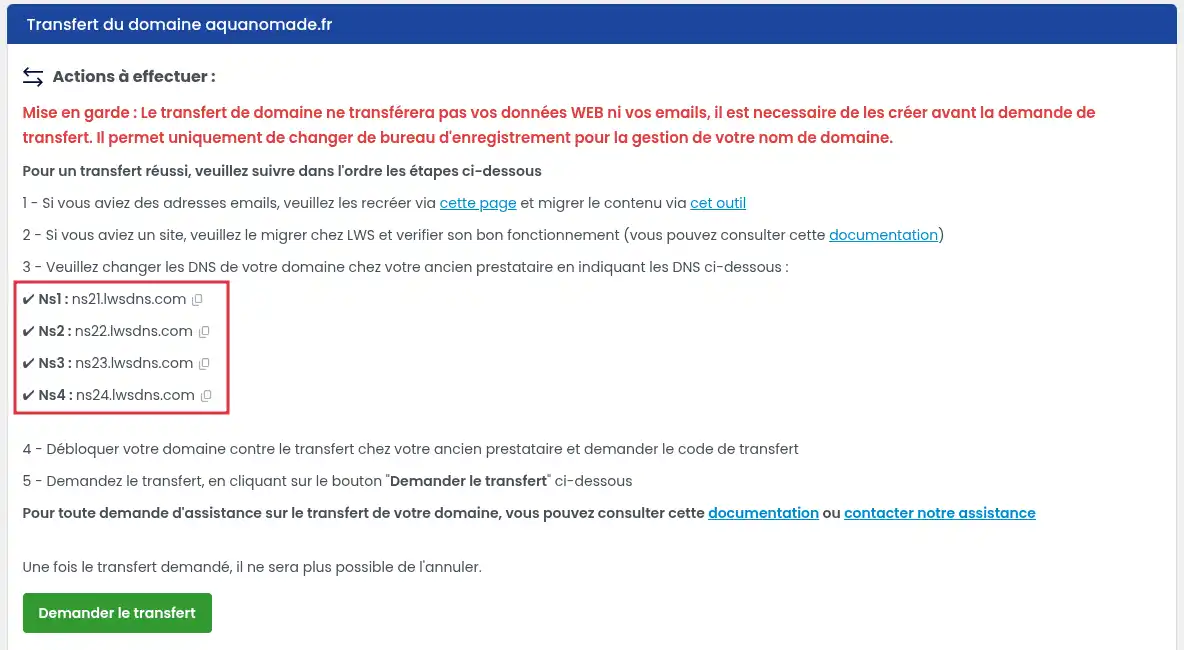
Once the LWS DNS are active, the mail configuration can be managed from your LWS customer area.
If the transfer has already been launched, it is common for the DNS servers to no longer be modifiable until the transfer is complete.
In that case, you must modify the DNS zone where it is still active, generally with the previous provider.
Add or modify the required records so that emails use the LWS mail service:
mail.yourdomain.com to the IP address of the LWS mail server.Example configuration:
Type: MX
Name / Host: @
Value / Target: mail.yourdomain.com
Priority: 10
Then, if the mail.yourdomain.com entry must be created:
Type: A
Name / Host: mail
Value: IP address of the LWS mail server
The field labels may vary depending on the DNS provider. The “Name”, “Host”, or “Subdomain” fields generally refer to the same information.
If you do not know the IP address of the LWS mail server, see the help article: Retrieve the IP addresses of my LWS services or contact our technical support
A DNS change can take up to 24 hours to become visible everywhere. During this period, some emails may still arrive on the old mail service.
After creating the address and changing the DNS, wait for the changes to propagate.
To verify that everything works:
The configuration is correct when your LWS address can receive a test email and send a message to an external address.
Creating a new email address at LWS does not automatically transfer the messages stored אצל your previous provider.
If you want to recover old emails, you can use the IMAP Copy tool offered by LWS. It allows you to copy messages from an old mailbox to the new LWS mailbox, provided you have the login credentials for the old mailbox.
Before starting an IMAP copy, keep the old email address credentials until the migration is complete.
I am not receiving emails on my new LWS address
First check that the email address does exist in the LWS Panel.
Then check the domain’s MX records in the active DNS zone.
If you have just changed the DNS, wait for propagation to finish. The delay can be up to 24 hours.
I do not know where to modify the DNS
You must modify the DNS zone currently used by the domain.
If the domain is still using the previous provider’s DNS servers, the changes must be made with that provider.
If the domain is already using LWS DNS servers, the changes must be made from your LWS customer area.
My old emails do not appear in the new mailbox
This is normal. Creating an LWS mailbox does not copy old messages.
To retrieve them, use a migration tool such as IMAP Copy, with the login credentials of the old mailbox.
Emails are still arriving in the old mailbox
This can happen during DNS propagation. Some servers still use the old configuration for a few hours.
Wait until the propagation delay is over, then test sending again to the new address.
Ask the LWS team and the community. Answers are published after moderation.
 About LWS :
LWS is a 100% French web hosting company that focuses on quality and innovation and offers a responsive and competent technical service at affordable prices.
About LWS :
LWS is a 100% French web hosting company that focuses on quality and innovation and offers a responsive and competent technical service at affordable prices.



 Yes
Yes No
No