Procédure
Introduction
A mailing list is a powerful tool for maintaining effective communication with your target audience. On LWS Panel, creating and managing a mailing list is simple. You can customize the settings according to your needs. LWS mailing lists allow you to communicate easily with your clients, members, or prospects.
I. Managing mailing lists?
Before creating a mailing list, you must first make sure that your hosting plan provides enough of them for your needs. If this is not the case, you can consider changing plans to switch to a larger plan with more mailing lists.
A. Create a mailing list
Step 1: First, you must log in to your LWS customer area in order to access the management of your hosting or your Pro mail service.
Step 2: once in the management of your hosting, find the "Email addresses" section. Then click on "Mailing list".
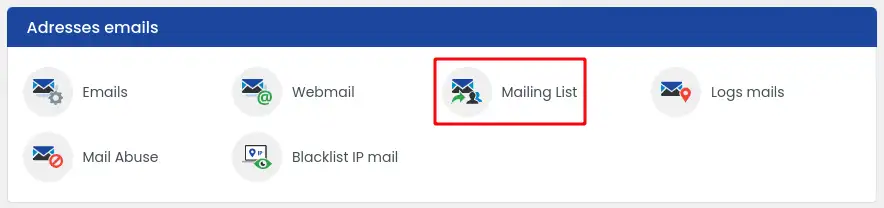
Step 3: Then enter the mailing address (1) in the "Creating a mailing email address" section and click on "validate" (2)

B. Delete a mailing list
Step 1: First, you must log in to your LWS customer area in order to access the management of your hosting or your Pro mail service.
Step 2: once in the management of your hosting, find the "Email addresses" section. Then click on "Mailing list".
Step 3: In the "Summary & management of your Emails", click on the trash can button corresponding to the mailing list you wish to delete.
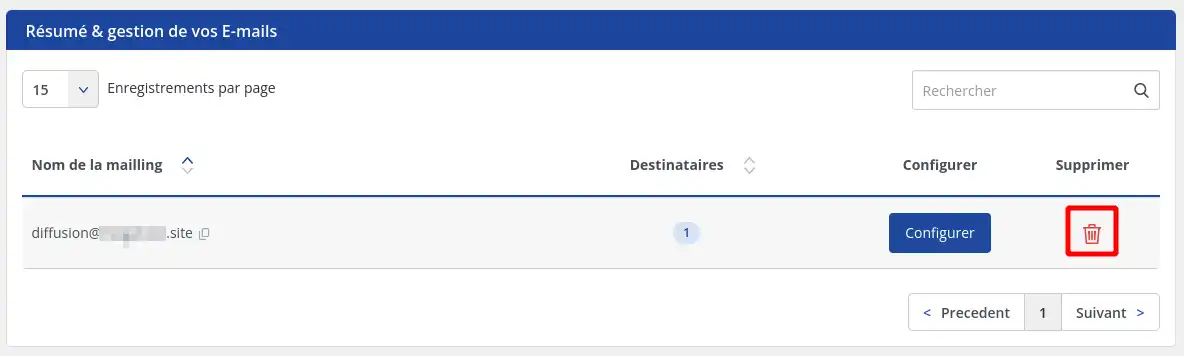
This action is irreversible; the email addresses contained in the mailing list will be deleted at the same time, with no possibility of restoring them.
II. Add recipients to your mailing list
A. Add a recipient manually
Step 1: Once your mailing email address has been created, click on "Configure" in the "Summary & management of your Emails" section
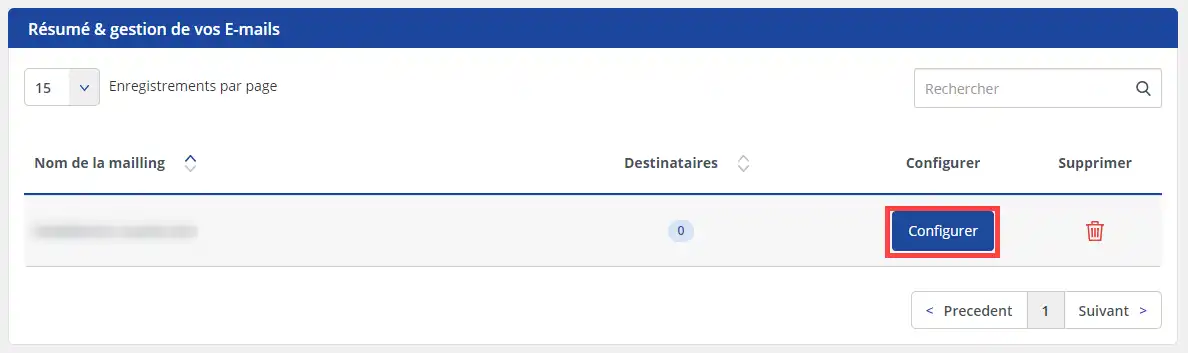
Step 2 : In the "Add a recipient" section, enter the email address (1) you wish to associate with the previously created mailing address, then click on validate (2)

The creation of destination email addresses is limited to 100 per mailing list.
B. Import a recipient list
LWS allows you to automatically import a list of recipients to populate your mailing list.
This import is done using a CSV file that must first be prepared by you. This file must contain a single column listing the email addresses to import, one email address per line.
Once the file has been created, you must follow the steps below to proceed with the import:
Step 1: Once your mailing email address has been created, click on "Configure" in the "Summary & management of your Emails" section
Step 2 : In the "Import a mail list via a CSV file" section, click on the "choose a file" button to import your file from your computer, then click on the "Validate" button to start importing its contents.
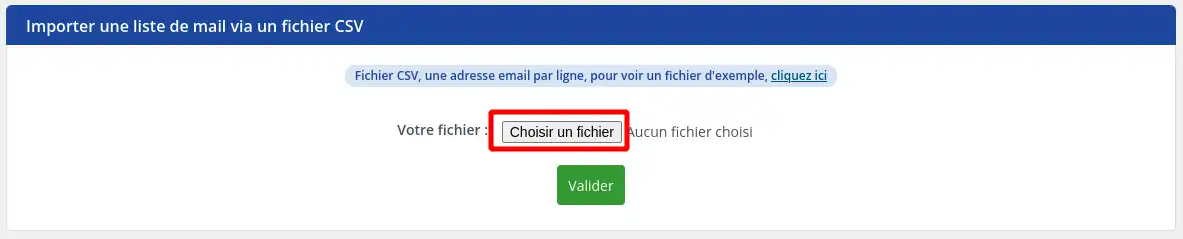
The creation of destination email addresses is limited to 100 per mailing list. Only the first 100 addresses contained in the file will be imported if it contains more than that.
C. Delete a recipient
Step 1: Once your mailing email address has been created, click on "Configure" in the "Summary & management of your Emails" section
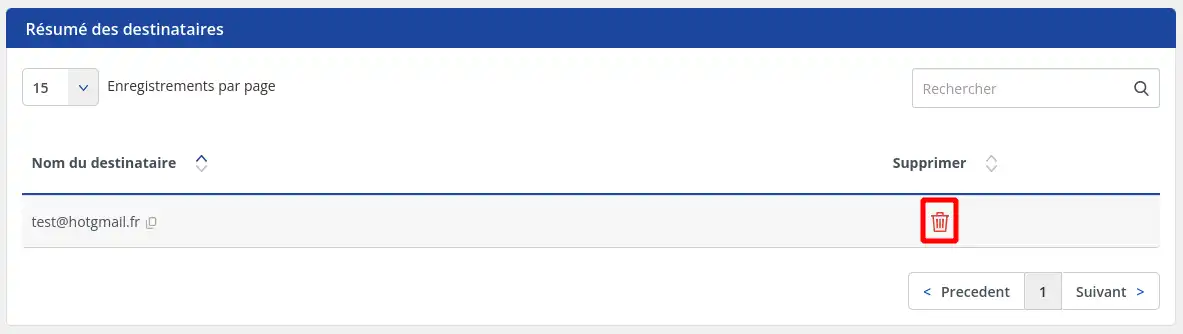
Step 2 : In the "Recipient summary" section, click on the trash can button corresponding to the recipient you wish to delete.
III. Using mailing lists
Using the mailing list is very simple. To send emails to each member of the mailing list, all you need to do is send an email to the email address that serves as the name of that mailing list. Thus, the email sent in the name of the list will be forwarded to all email addresses on the list. The sender email address of each email will remain the sender email address of the original email.
However, please note that the use of mailing lists offered via LWS Panel is subject to a few restrictions, which are detailed in the next section of this documentation.
IV. Restrictions related to the use of mailing lists
The number of available mailing lists depends on the hosting plan. If you would like to have a greater number of mailing lists than your plan offers, you will need to change plans
The maximum number of destination addresses that a mailing list can contain is set at 100 and cannot be increased. If you need to send an email to a larger number of recipients, you will need to use multiple mailing lists.
Mailings can only be sent in the following cases:
- If all recipients are on your domain, then any email address can send a mailing
- If at least one recipient is not on your domain, then only one of the mailboxes on the domain (identified user) can send an email to a mailing list
If these conditions are not met, an error message "Only senders from domain nom_de_domaine.fr can send mail to mailing@nom_de_domaine.fr"
Conclusion
You now know how to:
- Manage your mailing lists effectively by checking the available quantity on your hosting plan and creating or deleting lists according to your needs.
- Add recipients to your mailing list, either manually or by importing a prepared list, while respecting the limit of 100 addresses per list.
- Use mailing lists to communicate easily with all members in a single send, while respecting the restrictions imposed by LWS Panel.
- Understand the restrictions related to the use of mailing lists, including the number of recipients per list and the conditions for sending mailings.
🚀 By mastering these steps, you are now ready to optimize your communication and engage your audience with professional management of your mailing lists on LWS Panel. 💼
🙏 Thank you for reading this article to the end, and I hope you found all the information you needed to manage your email campaigns effectively and strategically. Feel free to share your experiences or ask your questions by leaving a comment below. Your feedback is valuable and helps us improve our services! 💬



 Yes
Yes No
No About
About 