Procédure
Introduction
Welcome to our documentation for deleting a Pro email address in the LWS Panel. We will guide you step by step to help you complete this task smoothly. It is simple, efficient, and free of unnecessary technical jargon. Get ready to manage your Pro email addresses like a professional in just a few minutes.
I. Why delete a Pro email address?
In a cost-optimization approach for your Pro mail service, you may need to review your email usage policy and consider deleting unused email addresses. In the rest of this documentation, we will explain the procedure to follow.
II. Check to perform before deleting a Pro email address slot.
Before deleting a Pro email address slot, you must first verify that this action will be possible. This verification mainly consists of checking that slots are empty and can be deleted.
Step 1 : First, you must log in to your LWS account and access the shared hosting or mail service for which you want to delete an email address.
Step 2 : Access the management of your email addresses:
- for a domain name or an LWS Panel hosting, click on the « Emails » icon in the « Email addresses » section;
- for a Pro Mail service ordered separately (« Mails Pro - your domain », in the « Other services » tab of your customer area), click on the « Email administration » icon in the « Administration of your Mails Pro service » section.
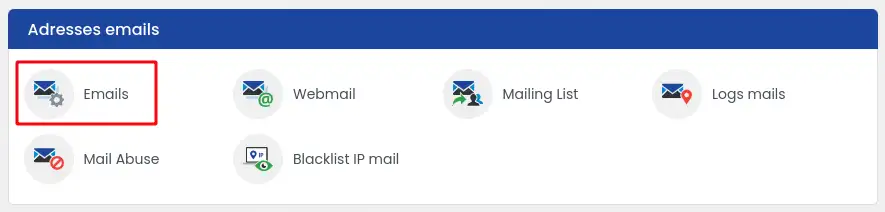
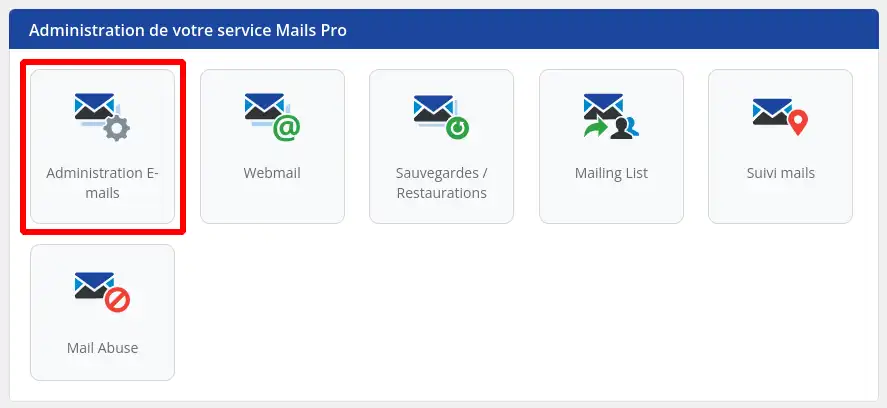
Step 3 : You must check in the Mail Pro counters displayed in the right-hand column of the screen that Pro email address slots are not being used and can be freed.
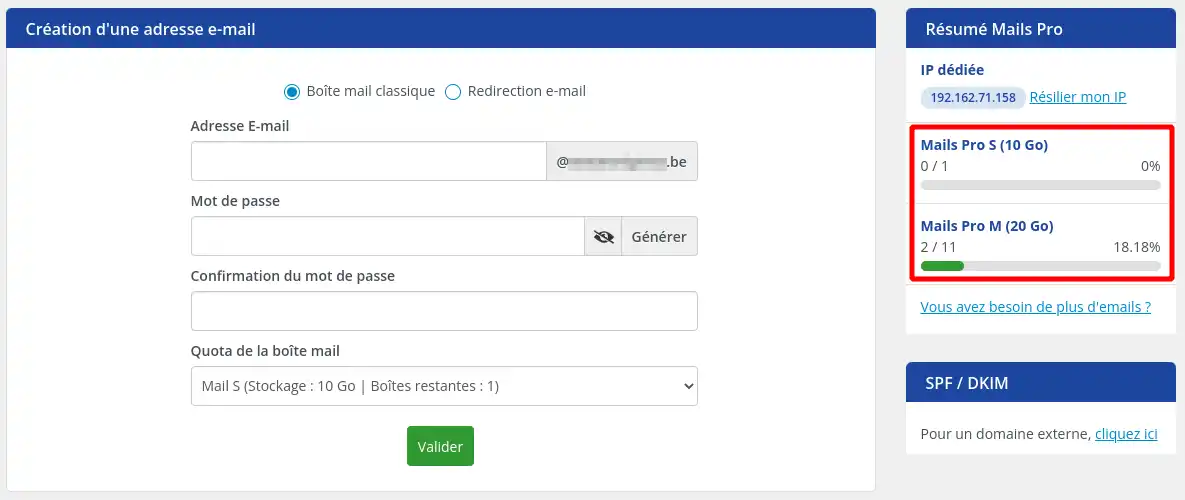
In the screenshot above, we can see that one Mail Pro S slot and 9 Mail Pro M slots are not being used and can be freed.
If, on the other hand, you do not have any free slot to release, you will first need to delete an email address or switch an email address from the Pro service to the Standard service.
III. Deleting a Pro email slot
Simply deleting a Pro email address is not enough for the slot to stop being billed. You must then free up this slot by following the steps below:
Step 1 : In the right-hand column, in the « Current offer summary » block, click on the « Change my mail plan » link.
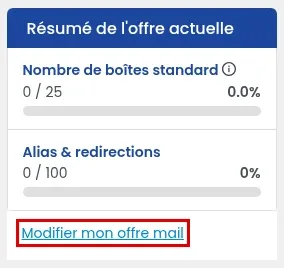
Step 2 : On the page that appears, the number of used slots out of the total number of slots for each type of Pro email address is summarized at the top of the page.
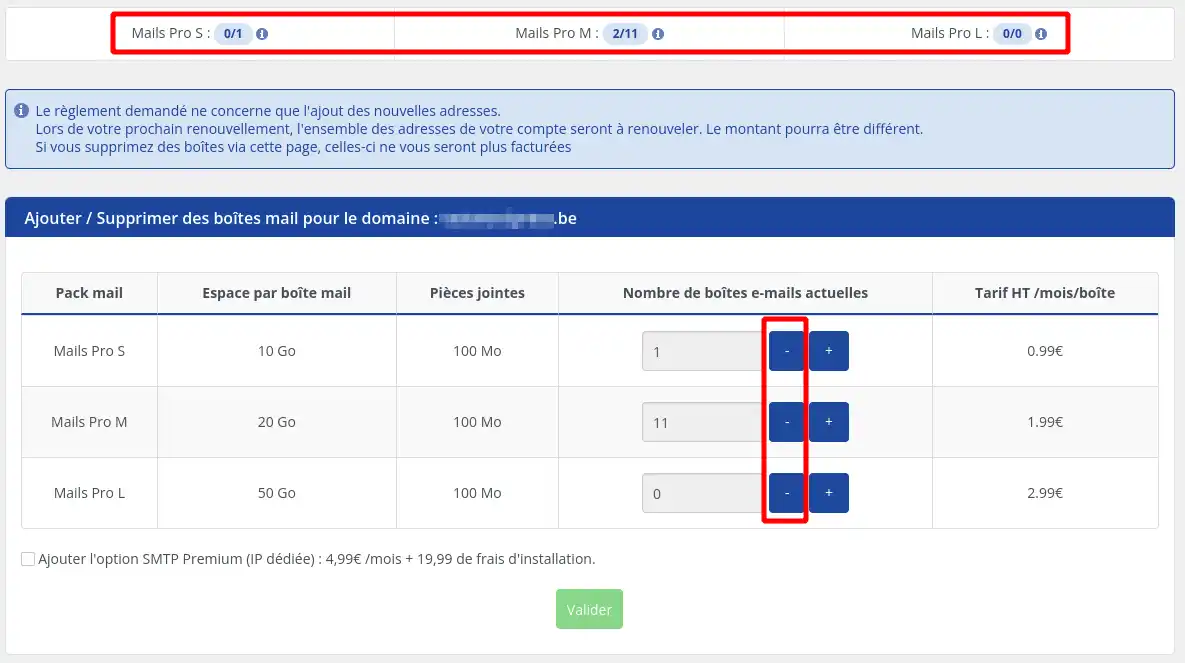
By clicking the « - » buttons, you can decrease the number of slots to keep for each type of Pro email.
It is not possible to enter a number of slots to keep that is not at least equal to the number of slots currently used for each type of Pro email address.
Once you have made your choice, click the « Validate » button.
Step 3 : A quote summarizes the number of slots that will be deleted. The quote is free, but by performing this operation, you will lose the order commitment for all deleted slots.
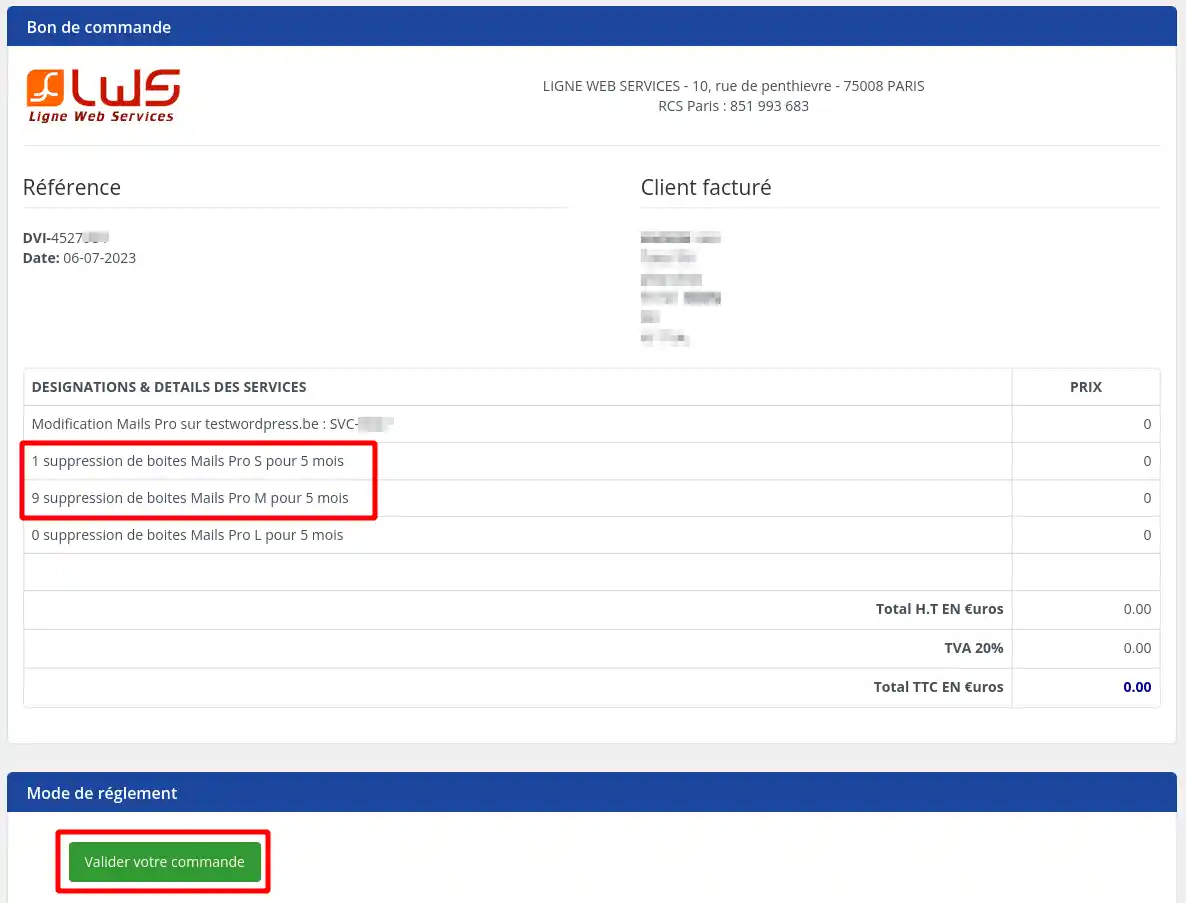
Click the « Validate your order » button to confirm the deletion of the slots, which will therefore no longer be billed during the next renewals.
The deletion action may take a few minutes to complete. During this time, your mail service will be fully functional, but you will not be able to access its management.
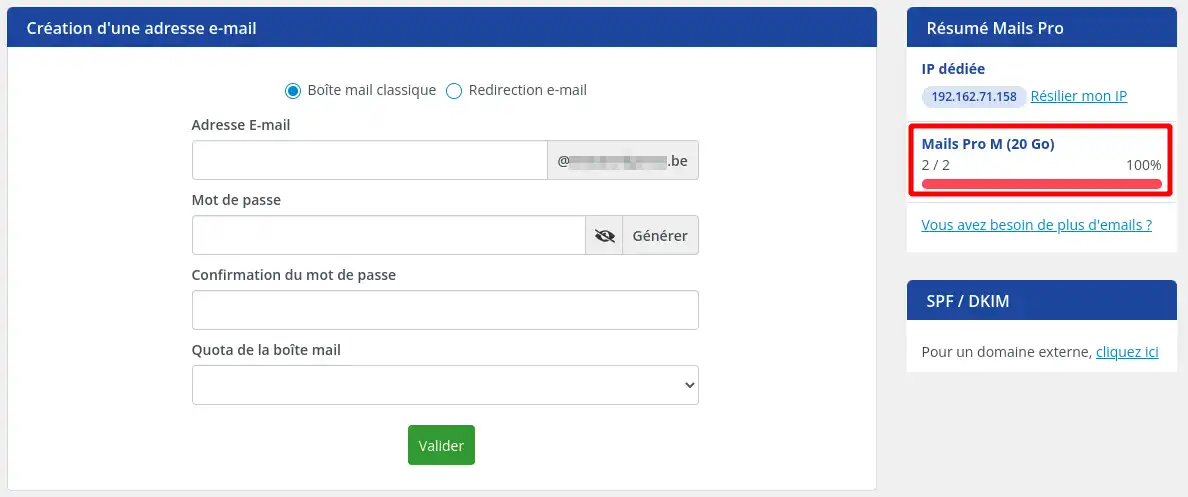
By returning to the administration page, once it is available again, we can see that the slots have indeed been freed.
Conclusion
Deleting a Pro email address from your LWS Panel is a simple and quick process. Now that you have followed this guide, you can manage your email addresses more efficiently, allowing you to better control your communications and your online presence. Remember, every change you make is permanent, so make sure of your decisions before validating them.



 Yes
 No
 About
