
Online help
The web host accessible to all
Procédure
Welcome to this documentation, which will help you navigate easily between LWS Pro and Standard mail services. Whether you are looking to optimize your resources or take advantage of additional features, we guide you through each step of the process to ensure a smooth transition. We have made sure to make these instructions clear and simple to help you get the most out of it
LWS offers its customers two mail services with different features that can be managed and configured in a similar way on the LWS Panel.
The first service, known as "Standard", is the one included with the purchase of a domain name or hosting plan. Depending on the associated hosting plan, this service includes more or fewer email addresses, but cannot exceed more than 5 GB of allocated space per address.
On the other hand, LWS allows you to purchase professional email addresses that make it possible to extend the quotas offered with the "Standard" service, to have a Dedicated IP for sending email, or to benefit from a mail service with a domain purchased from another provider. This service is called: "Mail Pro service".
These two services, even though they work in a very similar way, have different quotas, which we invite you to consult in this documentation.
Various reasons may lead you to switch an email address from one service to another; below we discuss the most common reasons:
Maximum number of email addresses reached on the Standard service
A fairly common situation is having created as many email addresses as allowed by the email service attached to your hosting plan. In this case, one solution may be to change your plan to a higher hosting plan of the same range, offering higher quotas in terms of the number of email addresses.
This solution may, however, not be the best option if you are already on the highest plan in the range or if the cost of changing plan is higher than the cost of creating a Pro email address.
Disk space full on the Standard mail service.
In the same way as for the previous point, the storage volume of the Standard mail service may be full; it is generally limited to 2 GB for domain plans and 50 GB for hosting plans. Creating Pro email addresses or switching an email address from the Standard service to the Pro service can then free up space allocated to the other email addresses.
Disk space per email address.
On the Standard mail service, an email address has a maximum capacity of 2 GB for domain plans and 5 GB for hosting plans. A greater storage need requires switching this email address to the Mail Pro service in order to obtain storage capacities of up to 50 GB per email address.
Capacity in number of emails on an email address.
As with the previous point, saturation may come from the capacity of the email address to hold a certain number of emails. This capacity is 30,000 emails on the Standard service and 150,000 on the Mail Pro service. As a result, switching an email address from the Standard service to the Mail Pro service makes it possible to keep a larger number of emails.
Unused Mail Pro capacity
Conversely, if a Pro email address is not using the capacities offered by this service and fits within the Standard service specifications, switching a Pro email address to Standard can help optimize your business costs.
Before switching an email address from the Standard service to the Pro service, you must first check that this action is possible.
Step 1: First, you must log in to your LWS account and access the shared hosting or mail service for which you want to switch the service for your email address.
If you have no product listed in the "other services" tab, you will first need to purchase a Mail Pro service with a sufficient number of email addresses to allow the switching of the email addresses you want.
If you have already placed an order for a Mail Pro service associated with the desired domain name, then you must access it to check that you have a sufficient number of email addresses available to create new ones.
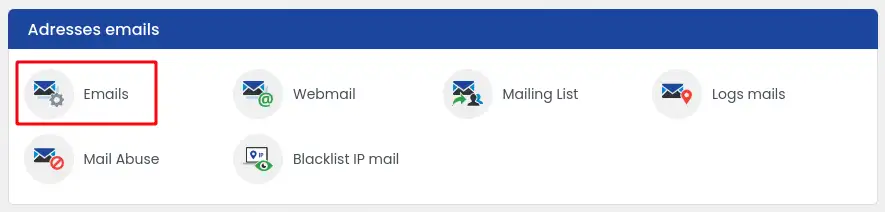
Step 2: Access the management of your mail service by clicking the "E-mails" icon in the "Administration of your Mail Pro service" section.
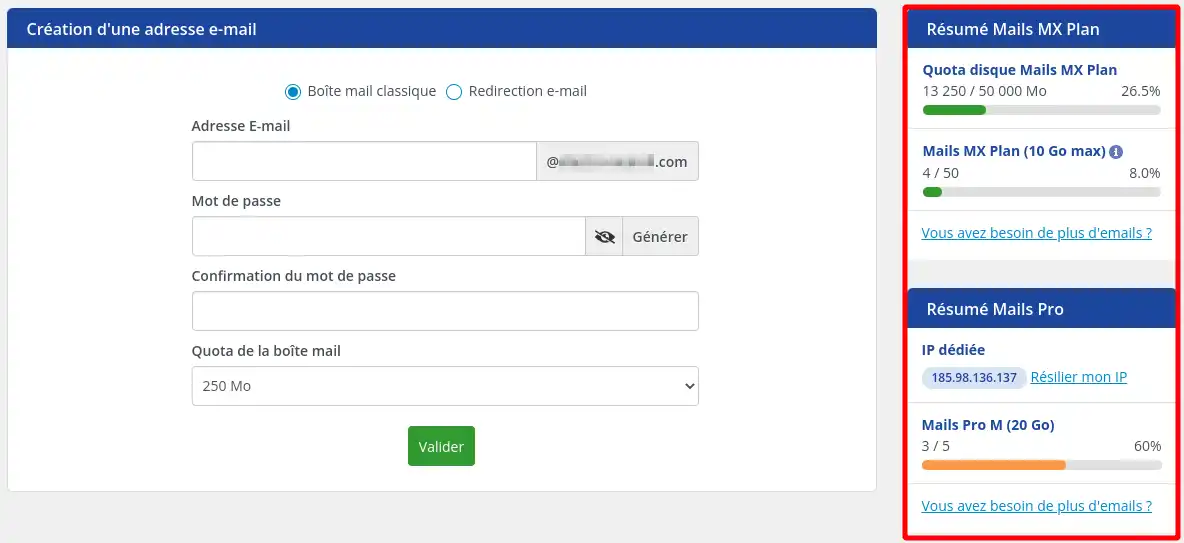
Step 3: You can check the number of email addresses used and the number of email addresses still available for your Mail Pro service by looking at the quotas displayed at the top right of your email management page.
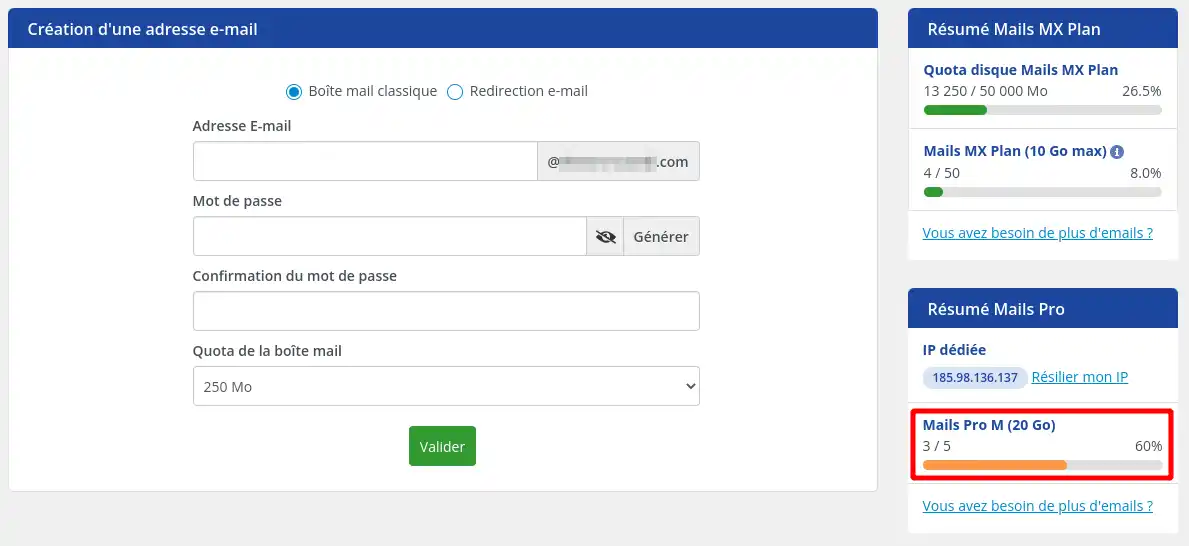
If you still have email addresses available, then you can move on to the next step, which will allow you to perform a switch.
If, on the other hand, you no longer have available quotas, we invite you to follow the "How to order a Pro Email address for a domain managed by LWS" section of this documentation in order to purchase new addresses.
If you had to reorder email addresses, return to the administration of your Pro email addresses by following the steps in section "A. Check to perform before switching" of this documentation.
Then follow these steps to switch an email address from the Standard service to the Pro service:
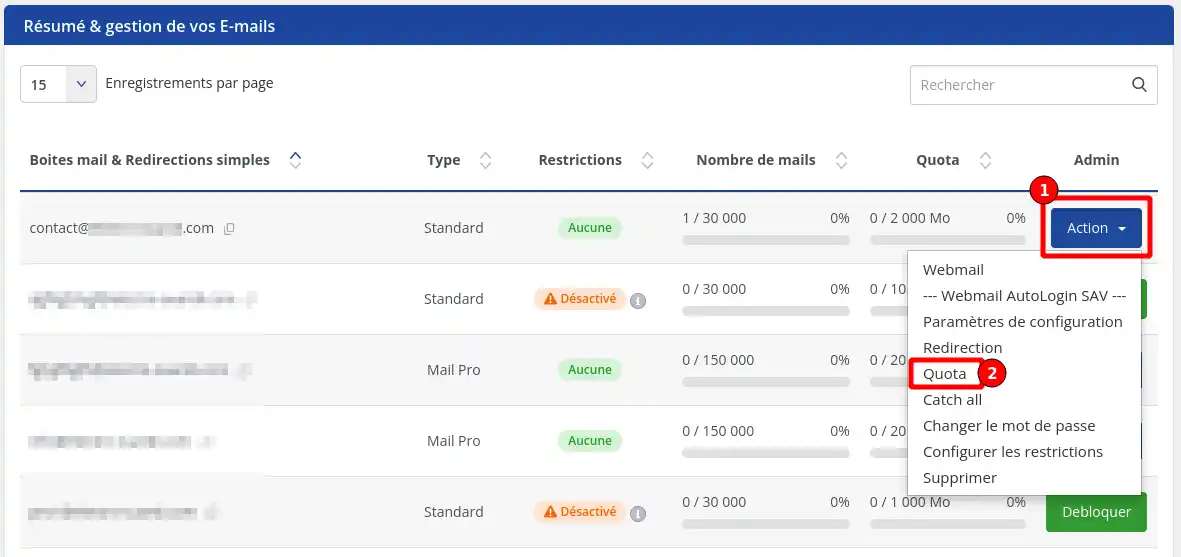
Step 1: Click the "Action" button (1) for the Standard Type email address you want to switch from the Standard service to the Pro service, then click the "Quota" option (2) in the menu that will be displayed.
Step 2: In the window that appears, select a new quota from the following choices: Mail S, Mail M, Mail L. The choices offered vary depending on the type of Pro email addresses you have already ordered.
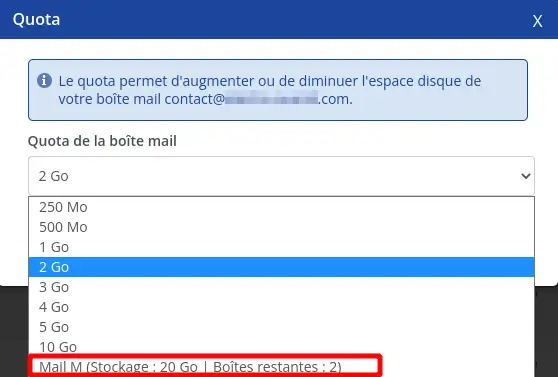
Once you have made your choice, click the "Validate" button
In the email address listing, you will then see that your address has been changed to Pro Type, that it can contain up to 150,000 emails, and that its storage volume has been adjusted according to the selected Pro address type.
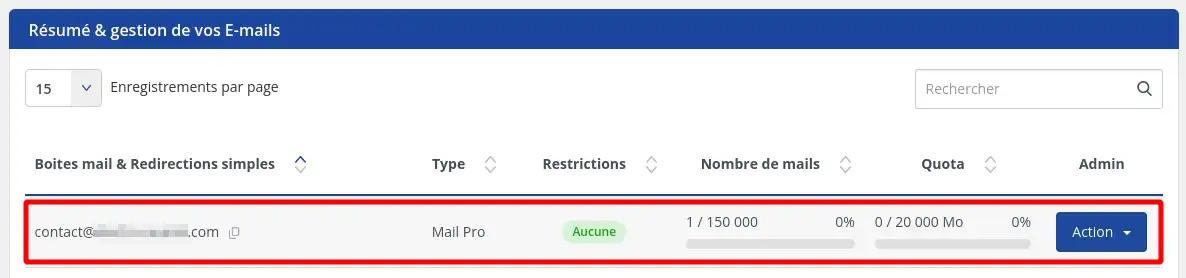
Likewise, the quotas for your mail services have been updated. The space allocated to the email address switched to Pro has been freed from the Standard service, and the number of emails has been decreased by one address, while the Pro service indicates one fewer address available.
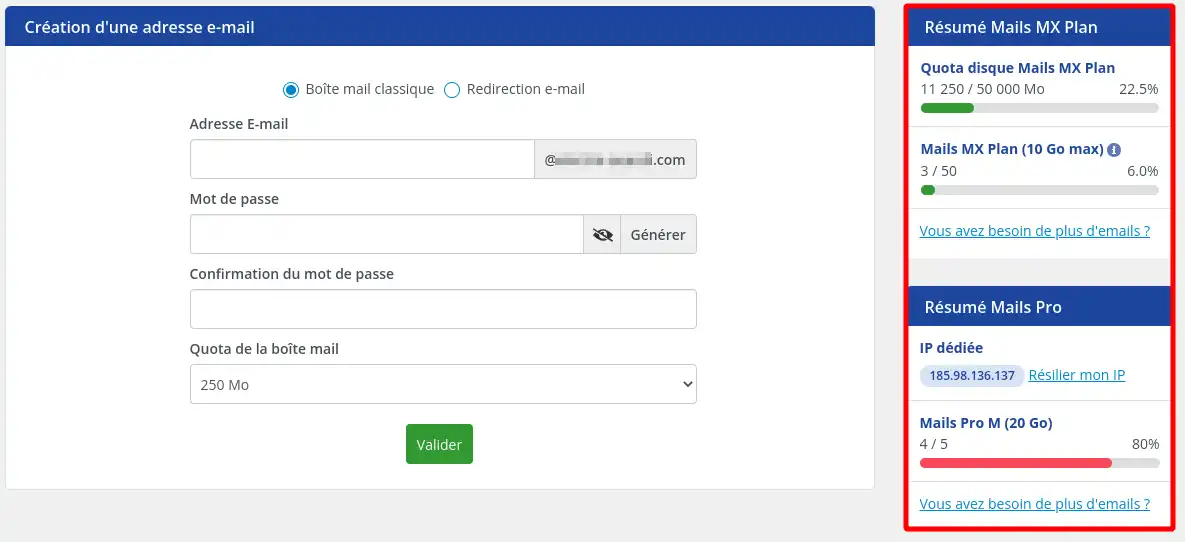
Before switching an email address from the Pro service to the Standard service, you must first check that this action is possible.
Step 1: First, you must log in to your LWS account and access the shared hosting or mail service for which you want to switch the service for your email address.
Step 2: Access the management of your mail service by clicking the "Email Administration" icon in the "Administration of your Mail Pro service" section.
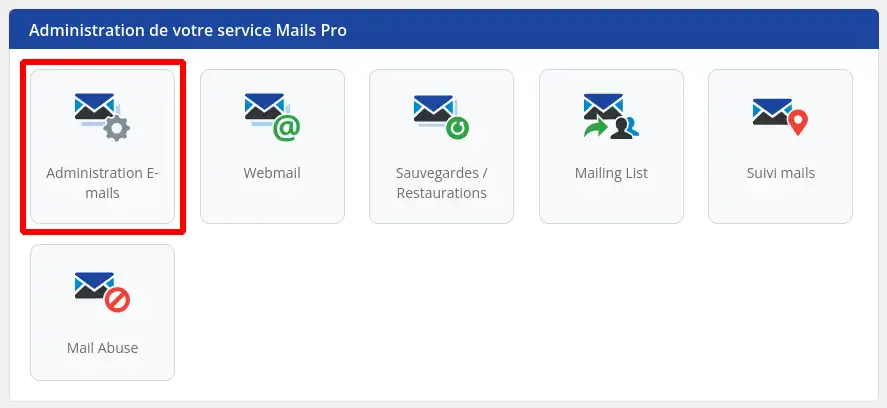
Step 3: The quotas are displayed at the top right of your email management page. You must check that the number of email addresses available on your Standard service allows you to perform the switch and that the allocated disk space has a sufficient amount of available space to carry out the switch.
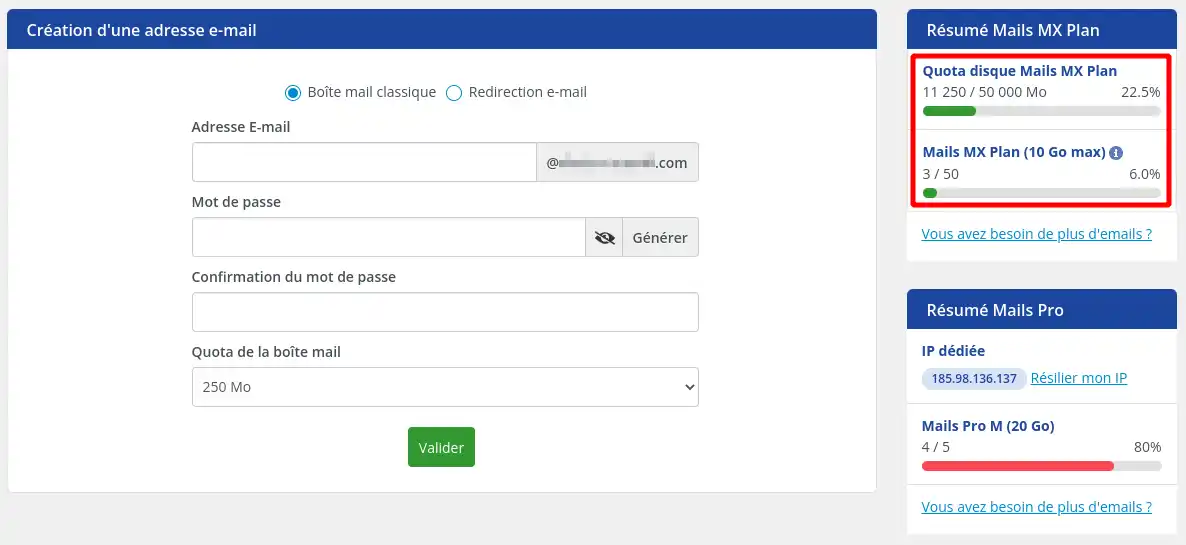
If you no longer have available email addresses or not enough allocated volume, then it will not be possible to switch your email address from the Pro service to the Standard service. You will first need to reduce the allocated space of existing email addresses or delete unnecessary addresses to free up email address slots or allocated storage volume.
Step 4: You must also check in the list of created addresses that the email address you want to switch does not contain more than 30,000 emails and does not contain a data volume greater than 2 GB for a domain plan and 5 GB for a hosting plan.
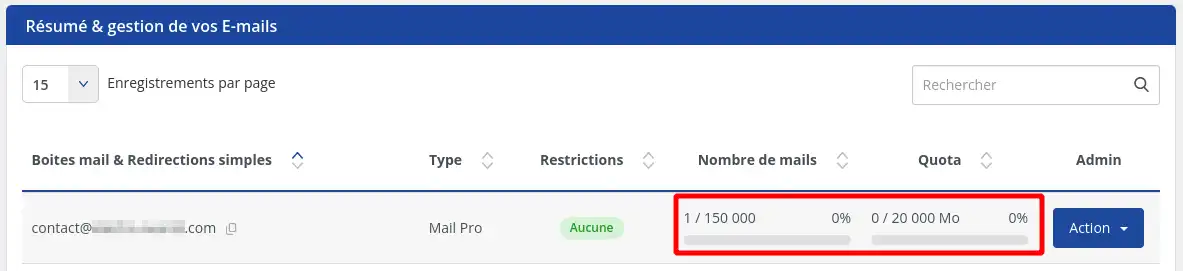
If the values indicated above are exceeded, you will have no choice but to clean up your email address to remove content and get back below the limits.
If all your checks indicate that you can perform the switch, then you can proceed as indicated in the next part of this documentation.
Follow these steps to switch an email address from the Pro service to the Standard service:
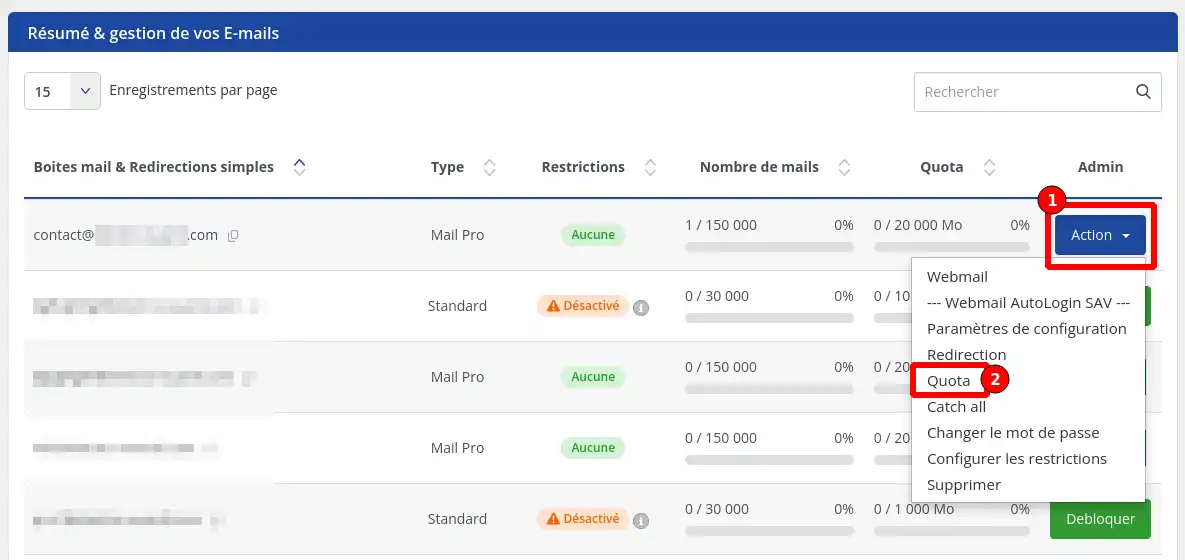
Step 1: Click the "Action" button (1) for the Pro Type email address you want to switch from the Pro service to the Standard service, then click the "Quota" option (2) in the menu that will be displayed.
Step 2: In the window that appears, select a new quota other than the following choices: Mail S, Mail M, Mail L. The choices offered vary depending on the type of Pro email addresses you have already ordered.
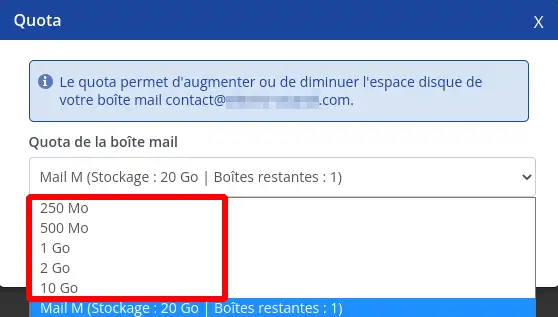
Once you have made your choice, click the "Validate" button
In the email address listing, you will then see that your address has been changed to Standard Type, that it can contain up to 30,000 emails, and that its storage volume has been adjusted according to the selected storage volume.
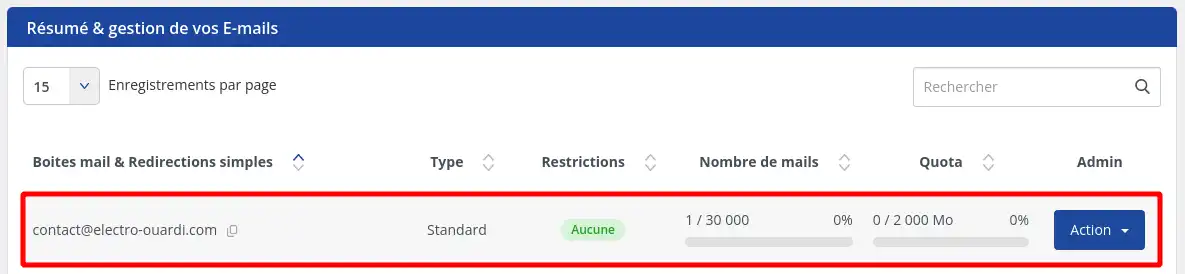
Likewise, the quotas for your mail services have been updated. The space allocated to the email address switched to Standard has been added to the Standard service, and the number of emails has been increased by one address, while the Pro service indicates one more address available.
You are now ready to switch between LWS Pro and Standard mail services with complete peace of mind. This guide is designed to make your LWS experience easier by guiding you through each step of the switching process. Remember that our team is here to help you if you encounter any problems or have any questions. Make the most of your LWS services!
Ask the LWS team and the community. Answers are published after moderation.
 About LWS :
LWS is a 100% French web hosting company that focuses on quality and innovation and offers a responsive and competent technical service at affordable prices.
About LWS :
LWS is a 100% French web hosting company that focuses on quality and innovation and offers a responsive and competent technical service at affordable prices.



 Yes
Yes No
No