




How do I install a CMS with the LWS auto-installer?

Procédure

Introduction

When it comes to creating a website, installing a content management system (CMS) is an essential step. With the LWS auto-installer, you have a practical and easy-to-use tool to quickly and efficiently install your favorite CMS. In this article, we will guide you through the steps required to install a CMS with the LWS auto-installer, allowing you to get your website up and running in no time.

I. How to choose the right CMS?

Before getting started, it is important to choose the CMS that best suits your needs. The LWS auto-installer offers a selection of popular CMSs, such as WordPress, Joomla, or PrestaShop. Each CMS has its own features and advantages, so it is advisable to compare their characteristics to find the one that best matches your goals and skills.

The CMSs available in the auto-installer are classified as follows:

Showcase website:

  • WordPress: a popular and user-friendly CMS, ideal for showcase websites, blogs, and small business sites.
  • Joomla: a versatile CMS offering advanced features for creating showcase websites, blogs, and more complex business sites.
  • SPIP: a French CMS focused on online publishing, suitable for showcase websites and editorial sites.
  • TYPO3: a robust and extensible CMS, suitable for business showcase websites and complex sites requiring advanced content management.

Courses and training:

  • Moodle: a CMS dedicated to online learning, ideal for educational or training institution websites.
  • Chamilo: a learning management and learning content platform.
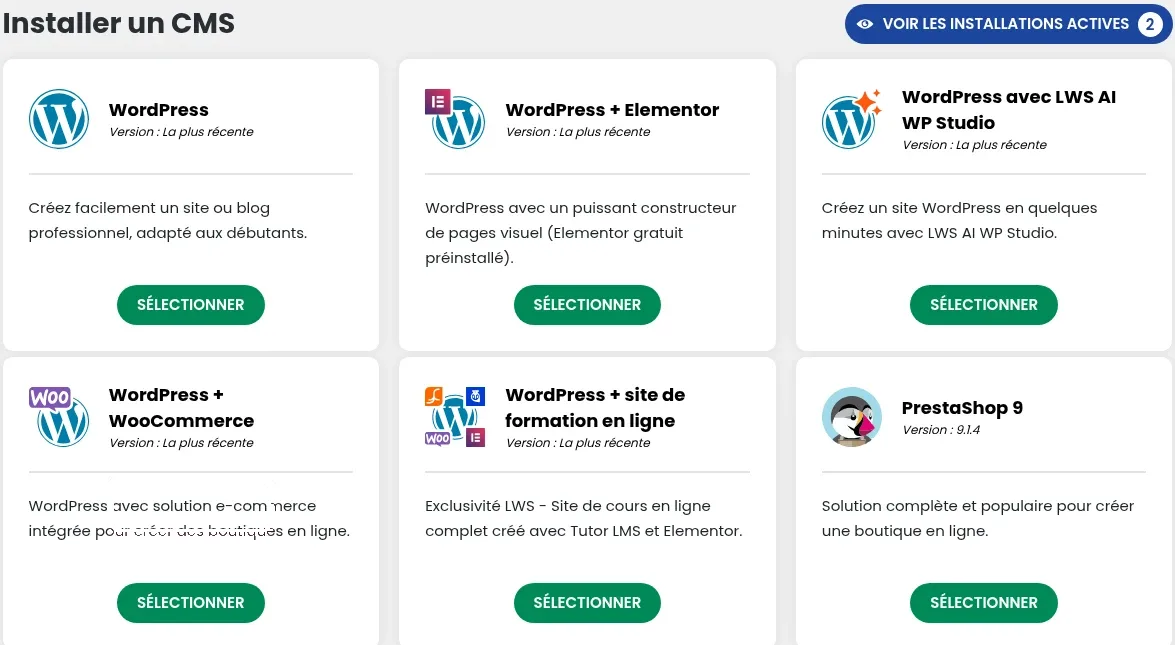
  • WordPress + online training site: a complete online course site created with Tutor LMS and Elementor.

Online store:

  • PrestaShop 9: a popular and user-friendly CMS for creating professional online stores, offering extensive features and great flexibility.
  • OpenCart: a CMS specialized in creating light to medium-sized online stores, with an intuitive interface and many e-commerce features.
  • WordPress + WooCommerce: WordPress with an integrated e-commerce solution for creating an online store.

Blog:

  • Dotclear: a French CMS dedicated to blog creation, offering a simple and intuitive interface as well as advanced blogging features.

Discussion forum:

  • phpBB: a CMS specialized in creating online discussion forums, offering a multitude of features to interact and communicate with users.

Photo gallery:

  • ZenPhoto: a CMS dedicated to creating online photo galleries, offering album management and image sharing features.
  • Piwigo: a user-friendly CMS for creating photo galleries, offering advanced image management and sharing features.
  • Coppermine: a CMS to manage and organize your photo galleries with ease.

Wiki:

  • DokuWiki: a lightweight and simple CMS for creating collaborative wikis, ideal for documentation and information sharing.
  • MediaWiki: a CMS used by Wikipedia, offering a powerful wiki creation platform with advanced content and user management.

Each CMS has its own characteristics and advantages, so it is important to choose the one that best matches your specific needs.

With the auto-installer available on the LWS Panel, you can also install the following two frameworks:

  • Laravel: a modern and popular PHP framework using the MVC model. It simplifies web development thanks to its elegant syntax and many built-in features.
  • CakePHP: an open-source PHP framework based on the MVC model. It makes it possible to rapidly develop web applications by following predefined conventions, offering features such as database management and automatic code generation.

II. Accessing the LWS auto-installer

  1. Access your hosting account

    First, you need to log in to your LWS account and access the shared hosting account for which you want to install a CMS.

  2. Open the auto-installer

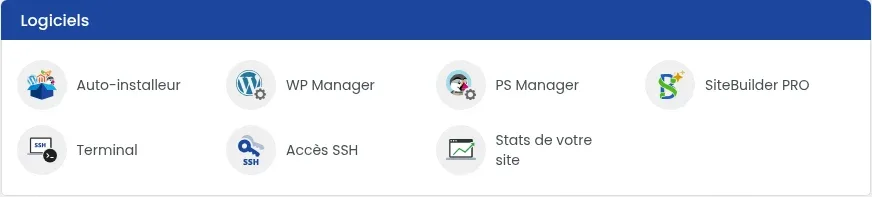
    Click the « Auto-installer » button located in the « Software » section.

    How do I install a CMS with the LWS auto-installer?

  3. Select the CMS

    Then select the CMS you want to install: click « SELECT » under its card.

    How do I install a CMS with the LWS auto-installer?

  4. Enter the address where your website will be accessible

    How do I install a CMS with the LWS auto-installer?

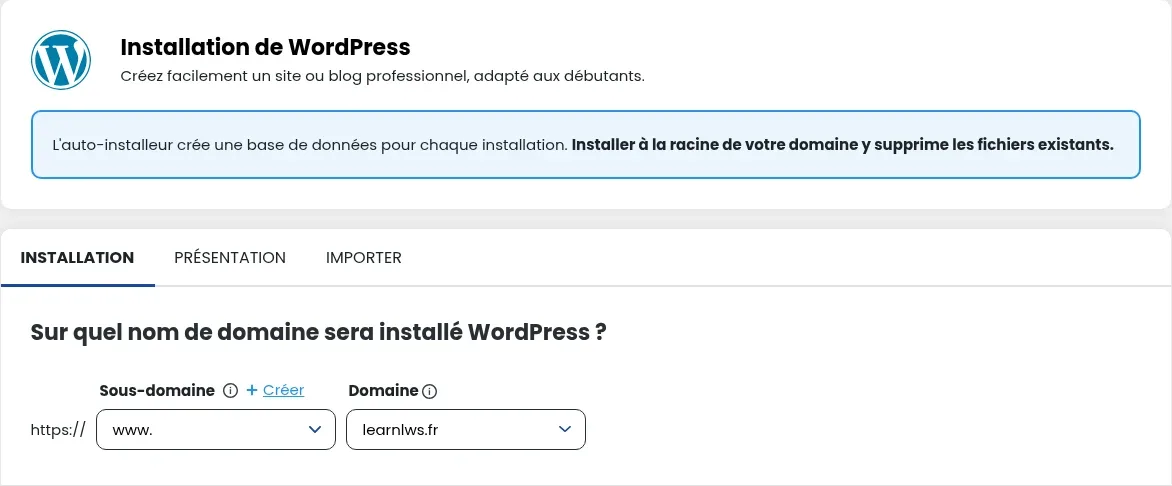
    From this form, choose where the application will be installed:

    • on your main domain (leave « www. » in the « Subdomain » list);
    • on a subdomain of your main domain (e.g. https://boutique.mondomaine.com): the « + Create » link lets you add one without leaving the form;
    • on an additional domain added with the multi-domain feature, or on one of its subdomains.

    The auto-installer does not offer installation in a subfolder (e.g. https://mondomaine.com/boutique): to install multiple sites on the same domain, create a subdomain per site. It creates a database for each installation automatically.

    Depending on the application chosen, you can configure different settings such as the administrator account or the site name. For the WordPress CMS, you can also choose plugins to pre-install or themes.

  5. Start the installation

    Then enter the email address that will receive the login details and click the « INSTALLATION » button.

    How do I install a CMS with the LWS auto-installer?

  6. Wait during installation

    The installation is in progress. Stay on the page until the progress bar reaches 100%: the process may take 1 to 2 minutes.

    How do I install a CMS with the LWS auto-installer?

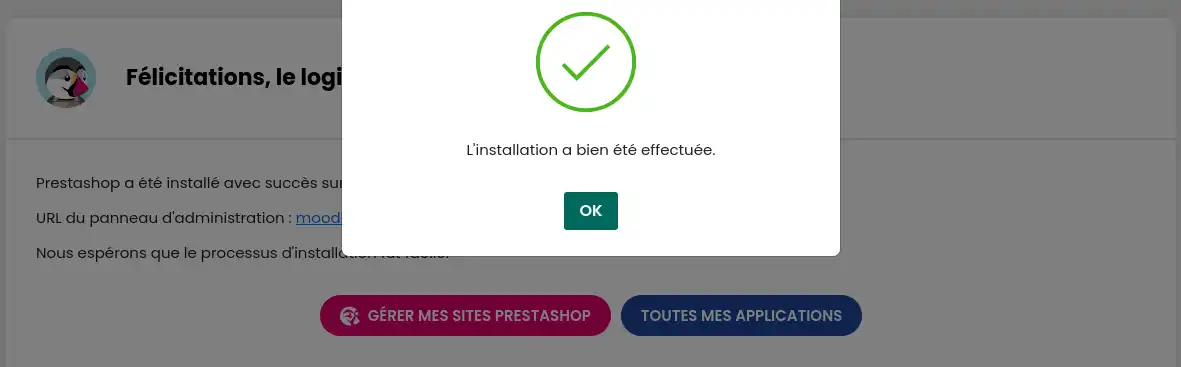
    You should then receive a confirmation once the installation is complete.

    How do I install a CMS with the LWS auto-installer?

Conclusion

You now know how to:

  • Choose the CMS best suited to your needs from a wide range offered by the LWS auto-installer, whether for a showcase website, an online store, a blog, a forum, or a photo gallery. 🌐
  • Access the LWS auto-installer and navigate the interface to install the chosen CMS. 🔧
  • Configure the initial settings of your site, such as the subdomain, domain, administrator account, and plugins or themes, by following simple illustrated steps. ⚙️
  • Receive an email confirmation once the installation of your CMS has been successfully completed. 📧

We hope this article has been helpful in getting your web project started with ease and efficiency. Your online presence is about to take off thanks to the LWS auto-installer and the endless possibilities offered by CMSs. Many thanks for reading! 💡🙏

Feel free to share your experiences, questions, or suggestions by leaving a comment below. We are always happy to connect with our community and provide help. Happy creating! 🚀✨

help.lws.net/a/965
Was this article helpful?

Yes

No

Read 50 257 times

Thank you! Feel free to ask questions about our documentation if you would like more information, and help us improve it.

Similar articles

Questions about the article 7

Ask a question
victor
9 Sept 2022
commment faire pour enlever wordpress de ma racine afin que mon site soit accessible car je ne maitrise pas wordpress
fabrice-LWS Official answer
10 Sept 2022
Bonjour, vous pouvez pour cela, vous rendre sur votre espace client LWS, cliquez sur "Gérer" se trouvant derrière votre nom de domaine puis sur "Gestionnaire de fichiers". Il vous faudra supprimer les dossiers wp-content, wp-includes et wp-admin ainsi que les fichiers index.php, .htaccess et tous ceux commençant par wp-* et se trouvant à la racine de votre espace FTP.
Was this answer helpful?

touzaisaac
7 Aug 2023
Bonjour. J'ai rencontre beaucoup des erreurs après installation des Moodle avec l'installeur. Que faire?
Aurelien-LWS Official answer
8 Aug 2023

Bonjour, 

Je vous remercie pour votre message.

Nous veillons à ce que l'auto-installeur soit régulièrement mis à jour afin de vous permettre d'installer simplement un CMS en quelques clics et sans rencontrer de problèmes. Cependant, malgré nos efforts, il est possible qu'un problème survienne.

Dans ce cas, je vous invite à contacter notre support technique afin qu'un agent technique prenne en charge le problème, vous apporte une solution et le remonte à notre équipe de développement pour corriger définitivement le problème rencontré. Lors de votre demande, je vous invite à transmettre au technicien le message d'erreur que vous rencontrez lors de l'installation.

Cordialement, L'équipe LWS

Was this answer helpful?
ThierryH
26 Jul 2024
Bonjour ! J'ai installé mon site Mediawiki via l'auto-installer. Je constate qu'il s'agit d'une ancienne version de Mediawiki. Existe-t-il une procédure automatique de mise à jour ou faut-il l'effectuer manuellement ?
Aurelien-LWS Official answer
12 Aug 2024

Bonjour,

Effectivement, la version de MediaWiki actuellement proposée sur notre installeur est la version 1.39. Notre équipe en charge de l'auto-installeur va prochainement mettre à jour cet outil pour proposer la dernière version stable, la version 1.42.

Toutefois, MediaWiki permet une mise à jour directe de la version 1.39 vers la version 1.42 qui devrait pouvoir vous permettre de bénéficier de la dernière version du CMS facilement sans passer par des versions intermédiaires.

https://www.mediawiki.org/wiki/Manual:Upgrading/fr

Cordialement, L'équipe LWS

Was this answer helpful?
kris974
19 Mar 2025
Bonjour j'ai créé mon site sur dreamweaver et je souhaiterais le porter sur LWS. quelles sont les procédures
Jordan-LWS Official answer
20 Mar 2025

Bonjour,

Je vous remercie pour votre message.

Pour publier votre site créé avec Dreamweaver sur votre hébergement LWS, je vous invite à contacter notre service technique. Un technicien pourra vous guider dans les étapes nécessaires pour transférer vos fichiers et mettre votre site en ligne.

N'hésitez pas à nous solliciter !

Cordialement

Was this answer helpful?
Motrimed
25 Sept 2025
je souhaite installer Dolibarr pas autre, sur la procédure on voir prestashop. ma question concerne Dolibarr que je ne vois plus dans la liste des CMS
Jordan-LWS Official answer
26 Sept 2025

Bonjour,

Je vous remercie pour votre message. 

Effectivement, Dolibarr n’est pas disponible dans notre auto-installeur. Si vous souhaitez le déployer, il sera nécessaire d’effectuer une installation manuelle. Vous pouvez pour cela télécharger le CMS depuis le site officiel de Dolibarr, puis l’envoyer sur votre hébergement via FTP et procéder à la configuration.

N’hésitez pas à revenir vers nous si vous avez besoin d’assistance dans les étapes techniques générales (base de données, accès FTP, etc.).

Cordialement, L'équipe LWS 

Was this answer helpful?
Haythem
17 Nov 2025
Comment Faire ma configuration zone DNS pour mes multi-sites ? et comment activer le certificat LLS sur les mutltisites ?
Maxence-LWS Official answer
19 Nov 2025

Bonjour Monsieur,

Je vous remercie pour votre message. 

Malheureusement, les données présentes sur cette aide en ligne ne me permettent pas de vous identifier.

Les manipulations dépendent de la formule souscrite, et de votre nom de domaine (à savoir si LWS est votre registrar, etc).

Je vous invite à ouvrir un ticket technique auprès de notre support, un spécialiste vous aidera à réaliser les démarches demandées : https://aide.lws.fr/a/268

Vous pouvez également nous contacter depuis votre espace client ou sur cette page : https://www.lws.fr/contact.

Cordialement,

L'équipe LWS

Was this answer helpful?
Kalimtra
il y a 6 mois
Est ce qu'il y a une possibilité de créer un site web via lws ?
Jordan-LWS Official answer
il y a 6 mois

Bonjour,

Oui, il est tout à fait possible de créer un site web via LWS.

Nous mettons à disposition plusieurs outils de création de site accessibles depuis votre espace client.

Tout d’abord, vous disposez d’un outil d’auto-installation de CMS (comme WordPress, PrestaShop, Joomla, etc.) vous permettant de créer et gérer votre site en toute autonomie.

Nous proposons également un éditeur de site nommé Site Builder Pro, permettant de créer facilement un site web sans connaissances techniques particulières.

Ces outils sont inclus dans nos offres d’hébergement à partir de l’offre Perso.

N'hésitez pas à revenir vers nous si vous souhaitez davantage d’informations sur ces solutions.

Je vous remercie de votre attention et reste à votre disposition pour toute autre question ou complément d'information.

Cordialement, L'équipe LWS 

Was this answer helpful?

A question about this article?

Ask the LWS team and the community. Answers are published after moderation.

Ask the LWS team and its community a question

GDPR: Controller: LWS-Ligne Web Services. Purpose: moderation and public publication of your question, possible notification of an answer. Legal basis: consent (Art. 6(1)(a) GDPR). Email retention: 90 days after notification, 12 months maximum without an answer. To exercise your rights, see the GDPR section of our Terms and Conditions.