
Online help
The web host accessible to all
Procédure
Have you or one of your users forgotten your password and can no longer log in to the PrestaShop dashboard? The PS Manager in the LWS Panel lets you change it without going through PrestaShop: store row “⋮” menu, then “Change password”. The new password works right away.
Log in to your LWS account and access the hosting where the PrestaShop store is located. In the Software section, click PS Manager.
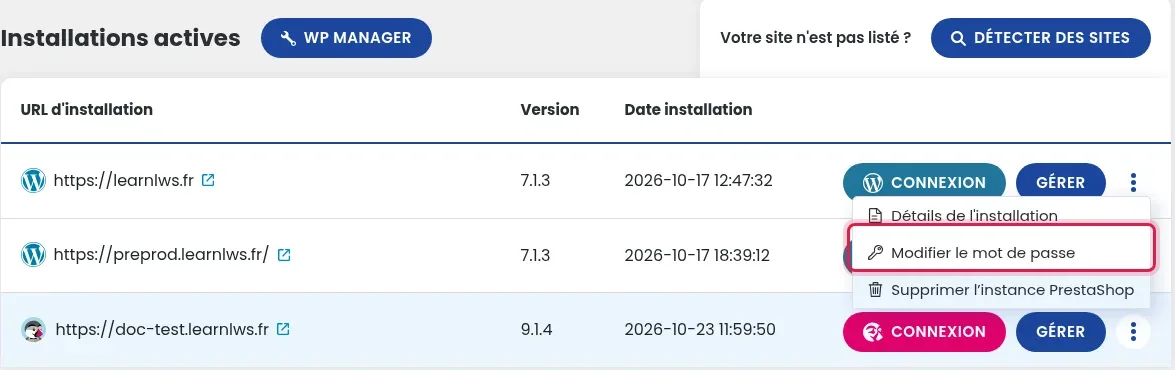
In the Manage installations list, click the vertical three dots ⋮ at the end of the store row, to the right of the MANAGE button, then click Change password.

In the Change password window, select the relevant user in Select a user. Enter the New password (the Generate button suggests one), then retype it in Confirm password. Check the Send this user's settings to box if you want the user to receive their new login details by email.

Click VALIDATE.
The same menu is available in the Auto-installer: Software section, Auto-installer, then VIEW ACTIVE INSTALLATIONS. On the store row, click ⋮ then Change password. The menu may appear above the adjacent row: make sure it is the one for your store.
Ask the LWS team and the community. Answers are published after moderation.
 About LWS :
LWS is a 100% French web hosting company that focuses on quality and innovation and offers a responsive and competent technical service at affordable prices.


 Yes
 No