
Online help
The web host accessible to all
Procédure
The WP Manager in the LWS Panel brings together the protection settings for your WordPress site in its SECURITY tab: a ready-to-use security level (Level 1, 2 or 3, or Custom), the login address hidden by LWS Hide Login, protection rules that can be enabled one by one, a few critical actions, and an integrity scan. This help explains where to find them and what each setting is for, without going into WordPress administration.
Log in to your LWS account and access the hosting where your site is located. In the Software section, click WP Manager.
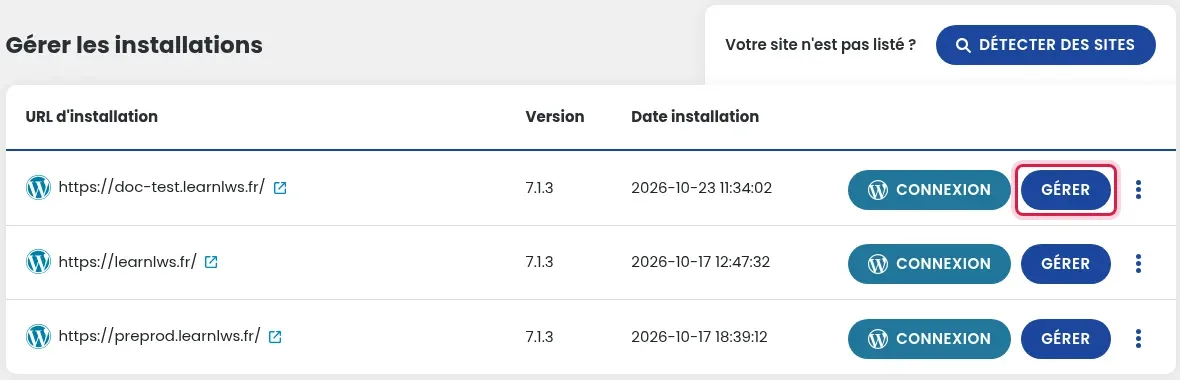
In the Manage installations list, click the MANAGE button for the relevant site.
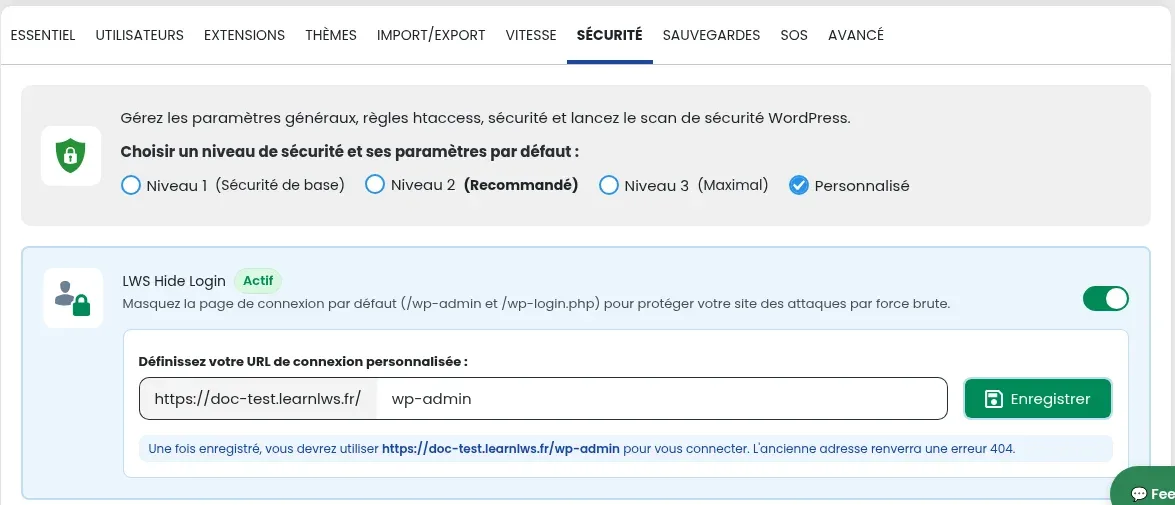
At the top of the tab, the line Choose a security level and its default settings offers Level 1 (Basic Security), Level 2 (Recommended), Level 3 (Maximum) and Custom. The LWS Hide Login block is just below, followed by the detailed settings.
Each level activates a set of settings all at once. The table below shows which settings are activated by each level (✔). The Custom level lets you enable or disable the settings of your choice yourself.
| Setting | Level 1 (Basic Security) | Level 2 (Recommended) | Level 3 (Maximum) |
|---|---|---|---|
| Scheduled tasks (cron) | ✔ | ✔ | ✔ |
| Search engine visibility | — | — | — |
| Debug mode | — | — | — |
| Force HTTPS | ✔ | ✔ | ✔ |
| Restrict access to files and folders | ✔ | ✔ | ✔ |
| Disable file listing in folders without an index file | ✔ | ✔ | ✔ |
| Block unauthorized access to the xmlrpc.php file | ✔ | ✔ | ✔ |
| Block downloads of .sql files | ✔ | ✔ | ✔ |
| Block access to readme and license files | ✔ | ✔ | ✔ |
| Block access to .htaccess and .htpasswd files | — | ✔ | ✔ |
| Disable pingbacks | — | — | ✔ |
| Disable file editing in the WordPress dashboard | — | ✔ | ✔ |
| Hide author usernames | — | ✔ | ✔ |
| Disallow PHP script execution in the wp-content/uploads directory | — | ✔ | ✔ |
| Disable script concatenation for the WordPress admin panel | — | — | ✔ |
| Block access to the comment page for browsers without UserAgent or Referer | — | — | ✔ |
| Block access to sensitive files | — | — | ✔ |
| Protection against SEO bots | — | — | ✔ |
| Protection against malicious bots | — | ✔ | ✔ |
| Protection against AI bots | — | ✔ | ✔ |
LWS Hide Login hides WordPress's default login page (/wp-admin and /wp-login.php) to protect your site from brute-force attacks. In the Set your custom login URL field, enter the address of your choice, then click Save.
To enable or disable a setting, click its switch: gray means it is inactive; green means it is active.
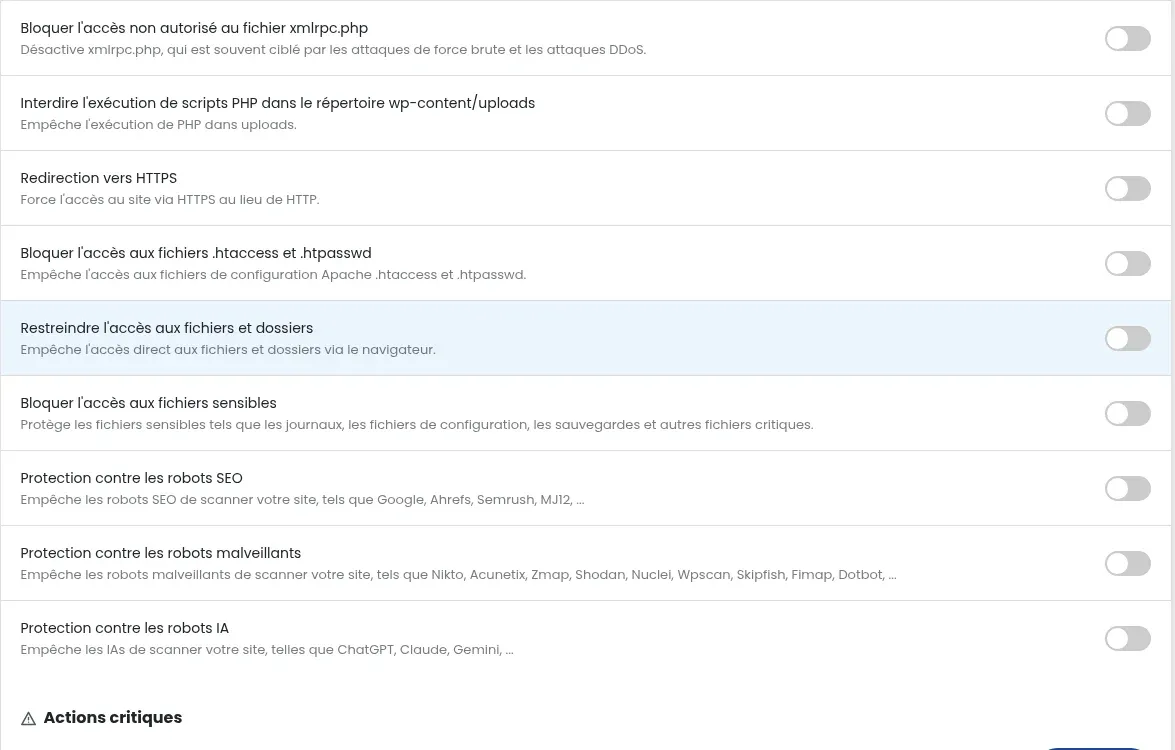
wp-cron.php file, normally triggered by visits to your site. This setting makes them run through a server scheduled task instead of wp-cron.php, making them independent of visits.xmlrpc.php, which allows WordPress to communicate with other sites or services and is often targeted by brute-force and DDoS attacks.The Critical Actions block groups together three one-time actions, each with its own button:
wp-config.php file, which secure login sessions. All users are logged out and must log in again. Useful if you think access to your site has been compromised.wp-config.php file to 600.The Scan your WordPress installation block checks the integrity of the WordPress core: it compares the files in your installation with the original WordPress files. A difference may indicate a corrupted file, an unauthorized modification, or a file added by a hacker. Click LAUNCH SECURITY SCAN, then review the result; the View scan and detection history link displays previous scans.
If the scan reports modified files, you can reinstall the WordPress core files from the SOS tab (core reinstallation button, same version, without touching your personal files), or restore a backup.
In the SECURITY tab, check that Search engine visibility is enabled and that Protection against SEO bots is disabled.
If you defined a custom login URL with LWS Hide Login, the old /wp-admin address returns a 404 error: use the new address shown in the LWS Hide Login block. You can also log in without a password using the CONNECT button in the WP Manager list.
Ask the LWS team and the community. Answers are published after moderation.
 About LWS :
LWS is a 100% French web hosting company that focuses on quality and innovation and offers a responsive and competent technical service at affordable prices.


 Yes
 No