
Online help
The web host accessible to all
Procédure
This article applies to LWS email addresses managed from the LWS Panel, included with your domain name or your hosting (Mail Standard), such as Mail Pro addresses: they all include synchronized calendar and contacts.
In this documentation, we will see how to configure your shared address book from the webmail provided by our services, namely Roundcube.
It is first necessary to create a valid email account.
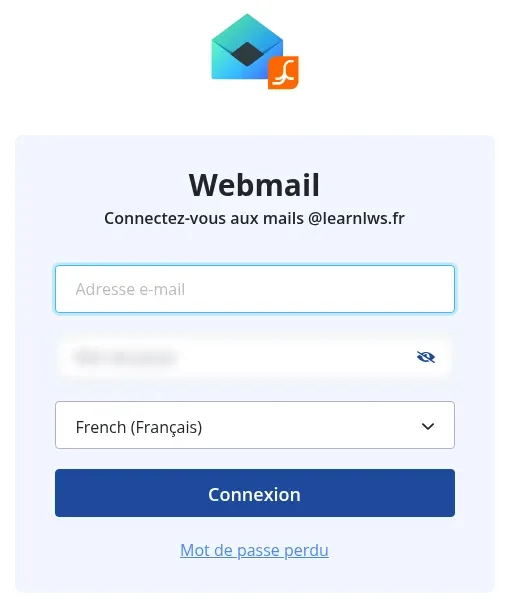
Then, open the webmail at https://mail.votredomaine.ext (replace “votredomaine.ext” with your domain name, for example https://mail.exemple.com), or from the LWS Panel with the Webmail button in the Email addresses section. Log in with the full email address and the mailbox password.
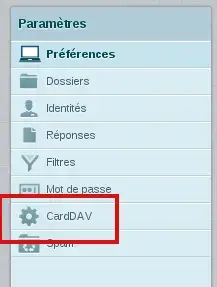
Once logged in, go to the settings menu:

Then CardDAV:
This is where you need to enter the various connection settings for the carddav server. Here we will use the address webmaster@testlws.fr:
Label: Address book name
Server: https://mail02.lwspanel.com/contact/webmaster@testlws.fr
(replace this link with the one you received by email)
Username: webmaster@testlws.fr
Password: The one entered when the email account was created

Then:
Go to the Address book menu:

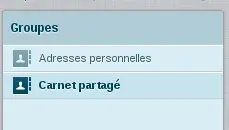
Select the address book previously created (here: Shared address book):
Then create a contact with the icon:
Fill in the form:
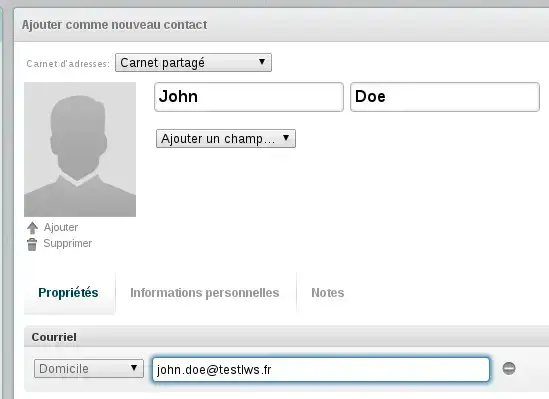
Then:
Our contact has been created:
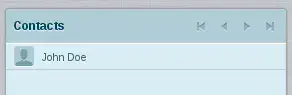
Later, if you want to refresh the list of contacts in your address book, use the icon:

Ask the LWS team and the community. Answers are published after moderation.
 About LWS :
LWS is a 100% French web hosting company that focuses on quality and innovation and offers a responsive and competent technical service at affordable prices.


 Yes
 No