



How do I set up my shared calendar in Roundcube?

Procédure

Introduction

This article applies to LWS email addresses managed from the LWS Panel, included with your domain name or your hosting plan (Mail Standard), like Mail Pro addresses: they all include synchronized calendar and contacts.

In this documentation, we will see how to configure your shared calendar from the webmail provided by our services, namely Roundcube.

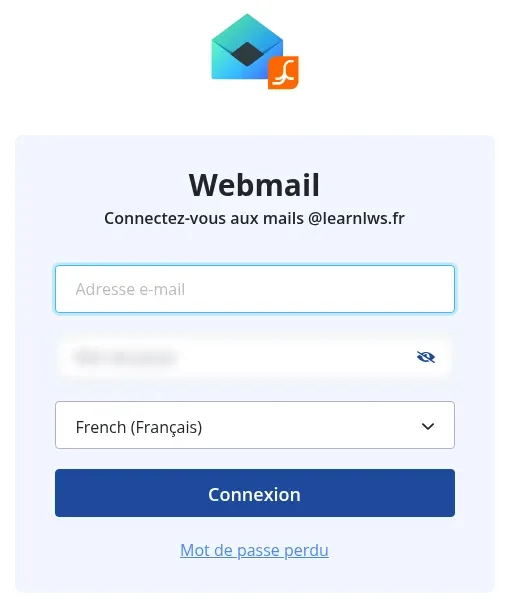
Log in to Roundcube:

You must first create a valid mailbox.

Then, open the webmail at https://mail.votredomaine.ext (replace « votredomaine.ext » with your domain name, for example https://mail.exemple.com), or from the LWS Panel using the Webmail button in the Email addresses section. Log in with the full email address and the mailbox password.

How do I set up my shared calendar in Roundcube?

Set up my calendar:

Once logged in, go to the settings menu:

How do I set up my shared calendar in Roundcube?

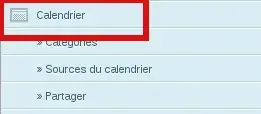
Then Calendar:

How do I set up my shared calendar in Roundcube?

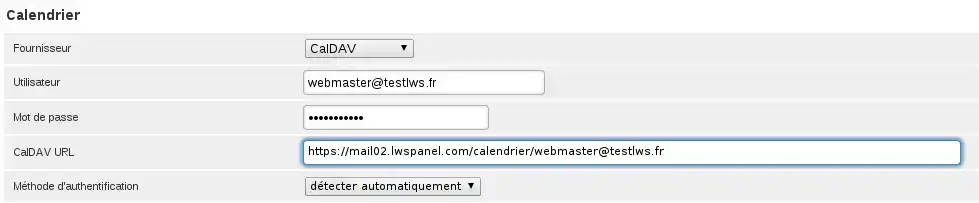
This is where you need to enter the various connection settings to the caldav server. Here we will use the address webmaster@testlws.fr:

Provider: CalDAV

User: webmaster@testlws.fr

Password: The one provided when the mailbox was created

CalDAV URL: https://mail02.lwspanel.com/calendrier/webmaster@testlws.fr
(replace this link with the one you received by email)

Authentication method: detect automatically

How do I set up my shared calendar in Roundcube?

Then:

How do I set up my shared calendar in Roundcube?

Create a shared event:

Go to the Calendar menu:

How do I set up my shared calendar in Roundcube?

Then Create an event:

How do I set up my shared calendar in Roundcube?

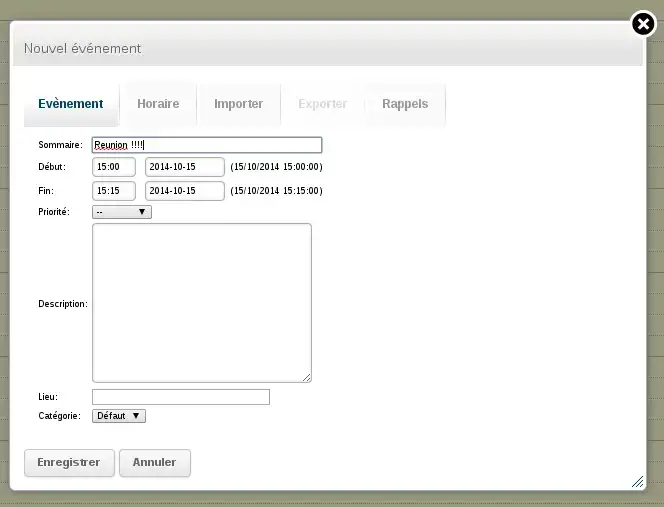
Fill out the form:

How do I set up my shared calendar in Roundcube?

Then:

How do I set up my shared calendar in Roundcube?

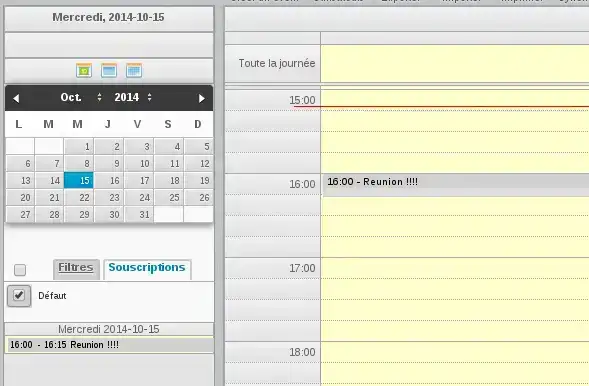
Our event has been created:

How do I set up my shared calendar in Roundcube?

Later, if you want to refresh the list of events in your calendar, use the icon:

How do I set up my shared calendar in Roundcube?

Overview of the Synchronized Calendar feature

help.lws.net/a/348
Was this article helpful?

Yes

No

Read 167 252 times

Thank you! Feel free to ask questions about our documentation if you would like more information, and help us improve it.

Similar articles

Questions about the article 2

Ask a question
Louis
9 Jan 2025
How do I create a 2nd. or 3rd. calendar?
Jordan-LWS Official answer
9 Jan 2025

Hello,

Thank you for your message.

I understand that you may need to create a new calendar on Roundcube. If you would like to do this, please follow these steps:

  1. Log in to your Roundcube e-mail address
  2. Go to the Calendar section
  3. Next to Calendar, click on the three small dots and select"Add Calendar".
  4. A new window should open and all you have to do is fill in the associated fields, except for the CalDAV URL field.
  5. Don't forget to enter your e-mail password in the last field.
  6. Validate with Save and you should have a new calendar.

I thank you for your attention and remain at your disposal should you have any further questions or require additional information.

Sincerely, The LWS Team

Was this answer helpful?

blancal
1 Oct 2025
Hello, how can I share the calendar associated with my email with another user, in read-only mode, without giving him the password?
Jordan-LWS Official answer
2 Oct 2025

Hello,

Thank you for your message.

Unfortunately, it is not possible to share the calendar associated with your read-only e-mail address without disclosing the password.
We invite you to contact technical support directly if you have any further requests or needs in this regard.

I thank you for your attention and remain at your disposal should you have any further questions or require additional information.

Sincerely, The LWS Team

Was this answer helpful?

A question about this article?

Ask the LWS team and the community. Answers are published after moderation.

Ask the LWS team and its community a question

GDPR: Controller: LWS-Ligne Web Services. Purpose: moderation and public publication of your question, possible notification of an answer. Legal basis: consent (Art. 6(1)(a) GDPR). Email retention: 90 days after notification, 12 months maximum without an answer. To exercise your rights, see the GDPR section of our Terms and Conditions.