Procédure
Purpose
This procedure allows you to block certain modes of access to an e-mail address.
In practical terms, you can prevent the use of your mailbox in software or applications such as Outlook, Thunderbird or the Mail application on a telephone, or block access to Webmail as well, depending on your needs. This article describes the logic behind restricting POP, IMAP, SMTP and Webmail access.
Offers concerned
This documentation is aimed at personalised e-mail addresses included with a domain name, shared hosting or an e-mail service compatible with this management in the LWS Panel.
When should I use this function?
This function can be useful if you want to :
- strengthen the security of an e-mail address ;
- prevent it from being used in email software installed on a computer or telephone;
- restrict access to a single mode of use, such as Webmail only;
- prevent messages from being sent from external software if you don't want that address to be used elsewhere.
Before you start
Before applying a restriction, check the following points:
- the e-mail address in question has already been created ;
- you know whether this address is used in Outlook, Thunderbird, Apple Mail or on a smartphone;
- you understand that by blocking certain accesses, the devices or software concerned will no longer be able to consult or send e-mails using this address.
Important
If you block :
- POP and IMAP, software or applications will no longer be able to retrieve your e-mails;
- SMTP, software or applications will no longer be able to send e-mails using this address;
- Webmail, you will no longer be able to access this mailbox from LWS webmail.
Understanding the different access options
Here's what the options in the interface mean:
- POP: allows a program to retrieve your e-mails ;
- IMAP: allows a program or application to synchronise your e-mails;
- SMTP: allows a program or application to send e-mails;
- Webmail: allows you to access your mailbox from the LWS webmail interface.
In practice:
- if you only use your address in Webmail, you can block POP, IMAP and SMTP;
- if you check your e-mail on a telephone or in an e-mail program, don't block the accesses you still need.
Step 1 - Go to restrictions configuration
11. Log in to your LWS customer area
22. Go to your shared hosting or mail service management.
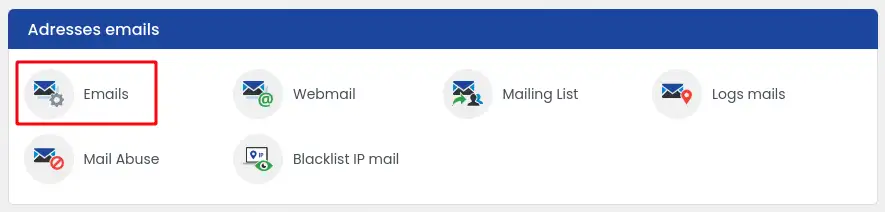
33. Click on the"Email" icon in the"Email Addresses" section.
44. Click on the"Action" button next to the address in question
55. Select "Configure restrictions".
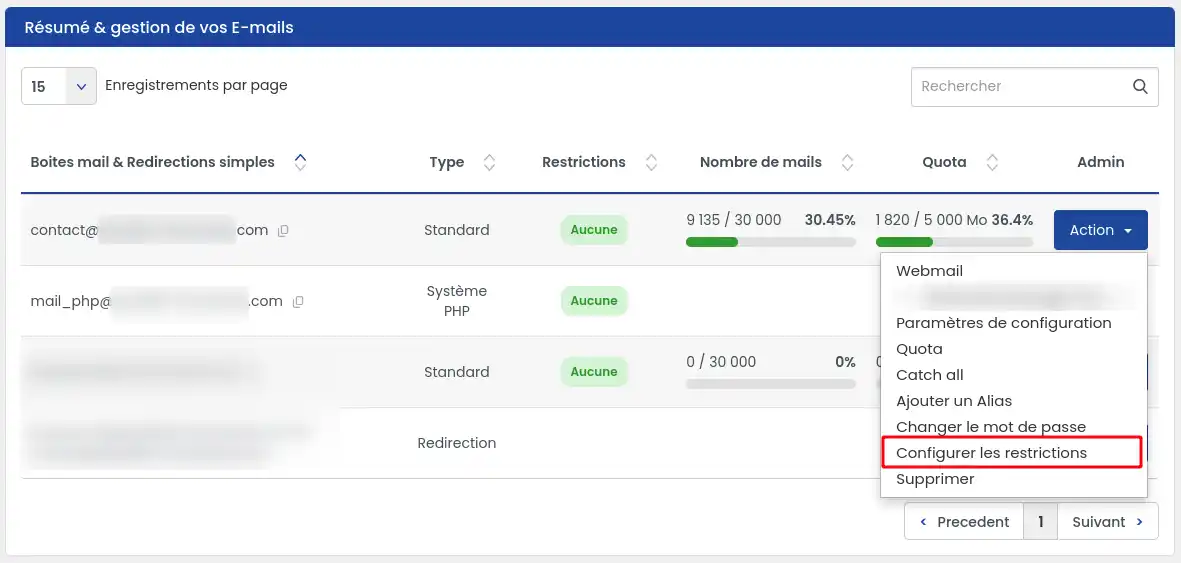
A window appears showing the various blocking options available.
Step 2 - Block the protocols of your choice
In the configuration window, you can tick the items to be disabled:
- POP: blocks the retrieval of emails from an email client;
- IMAP: blocks synchronisation of emails with a software application;
- SMTP: blocks the sending of e-mails from a software application;
- Webmail: also blocks access to the mailbox from LWS webmail.
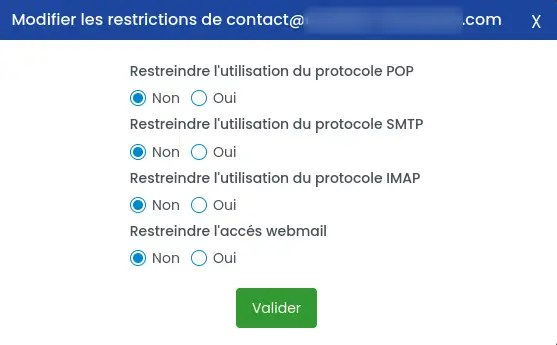
Then click on " Validate ".
Practical examples
Case 1 : you only want to use Webmail, tick: POP, IMAP, SMTP and do not tick Webmail.
Result: you will no longer be able to use this address in Outlook, Thunderbird or on your phone, but you will still be able to use it from LWS webmail.
Case 2 : you want to prevent all access to the mailbox, tick: POP, IMAP, SMTP, Webmail
Result: all access will be blocked for this address.
Case 3 : you only want to prevent sending from a software application, check only: SMTP
Result: consultation may still be possible, but sending from external software will be blocked.
Check that the restriction is active
After validation :
- an alert icon appears next to the e-mail address concerned in the list ;
- this icon indicates thata restriction is active on this mailbox.
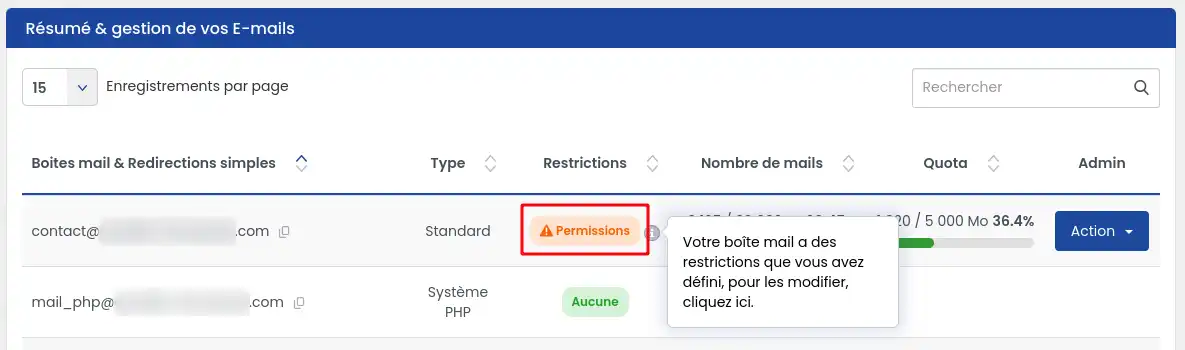
You can return to this configuration at any time to change it.
Expected result
Depending on which boxes are ticked :
- software such as Outlook or Thunderbird may no longer be able to connect ;
- a telephone may stop picking up new messages;
- sending emails may be refused if SMTP is blocked;
- access to Webmail may become impossible if Webmail is also restricted.
Application time
The restriction is applied immediately after validation in the interface.
Frequent problems
I'm no longer receiving email on my phone.
Check whether POP or IMAP has been blocked.
If so, your phone can no longer retrieve or synchronise messages with this address.
I can no longer send email from Outlook or Thunderbird
Check whether SMTP has been restricted.
If this option is ticked, sending from external software is blocked.
I can no longer access my mailbox via Webmail
Check whether the Webmail option has been ticked.
If so, access from LWS webmail is deliberately disabled.
I don't understand which boxes to tick
First ask yourself this simple question:
Where do you use this e-mail address today?
- only in Webmail: you can block POP, IMAP and SMTP;
- in Outlook, Thunderbird, Apple Mail or on your phone: don't block the accesses you're still using.
I can't find the "Configure restrictions" menu
Make sure :
- you are in the correct service management in the LWS Panel (not cPanel) ;
- you have opened the e-mail addresses section;
- you have clicked on Action next to the correct address.
Security tips
To further strengthen the security of your e-mail address, we recommend combining this function with other protections: use of Webmail with double authentication and geographical restriction by country.
Conclusion
You now know how to block POP, IMAP, SMTP or Webmail access to an e-mail address from the LWS Panel.
This function is useful for better controlling the access modes to your mailbox and adapting its use to your needs.
Before activating a restriction, always bear this essential point in mind:
- if you use your address in an e-mail program or on a mobile phone, a poorly chosen restriction can block this use;
- if you only use Webmail, you can restrict other access to increase security.



 Yes
Yes No
No About
About 