Procédure
What is an auto-responder?
The auto-responder feature of the Roundcube webmail allows you to send an automatic reply to all or some of the emails received (delivery receipts, out-of-office message...)
Create an auto-responder with the Elastic theme?
11. Log in to the Webmail of the email address for which you want to set up the auto-responder.
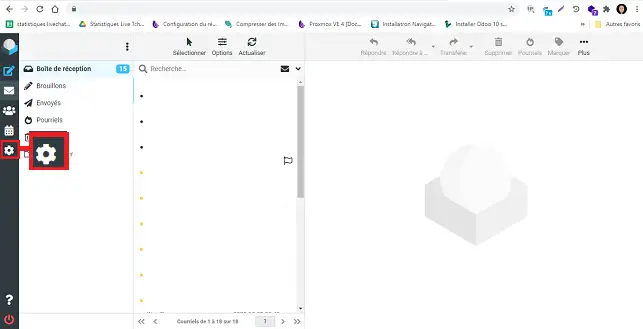
22. Click on the "Settings" button located on the left side of your screen.
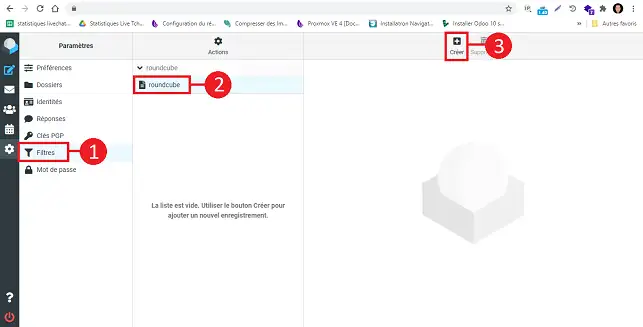
33. Click on "Filters" in the "Settings" section. Select the filter set on which to add the auto-responder and click the "Create" button.
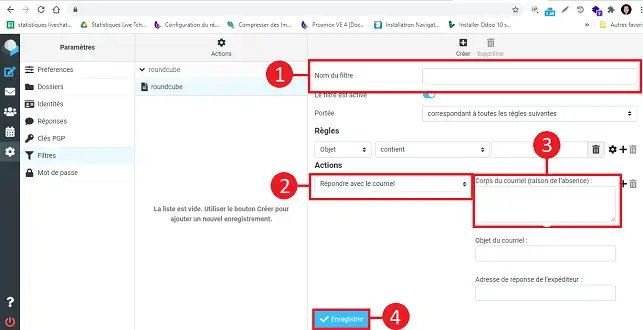
44. Fill in the fields as follows:
- Filter name: Choose a name for the filter
- In the "Actions" section, choose "reply with the email"
- Email body: insert your text
- Email subject: indicate the subject of your message such as "Acknowledgement of receipt of your request"
55. Click on the "Save" button to save your request.
Conclusion
You now know how to:
- Use the auto-responder feature to manage your emails in your absence 😎
- Create a custom auto-responder with the Elastic theme for your Roundcube webmail 📧
- Access the Settings and configure the Filters of your email account 🛠️
- Fill in the necessary fields to automatically reply to your contacts with a pre-defined message 📝
- Save your auto-responder to ensure effective communication even when you are not available 🔒
Thanks to these simple steps, you now have the keys in hand to maintain smooth and professional communication with your contacts, even when you are not behind your screen. Don’t forget, a good auto-responder can make all the difference in terms of customer relations and managing your reputation online. 👍
Thank you for reading this article! If you have any questions, suggestions, or if you would like to share your experience with Roundcube’s auto-responder, feel free to leave a comment below. Your opinion matters to us! 💬



 Yes
Yes No
No About
About 