Contact us
 Customer Area


 Visit LWS
Rate this article :
This article was useful to you ?
 Yes
Yes
 No
No
 Article read
14 once
Article read
14 once Merci ! N'hésitez pas à
poser des questions sur nos documentations si vous souhaitez plus d'informations et nous aider à les
améliorer.
Merci ! N'hésitez pas à
poser des questions sur nos documentations si vous souhaitez plus d'informations et nous aider à les
améliorer.Vous avez noté 0 étoile(s)



Sommaire
Procédure
Service concerned : PrestaShop 9 and LWS email addresses
Panel concerned : PrestaShop 9 back-office and LWS Panel
Level : beginner
PrestaShop sends various emails from your store: order confirmations, account creation, password resets, or customer notifications.
PrestaShop 9 allows you to use an LWS email address directly for these sends via the SMTP protocol. [ADDRESS] no additional module is required.
This help explains how to check your store’s sending address, retrieve the SMTP settings for your [ADDRESS] address, enter them in PrestaShop, and test sending.
You must have the SMTP settings for the LWS email address you want to use.
[PERSON_NAME], consult the help What settings should be used to configure an email address (IMAP, POP, SMTP)?
For sending to work with the LWS SMTP service, the email address used as the SMTP user must be identical to the store email address configured in PrestaShop.
For example, if you want to use:
[EMAIL]
this same address must be configured:
This matching is essential.
The sender spoofing protection system used by LWS verifies that the address sending the message matches the one that authenticated on the SMTP server.
You therefore cannot, for example, authenticate via SMTP with [EMAIL] while asking PrestaShop to send messages with [EMAIL].
The chosen address must also correspond to a real mailbox with its own password. A simple forwarding address or alias cannot be used for SMTP authentication.
[PERSON_NAME] the back-office of your PrestaShop store.
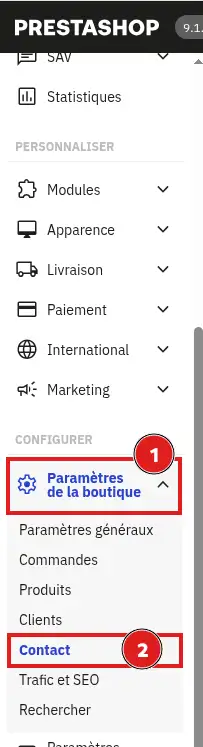
In the left menu, open Shop Parameters, then Contact.
Then open the Stores tab and locate your store’s contact details.
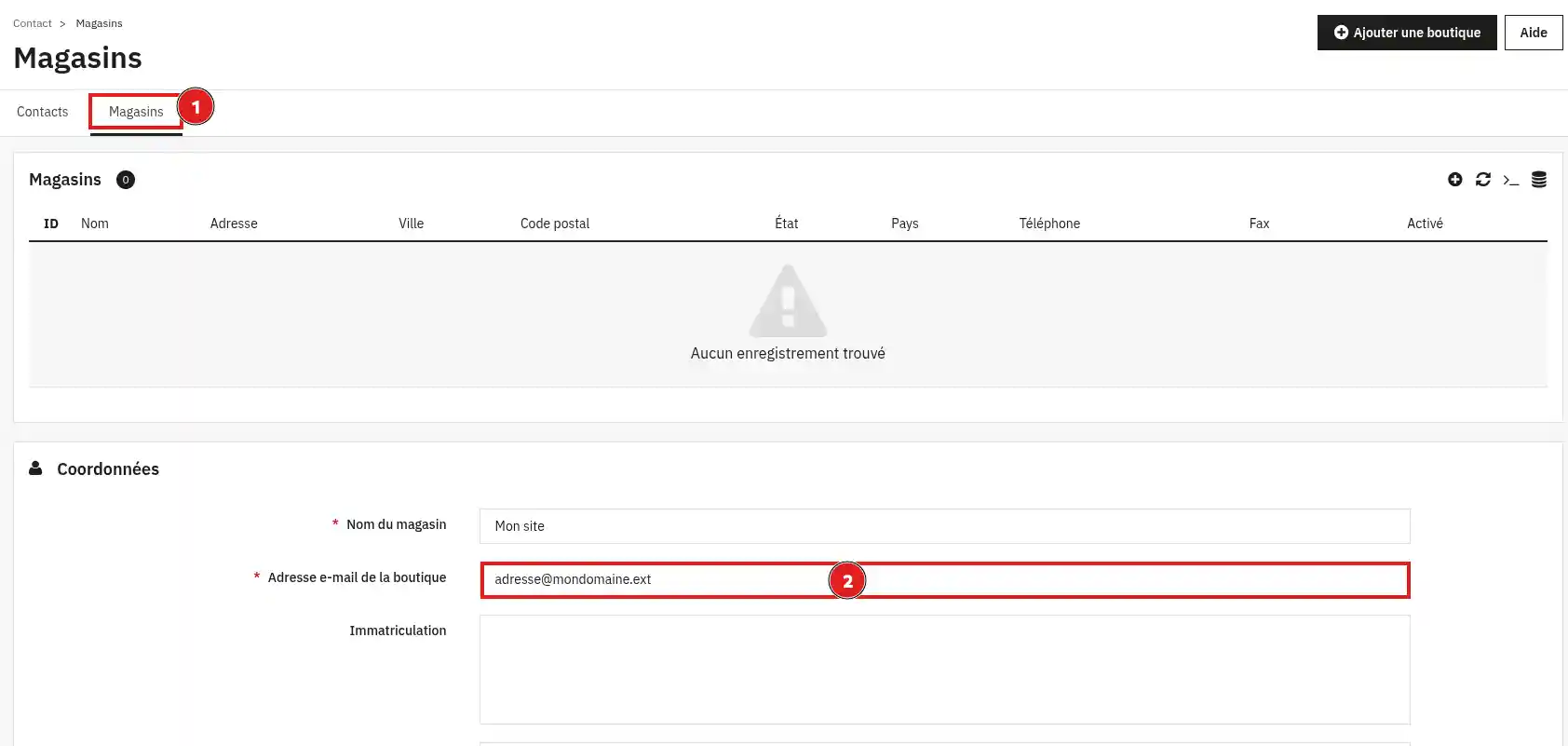
Check the value indicated in the Store email address field.
This address will be used as the sender address for emails sent by PrestaShop.
If necessary, replace it with the LWS email address you want to use for sending, then save the change.
[PERSON_NAME]: you will need to enter exactly the same one in the SMTP User field in the next step.
From the PrestaShop back-office, open Advanced Parameters, then Email.
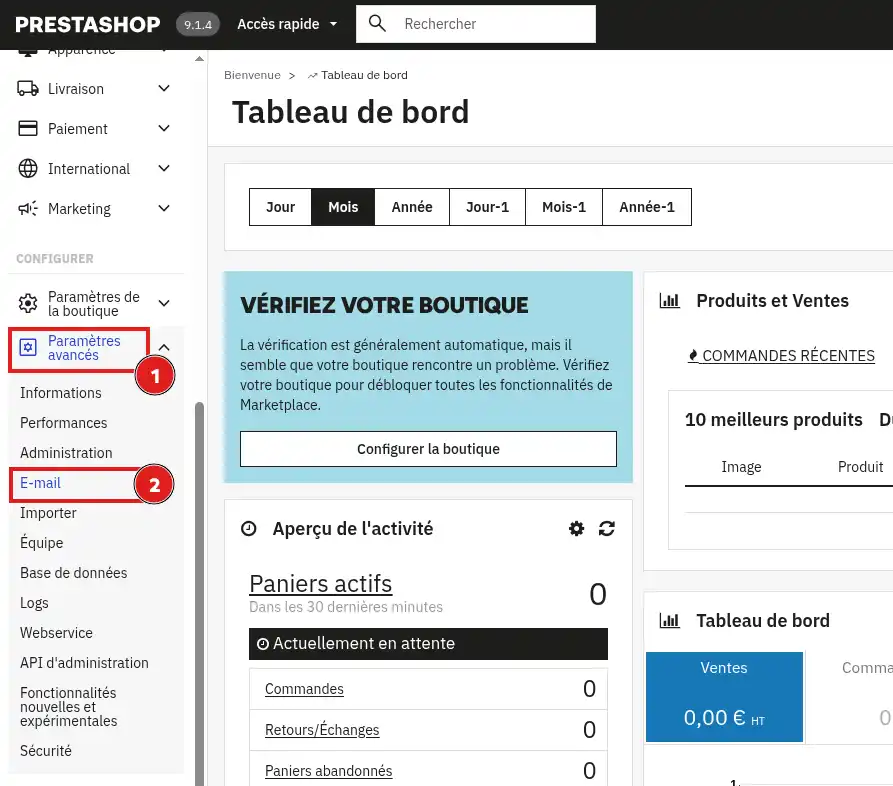
In the email sending section, select:
Use my own SMTP settings
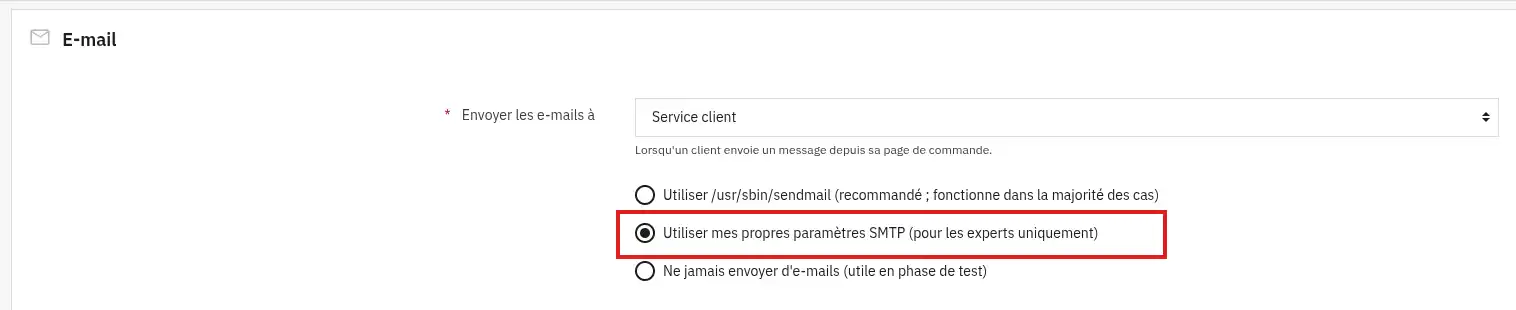
The SMTP configuration fields will appear.
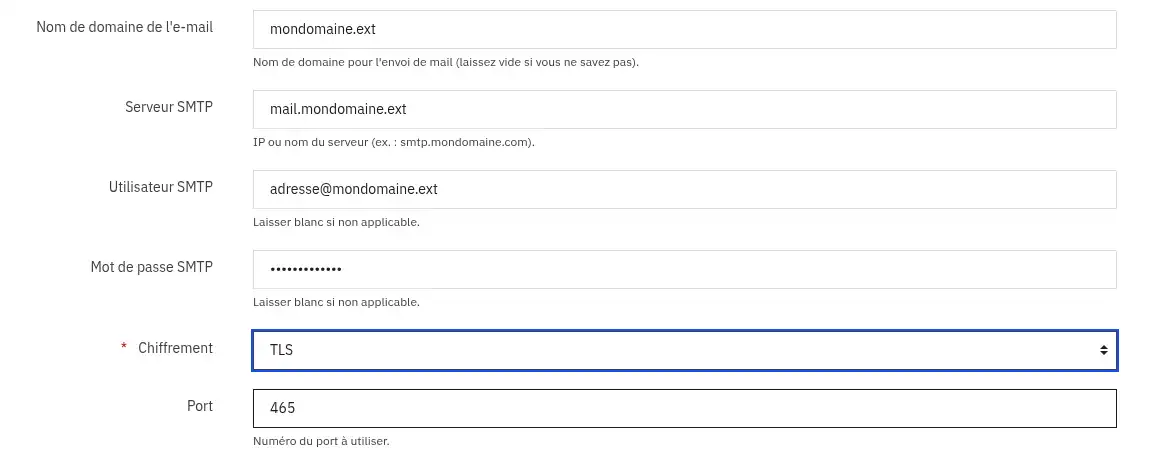
Fill them in with the information for your LWS address:
| PrestaShop field | Value to enter |
|---|---|
| SMTP Server | The SMTP server indicated in the settings for your LWS address |
| SMTP User | The full email address configured as the Store email address |
| SMTP Password | The password for this email address |
| Encryption | SSL |
| Port | 465 |
Then click Save.
The SMTP password is the password for your mailbox, not the password used to access your LWS client area.
If you later change the password for this mailbox in the LWS Panel, you will also need to update the SMTP Password in PrestaShop.
Stay in Advanced Parameters > Email.
In the Test your email configuration section, enter an email address you can access.

Click Send a test email.
[PERSON_NAME] then the inbox of the address used for the test.
If you receive the test email sent by PrestaShop, the connection to the LWS SMTP server is working.
Your store can now use this configuration to send its emails.
My SMTP configuration seems correct but sending is refused
Check that the address entered in SMTP User is strictly identical to the Store email address configured in:
Shop Parameters > Contact > Stores
For example:
Store email address:
[EMAIL]
SMTP User:
[EMAIL]
These two values must match.
If they are different, use the same address in both places, save the changes, then perform another test send.
This restriction protects your mailbox against identity spoofing: an address authenticated on the SMTP server cannot [PERSON_NAME] a message by pretending to be another address.
PrestaShop shows an authentication error
Check the address entered in SMTP User and the associated password.
The user must match the full email address, for example:
[EMAIL]
Do not use only contact.
Also check that you are using the password for this mailbox and not the one for your LWS client area.
If in doubt, you can change the password for the address from the LWS Panel, then enter the new password in PrestaShop.
PrestaShop does not [PERSON_NAME] SMTP
Check that the SMTP server entered matches exactly the one shown in Action > Configuration settings for your email address.
For secure configuration with an LWS address, use:
Also check in the LWS Panel that the use of the SMTP protocol has not been disabled for this address.
I changed my email address password
PrestaShop keeps the SMTP password previously configured.
Go back to Advanced Parameters > Email, enter the new password in SMTP Password, then save the configuration.
[PERSON_NAME] then perform a new test send.
The test email is sent but I do not receive it
First check the Spam or Junk Mail folder of the recipient address.
You can also perform another test with a different email address.
If PrestaShop confirms the sending but the messages are still [PERSON_NAME], consult email tracking from the LWS Panel to check what happened to the message.
Rate this article :
This article was useful to you ?
Yes
No
2mn reading
How do I create a Prestashop online shop?
1mn reading
How do you set up an HTTPS URL on your PrestaShop store?
1mn reading
How to change your shop title on prestashop 1.7
9mn reading
 About LWS :
LWS is a 100% French web hosting company that focuses on quality and innovation and offers a responsive and competent technical service at affordable prices.
About LWS :
LWS is a 100% French web hosting company that focuses on quality and innovation and offers a responsive and competent technical service at affordable prices.