Procédure
Affected service: LWS and Mail Pro personalized email addresses managed from the LWS Panel
Affected panel: LWS Panel
Level: beginner
Are you using cPanel? Email tracking works differently on this environment. See our help article How can I track emails sent from cPanel?.
Have you sent an email that did not reach its destination? Are you waiting for a message you did not receive? Would you like to check whether someone logged in to your mailbox or whether a change was made to one of your addresses?
The LWS Panel includes a tool that lets you track sent and received emails, view login history, and find actions performed on your mail accounts.
This help article explains how to use these different features to understand what happened and identify possible issues.
How do I access the mail tracking tools?
- Log in to your LWS customer area.
- Click Manage next to the domain name or mail service concerned.
- In the Email addresses section, click Mail tracking.
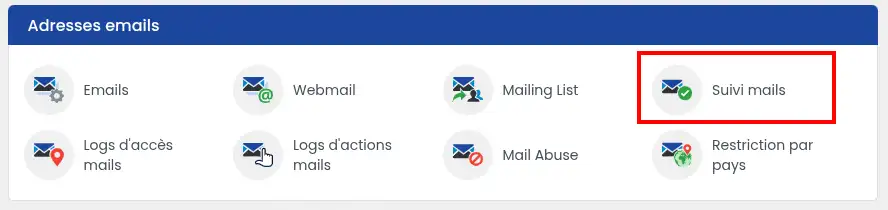
You will access an interface bringing together several management and monitoring features for your mailbox.
In particular, three tabs let you find the information you are looking for:
- Mail tracking: to check whether your emails were sent or received correctly and identify possible blocks.
- Access logs: to view logins to your email addresses, check their status, and manage blocked IP addresses.
- Action logs: to find operations performed on your accounts, such as a password change, address creation, or modification of its storage space.
These three tools complement each other. You can switch from one to another by clicking the tabs at the top of the page.
How do I check whether an email was sent or received properly?
Click the Mail tracking tab.
There you will find the list of the 100 most recent send and receive events recorded for the email addresses on your domain.
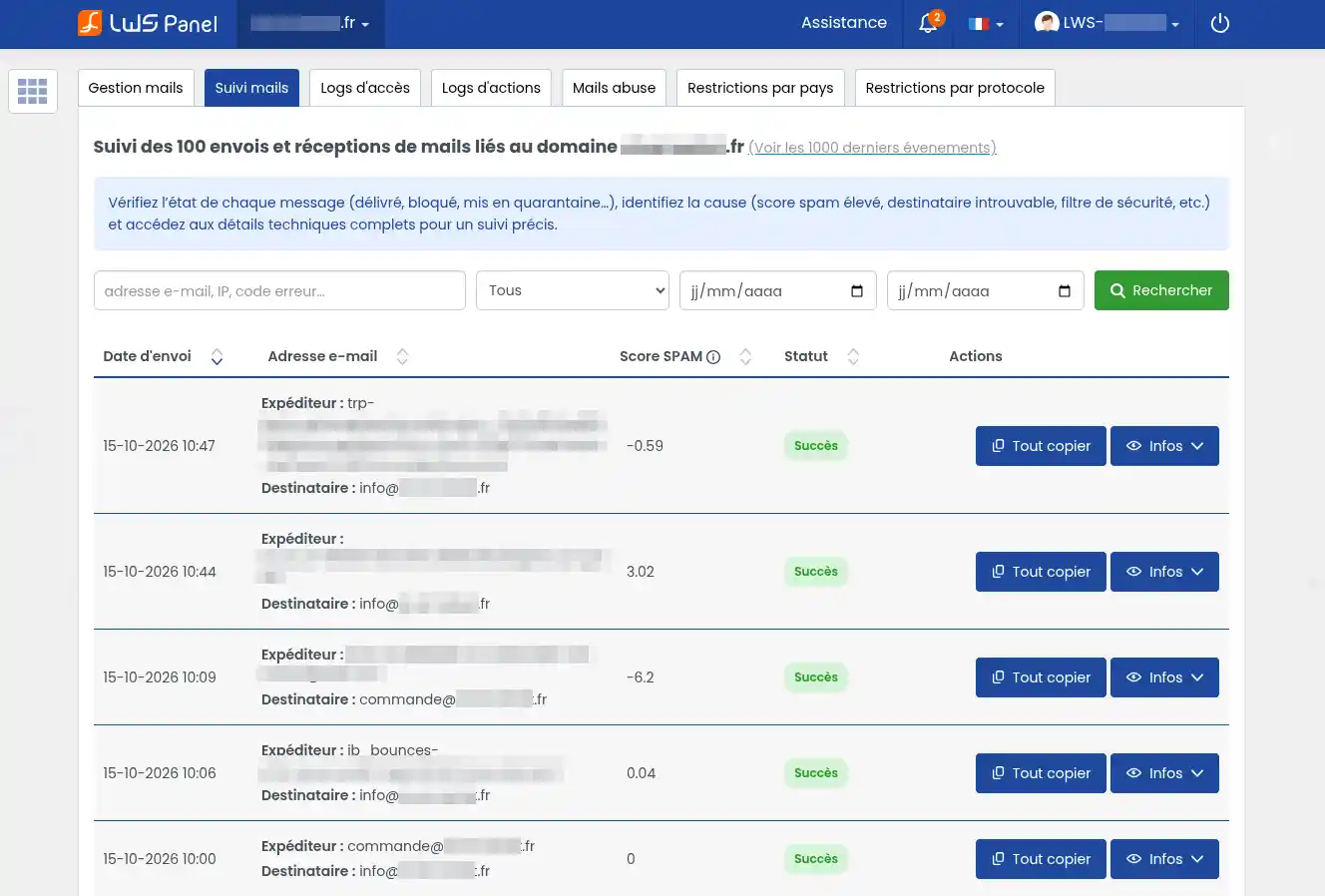
A link View the last 1000 events, located above the table, lets you view a more extensive history.
For each message, several pieces of information are displayed:
- Send date: the time when the event was recorded.
- Sender: the email address that sent the message.
- Recipient: the address the message was intended for.
- SPAM score: the result of the anti-spam analysis, when available.
- Status: the result of processing, including “Success” or “Error.”
Finding a specific message
If you are looking for a particular email, use the filters above the table.
- Enter the sender or recipient address in the search field. You can also search for an IP address or an error code if you have that information.
- If needed, select a status from the drop-down menu to display only certain events.
- Enter the start and end dates to limit the search to a specific period.
- Click Search.
The list is then updated to display the events matching your criteria.
Example: you sent an email this morning, but your recipient says they did not receive it. Search for their email address and select today’s date to find the corresponding event.
Viewing the details of an email
Once you have found the message, click the Info button on the right side of its row.

Additional information is displayed below the event:
- Message ID: a technical identifier that lets you find the message precisely.
- Sender host: the server that transmitted the message.
- Sender IP: the originating server’s IP address.
- Transmission date: the date a transmission was recorded, when available.
- Status: the result of processing.
- Error code: an indication of the issue encountered, when a code is available.
The Copy all button lets you retrieve the event information, especially to send it to LWS support.
How do I understand a message’s status?
Success
The tracked processing was successful. Depending on the step concerned, this may mean that the message was accepted or transmitted correctly.
If your recipient claims they did not receive the email, ask them to check their spam folder and any filters configured in their mailbox.
An email marked as delivered does not necessarily appear in the main inbox.
Tracking lets you know the result of the operations recorded by the mail service. It does not let you know whether the recipient actually read the message.
You are waiting for a message on one of your LWS addresses: it is marked as delivered, but you cannot find it? See our help article Mail tracking says “delivered” but I cannot find the message.
Error
An issue occurred during message processing.
Click Info to review the available details and identify the nature of the problem.
Destroyed for spam
This status means the message was considered spam and deleted by the relevant filtering mechanism.
The message should therefore not be considered delivered.
If a hyphen - appears instead of the transmission date or error code, it simply means that this information is not provided for the event.
How do I understand an email’s anti-spam score?
LWS’s anti-spam system analyzes messages and assigns a score based on different criteria.
The higher the score, the more the message shows characteristics associated with junk mail.
For example, a message may receive a score of -4.07 and be delivered normally, while another with a score of 8.33 may be blocked.
The LWS filtering system uses an 8-point threshold, and processing depends on the direction of the message. The “i” icon next to the title of the SPAM score column reminds you of this:
- Receiving: a message with a score of 8 or more is placed in the mailbox’s SPAM folder.
- Sending: a message with a score of 8 or more is destroyed. It is not delivered to the recipient.
To know the actual result, always check the status shown in tracking.
When a message is detected as spam, a red warning icon may appear next to the score.

- Click this icon to open the anti-spam report.
- A window appears with the message’s technical information.
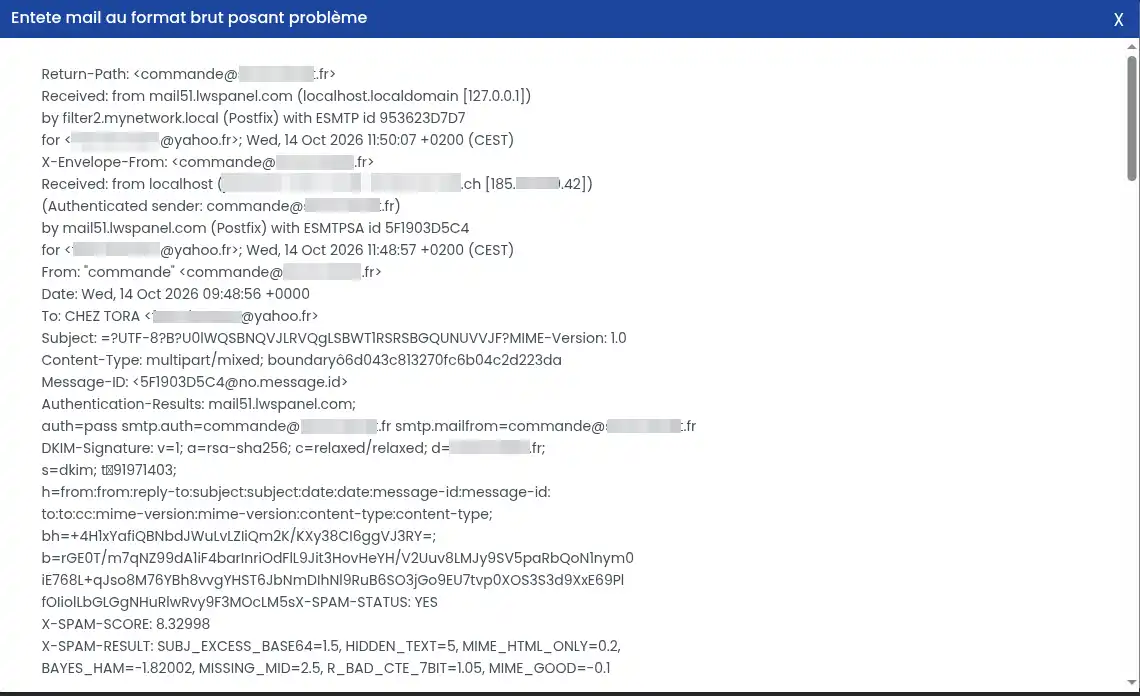
- Look for the following lines to understand the analysis result:
- X-SPAM-STATUS: indicates whether the message was identified as spam. The value
YES means the message was classified as spam by the relevant analysis.
- X-SPAM-SCORE: corresponds to the total score assigned to the message.
- X-SPAM-RESULT: details the various criteria that contributed to the score calculation.
Some criteria may, for example, indicate hidden text, unusual formatting, or the absence of technical information normally present in an email.
You do not need to understand the entire report. The message status, its score, and the flagged criteria are usually enough to guide initial checks.
Anti-spam reports are kept for a limited time.
The content and report of messages detected as spam remain viewable for only 72 hours, as indicated by the “i” icon in the SPAM score column.
If you want to understand why a message was blocked, review its report quickly.
Warning about messages deleted for spam
A message with the status Destroyed for spam was deleted by the relevant filtering system. It is not simply an email moved to the junk folder.
Check the tracking information before trying to send it again.
How do I use the “What to do?” button?
When tracking reports a problem, a green What to do? button may appear to the right of the event.

Click it to open a window containing an explanation of the problem and advice tailored to the available information.
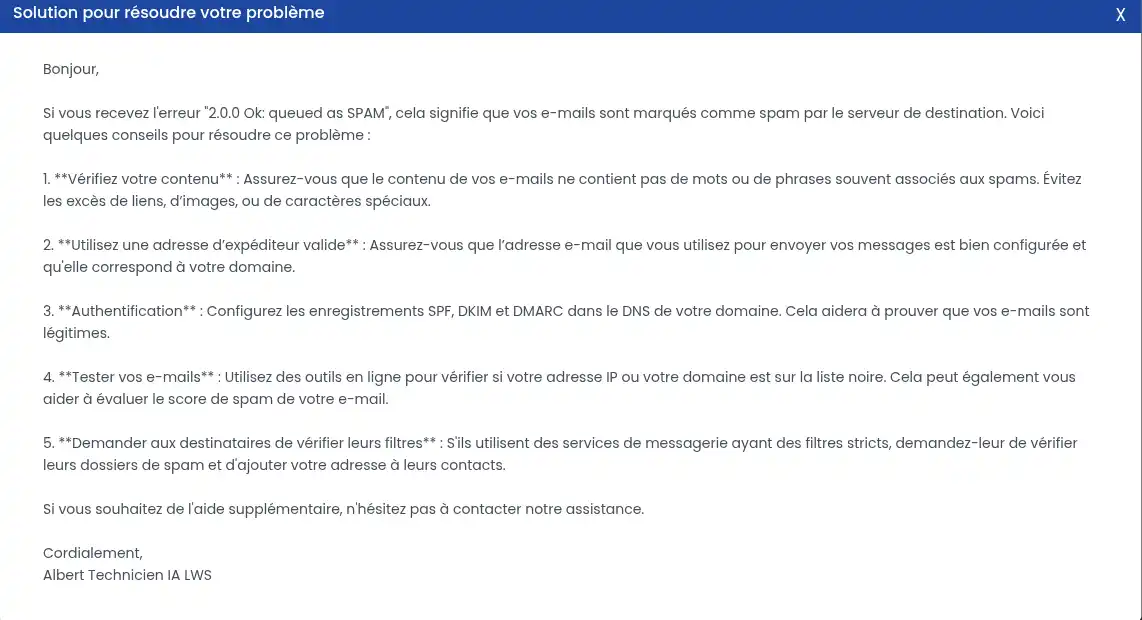
Depending on the situation, the tool may recommend checking:
- The content or formatting of your email.
- The address used for sending.
- The security settings associated with your domain.
- The results of the anti-spam analysis.
- Any restrictions applied to your mailbox.
Example: if a technical message indicates 2.0.0 Ok: queued as SPAM, the tool may direct you toward checks related to anti-spam filtering.
This message means that an operation received a positive response while still being associated with being classified as spam. However, it does not by itself let you know whether the email was ultimately delivered to its recipient.
So also check the event status in tracking.
The advice in “What to do?” is diagnostic help.
It may be general and does not replace the technical information recorded for the message. Before changing your configuration, check the status and any error codes.
How do I check connections to my email addresses?
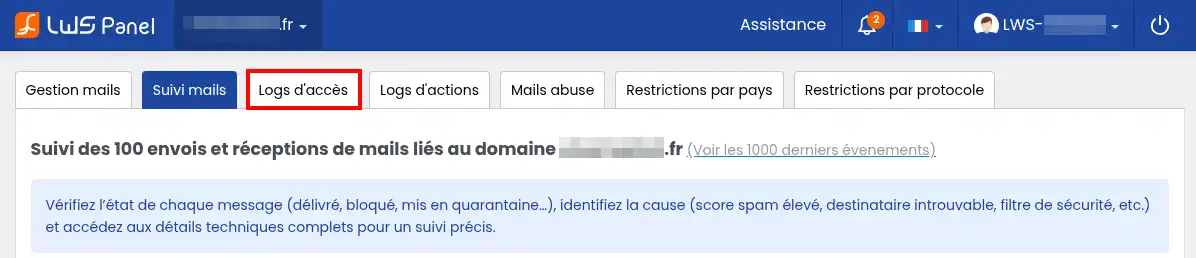
The Access logs tab lets you view the login history for your mail accounts.
This tool is useful if you are having trouble accessing a mailbox, if an IP address has been blocked, or if you want to check for unusual logins.
To access it, click Access logs at the top of the page.
Checking whether your IP address is blocked
At the top of this tab, a box shows your current IP address, that is, the address used by your Internet connection to access the service.
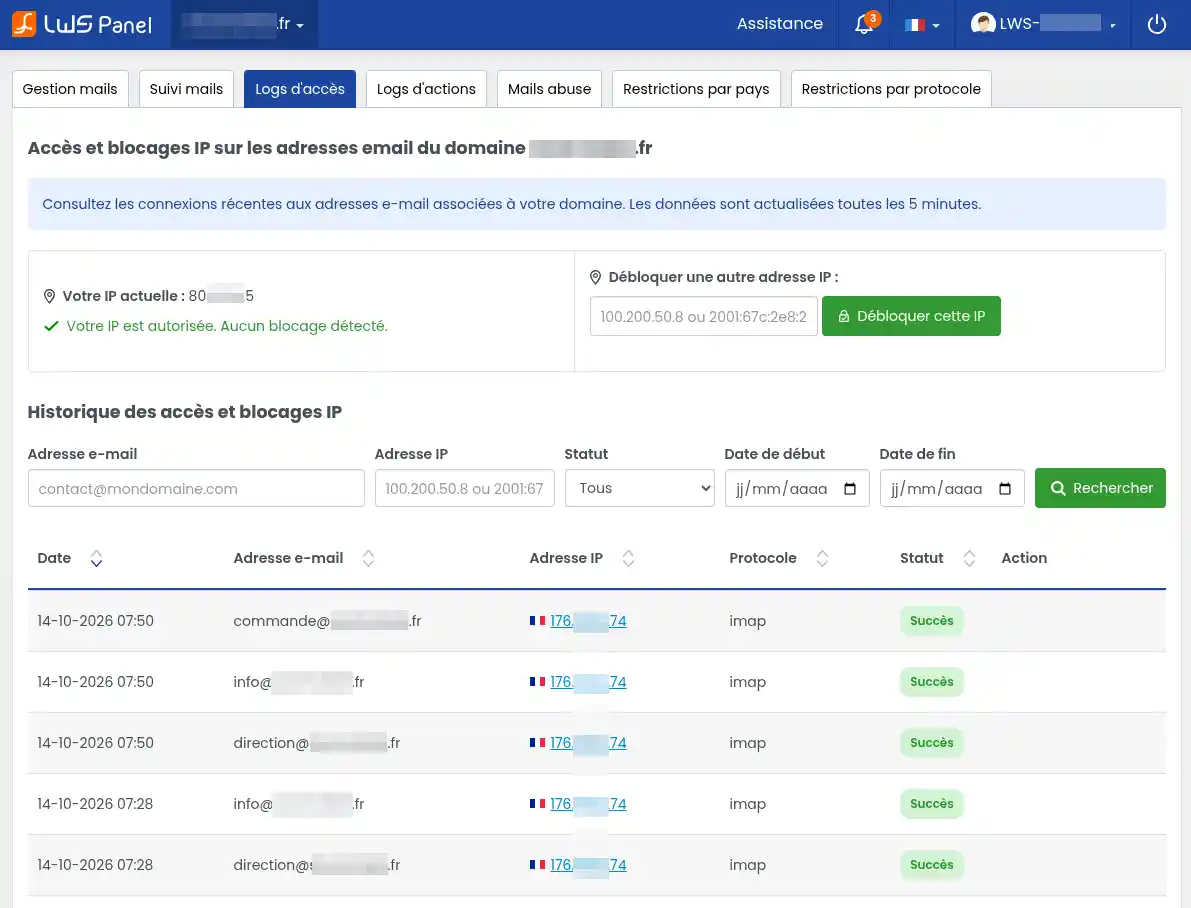
The LWS Panel also displays its status.
If the message Your IP is authorized. No block detected appears in green, your current IP address is not blocked by the monitored mechanism.
If a block is reported, you can review the available information to determine its origin.
The panel also includes a section Unblock another IP address.
To use this feature:
- Enter the IP address you want to unblock in the field provided.
- Click the green Unblock this IP button.
- Check the result displayed by the LWS Panel.
This feature can be especially useful when a legitimate device or user can no longer connect to the mail service because its IP address has been blocked.
Do not unblock an unknown or suspicious IP address.
A block may have been applied after repeated login attempts with the wrong password.
If the IP address belongs to one of your devices, make sure the password saved in your email software or app is correct before unblocking it. Otherwise, the block may happen again.
Searching connection history
Below your IP status, the Access and IP block history section shows the recorded events.
The information is updated every 5 minutes. A recent connection may therefore not appear immediately.
To search for a particular event:
- Enter the relevant email address if you want to review a specific account.
- You can also enter an IP address to find connections from it.
- In the Status menu, select the type of event you are looking for or keep All.
- If necessary, enter a start date and an end date.
- Click Search.
The results are displayed in the table.
For each connection, you will find:
- Date: the time of the connection or access attempt.
- Email address: the account concerned.
- IP address: the address from which the connection was made or attempted.
- Protocol: the technical method used to access the mailbox.
- Status: the result of the connection.
- Action: any additional actions available for the event.
The protocol may correspond in particular to:
- IMAP: used by software and apps to view and synchronize emails.
- POP: used to retrieve emails from the server.
- SMTP: used to send emails.
These terms are simply communication methods between your mailbox and the server. You do not need to master them to understand the history.
When the status shows Success, the relevant connection was successful.
In case of an error, the log may provide additional information to help explain why the attempt failed.
How do I check that my mailbox is working?
If you have just fixed a connection issue, open your email software and try to access your mailbox.
Wait a few minutes, then look for the new connection in the Access logs.
If it appears with the Success status, you have confirmation that this connection was accepted.
How do I recognize a suspicious connection?
The history can also help you spot unusual activity.
For example, you can review connections that appear at unusual times, involve an address you no longer use, or come from IP addresses you do not recognize.
However, an unknown IP address does not necessarily mean that someone fraudulently accessed your mailbox.
Your phone may use a different address from your computer, and your IP address may change when you use another network, a mobile connection, or a VPN.
If you see a successful connection you cannot explain, check the devices and applications that use that address.
If you suspect unauthorized access, quickly change the password for the relevant account and update it on your usual devices.
How do I find changes made to my email addresses?
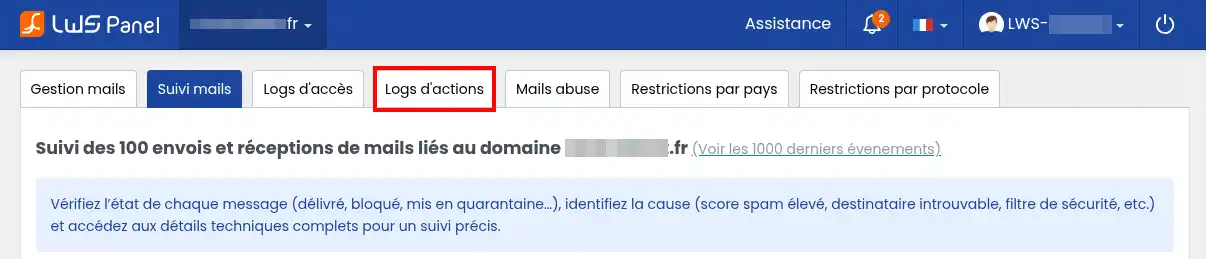
The Action logs tab lets you view the history of operations performed on the mail accounts for your domain.
Unlike Access logs, which record logins, this tool focuses on changes made to your email address settings.
It lets you find, in particular:
- The creation or deletion of an email address.
- The password change of a mailbox.
- The addition or modification of a forwarding rule.
- The change of an address’s storage quota.
- Certain operations related to mail restrictions.
Viewing the action history
From the tracking interface, click the Action logs tab.
The page displays a table titled History of actions on the domain’s email addresses.
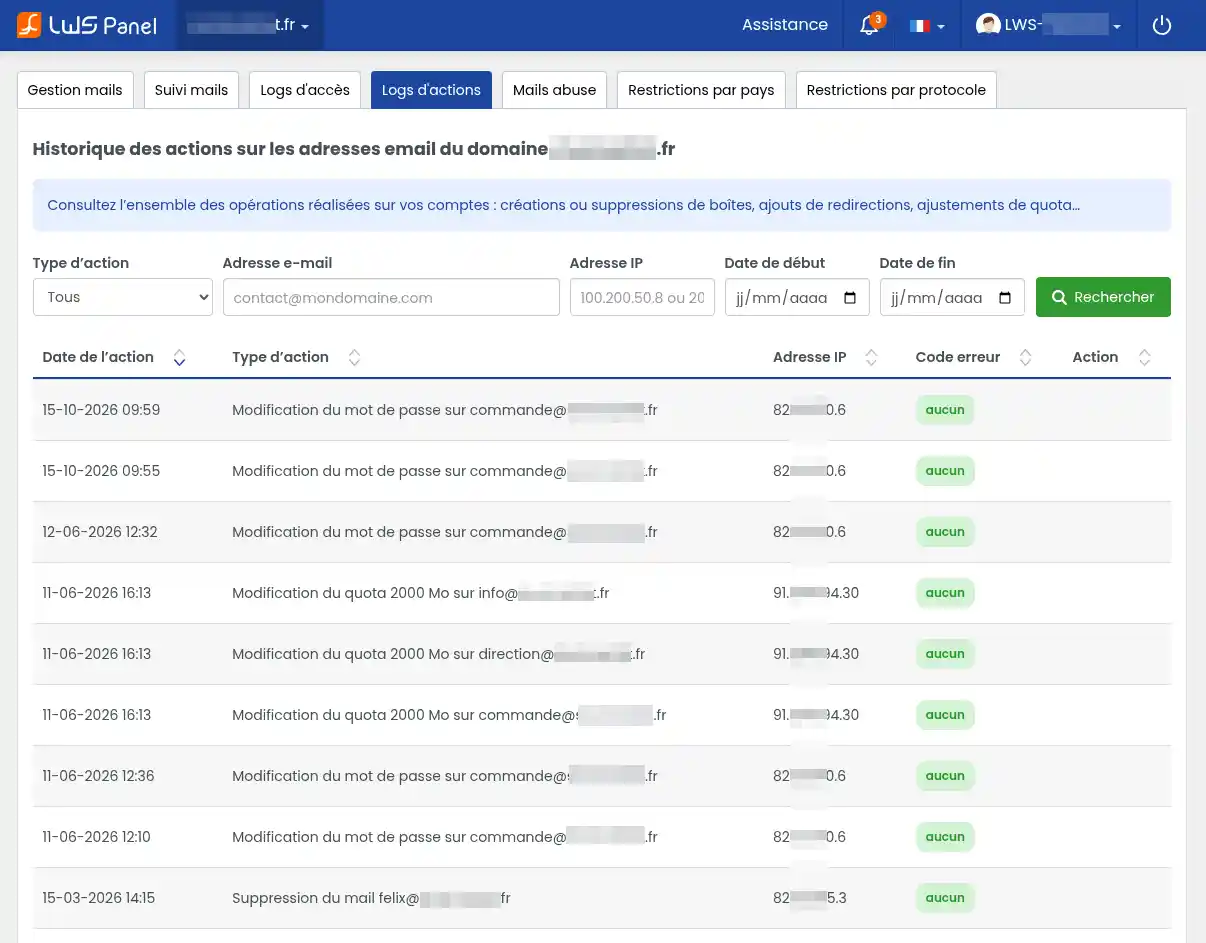
Each row corresponds to an operation recorded on the service.
You can in particular find events such as:
Password changed on commande@mondomaine.frQuota changed to 2000 MB on info@mondomaine.frEmail deleted contact@mondomaine.fr
These examples make it easy to see which address was affected and what operation was performed.
The table provides several pieces of information:
- Action date: the day and time when the change was recorded.
- Action type: the nature of the operation and the account concerned.
- IP address: the address from which the action was performed.
- Error code: an indication of any error.
- Action: any additional features offered for the event.
When the Error code column shows none in green, no error is reported for the corresponding operation.
Searching for a specific change
If you want to find a particular operation, use the filters above the table.
- In the Action type menu, choose the relevant operation category or keep All to display all actions.
- Enter the relevant email address if you want to limit the search to one account.
- If you know the IP address used, you can enter it in the corresponding field.
- If necessary, specify a start date and an end date.
- Click Search.
The table then displays the operations matching your search.
You can also use the arrows next to the column headings to change the display order of the results.
Example: checking when an address’s password was changed
You can no longer connect an email address in your email software and you think its password may have been changed.
- Open Action logs.
- Search for the relevant email address.
- In the Action type menu, select Password changed.
- Click Search.
- Review the dates of any recorded changes.
If a password change appears, you can check whether it corresponds to an action you performed.
If the password was indeed changed, remember to update the one stored in your email software and applications.
Action logs do not display the content of your emails.
They let you view operations performed on your account settings, not read sent or received messages.
The recorded IP address can help you look into the origin of a change, but by itself it cannot identify with certainty the person who made it.
What should I do if I notice a problem in the logs?
The three tools can be used together to better understand certain situations.
You are no longer receiving your emails. Start by searching for the expected messages in Mail tracking. If the messages do not appear, check the filters and the search period. If they appear as errors, open their details. If they appear as Success but are still missing from your mailbox, see the help article Mail tracking says “delivered” but I cannot find the message.
Your email software can no longer connect. Check Access logs to review connection attempts and the status of your IP address. If the password seems to have changed, also check Action logs.
You do not recognize some sends or some changes. Search for the relevant events in all three logs. Check the dates, addresses, and corresponding connections. If you suspect unauthorized use of a mailbox, change its password and review the devices and apps that have access to it.
A message is blocked as spam. Check its score and report in Mail tracking. If sending from your address has been suspended, also open the Mails abuse tab or see our help on SMTP blocking for Mail Abuse.
An event missing from a log does not necessarily mean nothing happened.
Check the period and filters applied. Some information may no longer be available in the searchable history, while Access logs are updated every 5 minutes.
If you cannot identify the problem, you can contact LWS support from your customer area.
To make diagnosis easier, specify the relevant email address, the approximate date of the event, and the information shown in the corresponding log.


 Yes
 No
 About
