Contact us
 Customer Area


 Visit LWS
Rate this article :
This article was useful to you ?
 Yes
Yes
 No
No
 Article read
499 once
Article read
499 once Merci ! N'hésitez pas à
poser des questions sur nos documentations si vous souhaitez plus d'informations et nous aider à les
améliorer.
Merci ! N'hésitez pas à
poser des questions sur nos documentations si vous souhaitez plus d'informations et nous aider à les
améliorer.Vous avez noté 0 étoile(s)



Sommaire
Procédure
Concerned service: LWS packages (LWS Panel) and cPanel
Concerned panel: SiteBuilder Pro site editor
Level: beginner
When you need to modify your site, fix a page, or prepare an update, you can temporarily display a maintenance page to your visitors.
This page lets you indicate that the site is temporarily unavailable, without deleting your content or closing your hosting account.
The maintenance page is activated from the SiteBuilder Pro editor settings. Once activated, it replaces the site's usual display for visitors.
Remember to deactivate the maintenance page once your changes are complete, so that your visitors can access your site normally again.
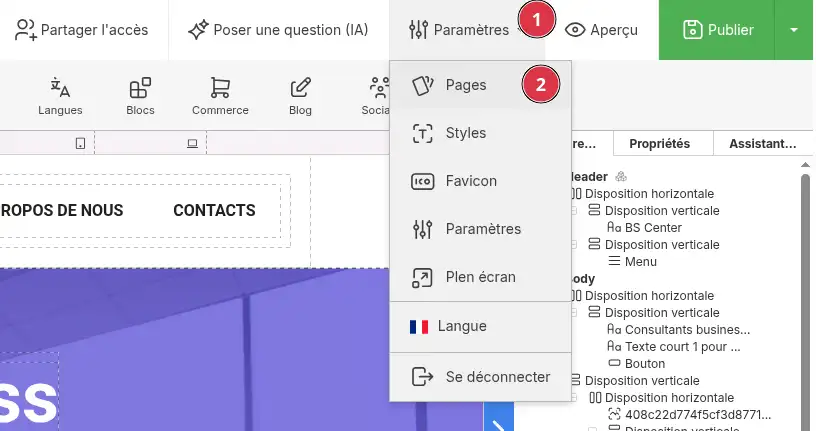
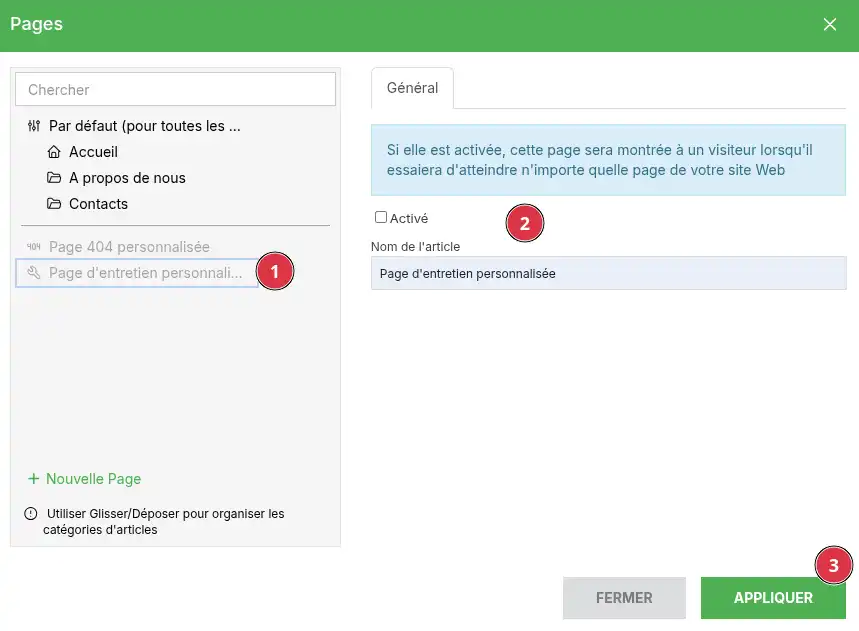
The maintenance page is now activated in the editor.
After activation, you can edit this page like a regular page on your site.
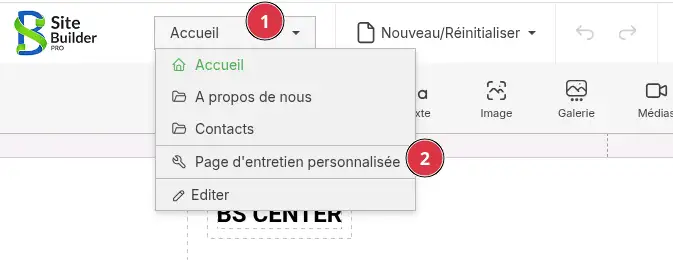
For example, you can indicate:
Avoid providing too many technical details. A sentence [PERSON_NAME] “Our site is temporarily under maintenance. It will be available again shortly.” is enough in most cases.
Once the maintenance page is activated or modified, click Publish in the editor.
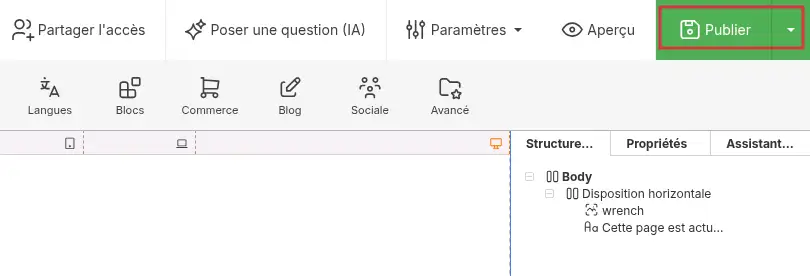
This step is necessary for the change to be visible on your live site.
When the site is published, visitors see [ADDRESS] maintenance page instead of the site's usual pages.
To verify the result:
If you still see [PERSON_NAME] site, clear your browser cache or test from a private browsing window.
When your changes are finished, go back to Settings > Pages.
Select Page [PERSON_NAME]>, uncheck the Enabled option, then click Apply.
Then publish your site to put the normal pages back online.
After publishing, your visitors can access the usual site again.
I don't see [PERSON_NAME] maintenance page on my site
Make sure the Enabled option is checked on the [PERSON_NAME] page, then click Apply.
Also remember to click Publish, because a change saved in the editor is not always visible online until the site has been published.
I can't find [PERSON_NAME] custom [PERSON_NAME] page
It is located in Settings > Pages, at the bottom or in the list of available pages.
Depending on the editor language, [PERSON_NAME] Custom Maintenance page.
My changes are not visible
After customizing the page, click Publish.
If the change still does not appear, open the site in a private browsing window or clear your browser cache.
My site stays in maintenance after my changes
Go back to Settings > Pages, select [ADDRESS] page [PERSON_NAME], [PERSON_NAME] Enabled. Click Apply, then publish the site again.
Rate this article :
This article was useful to you ?
Yes
No
2mn reading
How do I add a page header to SiteBuilder Pro?
1mn reading
How do I create a forced redirect in SiteBuilder Pro?
9mn reading
How do I migrate a website to SiteBuilder Pro?
12mn reading
How do I add documents for download in SiteBuilder Pro?
 About LWS :
LWS is a 100% French web hosting company that focuses on quality and innovation and offers a responsive and competent technical service at affordable prices.
About LWS :
LWS is a 100% French web hosting company that focuses on quality and innovation and offers a responsive and competent technical service at affordable prices.