
Online help
The web host accessible to all
Procédure
An alert email from LWS warns you that a limit on your hosting plan has been exceeded: the size of a MySQL table, the size of a database, or hosting resources when it reports a drop in performance. MySQL databases have their own quota, separate from disk space: your web space may be far from full even though a table has exceeded its limit. This help article shows you how to identify what is exceeding the limit and fix it.
On LWS Panel plans, each database and each table has a maximum size:
| Plan | Maximum database size | Maximum table size |
|---|---|---|
| LWS Perso, Starter, Standard and Performance | 1 GB | 300 MB |
| LWS 2XL | 2 GB | 500 MB |
| LWS 3XL | 4 GB | 500 MB |
The other limits for each plan are in the help article Quotas for LWS Linux shared web hosting plans. When a table or database exceeds its maximum size, the database is blocked and your site may no longer work properly.
The alert email has the subject “Exceeding the maximum size of a MySQL table on” followed by your domain name. It indicates the table concerned, its database, its size, and the limit to respect.
In the LWS Panel of your hosting, under “Database & PHP”, click “MySql & PhpMyadmin”. The “Database size” column shows the size of each database and its limit, for example “2.5 MB / 1000 MB”.
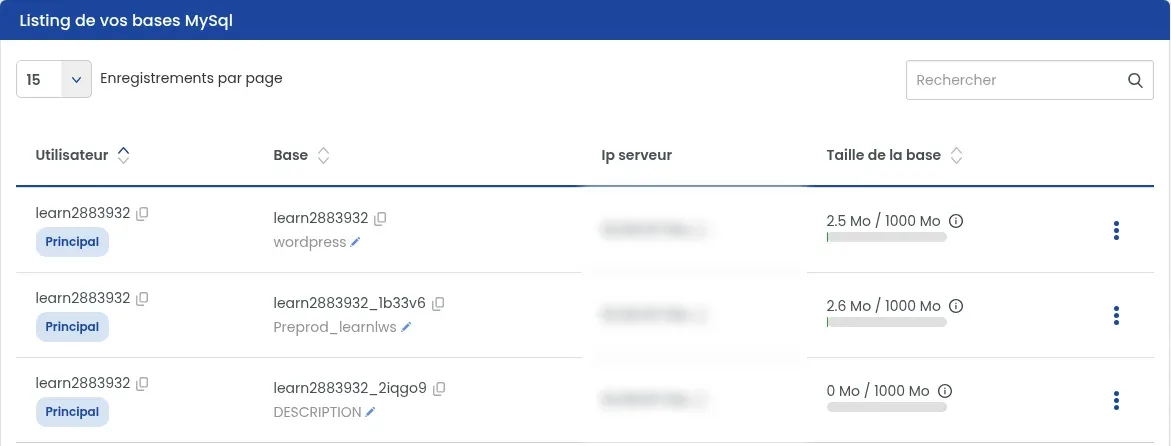
Before deleting anything, export the database or download its latest backup: you can restore it in case of an error. Follow the help article How do I export a Mysql database? or How do I download or restore a Mysql database backup?
Delete only the data your site does not need, such as old article versions (revisions), logs, or statistics. The procedure in phpMyAdmin is explained in the help article How do I empty a MySQL table?
The displayed size is recalculated automatically in about 1 hour. To avoid waiting, go back to “MySql & Phpmyadmin”, click the three-dot button at the end of the database row, then click “Synchronize quotas”. Details are in the help article Recalculate SQL quotas on a Linux Shared plan.
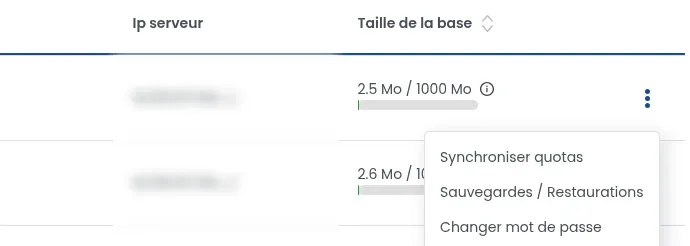
The procedure is the same: keep a copy, clean the largest tables, then click “Synchronize quotas”. If your site really needs larger databases, the LWS 2XL and 3XL plans allow up to 2 GB and 4 GB: see Change your shared hosting plan from your LWS Client area.
Your plan also has bandwidth, memory, and processor limits, independent of disk space. To find out which one your site is reaching:
In the LWS Panel of your hosting, under “Optimization and performance”, click “Resources (CPU, RAM...)”. Under “period selection”, choose a period that covers the date of the email, for example “1 Week”.
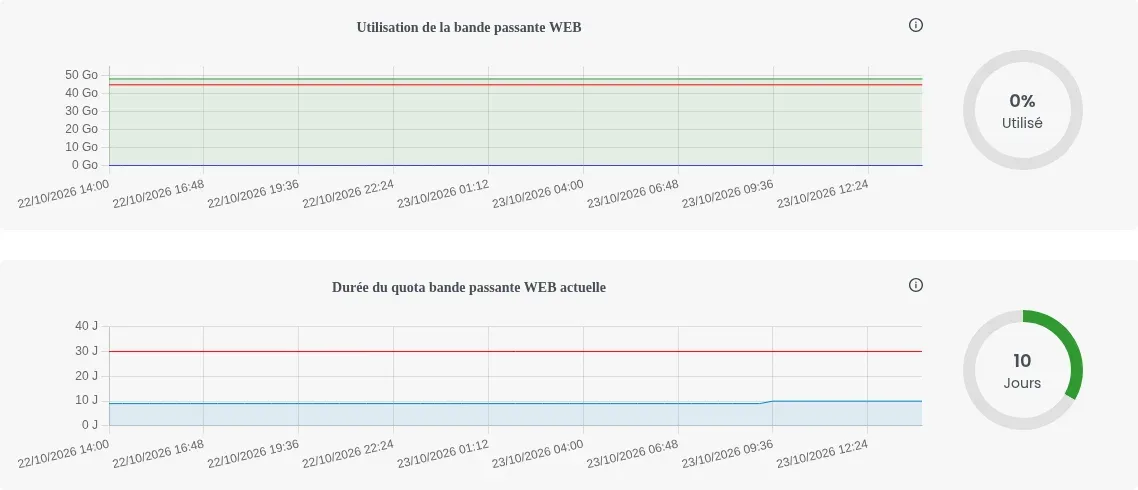
In the “Network resources” tab, the “WEB bandwidth usage” graph shows what your site has consumed, and “Current WEB bandwidth quota duration” shows the number of days elapsed in the 30-day period. Beyond the bandwidth included in your plan, throughput is reduced: the values are in the quota help article cited above.
In the “WEB resources” tab, check whether the “Memory usage” curve reaches its red line, whether “Errors reported on memory usage” is greater than 0, and whether “Pending processes” increases.
For a one-time need (data import, period of high traffic), the “Boost now” button at the top of this page gives your hosting the quotas of the LWS 2XL plan for 24 hours free of charge, once a month: see How to boost your hosting quotas for 24H? If the limits are reached regularly, enable a cache (Speed up your site with LWS Cache), lighten your site (heavy plugins), or move to a higher plan.
Since September 1, 2025, emails and MySQL databases have their own quota, separate from your site storage. A table can therefore exceed 300 MB while your web space is almost empty: it is the size of the table or database that matters, not disk space.
Click “Synchronize quotas” for each database, then compare the displayed sizes with the limits in the table above. If all your databases are below their limits, there is nothing to delete. Open a ticket from the Support section of your customer area, attaching the email you received and its reference, so we can check this alert.
Click “Synchronize quotas” at the end of the database row. If the size remains above the limit, open a ticket indicating the database name and the size displayed after synchronization.
This error is not necessarily caused by the quota. Check that the database name, user, server, and password recorded in your site match those in “MySql & Phpmyadmin”: see Error establishing a database connection on Wordpress.
These alerts indicate that an email address is almost full, either in space or in number of messages. They do not concern your databases: see Email error codes related to used disk space: MAIL-XXX.
Ask the LWS team and the community. Answers are published after moderation.
 About LWS :
LWS is a 100% French web hosting company that focuses on quality and innovation and offers a responsive and competent technical service at affordable prices.


 Yes
 No