
Online help
The web host accessible to all
Procédure
The message “Disk quota exceeded” on /tmp means that the tmp folder of your hosting account is full. You can empty it yourself right away, from the LWS Panel file manager or with FTP software, without waiting for support. This guide shows you how to find it, empty it, and then check that your site works.
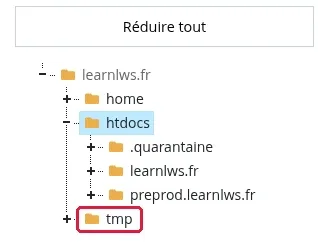
The tmp folder is located at the root of your hosting space, next to the home and htdocs folders. It stores temporary files for your websites: visitor sessions, PHP cache, files created during an import, a migration, or an update. Its contents are not visible on your site.
When it is full, you may see:
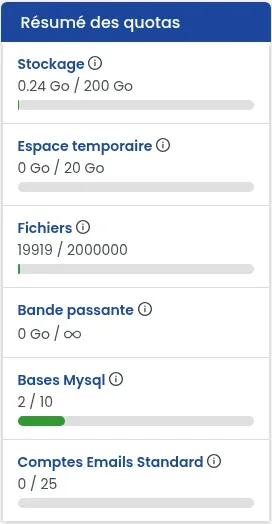
/tmp;To confirm it, open your hosting management in your LWS client area. In the “Quota summary” box, to the right of the dashboard, the “Temporary space” line shows the used space and the maximum of your plan (for example “0 GB / 20 GB” on the Starter plan). A nearly full gauge confirms that the tmp folder is saturated.
In your hosting management, under “Files,” click “File Manager.” It opens in a new tab. If you have never used it, see the help How do I use the LWS Panel file manager?
In the tree on the left, click the “tmp” folder, at the same level as “home” and “htdocs.” Its contents are displayed in the list on the right.
Click “Select all” in the toolbar, or click each line to delete. Click the row itself, not the name: clicking the name opens the item instead of selecting it. The selected rows appear in blue.
Click “Delete.” The “Delete confirmation” window reminds you of the selected items: make sure their path starts with /tmp, then click “Confirm.”
Would you rather use FTP software such as FileZilla? Connect to your hosting account, open the tmp folder at the root, then delete its contents in the same way. The connection is explained in the help How do I publish a site by FTP with FileZilla, Cyberduck, or WinSCP?
Go back to your hosting dashboard: the “Temporary space” line in the “Quota summary” should now display a much lower value. Then retry the action that was failing (import, migration, update) and open your site in your browser.
While the tmp folder was full, a configuration file may have been saved empty. A case already encountered: the wp-config.php file of a WordPress site at 0 bytes, and the site showing a 500 error.
To check this, open your site’s folder in the file manager (in htdocs) and look at the “Size” column for the configuration file. If it shows 0 B, restore it from a backup of your files, restoring only that file: the procedure and the plans that allow restoration are explained in the help How do I download or restore a backup of my web files?
If your site still shows a 500 error while its files are complete, follow the help How do I fix a 500 error on your site with LWS Panel.
Yes, partly. Automatic maintenance regularly cleans up LWS Panel hosting accounts. It deletes files in the tmp folder older than 30 days, PHP sessions older than 2 days, and the PHP cache (OPcache) older than 7 days. If your folder fills up before that, empty it yourself as explained above.
No, it is not a safe place to store them. The same maintenance deletes *_backup.tar.gz backups placed at the site root after 7 days, and .zip archives in the .wp-backups folder after 30 days. Download your backups to your computer or to external storage.
Ask the LWS team and the community. Answers are published after moderation.
 About LWS :
LWS is a 100% French web hosting company that focuses on quality and innovation and offers a responsive and competent technical service at affordable prices.


 Yes
 No