
Online help
The web host accessible to all
Procédure
Service concerned: email addresses included with domain or hosting package LWS Panel and Mail Pro addresses
Panel concerned: LWS Panel
Level: beginner
The quota of an email address corresponds to the available space for storing its messages and attachments. From the LWS Panel, you can check the space used and change the capacity of a mailbox according to your package and the available Mail Pro options.
This guide applies both to addresses included with a domain name or an LWS Panel hosting plan and to Mail Pro addresses.
This guide applies to addresses managed from the LWS Panel.
Do you manage your addresses from cPanel? See: How do I change the quota of an email address in cPanel?
The capacity of an address depends on the service it is linked to.
| Type of email address | Storage space |
|---|---|
| Address included with a Domain package | 1 GB |
| Address included with an LWS Panel hosting plan | 2 GB |
| Mail Pro S | 10 GB |
| Mail Pro M | 20 GB |
| Mail Pro L | 50 GB |
| Mail Pro XL | 100 GB |
| Mail Pro XL2 | 200 GB |
A Mail Pro address increases the storage of a specific mailbox. You can order a single Mail Pro address or several depending on your needs.
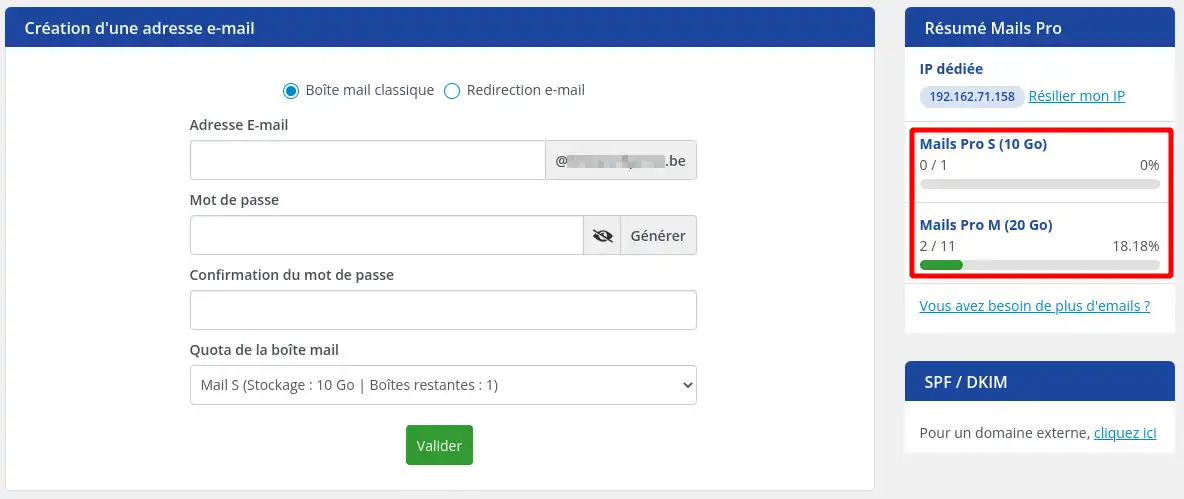
The options displayed in the LWS Panel depend on the Mail Pro quotas already available on your service.
The Mail Pro XL and XL2 offers are not available directly on the LWS website. They can only be ordered from the LWS Panel.
You must therefore already have a domain name, an LWS Panel hosting plan, or a Mail Pro service in your account.
If you are using a Domain package, you can upgrade to an LWS Panel hosting plan to benefit from email addresses with 2 GB of storage.
The procedure for changing plans is explained in the guide: How do I change shared hosting plans from my LWS client area?
If you want to keep your current plan or further increase the capacity of a single mailbox, you can order one or more Mail Pro addresses from the LWS Panel.
See also: How do I order one or more Mail Pro addresses from the LWS Panel?
If a Mail Pro address of the desired type is already available on your service, you can assign it directly to an existing mailbox by changing its quota.
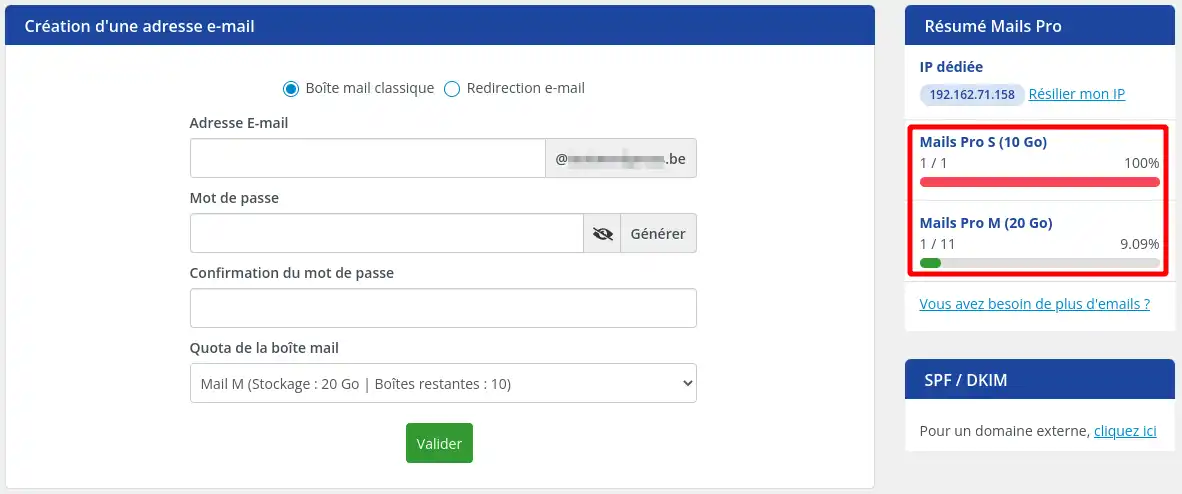
In the list of your email addresses, check the space currently used by the mailbox concerned.
To reduce an address quota, the space used must be lower than the new capacity chosen.
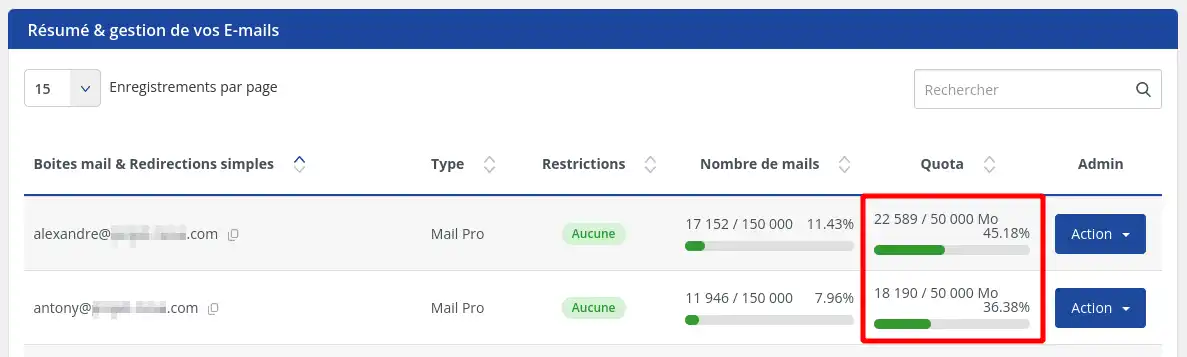
For example, a mailbox containing 12 GB of messages cannot be limited to 10 GB. You must first delete messages or archive them on your computer.
To assign a Mail Pro quota, also check that a Mail Pro address of the desired type is available. If the counter shows zero, you must first place an order.
1. Access email management
Log in to your LWS customer area, then open the domain name management, the hosting or Mail Pro service concerned.
Then go to the email address management section.
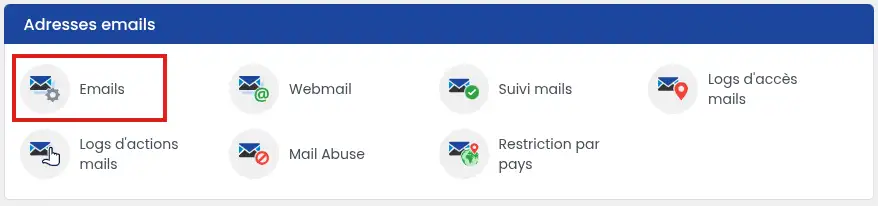
2. Select the address to modify
Locate the address concerned in the list.
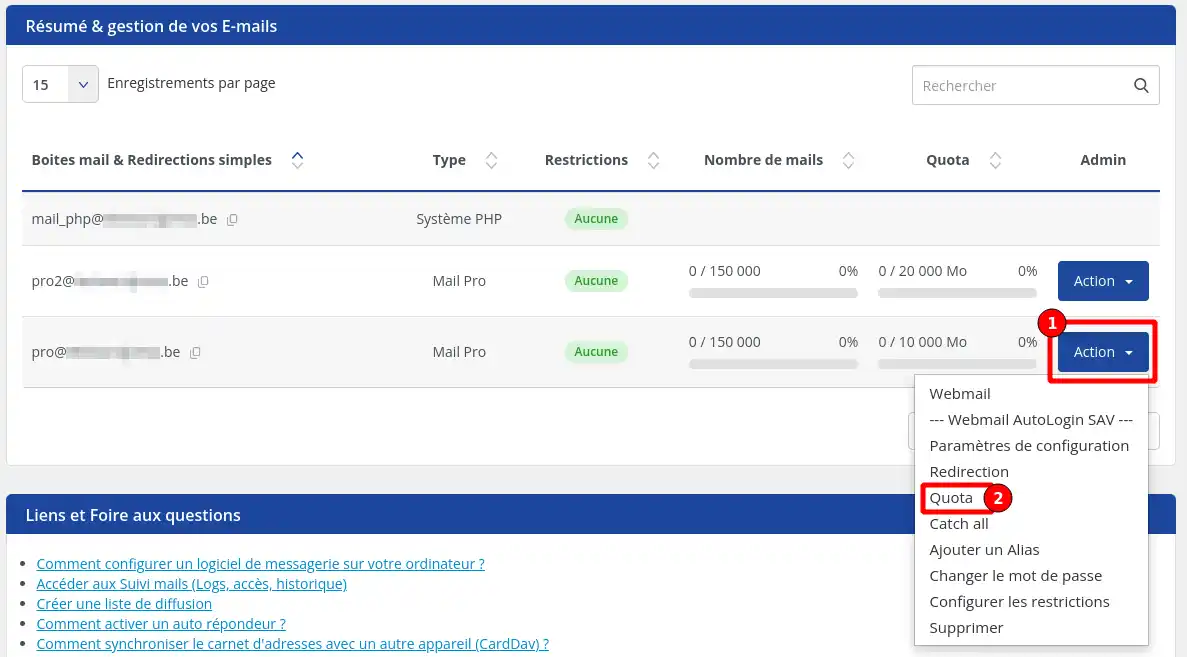
In the corresponding column, click on Action, then on Quota.
3. Choose the new capacity
Select the desired quota from the proposed list.
You can only choose:
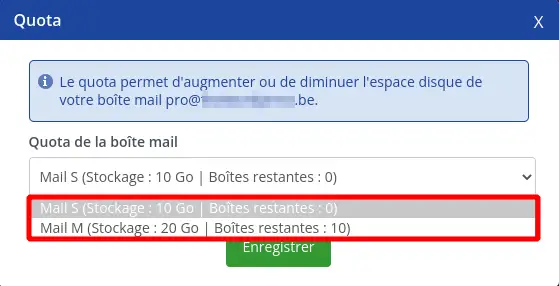
If the desired quota does not appear, check the Mail Pro availability shown above or near the list of addresses.
4. Save the change
Click Save to apply the new quota.
If you assign a Mail Pro address to the mailbox, the number of available Mail Pro addresses is automatically updated.
Return to the list of your email addresses and locate the modified mailbox.
The new capacity should appear next to the address.
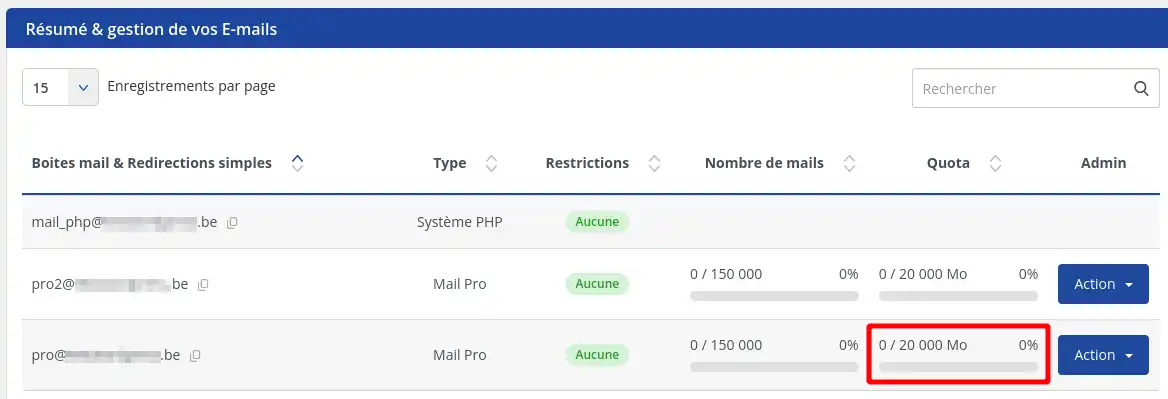
The quota is correctly applied when the new capacity is displayed in the email address management list.
The desired quota does not appear in the list
No Mail Pro address of this capacity is probably available on your service.
Check the Mail Pro counters displayed in the LWS Panel. If necessary, order a new Mail Pro address before trying the change again.
I cannot reduce the mailbox quota
The mailbox is probably using more space than the requested capacity.
Delete unnecessary messages, empty the Trash and Junk folders, or archive some of the messages on your computer. Then try the change again.
The XL and XL2 offers are not available on the LWS website
These two capacities are only available from the LWS Panel. Open an existing service in your account, then access the Mail Pro address order page.
The quota change option is not available
Check that the address concerned is indeed an email mailbox that can receive and view messages.
An email forwarding redirects messages to another address, but does not have its own storage mailbox. No quota can therefore be assigned to it.
The old quota is still displayed
Make sure you clicked Save, then refresh the page.
If the desired quota uses a Mail Pro address, also check that the corresponding order has been validated and attached to the same service.
Ask the LWS team and the community. Answers are published after moderation.
 About LWS :
LWS is a 100% French web hosting company that focuses on quality and innovation and offers a responsive and competent technical service at affordable prices.
About LWS :
LWS is a 100% French web hosting company that focuses on quality and innovation and offers a responsive and competent technical service at affordable prices.



 Yes
Yes No
No