Procédure
Service concerned : ImapCopy
Panel concerned : no specific panel
Level : beginner to intermediate
ImapCopy is an LWS tool that lets you copy emails from an existing mailbox to an email account hosted at LWS. It can be used to transfer a single mailbox or several mailboxes using a CSV file.
This guide explains how to launch a simple transfer, how to prepare a bulk transfer, and how to check that your emails were copied successfully.
ImapCopy copies emails from a source mailbox to an LWS destination mailbox. It is not used to transfer an LWS mailbox to another provider.
Before you start
Before launching a transfer, make sure you have the following:
- the source email address to copy;
- the password or login authorization for that source mailbox;
- the destination LWS email address;
- the password for the destination LWS mailbox;
- IMAP access enabled on the source mailbox;
- the IMAP settings for the source mailbox if your provider is not offered automatically.
If your source mailbox uses Gmail, Outlook, Yahoo, or two-factor authentication, the usual password may be rejected. You may need to use a secure authorization or an app password provided by the relevant email service.
Before launching the transfer, make sure the LWS destination mailbox already exists and has enough space to receive the copied messages.
Do not launch a transfer or import a CSV file if you are not authorized to access the mailboxes concerned. Email credentials and CSV files contain sensitive information.
Accessing ImapCopy
Go to the ImapCopy tool at the following address:
https://imapcopy.lws.fr/
From the home page, choose the type of transfer you want:
- Simple transfer to copy a single mailbox;
- CSV import to prepare the transfer of several mailboxes;
Transfer a single mailbox
To copy a mailbox to an LWS mailbox, use the simple transfer.
- On the ImapCopy home page, choose the transfer of a mailbox.

- Select the source mailbox provider if it is offered, for example Gmail, Outlook, or Yahoo.
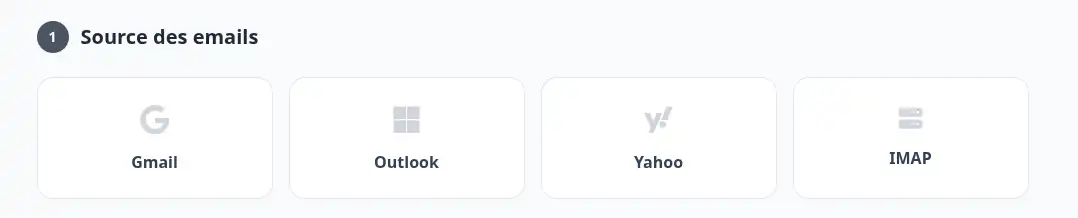
- If your provider is not offered, choose a custom IMAP configuration.
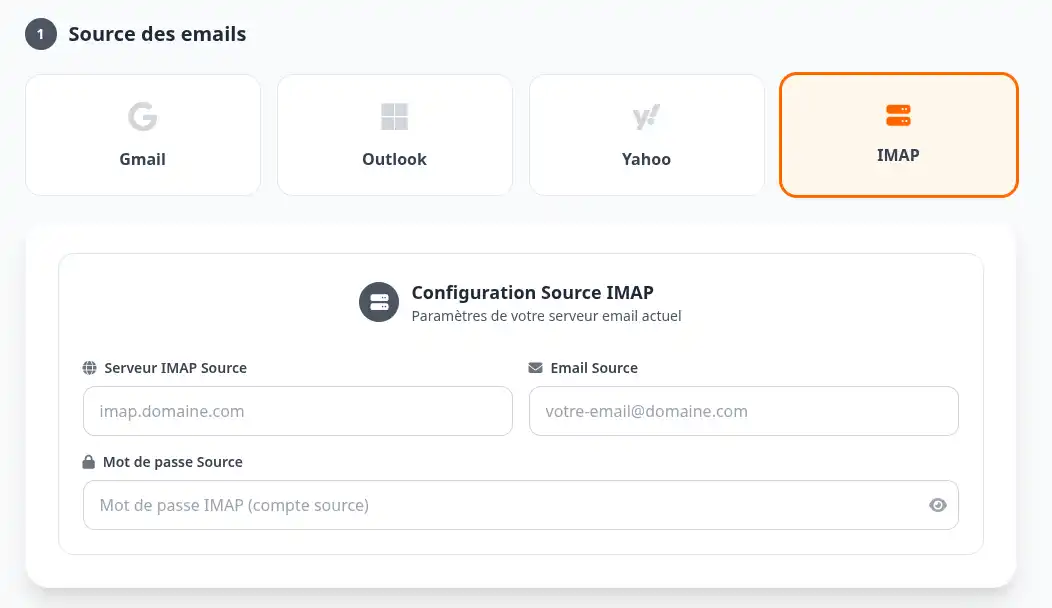
- Enter the source mailbox information:
- source email address;
- password;
- IMAP server;
- Then enter the LWS destination mailbox information:
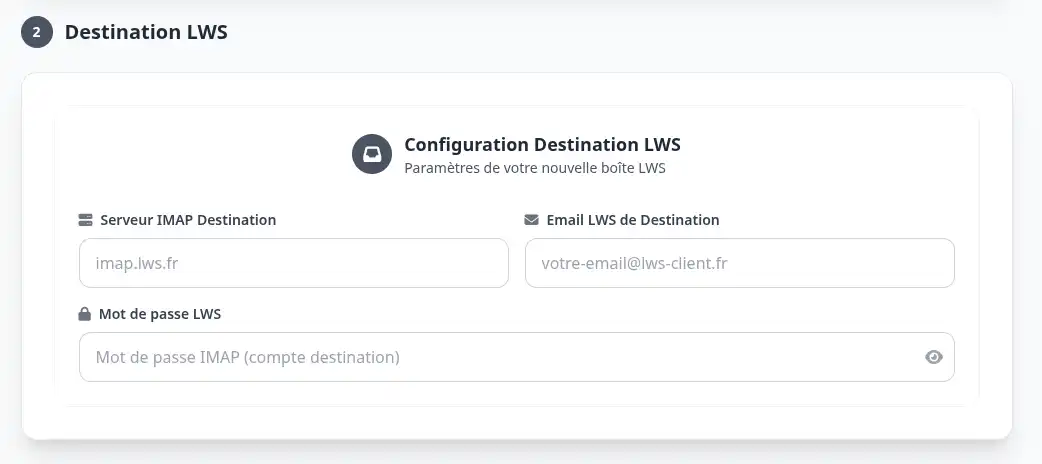
- destination LWS email address;
- password for this mailbox;
- LWS IMAP server.
- Carefully check the two email addresses displayed before confirming.
- Enter an address to be notified when the transfer process is completed or fails.
- Click the "Start transfer to LWS" button.
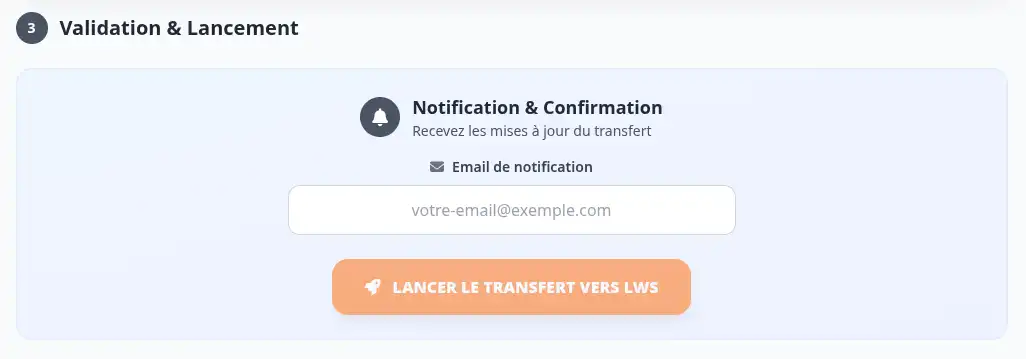
The transfer has been correctly launched when the tool displays an ID and a tracking link. Keep this link to check the progress and result of the transfer.
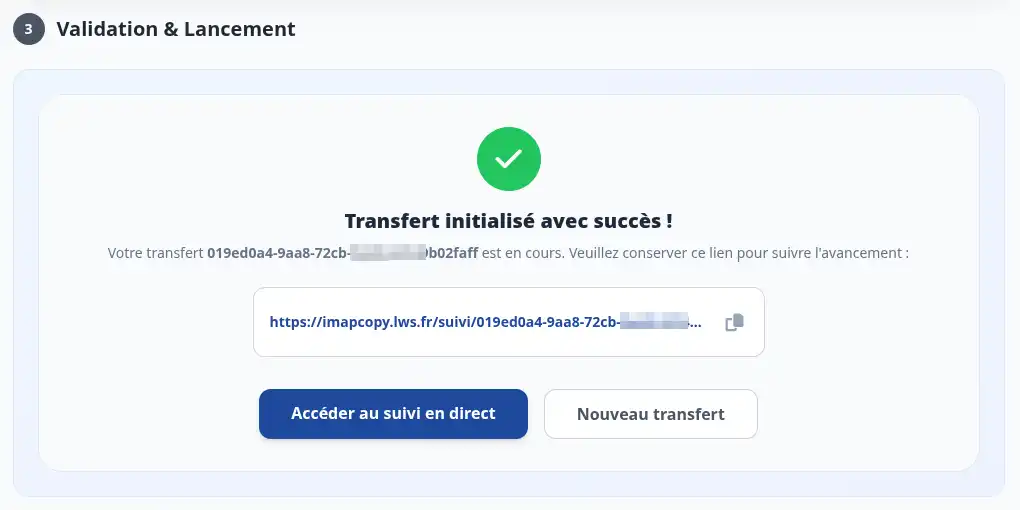
Do not delete your old mailbox until you have checked that the expected messages are present in the destination LWS mailbox.
Transfer several mailboxes with a CSV file
If you need to transfer several mailboxes, use the CSV import tool:
https://imapcopy.lws.fr/import-csv
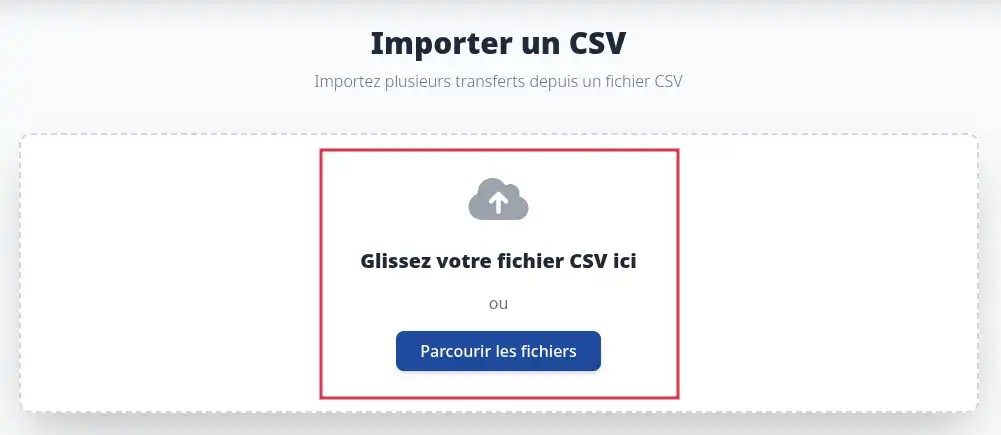
The CSV file allows you to prepare several transfers at once. It must follow the template expected by the tool, with the information required for each source mailbox and each destination mailbox.
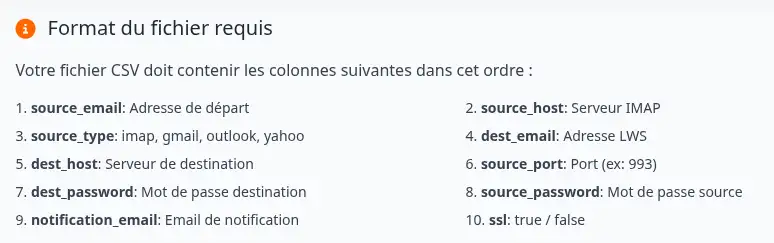
Each line corresponds to one transfer. The information must be accurate to avoid connection errors or incomplete transfers.
Before importing your CSV file, make sure that all destination LWS mailboxes already exist and that the passwords entered are correct.
A transfer CSV file may contain email addresses, IMAP servers, and passwords. Store it in a secure location and delete it from your computer when it is no longer needed.
After importing the file, check the lines detected by the tool, correct any reported errors, then start the transfers.

Track transfer progress
After launching a transfer, ImapCopy provides a tracking link or ID.
You can check the progress on this page:
https://imapcopy.lws.fr/suivi
Enter the transfer ID if requested. The tracking page lets you check the transfer status and see whether the copy is complete, in progress, or in error.
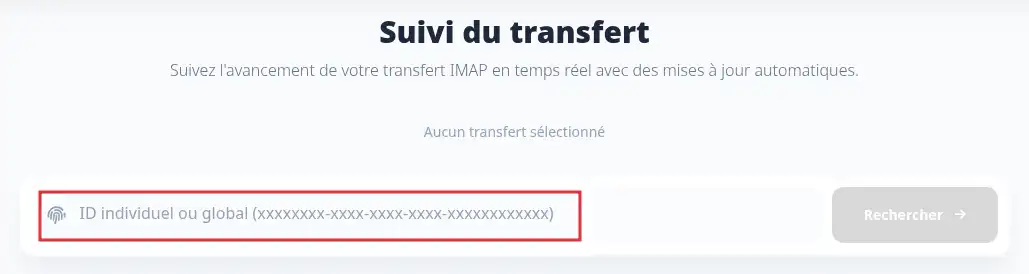
A transfer may take some time depending on the number of messages, the size of the source mailbox, the speed of the source server, and the availability of email services.
Check that the transfer worked
Once the transfer is complete, log in to the destination LWS mailbox, for example from webmail or from your email software.
Check the following:
- the main folders are present;
- recent messages have been copied;
- the expected old messages are visible;
- important subfolders are present;
- the destination mailbox is not full.
The transfer is successful when the expected messages are visible in the destination LWS mailbox and the tracking page shows no blocking error.
Common issues
The source mailbox password is rejected
First, check that the password is correct by logging directly into the source provider’s webmail.
If the mailbox uses two-factor authentication, the usual password may not be enough. In that case, create an app password from the provider account, then use that password in ImapCopy.
IMAP connection fails
Check that IMAP access is enabled on the source mailbox. Some providers disable IMAP by default or require specific authorization.
If you are using a custom configuration, also check the IMAP server, port, and security type.
The transfer is finished, but some emails seem to be missing
Start by checking the folders and subfolders of the destination LWS mailbox. Some messages may be copied into their original folder and may not appear directly in the inbox.
Also check the destination mailbox quota. If it runs out of space, the transfer may be incomplete.
I no longer have the tracking link
Go back to the ImapCopy tracking page if you kept the transfer ID:
https://imapcopy.lws.fr/suivi
If you have neither the link nor the ID, check your emails or start a new transfer only after verifying that the messages have not already been copied.
My CSV file is rejected
Check that the file follows the template expected by the import tool. Each line must contain the information required for the transfer and the required fields must be filled in.
Also check that the file does not contain renamed columns, empty lines, or errors in the email addresses.
Security and privacy
ImapCopy uses login information only to copy emails between the source mailbox and the destination LWS mailbox.
To limit risks:
- use the tool only from the official address https://imapcopy.lws.fr/;
- do not share your credentials with anyone else;
- avoid storing a CSV file containing passwords for a long time;
- change the source mailbox password after the transfer if you have any doubt;
- keep your old mailbox active until the final verification.
ImapCopy makes copying emails easier, but it does not replace manual verification. Before deleting an old mailbox or canceling an old service, always check that the important messages are indeed present in the LWS mailbox.



 Yes
Yes No
No About
About 