Procédure
Affected service: personalized LWS e-mail addresses and Mail Pro managed from the LWS Panel
Concerned panel : LWS Panel
Level: beginner
A Mail Abuse suspension temporarily blocks e-mail sending when sends considered to be spam are detected from your mail service. This protection helps prevent unwanted sends from continuing from LWS shared SMTP servers.
This help explains how to check whether an address is affected, identify the source of the sends, fix the problem, then reactivate the service.
How do you know if your SMTP sends are suspended?
When a Mail Abuse suspension is applied, a message is sent to the contact e-mail address of your LWS account.
You can also check the service status directly:
- Log in to your LWS customer area and go to the hosting or Mail Pro service management concerned.
- In the Email addresses section, click Mail Abuse.
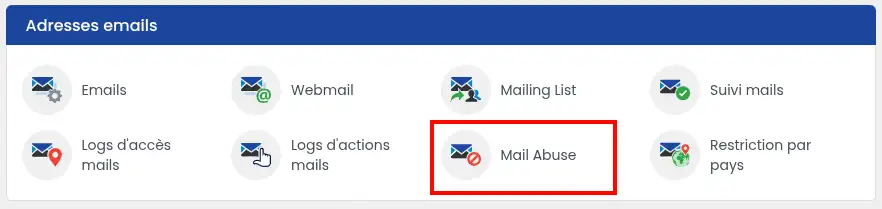
- Read the message displayed on the page.
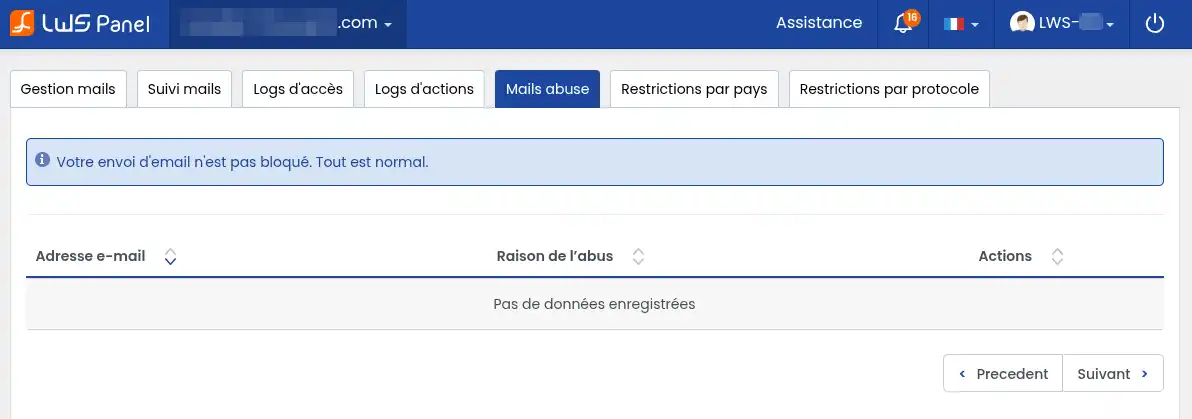
If the message is blue, no e-mail address is currently blocked by Mail Abuse.
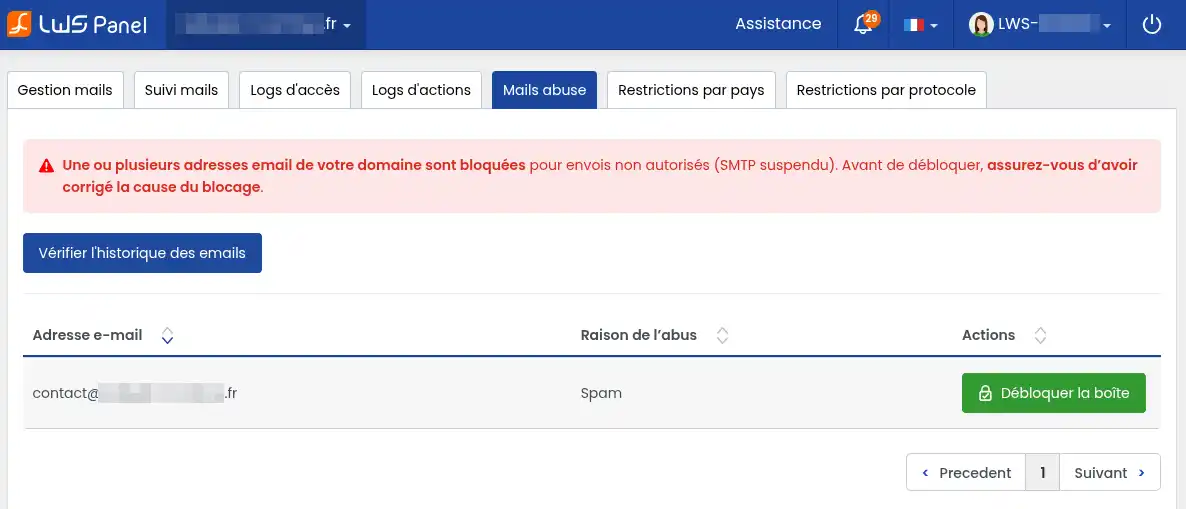
If the message is red, one or more addresses are suspended. The affected addresses as well as the information related to the block are then displayed.
Identify the source of the sends
Before requesting the unblocking, you need to understand which messages caused the suspension.
From the Mail Abuse page, click Check e-mail history to open the mail tracking tool.
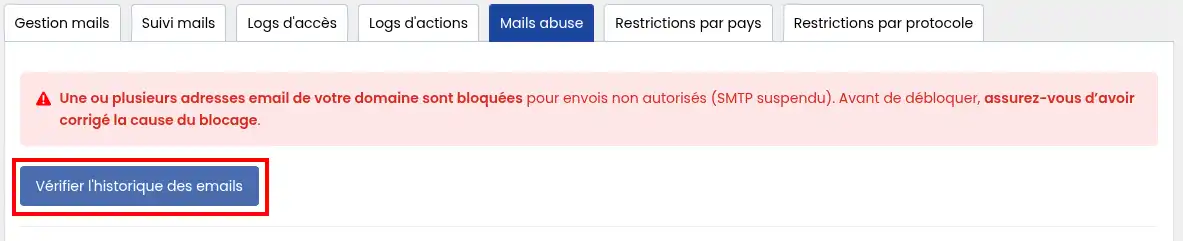
Find the messages reported as spam or in error. The spam score helps you identify messages considered unwanted. For messages detected as spam, their content and the associated report remain available for 6 days.
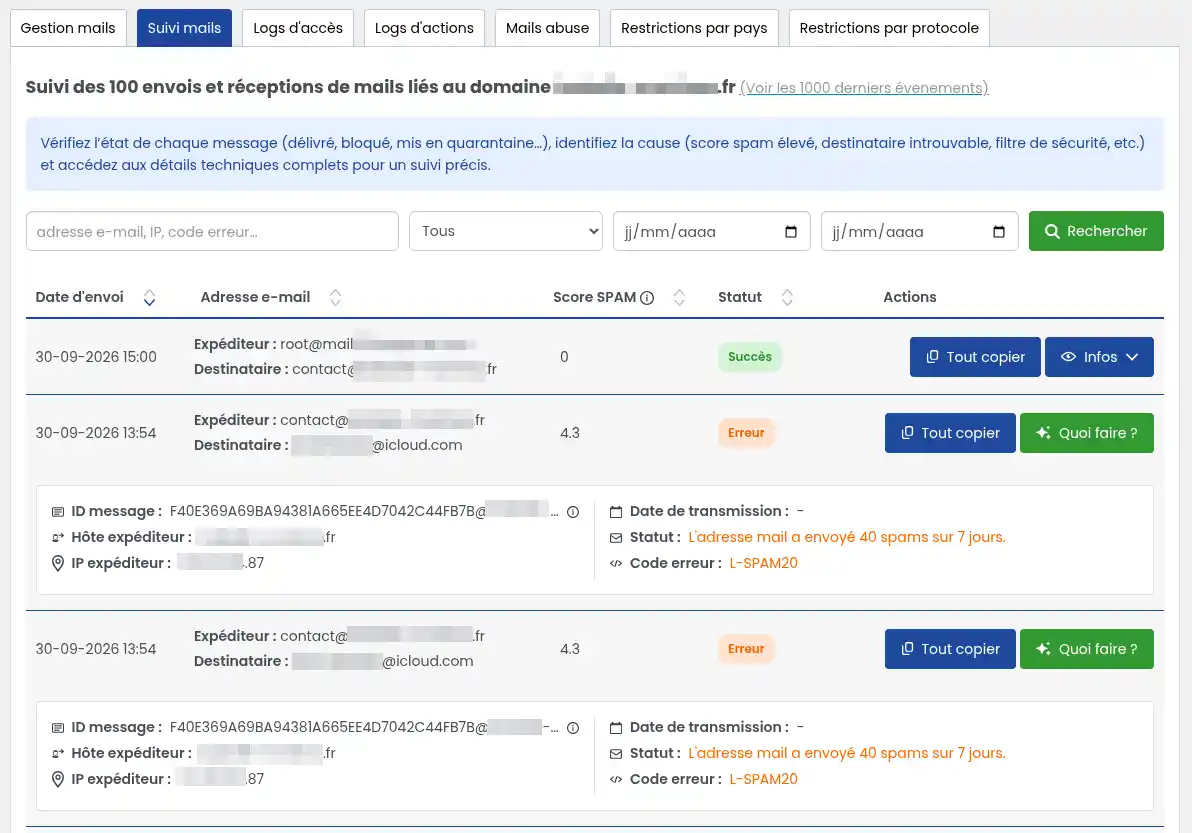
Then try to determine where these sends come from: an e-mail address, your website, or an application connected to your mailbox.
You recognize the messages sent
If you are indeed the source of the messages, consult their spam report to understand why they were detected.
The content, formatting, or certain characteristics of the message can increase its spam score. If your error contains a code such as L-SPAMXX, also consult the help dedicated to these codes before sending again.
The messages come from a form on your website
A poorly protected contact form can be used automatically by bots to generate numerous messages.
Check your forms and add anti-robot protection, for example a CAPTCHA, when possible.
If you use WordPress, PrestaShop, or another CMS, also check that the CMS, its extensions, and its theme are up to date.
You do not recognize the messages sent from an e-mail address
If you do not recognize the messages sent from one of your e-mail addresses, consider its password potentially compromised. Change it before requesting reactivation of sends.
Change the password of the affected address from the LWS Panel.
After this change, also update the password on all devices and software that use this address: phone, Outlook, Thunderbird, mail application, website, or other connected service.
You can also check access events from the Mail tracking tool to look for unusual connections to the affected mailbox. This information notably allows you to know the date, IP address, and protocol used during a connection.
The messages come from an application, a CRM, or a script
An e-mail address can be used by management software, an online store, a form, a CRM, or another tool to automatically send messages.
If the suspicious sends come from one of these services:
- check its SMTP configuration;
- review the messages it generates;
- temporarily disable sending if you cannot immediately identify the problem;
- update its SMTP password if it may have been compromised.
If the application is managed by a provider or a webmaster, send them the information visible in mail tracking so they can investigate the source of the problem.
The sends seem to come from your website or your computer
A compromised website may contain a script used to send unwanted messages. An infected device on which your e-mail address is configured can also be the source of unauthorized sends.
In this case:
- scan your computer with an up-to-date antivirus;
- scan your hosting files with the antivirus/anti-malware tool available in the LWS Panel;
- update your CMS, themes, and extensions;
- check the forms and scripts capable of sending e-mails;
- enable or check the protections available for your website, especially ModSecurity when your plan allows it.
If you cannot identify or clean up a compromised site, the help of a webmaster or a professional may be necessary.
Reactivate sending after fixing the problem
Do not request unblocking until you have identified and fixed the source of the sends. If the same messages start being sent again, your SMTP service may be suspended again.
Once the problem is fixed:
- go back to the Email addresses section of your LWS Panel;
- open Mail Abuse;
- check the affected addresses;
- click Unblock mailboxes.
For suspensions requiring unblocking via Mail Abuse, this option is limited to one unblocking every 90 days. It is therefore particularly important to address the cause before requesting reactivation.
Some less severe L-SPAMXX blocks follow a different procedure and can be lifted after a delay or after changing the mailbox password. If an L-SPAMXX code appears in your error message, consult the help dedicated to that code to find out the corresponding procedure.
Check that sending works again
After unblocking, return to Mail Abuse and check that no address is still reported as blocked.
Then send a test message from the affected address to another address you can access.
If necessary, check Mail tracking / Mail access to verify that the message was accepted and delivered.
The problem is resolved when Mail Abuse no longer indicates a suspension, your test message can be sent normally, and no new suspicious send appears in mail tracking.
Common issues
I do not recognize any of the messages that caused the block
Start by changing the password of the affected address.
Then check the devices, software, websites, and applications that use this address. Also review the access events in Mail tracking / Mail access to look for an unusual connection.
If the messages come from the site, analyze the hosting and check the forms and scripts capable of sending e-mails.
I am blocked again after reactivating sending
This usually indicates that the cause of the first block is still present.
Go back to mail tracking and review the new messages detected as spam. Do not just change their content: also check whether their source corresponds to a mailbox, a form, a script, or an application.
If you have already used a Mail Abuse unblocking within the last 90 days, a new Mail Abuse unblocking may not be available.
The “Unblock mailboxes” button is not available
First check the error code associated with the block.
Some L-SPAMXX errors are automatically unblocked after a delay or require a password change, while others require action from Mail Abuse. See the help Email error codes related to SPAM sending: L-SPAMXX to identify the corresponding case.
Mail Abuse shows no block but I still cannot send e-mails
The problem may have another cause: sending limit reached, authentication error, SMTP configuration problem, IP address block, or another error code.
Check the error message obtained when sending and use the help General information on LWS mail error codes to identify the corresponding error family.



 Yes
Yes No
No About
About 