
Online help
The web host accessible to all
Procédure
Concerned service : LWS Panel email / mail Pro
Concerned panel : Roundcube Webmail and Android
Level : beginner
This help explains how to sync your LWS calendars and contacts on an Android phone or tablet.
Calendars use the CalDAV protocol.
Contacts use the CardDAV protocol.
On Android, these two synchronizations can generally be configured from the same DAV-compatible application.
This help concerns calendar synchronization on Android.
Are you using another environment?
You must have:
Android menus may vary depending on the phone brand, the Android version, and the application used. The displayed names may therefore be slightly different from those indicated in this help.
Log in to your Roundcube Webmail with the email address whose calendar you want to synchronize.
In the left-hand menu, click Settings (1).
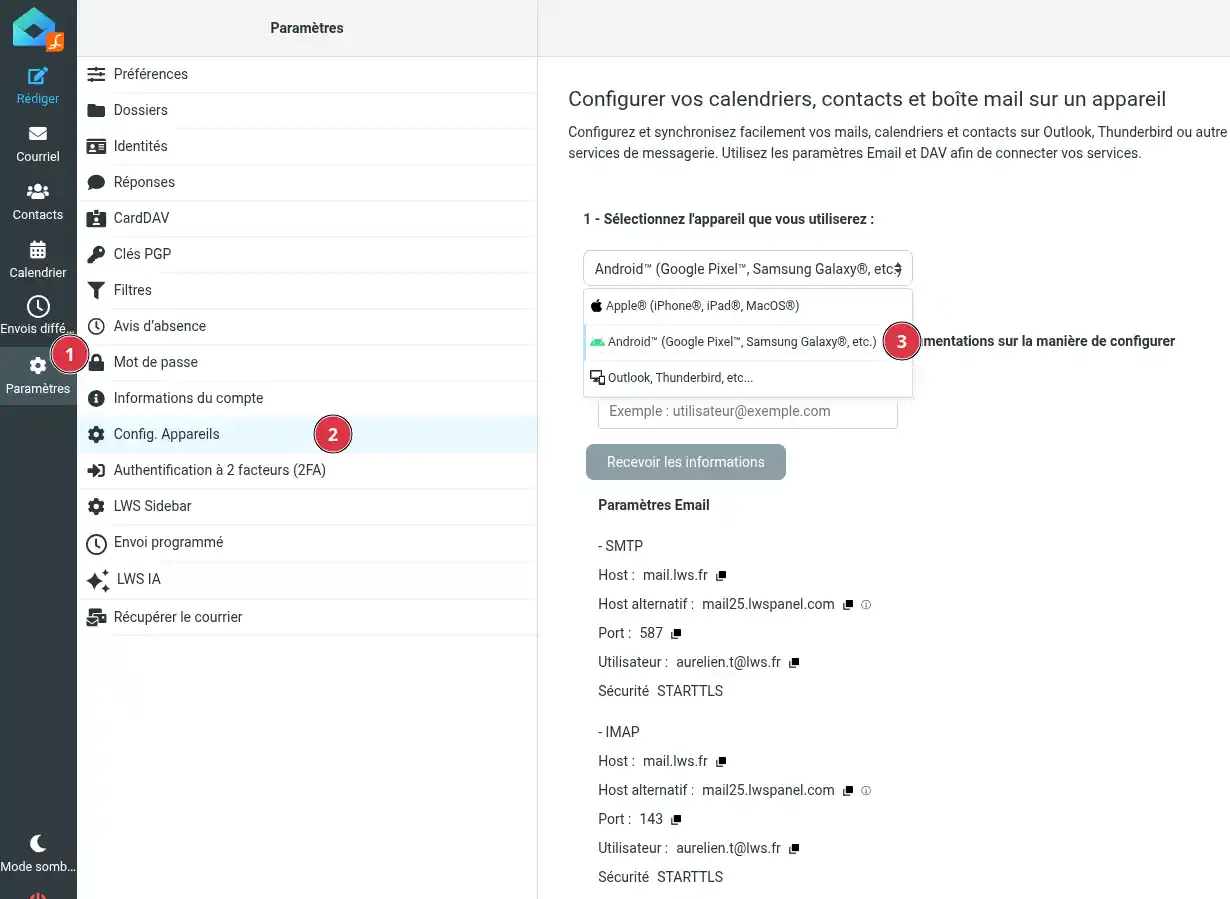
Then click Device Config. (2).
Select the device Android™ (Google Pixel™, Samsung Galaxy®, etc.) (3) from the list provided.
Roundcube then displays the settings to use for your account. Find the DAV settings section.
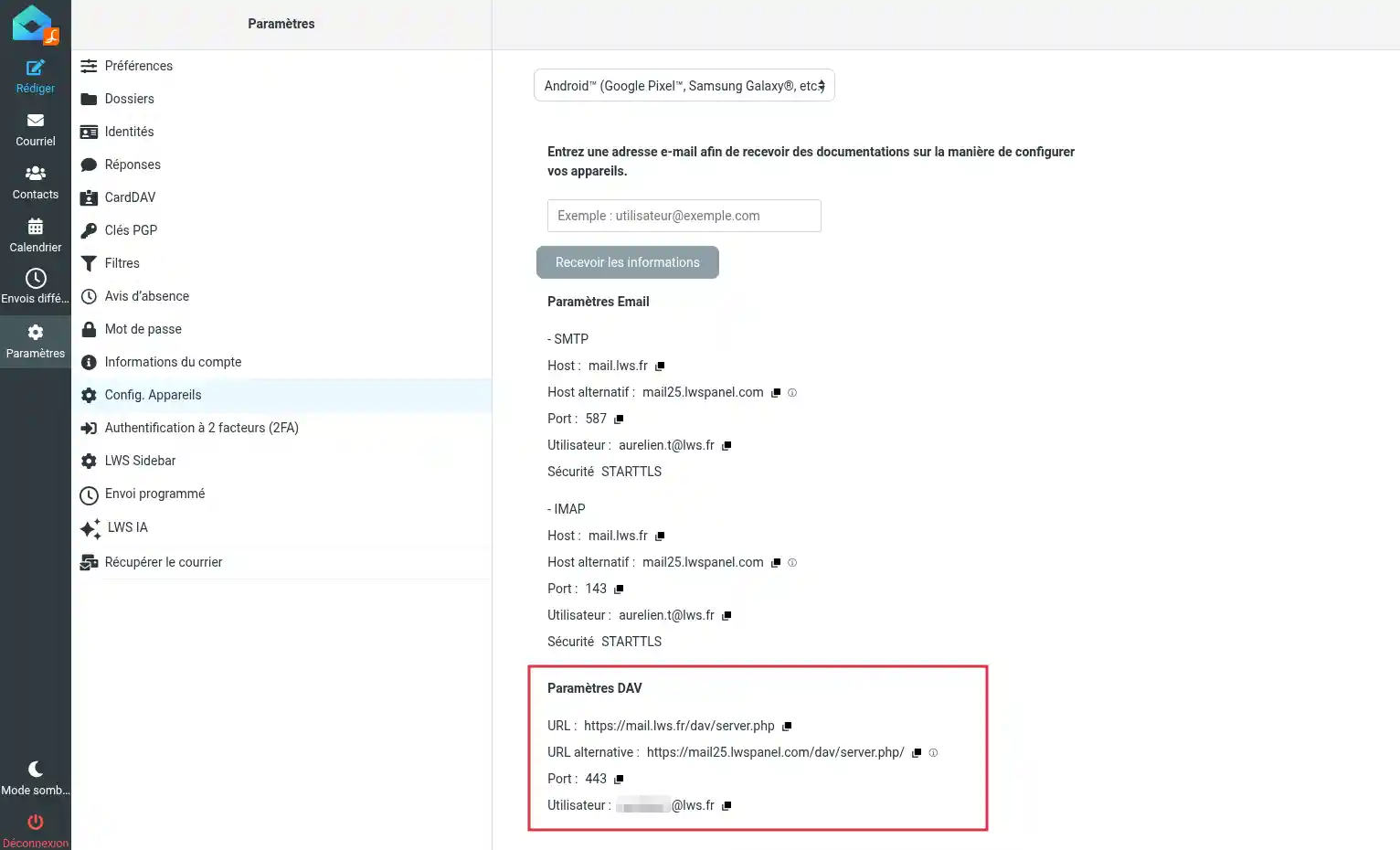
You need to retrieve the following information:
443;Do not copy an old URL found in another document or an old example. Always use the DAV URL displayed in your Webmail, as it depends on your email service.
Android does not always allow you to directly add a CalDAV and CardDAV calendar from the phone settings. In this case, you must install a CalDAV-compatible application.
You can use a maintained CalDAV/CardDAV synchronization application, for example DAVx⁵, or any other CalDAV-compatible Android application.
Once the application is installed, open it to add a new account.
In the synchronization application, choose to add an account by URL and username if this option is offered.
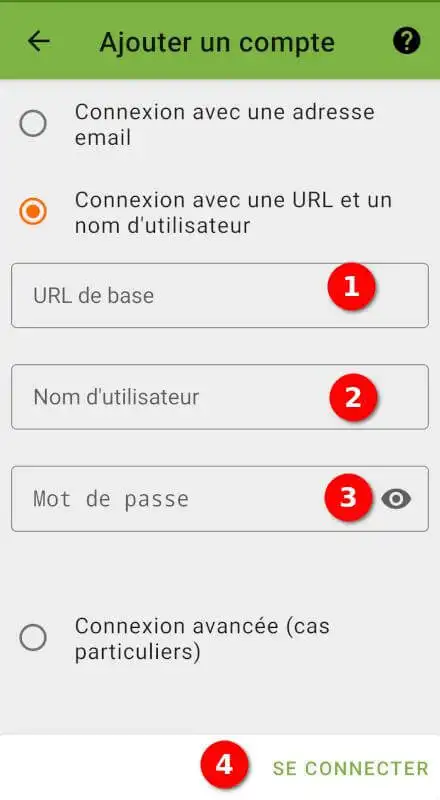
Then enter your account information:
Confirm the account addition.
The application then searches for the available calendars and address books.
Depending on your service, you may see:
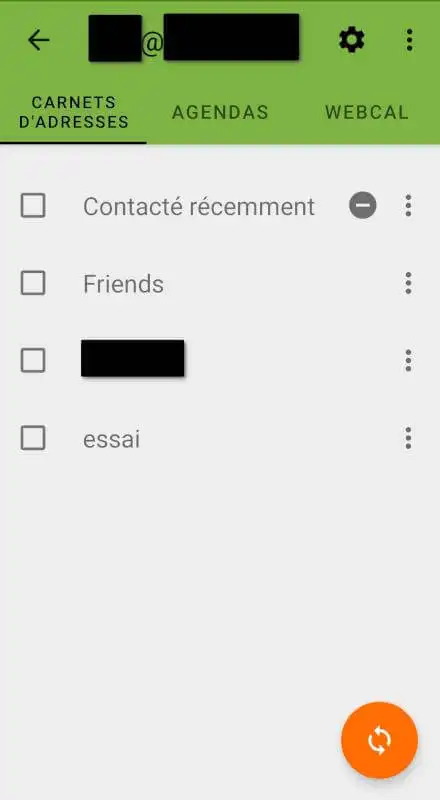
Enable the items you want to synchronize on Android.
If the application asks for a specific URL and the main URL does not work, try the alternative URL shown in Roundcube's DAV settings.
After adding the account, select the data you want to find on your Android device.
To synchronize your calendars, enable the calendars offered by the application. They will then be visible in your phone's Calendar application.
To synchronize your contacts, enable the address books offered by the application. They will then be visible in your phone's Contacts application.
You can enable only calendars, only contacts, or both according to your needs.
Then open your phone's Calendar / Agenda application.
Depending on the application used, you may need to display the list of available calendars and check the calendar corresponding to your LWS email address.
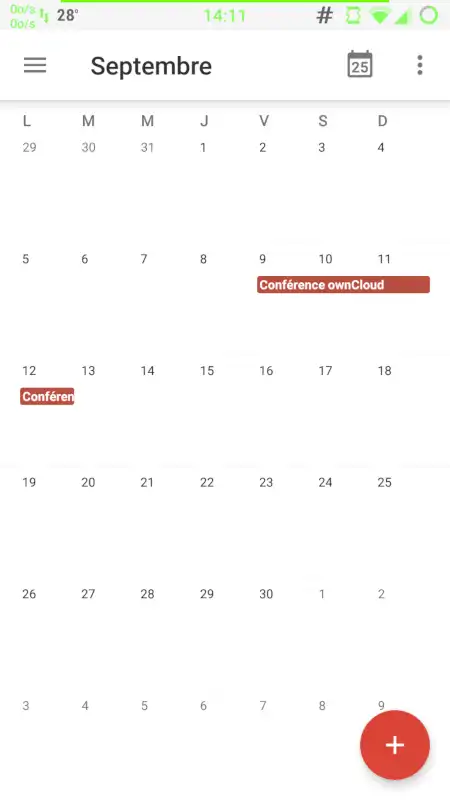
If the calendar does not appear immediately, start a manual synchronization from the CalDAV application or wait a few minutes.
Open your phone's Contacts application.
Depending on the application used, you may need to open the contacts display settings and select the address book linked to your LWS email address.
If the contacts do not appear immediately, start a manual synchronization from the DAV application or wait a few minutes.
To verify calendar synchronization, create a test event from your LWS Webmail calendar. Wait a few moments, then check that this event appears in the Calendar application on your Android device.
To verify contact synchronization, create a test contact from your LWS Webmail address book. Wait a few moments, then check that this contact appears in the Contacts application on your Android device.
The setup is successful when the calendars or contacts selected in the DAV application appear correctly in the Calendar and Contacts applications on your Android device.
If your application allows it, you can also do the reverse test: create an event or contact from Android, then check that it appears in LWS Webmail.
The application refuses to add the account
Check that the DAV URL was copied from Settings > Device Config. in Roundcube.
Also make sure that the username matches your full email address.
If the main URL does not work, try the alternative URL shown in Roundcube.
The application indicates a password error
The requested password is the one for the LWS email address, not your LWS client area password.
If you are no longer sure of the email address password, change it from your email management interface, then try the setup again.
The calendars or contacts are synchronized, but I cannot see them
Check that the LWS calendars or address books are enabled in the Calendar or Contacts applications.
In some cases, the data is synchronized but hidden in the display. Open the settings of the application concerned and check the displayed calendars or accounts.
You can also force a manual synchronization from the DAV application.
I can see my emails, but not my calendars or contacts
Email setup, calendar setup, and contact setup are three different settings.
Even if your mailbox already works on Android, you must add calendars and contacts separately using the DAV settings.
The calendar works, but not the contacts
Check that the address book has been selected in the DAV application.
Some applications allow calendars and contacts to be enabled separately.
Contacts appear twice
Duplicates can come from several accounts displayed at the same time on Android, for example the phone's Google account and the LWS address book.
Check the address books displayed in the Contacts application and hide those you do not want to display. Do not delete contacts without checking in which address book they are stored.
Ask the LWS team and the community. Answers are published after moderation.
 About LWS :
LWS is a 100% French web hosting company that focuses on quality and innovation and offers a responsive and competent technical service at affordable prices.
About LWS :
LWS is a 100% French web hosting company that focuses on quality and innovation and offers a responsive and competent technical service at affordable prices.



 Yes
Yes No
No