Procédure
Service concerned: Emails hosted with LWS Panel / mail Pro
Concerned panel: Roundcube
Level: beginner
Roundcube is the webmail offered by LWS to view and send emails from your professional address from a browser. It lets you access your mailbox without installing software such as Outlook, Thunderbird, or Mail.
This guide presents the essential actions to get started with Roundcube: accessing your mailbox, reading your messages, sending an email, and finding the main useful features.
This guide concerns the use of the Roundcube webmail for an LWS email address.
Are you using another environment?
Before you begin
Your email address must already be created on your LWS Panel service. You must also know the password for this email address.
If you no longer know the password, you can change it from your LWS customer area.
Use Roundcube's main features
See the specialized guides according to your needs.
You can notably:
Read an email
After logging in to Roundcube, your inbox (1) is displayed with the list of received messages.
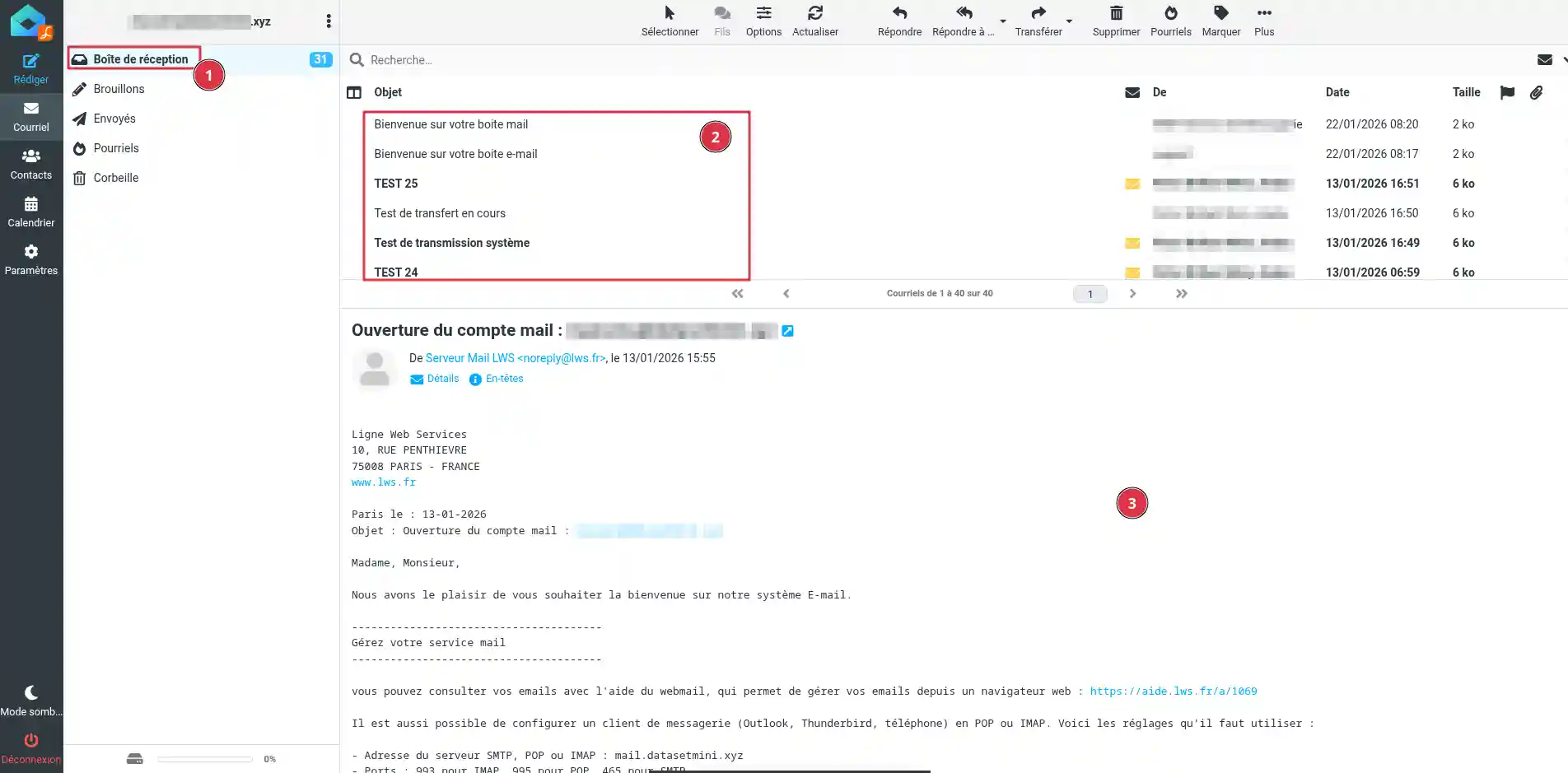
Click an email to open it (2). Its content then appears in the reading pane (3). You can view the message, open any attachments, then choose the action to take: reply, forward, or return to the message list.
If you cannot find an expected email, check the other folders in your mailbox, such as Junk, Spam, Trash, or any custom folders if you use them.
Send a new email
To write a message, click Compose (1).
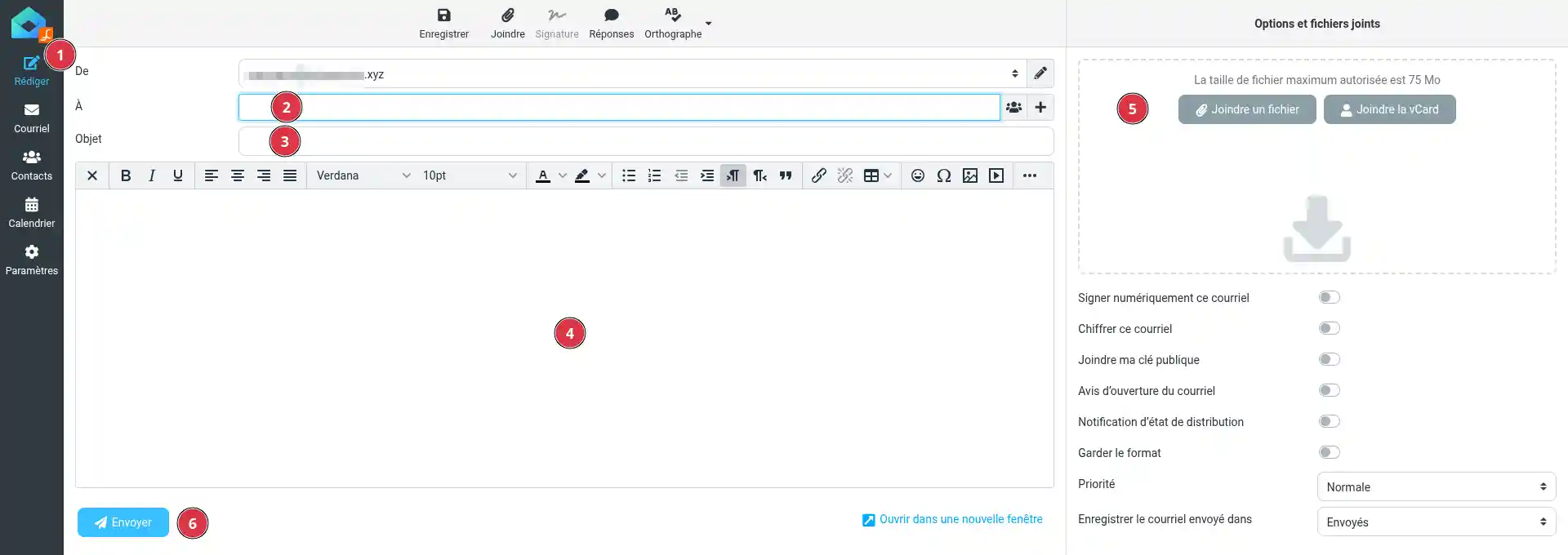
Then fill in the main information:
- To: the recipient's email address (2);
- Subject: the subject of the message (3);
- the content of your email in the message body area. (4)
You can add an attachment (5) if needed, then click Send (6).
When the message is sent, it usually appears in the Sent folder.
Reply to an email
Open the message you want to reply to, then click Reply (1).
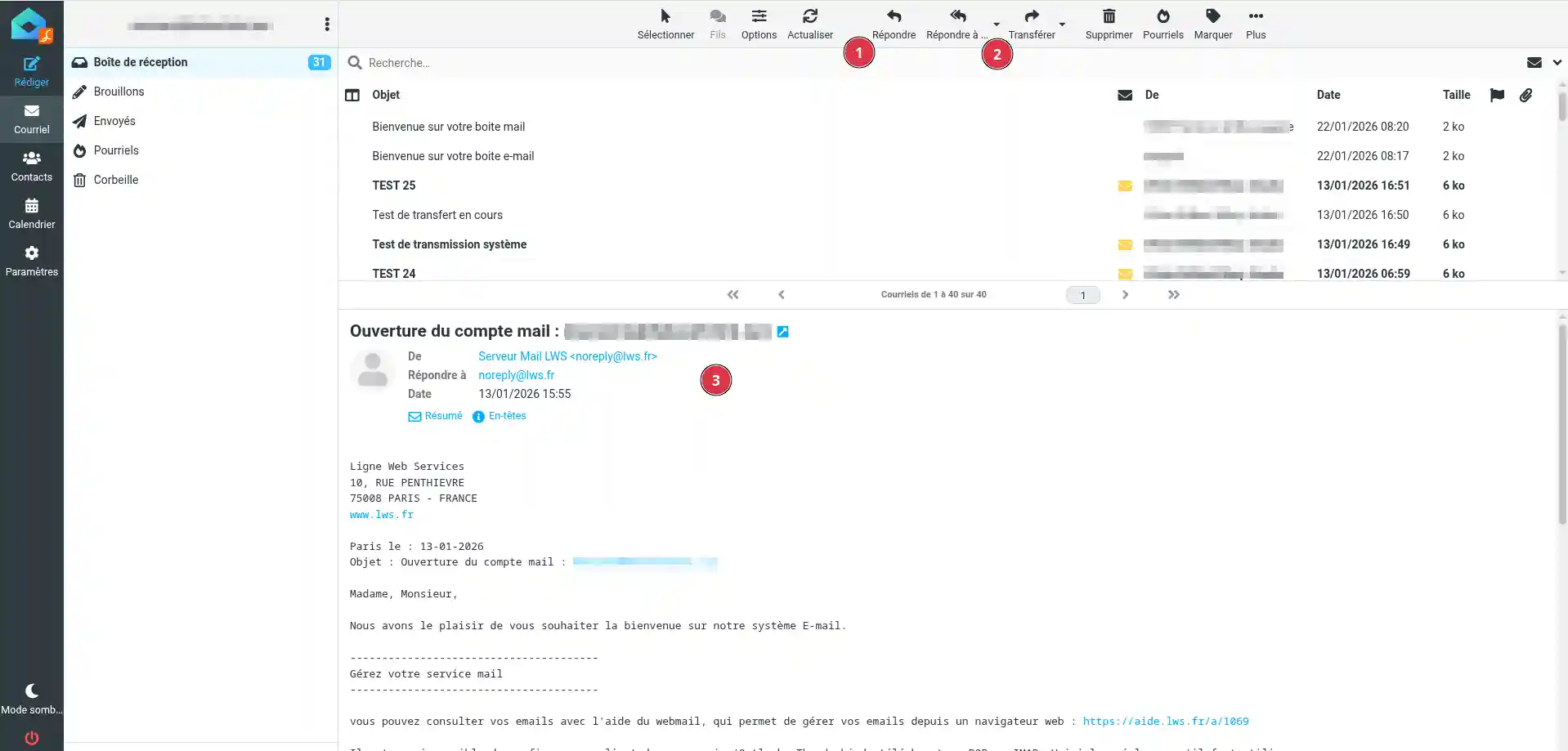
Roundcube automatically prepares a new message addressed to the sender. Write your reply, check the content, then click Send.
If several people were recipients of the original message, you can use Reply all (2). In this case, your reply will be sent to the sender and the other concerned recipients.
Before using Reply all (2), check the addresses shown in the recipients field (3). Your reply may be sent to several people.
Forward an email
Open the message you want to forward to someone else, then click Forward (1).
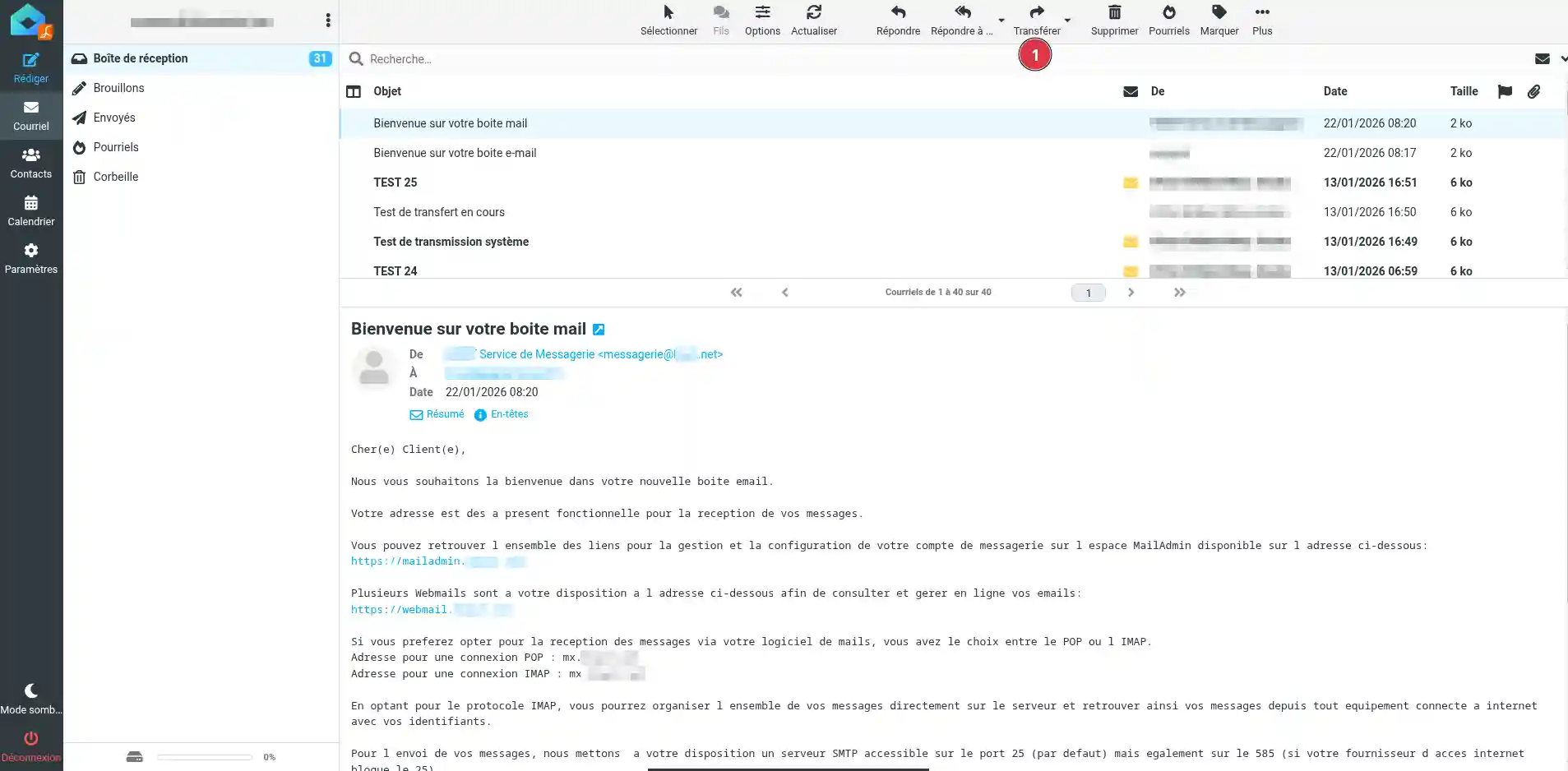
Enter the new recipient's email address, add a comment if necessary, then click Send.
The recipient will receive the original message with the forwarded information. Depending on the email content, attachments may also be included.
Check that sending and receiving work
To quickly test your mailbox, send a test email to another address that you also check. Then reply to that message from the other address.
If you can send an email from Roundcube and receive a reply in your inbox, the usual use of the webmail is working correctly.
Common issues
I can't see the expected email
Check the Junk, Spam, Trash folders and any custom folders. If filters are set up on your mailbox, the message may have been moved automatically.
My message won't send
Check that the recipient's address is correct and that your message does not contain an attachment that is too large. You can also look in the Drafts folder to see if the message was saved without being sent.
I am not receiving a reply to my test email
Check that the sent email is indeed present in the Sent folder. Also check the Junk folder of the address used to receive the test.



 Yes
Yes No
No About
About 