
Online help
The web host accessible to all
Procédure
When you connect via encrypted FTP (FTPS) with FileZilla to your LWS Panel hosting account, FileZilla may display a « *.lwspanel.com » certificate whose name does « not match » the host you entered, followed by a warning about the « TLS session resumption ». This certificate is indeed the one used by LWS servers: keep the FTP host for your account (ftp.yourdomain.com or the server IP address), check on the first connection that the certificate is issued for « *.lwspanel.com » by Sectigo, then accept it. The session resumption warning only indicates that the server does not support this feature: you can ignore it, your transfers should not fail. If you prefer, SFTP remains another option, available on all LWS Panel, Perso, and domain plans included.
The basic FileZilla configuration is explained in Explicit TLS FTP connection and in How do you publish a site via FTP with FileZilla, Cyberduck or WinSCP?. Is your hosting managed under cPanel? Then see instead What FTP settings are required for an FTP client?.
The FTP servers for LWS Panel hosting accounts present a certificate issued for the « *.lwspanel.com » and « lwspanel.com » names, issued by the Sectigo authority. It is not issued for your domain name or for an IP address.
If you enter ftp.yourdomain.com or the server IP address as the host, FileZilla opens the « Unknown certificate » window with the message « The host name does not match the certificate ». This does not mean that the server is wrong: the name entered simply is not the one listed in the certificate. You only need to verify this certificate once, then accept it.
In the LWS Panel, open your hosting management area then the Files > FTP account(s) section. Note the « FTP Server » value (ftp.yourdomain.com, or the server IP address if your domain does not yet point to your LWS hosting) and the account username. Full details are in How do you connect via FTP to your LWS Panel hosting?.
In FileZilla, click File > Site Manager…, then New site. If you have already saved your hosting account, simply select it from the list.
In the General tab, fill in the fields as follows:
ftp.yourdomain.com;Click Connect. Since this is the first connection, FileZilla does not yet know this certificate and displays the « Unknown certificate » window, with the message « The host name does not match the certificate ».
In the « Unknown certificate » window, check two items:
*.lwspanel.com;Sectigo Limited.If so, tick « Always trust this certificate in future sessions. » then click OK. If the common name or issuer is different, click Cancel and contact LWS support from your customer area.
Some software does not display a prompt to accept the certificate and directly rejects a certificate whose name does not match the host: FTP extensions in code editors such as Visual Studio Code, scripts, or command-line tools. They then display an error such as « hostname mismatch » or « Hostname/IP does not match certificate's altnames ».
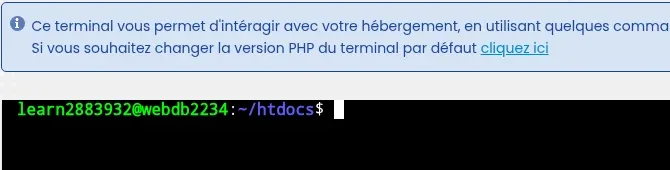
The simplest solution is to switch to SFTP, explained below: it does not use a TLS certificate. If you must stay on FTPS, enter as host the name of your hosting server, in the form webdbNNNN.lwspanel.com, which matches the certificate. It appears after the @ sign in the Terminal prompt (the Software section of the LWS Panel, see How do you connect to the web terminal with LWS Panel?): in the example below, the name to use is webdb2234.lwspanel.com.
Once connected via FTPS, FileZilla may open the « Insecure FTP connection data » window with the message « This server does not support TLS session resumption on connection data ». FileZilla is simply telling you that the server does not support this feature. Your username and password, however, go through the main connection, encrypted with TLS.
You can ignore this warning: click OK to continue in FTPS. Your transfers should not fail.
SFTP, explained below, remains an option and not an obligation: this warning does not apply to it.
SFTP transfers your files over a single encrypted SSH connection, on port 22. It does not use a TLS certificate: neither the « *.lwspanel.com » alert nor the session resumption warning apply to it. SFTP is available on all LWS Panel, Perso, and domain plans included. The username and password are those of your main FTP account.
In the Software section, click SSH Access and check that Enable is selected. If not, click Modify configuration, check Enable, choose the Activation duration then click Validate. Without an SSH key, access is limited to 7 days maximum: for permanent key-based access, follow How do you connect to your LWS web hosting via SSH?.
On the same page, the Connection information block shows the Host, Port (22) and User. Each value has a button to copy it.
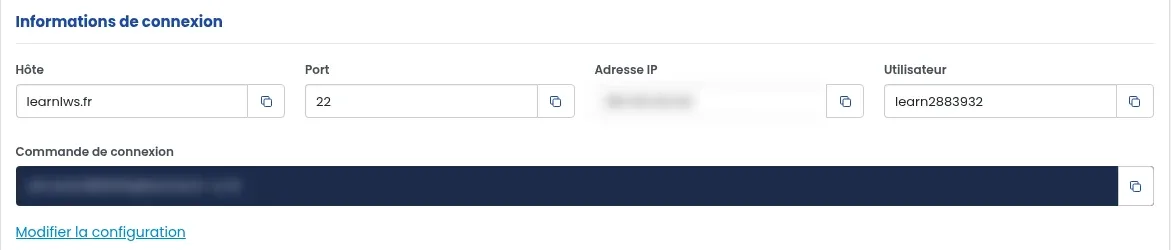
In FileZilla, click File > Site Manager… > New site, then fill in:
Then click Connect.
On the first connection, FileZilla displays the « Unknown host key » window because it does not yet know this server. Check « Always trust this host, add this key to the cache » then click OK.
Yes. It is the certificate for LWS Panel servers, issued by the Sectigo authority for lwspanel.com names. The LWS Panel file manager and webmail addresses also end in lwspanel.com.
Yes. The certificate is not issued for an IP address: FileZilla shows the same « The host name does not match the certificate » message as with ftp.yourdomain.com. Check the common name *.lwspanel.com and the Sectigo issuer, then accept the certificate.
FileZilla displays this message when the server key has changed since your last connection. Do not connect and contact LWS support from your customer area to find out whether this change is expected.
Ask the LWS team and the community. Answers are published after moderation.
 About LWS :
LWS is a 100% French web hosting company that focuses on quality and innovation and offers a responsive and competent technical service at affordable prices.


 Yes
 No