
Online help
The web host accessible to all
Procédure
The purpose of a captcha is to differentiate a genuine human user from a malicious computer programme used by spammers and other hackers.
This tutorial shows you how to install a captcha on your Joomla site.
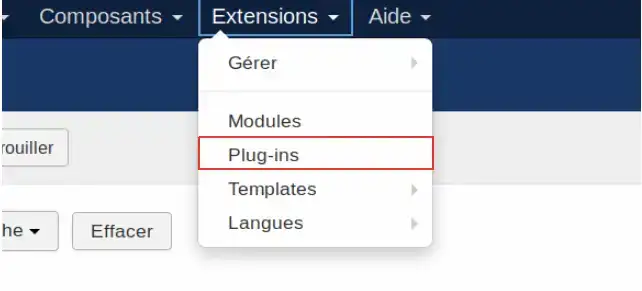
To install a cpatcha in your Joomla site:
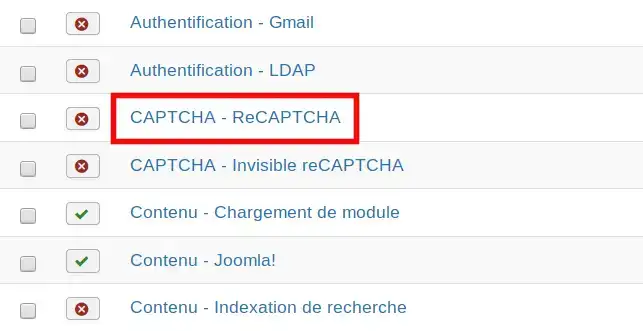
Then click on CAPTCHA - ReCAPTCHA
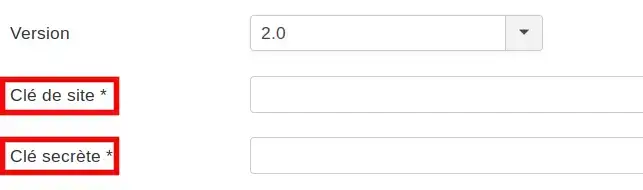
To make the reCAPTCHA work, you need to enter the site key and the secret key, which you can retrieve from your Google account by following this link: https://www.google.com/recaptcha/intro/v3.html
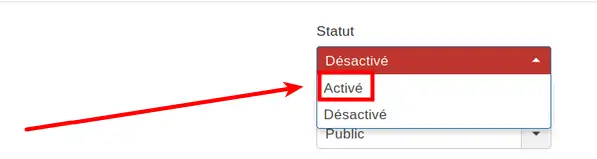
Then click on the Status drop-down list to activate the plugin on your site, then on Activated.
Save the changes by pressing the Save or Save & Close button.

You are now able to insert a captcha on your Joomla form. This will identify whether it's a robot or a real person and will prevent spam being sent via your Joomla hosting.
Don't hesitate to share your complaints and questions!
Ask the LWS team and the community. Answers are published after moderation.
 About LWS :
LWS is a 100% French web hosting company that focuses on quality and innovation and offers a responsive and competent technical service at affordable prices.
About LWS :
LWS is a 100% French web hosting company that focuses on quality and innovation and offers a responsive and competent technical service at affordable prices.



 Yes
Yes No
No