Procédure
Introduction
LWS mail service offers a professional and secure solution for managing your emails associated with your domain name. By linking your domain to this service, you strengthen your online presence and benefit from professional communication. This documentation will guide you step by step to link your domain name, whether it is managed by LWS (with LWS Panel, cPanel or Plesk) or an external provider. You do not need in-depth technical knowledge; we will explain everything in a simple and clear way.
I. Prerequisites
To follow this documentation, you must first make sure that you have:
- a Standard or Professional email service managed by LWS Panel
- a domain name active with LWS or with another provider
You will not be able to use the LWS Panel Standard or Pro mail service in addition to the email addresses already created on your mail service attached to your hosting (cPanel, VPS, Google Workspace, Microsoft Exchange, other mail services). You will therefore need to choose between the LWS Panel service or the service used by your hosting, depending on the features offered by each service.
II. Find out the IP, SPF, and DKIM key of your mail service
In order to correctly link your domain name to your mail service, you should first find the IP address(es) that you will need to know to perform the configuration.
Step 1 : First, you must log in to your LWS account and access the shared hosting or mail service for which you want to perform the linking.
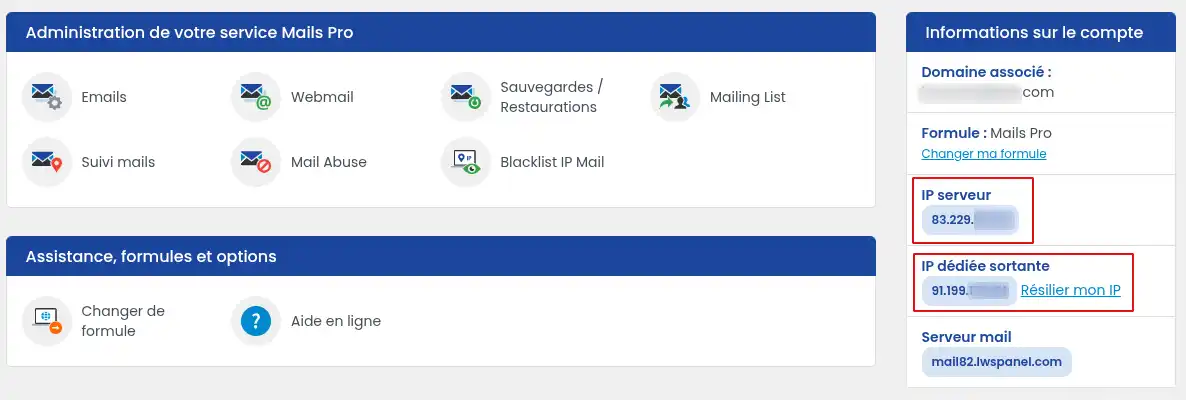
Step 2 : In the right-hand column "Account information" you will see the server IP corresponding to the mail server IP. If you have a Dedicated IP option, you will also see it in "Outgoing dedicated IP", which is the IP to configure for sending.
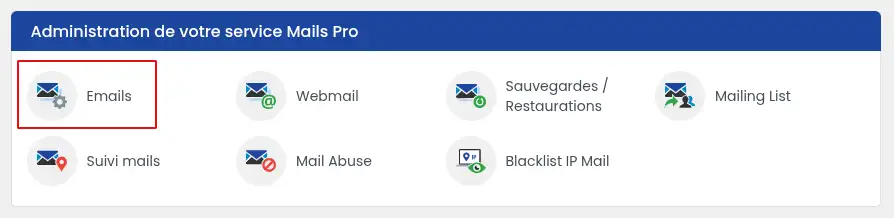
Step 3 : Click the "E-mails" icon in the "Email addresses" section.
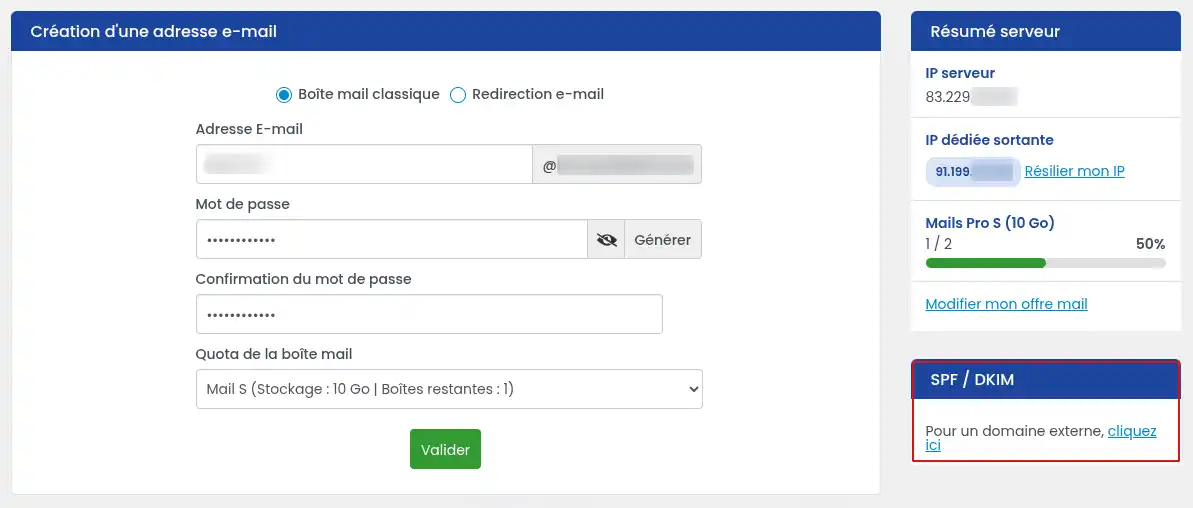
Step 4 : On the email administration page, click the link in the right-hand column to view the values of the SPF and DKIM records to configure in your DNS provider's interface.
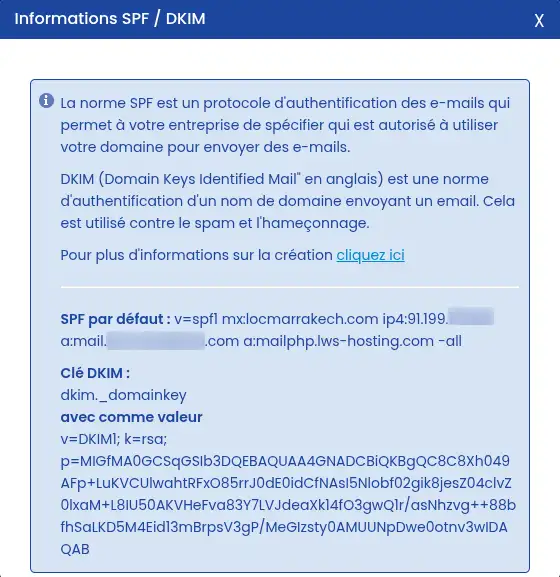
A window then appears where you can find the values of the SPF and DKIM records to configure
III. Link your domain name managed by an external provider
You will not be able to use email addresses created on a mail service other than LWS Panel for your domain at the same time as the Standard or Pro mail service of LWS Panel. We therefore invite you to create your email addresses on your LWS Panel mail service before linking your domain name to it to avoid any interruption in receiving mail.
To link your domain and your LWS Panel mail service, you must create (or modify, if they already exist) the following records in your domain's DNS Zone:
| Type |
Name |
Value |
Example |
TTL |
| MX |
@ or domain.ext |
mail.domain.ext |
mail.lws.fr |
3600 (1h) |
| A |
mail |
Mail Server IP |
91.216.107.88 |
3600 (1h) |
| TXT |
@ or domain.ext |
SPF record value |
v=spf1 mx:lws.fr ip4:172.67.68.219 a:mail.lws.fr a:mailphp.lws-hosting.com -all |
3600 (1h) |
| TXT |
dkim._domainkey |
DKIM record value |
v=DKIM1; k=rsa; p=MIGfMA0GCSqGSIb3DQEBAQUAA4GNADCBiQKBgQC8C8Xh049AFp+LuKV
CUlwahtRFxO85rrJ0dE0idCfNAsI5Nlobf02gik8jesZ04clvZ0lxaM+L8IU50AKVHeFva83Y7LVJdeaXk
14fO3gwQ1r/asNhzvg++88bfhSaLKD5M4Eid13mBrpsV3gP/MeGIzsty0AMUUNpDwe0otnv3wIDAQAB |
3600 (1h) |
domain.ext symbolizing your domain name
33. if you have subscribed to the SMTP Premium Dedicated IP option with your mail service, you must also add the following record:
| Type |
Name |
Value |
Example |
TTL |
| A |
ipdediee.domaine.ext |
Outgoing Dedicated IP |
172.67.68.219 |
3600 (1h) |
If you do not have the technical knowledge to make these changes, we invite you to provide this information to the support service of the provider responsible for managing your domain name so that they can help you with this configuration.
IV. Link your domain name managed by cPanel
To link your cPanel to an LWS Panel mail service (which we do not recommend) you must follow point III of this documentation and perform this additional action:
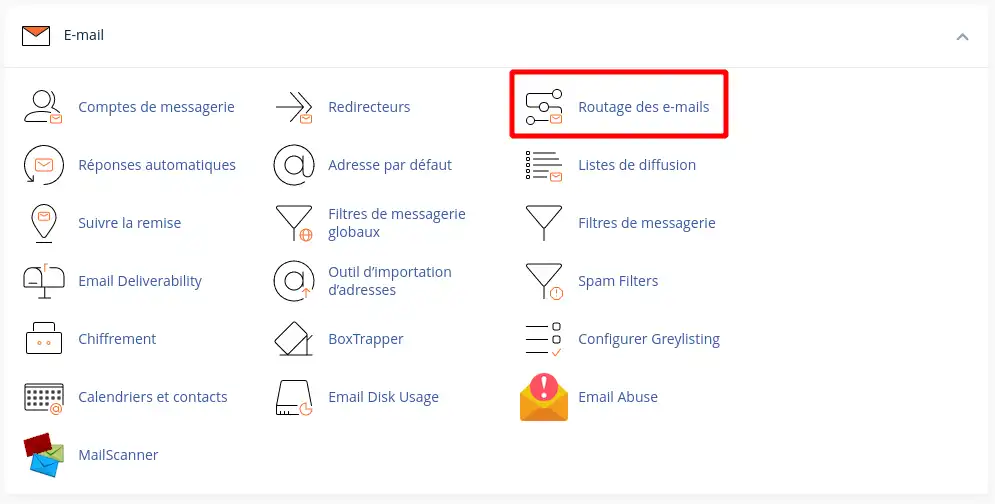
On the cPanel control panel home page, click the "Email Routing" icon in the "Email" category
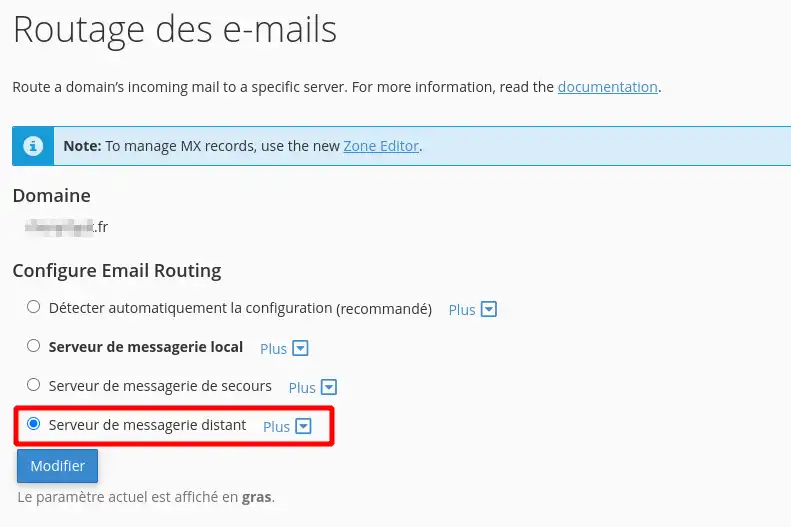
On the page that appears, select the "Remote Mail Server" setting then click the "Modify" button
Once these actions have been completed, we invite you to wait a few hours for the DNS changes to propagate before checking that everything is working properly.
Conclusion
You now know how to:
- Identify the prerequisites for linking your LWS mail service to your domain name.
- Know the IP, SPF, and DKIM key of your mail service for optimal configuration.
- Link your domain name managed by an external provider to your LWS mail service.
- Carry out the link between your domain name and your mail service if you use cPanel.
🚀 Thanks to this key information, you are now ready to strengthen your online presence with a professional and secure messaging solution. 💼
We hope this guide has been useful and thank you for your attention. If you have any questions, feedback, or if you would like to share your experience with the LWS mail service, feel free to leave a comment. We will be delighted to read and reply to you! 💌



 Yes
Yes No
No About
About 