
Online help
The web host accessible to all
Procédure
Your site displays a “Verification in progress” page, or Google Search Console, a bot, or an external service receives a 403 error? It is most often the DDOS Firewall (Anubis) of your LWS Panel hosting, the protection that filters traffic sent in bulk to saturate your site. This guide explains what it does, how to configure it yourself, and how to check the result.
A DDoS attack sends a very large number of requests to a site to make it inaccessible. The DDOS Firewall detects abnormal behavior and only lets legitimate requests through. It relies on Anubis, a tool that makes the visitor’s browser verify that it is indeed a browser. This verification uses JavaScript.
It is enabled by default, with the filter “Partial: Automatic detection”. Most of your visitors see nothing, or a short verification page.
You can recognize it by these signs:
X-Anubis headers, if you know how to read HTTP headers.In your LWS customer area, open “Domains & Hosting”, then click “Manage” next to the relevant hosting account.
In the “Security” section of the dashboard, click “DDOS Firewall (Anubis)”. The “DDOS Firewall Configuration” window opens over the dashboard.
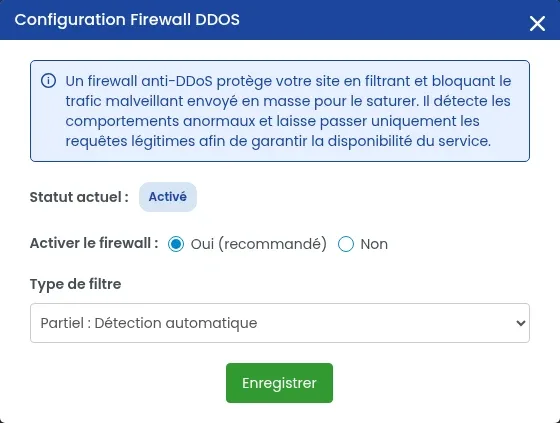
“Current status” indicates whether protection is active. Then choose:
Click “Save”. The “Current status” will show the new state.
After saving, repeat the test that was failing:
Another protection may be involved. Check in this order:
.htaccess file or a security extension on your site: see How to fix a 403 Forbidden error on your site?If none of this solves the problem, open a support ticket and include the address of the relevant page, the date and time of the test, the message or error code displayed, and, for an external service, its name.
The Domain plan (mini hosting) does not offer the DDOS Firewall, nor “Mod security”: no settings are possible on this plan. If you need these settings, upgrade to a Personal hosting plan or higher with “Change plan”, in the “Support, plans and options” section of the dashboard.
Keep the firewall enabled and choose the filter “Full: I am under attack (Under attack)”, then “Save”. Once the attack is over, switch back to “Partial: Automatic detection”. If the attack continues despite this setting, open a support ticket.
Ask the LWS team and the community. Answers are published after moderation.
 About LWS :
LWS is a 100% French web hosting company that focuses on quality and innovation and offers a responsive and competent technical service at affordable prices.


 Yes
 No