
Online help
The web host accessible to all
Procédure
Service concerned: Windows ASP.NET Hosting
Panel concerned: Plesk
Level: beginner to intermediate
This guide explains how to install a free Let’s Encrypt SSL/TLS certificate on a domain from Plesk.
Once installed, the certificate allows your site to be displayed over HTTPS and encrypts exchanges between the visitor’s browser and your site.
An SSL/TLS certificate does not secure the site itself: it does not fix flaws in the code, does not automatically protect a CMS such as WordPress or PrestaShop, and does not guarantee that the site owner is trustworthy.
Let’s Encrypt certificate renewal is automatic. You therefore do not need to renew it manually as long as the domain remains correctly configured.
This guide concerns Plesk.
Are you using another environment?
The presence of HTTPS is not enough to prove that a site is legitimate. Fraudsters can create a fake shop with a valid SSL/TLS certificate: the exchanges will be encrypted, but this does not guarantee that the order will be delivered or that the entered data will be used correctly.
If you visit a site or an online shop, check the legal notices, the company’s real existence, its contact details, the official site address, and its reputation on reliable external sources.
An SSL/TLS certificate encrypts exchanges between the site and the browser. It does not fix a site’s security flaws, does not automatically protect a CMS such as WordPress or PrestaShop, and it remains important to keep the site up to date and fix security vulnerabilities.
The domain must point correctly to your Plesk hosting before requesting the certificate.
If you want to install a wildcard certificate, that is, a certificate that also covers subdomains, you must be able to modify the domain’s DNS zone. If the DNS zone is not managed in Plesk or at LWS, the requested record must be added with the provider that manages the domain’s DNS.
If you have just changed the DNS or the domain’s pointing, you may need to wait a few hours for DNS propagation to complete before generating the certificate.
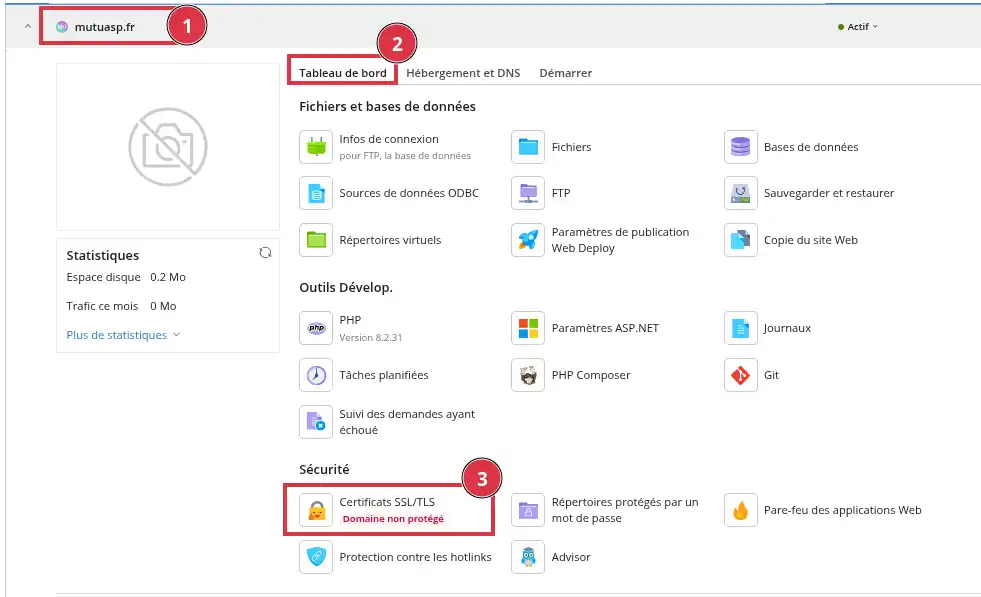
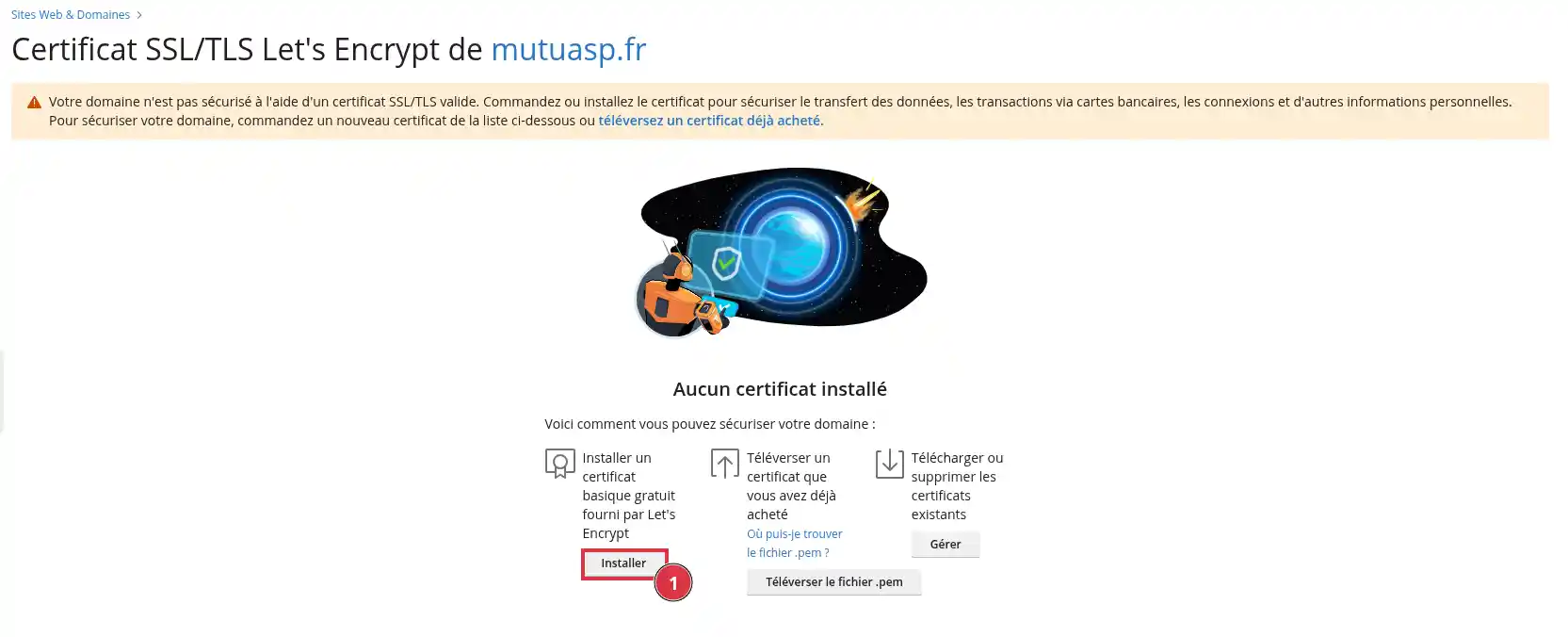
If no certificate is installed, Plesk displays a message indicating that the domain is not yet protected.
votredomaine.fr.www.votredomaine.fr.blog.votredomaine.fr, boutique.votredomaine.fr or webmail.votredomaine.fr.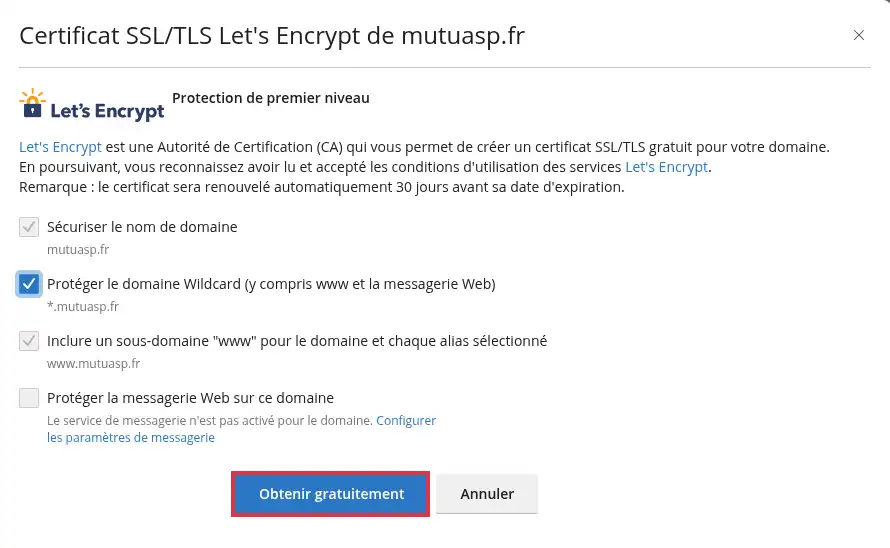
You can install a certificate for the main domain only, for the main domain with www, or for the domain and its subdomains with a wildcard certificate.
If you want to change this scope later, you will need to regenerate the certificate after its initial installation.
Plesk asks you to verify a DNS TXT record.
This step allows Let’s Encrypt to confirm that you really control the domain.
Plesk then displays the information to use, for example:
_acme-challenge.votredomaine.fr;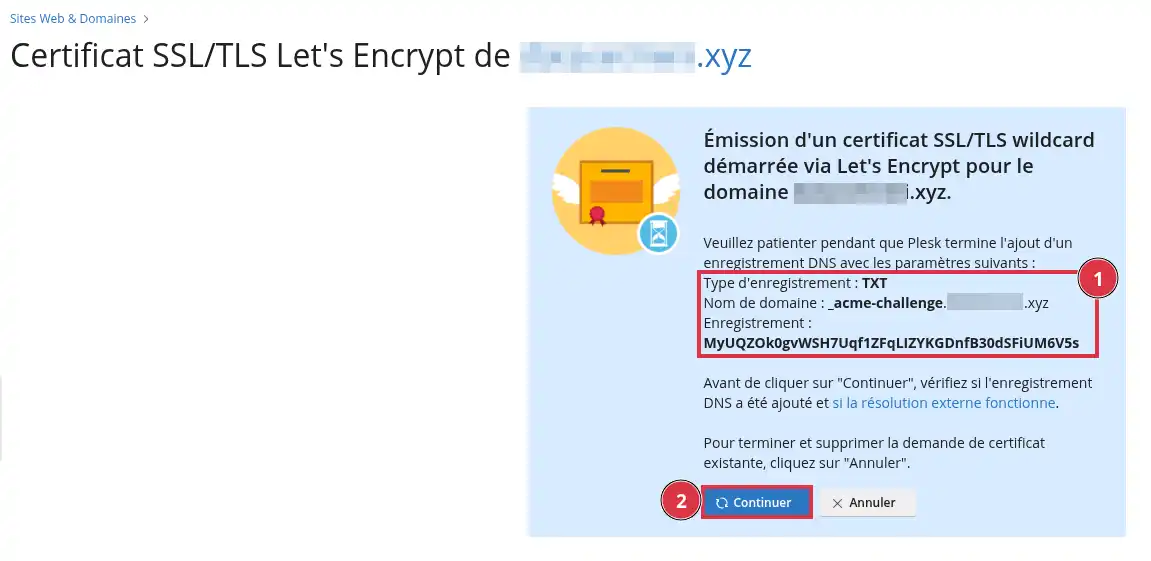
If your DNS zone is managed in Plesk, make sure the requested TXT record is present in Websites & Domains > DNS Settings.
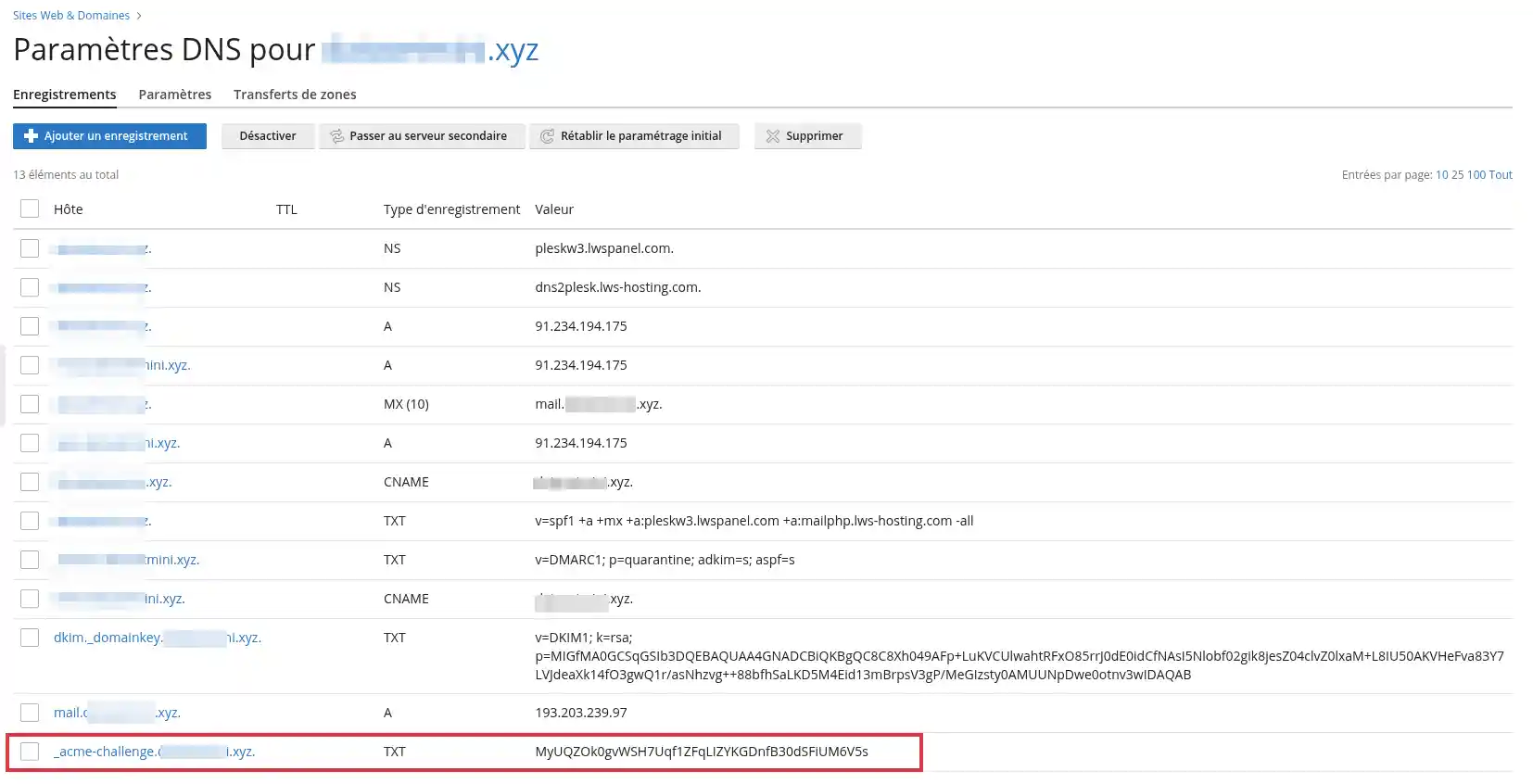
If your DNS zone is managed elsewhere, add the TXT record with the provider that manages the domain’s DNS.
After adding the TXT record, wait about 10 minutes before clicking Continue.
This allows the DNS record time to propagate properly.
Once the wait is over, return to Plesk then click Continue.
When the certificate is installed, Plesk displays the protected components with the status Secured. The Let’s Encrypt certificate will then be renewed automatically before it expires.
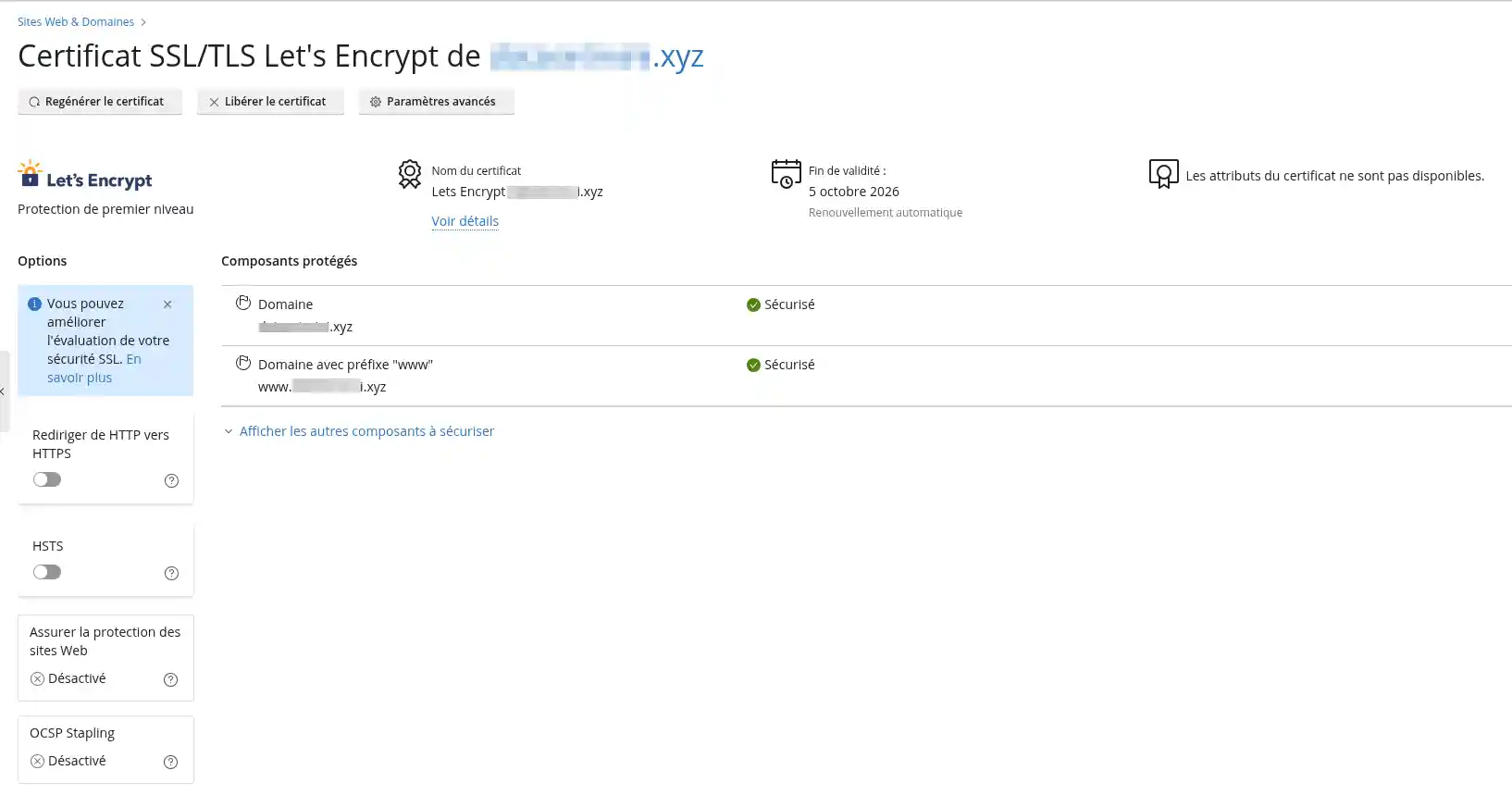
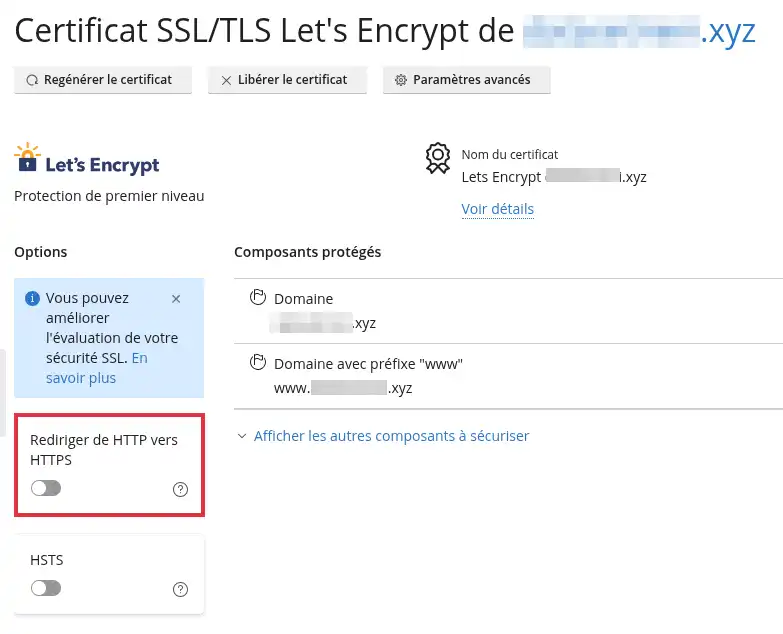
Installing the certificate allows the site to work over HTTPS, but it does not always automatically force visitors to use this secure address.
To automatically redirect visitors from http:// to https://:
HSTS is an option that tells browsers to always use HTTPS for your domain for a defined period.
This option strengthens HTTPS usage, but it must be enabled with caution.
Enable HSTS only if your site already works correctly over HTTPS.
If you check Include subdomains, make sure that all relevant subdomains also have a valid SSL/TLS certificate. Otherwise, some subdomains will be impossible to access from browsers that have stored the HSTS rule.
To enable HSTS:
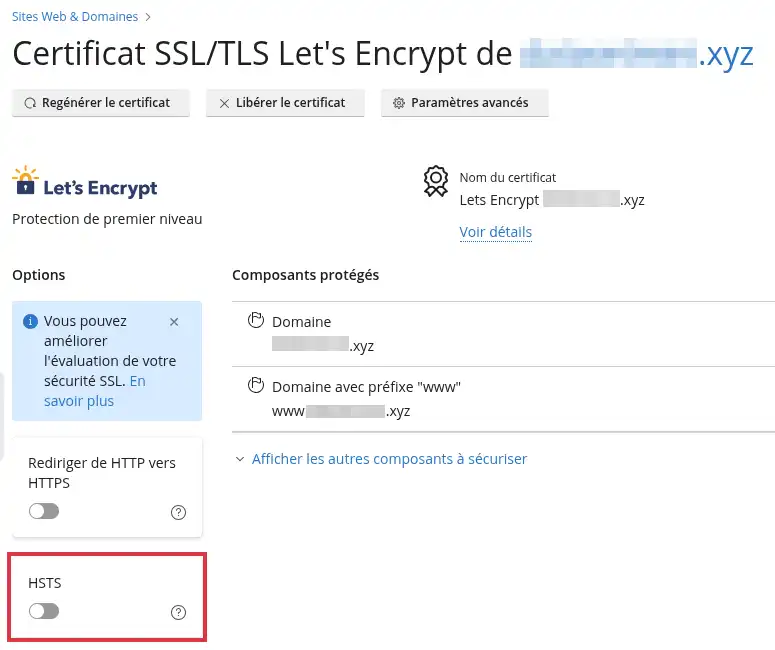
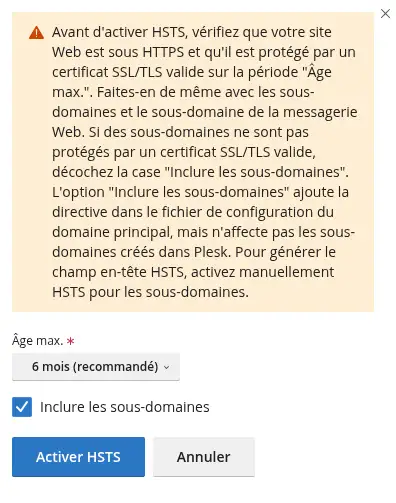
The Include subdomains option adds a directive in the main domain’s configuration. It does not create an SSL/TLS certificate for subdomains that do not have one.
After installation, open your site in a browser using the following address:
https://votredomaine.fr
Then check:
https://www.votredomaine.fr works if you included www;If you enabled HTTP to HTTPS redirection, also test the address:
http://votredomaine.fr
The browser should automatically switch to:
https://votredomaine.fr
If you want to change the elements protected by the certificate, for example add www or switch from a standard certificate to a wildcard certificate, you must regenerate the certificate.
To do this:
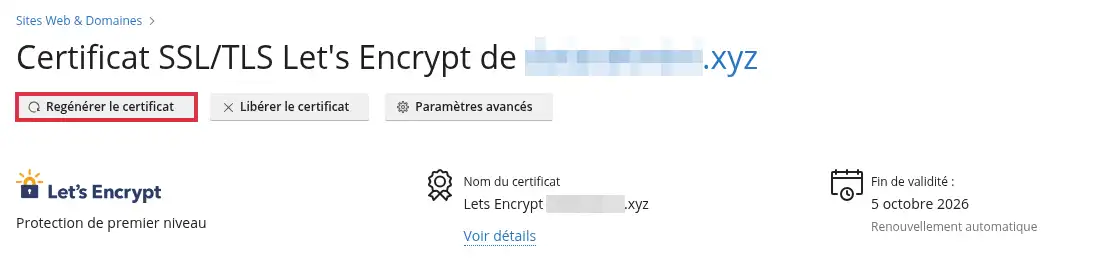
The certificate does not install and Plesk shows a DNS error
If Plesk shows an error such as DNS problem or NXDOMAIN, this usually means that Let’s Encrypt cannot find the correct DNS pointing for your domain.
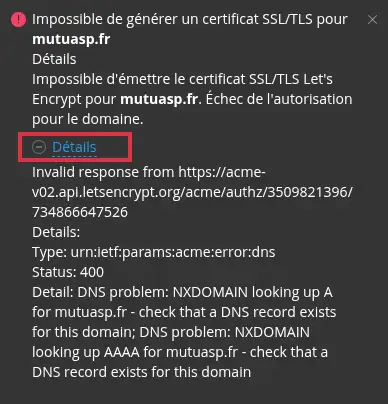
Check that:
After correcting this, restart the certificate generation.
Plesk asks for a TXT record but the certificate fails
Check that the TXT record was added exactly as indicated by Plesk.
In particular, check:
_acme-challenge;Then wait about 10 minutes before clicking Continue again.
My site still shows as not secure
The certificate may be correctly installed, but the browser may still display a warning if the site loads elements over HTTP, such as images, scripts, or stylesheets.
In this case, check that the site’s internal links use HTTPS. On a CMS like WordPress or PrestaShop, it may be necessary to change the site address in the settings or fix mixed content.
The subdomain is not protected
A certificate installed only for the main domain does not automatically protect all subdomains.
To protect a subdomain, you must either include it in the certificate when Plesk offers it, or use a wildcard certificate.
If the certificate is already installed without this scope, regenerate it with the correct options.
HTTPS redirection does not work
Check that the Redirect from HTTP to HTTPS option is enabled in SSL/TLS Certificates.
If your site uses a CMS, a redirect rule in the .htaccess or web.config or an extension can also change the expected behavior.
Ask the LWS team and the community. Answers are published after moderation.
 About LWS :
LWS is a 100% French web hosting company that focuses on quality and innovation and offers a responsive and competent technical service at affordable prices.
About LWS :
LWS is a 100% French web hosting company that focuses on quality and innovation and offers a responsive and competent technical service at affordable prices.



 Yes
Yes No
No