Procédure
Service concerned : Personalized emails LWS / ASP.NET / Mail Pro hosting packages
Panel concerned : Roundcube
Level : beginner
This help explains how to forward messages received in an LWS email account from Roundcube webmail.
Forwarding is done using a filter: each new email received can be sent to one or more destination addresses.
You can choose to keep a copy in the original mailbox or to forward the message without keeping a copy.
This help concerns forwarding from Roundcube, on an already existing email account.
Are you using another environment?
Before you begin
The email account to be forwarded must already exist. This method applies to a real mailbox accessible in Roundcube.
A Roundcube filter allows you to add up to 4 destination addresses.
If you need to forward messages to more recipients, a mailing list is generally more suitable.
The choice of filter action is important:
- Forward the mail to : the message is sent to the specified recipient(s), without keeping a copy in the original mailbox.
- Send a copy to : the message remains in the original email account and a copy is sent to the specified recipient(s).
Accessing filters in Roundcube
Log in to the Roundcube webmail with the email address concerned.
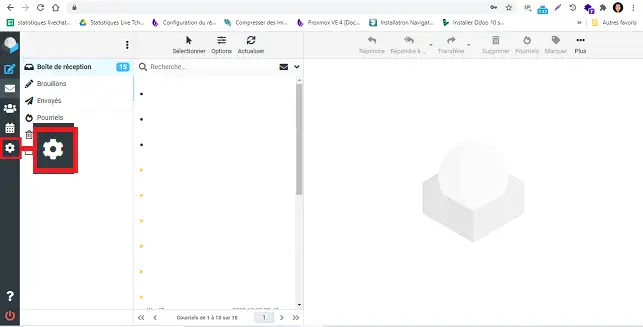
Once logged in, click on Settings in the left menu.
Then click on Filters (1).
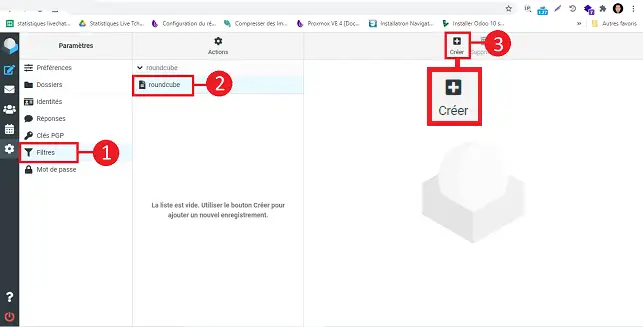
You will arrive on the filter management page for your email account. This is where you can create, modify, or delete the rules applied to received messages.
Create the forwarding filter
Click on the filter set (2)
Click on Create (3) to add a new filter.
In the Filter name field, enter a simple name, for example:
Email forwarding
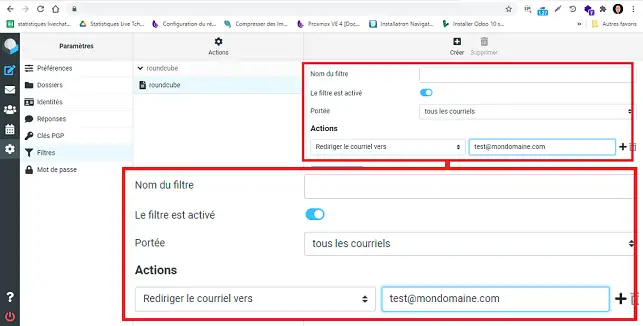
In the Scope section, choose the condition: all messages
This condition applies the forwarding to all emails received in this mailbox.
In the perform the following actions section, choose the action that suits your needs:
- Forward the mail to if you do not want to keep a copy in the original mailbox;
- Send a copy to if you want to keep the message in the original mailbox while sending it to another address.
Then enter the first destination email address.
To add another address, click the + button next to the action, then enter the additional address.
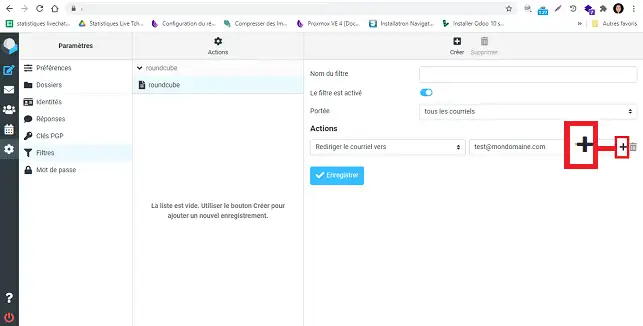
You can add up to 4 destination addresses.
Finally, click Save.
The filter becomes active as soon as it is saved. New emails received in this mailbox will be forwarded according to the selected action.
Check that forwarding works
Send a test email to the email address on which you have just created the filter.
Preferably use an external address, for example a Gmail, Outlook, Yahoo address or another address that does not belong to the same domain.
Then check:
- that the email is successfully received at each destination address;
- that the message remains in the original mailbox if you chose Send a copy to ;
- that the message did not arrive in the Spam or Junk mail folders of the recipients.
If you chose Forward the mail to, it is normal that the message does not remain in the original mailbox.
Modify or delete the forwarding
You can return at any time to Settings > Filters.
To modify the forwarding, click on the relevant filter, change the addresses or the action used, then click Save.
To stop forwarding, you can disable the filter or delete it.
Common problems
I am not receiving the email at the destination address
Check that the destination address is entered correctly in the filter.
Then send a new test email, and check the Spam or Junk mail folder of the destination address.
The email does not stay in my Roundcube mailbox
Check the action selected in the filter.
If you selected Forward the mail to, the message is sent without keeping a copy in the original mailbox.
To keep a copy in Roundcube, use the Send a copy to action.
I want to add more than 4 recipients
A Roundcube filter allows you to add up to 4 destination addresses.
To send emails to a larger group, use a mailing list instead.
Forwarding works for some emails, but not for all
Some email services may filter or reject forwarded emails, especially depending on the anti-spam rules applied by the sender or the recipient.
Check the junk folders of the destination addresses and test with several different senders.



 Yes
Yes No
No About
About 