
Online help
The web host accessible to all
Procédure
PrestaShop can be installed in just a few clicks with the auto-installer in your LWS Panel web hosting account: in the Software section, click Auto-installer, then SELECT under the PrestaShop 9 card (or go through PS Manager). The auto-installer creates the database itself: there is nothing to prepare beforehand. It installs your store on your domain or on a subdomain, never in a subfolder.
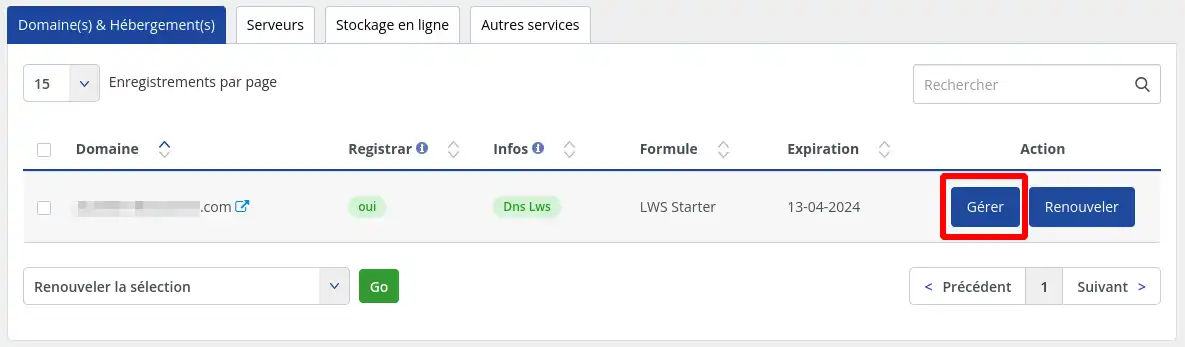
Log in to your LWS customer area and click Manage next to the domain concerned by the installation.
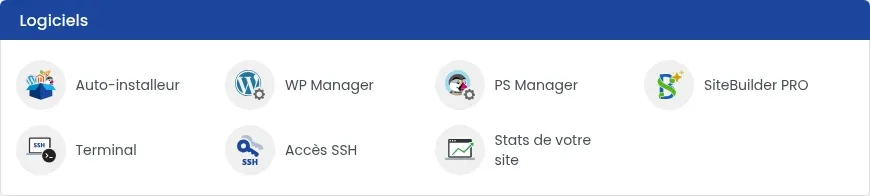
The Software section gives access to the Auto-installer and PS Manager.
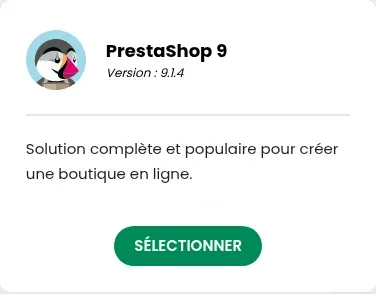
Click Auto-installer, then, on the PrestaShop 9 card, click SELECT.
You can also go through PS Manager: in the “Install a new PrestaShop” block, click INSTALL. Both paths open the same form.

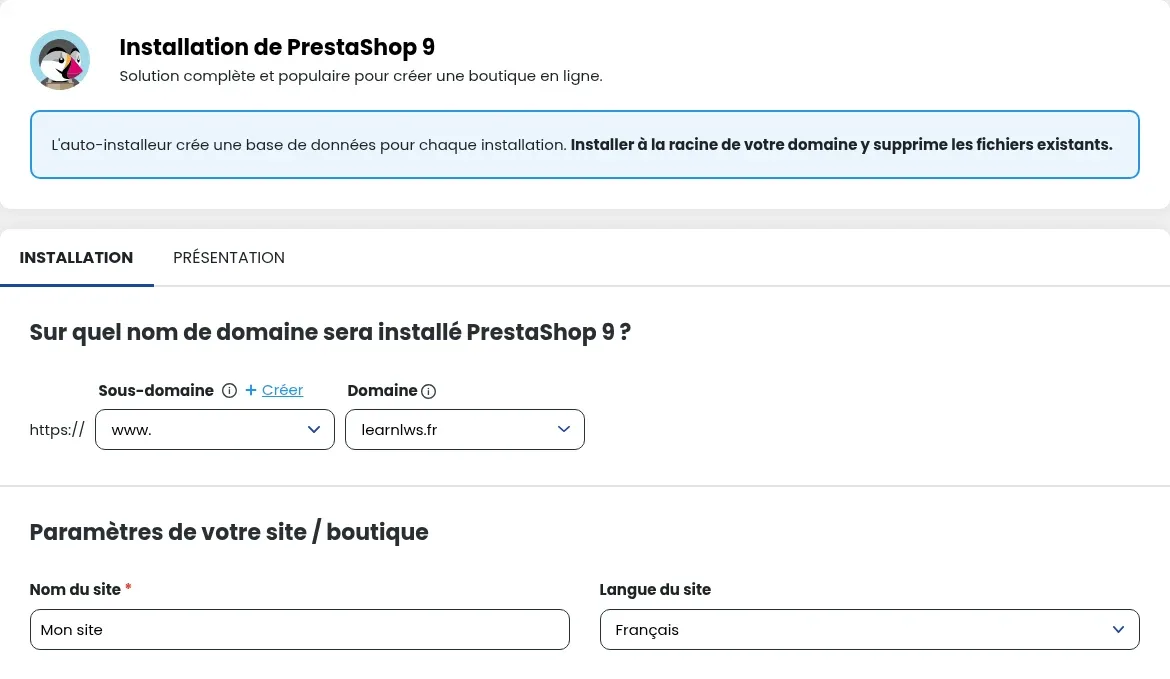
In the “PrestaShop 9 installation” form, choose the Subdomain and Domain where the store will be installed:
boutique.mondomaine.fr);The auto-installer creates the PrestaShop database itself: you do not need to create one beforehand, nor choose an existing database.
In the “Your site / store settings” section, enter the Site Name and choose the Site Language (French or English).
Fill in the Username, Email and Password (the Generate button suggests one), and if you wish your First Name and Last Name. Make a note of these credentials: they are the ones used for your store administration.
Check the email address in the “Send installation details to:” field, which will receive the login information, then click INSTALLATION.

The “Site installation in progress...” bar appears. Stay on the page until it reaches 100%: allow about 2 minutes.

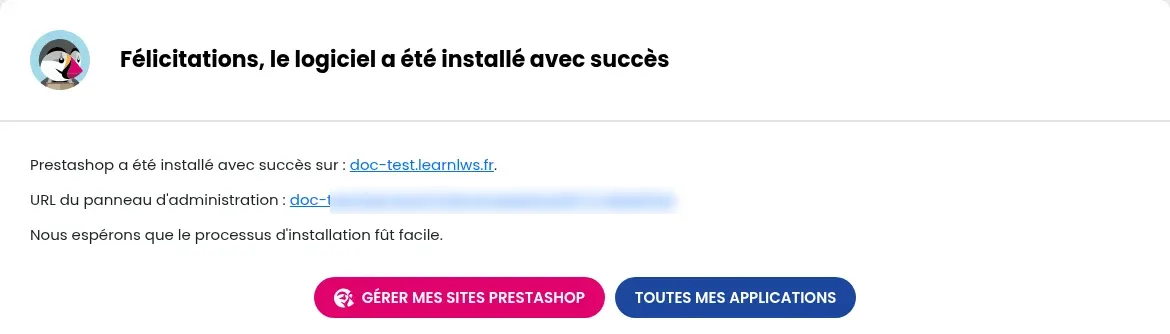
The “Congratulations, the software has been successfully installed” screen shows your store address and the administration panel URL. This admin address contains a folder name that starts with “admin” followed by random characters: keep it, as it is also sent in the installation details email. Your store then appears in PS Manager and in the auto-installer, VIEW ACTIVE INSTALLATIONS button.
The progress bar stops and then the form comes back, with no message. This happens especially right after creating the subdomain in the form: wait a few minutes, then restart the installation. Each attempt creates a database, even if interrupted: once the store is installed, you can delete any empty databases left behind (see how to delete a MySQL database).
The folder for the chosen subdomain already contains files, for example leftovers from an interrupted attempt. If you do not need them, empty this folder in the file manager (after keeping a copy in case of doubt), then restart the installation. Otherwise, choose another subdomain.
Ask the LWS team and the community. Answers are published after moderation.
 About LWS :
LWS is a 100% French web hosting company that focuses on quality and innovation and offers a responsive and competent technical service at affordable prices.


 Yes
 No