
Online help
The web host accessible to all
Procédure
With the domain package, you can replace the LWS holding page with your own HTML site, in the 1 GB web space included with your domain name. Files are uploaded with software such as FileZilla and the FTP account provided with the domain, over secure FTP or SFTP: the File Manager is not included in this package. Only HTML pages, with their CSS style sheets, JavaScript scripts, and images, are supported: a WordPress or PHP site requires an hosting package.
In your LWS customer area, under the “Domain(s) & Hosting(s)” section, click “Manage” on the line for your domain. If the “Please wait from 6h to 24h” window appears, click “OK”. In the “Files” section, click “FTP account(s)”.

“File Manager” and “Folder Protection” are written in grey: they are not part of the domain package. Your files are therefore uploaded with software such as FileZilla, via FTP or SFTP, using the FTP account on this page.
The “FTP user list” table contains your account, marked “Primary”. Note the value in the “Username” column (the button next to it copies it) and the value in the “FTP Server” column, in the form ftp.yourdomain.fr. The domain package includes only one FTP account: you cannot create another one.
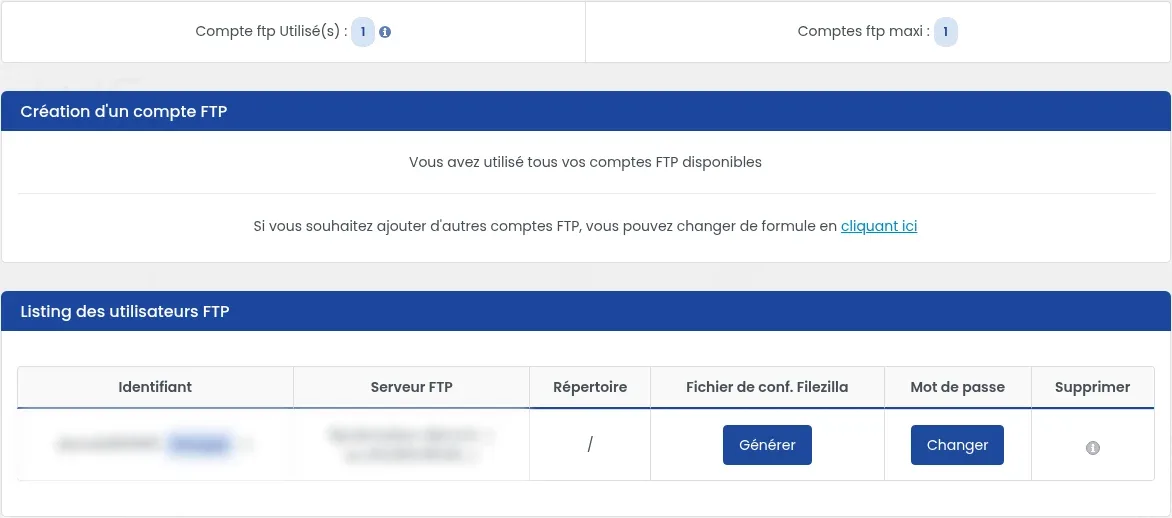
The FTP password is not displayed anywhere. If you no longer know it, click “Change” on the account line, enter the new password in “New password” and “Confirmation of the new password” (the “Generate” button suggests one), then click “Validate”. It may take a few minutes for the new password to work.
In FileZilla, click “File” > “Site Manager…”, then “New site”. In the “General” tab, fill in:
ftp.yourdomain.fr;Then click “Connect”.
Would you prefer SFTP? Its settings are given below, in “Connect via SFTP”: once connected, continue with the step “Open your site folder”.
At the first connection, FileZilla opens the “Unknown certificate” window and indicates that the host name does not match the certificate. This is normal: the certificate is issued in the name of the LWS servers. Check that the “Common Name” in the “Subject” box is *.lwspanel.com and that the “Organization” in the “Issuer” box is Sectigo Limited. If so, tick “Always trust this certificate in future sessions.” then click “OK”.
FileZilla may then display the “Insecure FTP connection data” window, about TLS session resumption: the server does not support this feature, and FileZilla informs you of that. You can ignore this warning: click “OK” to continue with secure FTP, your transfers should not fail. SFTP, explained in “Connect via SFTP”, remains another possibility: this warning does not concern it. More details in the help article Secure FTP on LWS Panel: *.lwspanel.com certificate, TLS session resumption and SFTP.
Once connected, the right side of FileZilla shows the files in your web space, and the left side those on your computer. On the right, open the folder containing the file default_index.html: this is LWS’s “Congratulations!” holding page, and it is in this same folder that your site must be uploaded.
No need to delete default_index.html: your own index.html page will be displayed instead.
On the left, open your site folder on your computer. Select all its contents (the index.html page, the other pages, the image, CSS, and JavaScript folders), then drag them to the right side. Upload the folder contents, not the folder itself: otherwise, your site will only be displayed at an address such as yourdomain.fr/MySite.
Wait for the transfer to finish, then check that all your files appear on the right side and that no error is reported in the transfer queue at the bottom of FileZilla.
SFTP is another secure way to connect to the web space of the domain package. It uses a single encrypted connection, on port 22, with the same “Primary” FTP account. It does not use a TLS certificate: neither the “Unknown certificate” window nor the warning about TLS session resumption will appear.
In FileZilla, click “File” > “Site Manager…”, then “New site”. In the “General” tab, fill in:
ftp.yourdomain.fr, or the IP address indicated in the “FTP Server” column if your domain does not yet point to LWS;Click “Connect”. At the first connection, FileZilla displays the “Unknown host key” window, because it does not yet know this server. Check “Always trust this host, add this key to the cache” then click “OK”. Then continue with the step “Open your site folder” above.
Open your domain in your browser, for example https://www.yourdomain.fr. Your homepage appears instead of the “Congratulations! Your domain has been successfully created with LWS” page. Also check that the images, layout, and links between your pages work.
In the domain dashboard, the “Information” block shows a thumbnail of the page displayed by your domain: click “Refresh preview” to update it.
To make visitors who type http:// automatically land on the https:// version, open “SSL” in the “Domain management” section, choose “Activate” on the “SSL HTTPS redirection” line, then click “Validate”.
The details of the package, and the move to Starter for a PHP site, are explained in the help article Domain package: what is included and how to switch to Starter hosting.
Check in FileZilla that your index.html file is in the same folder as default_index.html, not in a subfolder. Also check that your homepage is exactly named index.html. Then refresh the page, and clear your browser cache if the old page is still displayed. If your domain has just been ordered, allow 6 to 24 hours before it is visible everywhere.
This case only concerns older domain packages that included the SiteBuilder site creator. This page comes from SiteBuilder: when you open its editor, it places an index.php file in your site folder. Domain packages delivered today do not run PHP. In FileZilla, first download this file to your computer to keep a copy (right-click, “Download”). Then rename it on the server (right-click, “Rename”), for example to index.php.old, then reload your site. To go back, give it its index.php name again.
No. Publishing a site with SiteBuilder replaces the homepage uploaded by FTP. Choose one of the two solutions.
It may have been replaced by a site published before yours, with SiteBuilder or by FTP. The folder of your site is then the one containing that site’s homepage, index.html, or index.php on an older domain package with SiteBuilder. Download a copy of it before replacing it with yours.
This is normal: it is reserved for hosting packages. With the domain package, your files are uploaded with software such as FileZilla, via FTP or SFTP.
Check the host, username, and password by copying them from the “FTP account(s)” page. If your domain does not yet point to LWS, enter the IP address indicated in the “FTP Server” column as the host, instead of ftp.yourdomain.fr. After several attempts with a wrong password, your IP address may be blocked: check it on the Web IP Blacklist page in your customer area, and click “Unblock” if it is blocked (up to 3 times per week).
It cannot work on the domain package. Switch to a hosting package such as Starter with “Change package”, as explained in the help article Domain package: what is included and how to switch to Starter hosting.
Ask the LWS team and the community. Answers are published after moderation.
 About LWS :
LWS is a 100% French web hosting company that focuses on quality and innovation and offers a responsive and competent technical service at affordable prices.


 Yes
 No