
Online help
The web host accessible to all
Procédure
Service concerned: e-mail addresses [ADDRESS] included with a domain name, shared hosting, or a Mail Pro plan
Panel concerned: LWS Panel and cPanel
Level: beginner
The new Outlook for Windows is the free email application that is gradually replacing the old [PERSON_NAME]>
This guide explains how to add an email address created with LWS so you can send and receive your messages [PERSON_NAME] computer.
The configuration shown uses the IMAP protocol, recommended to keep the same messages and folders across your different devices.
This guide concerns the new Outlook for Windows, recognizable by its interface similar to Outlook.com.
Are you using another environment?
Have the following information ready:
[EMAIL];In most cases, the settings used are as follows:
| Setting | Value |
|---|---|
| Username | Your full email address |
| [PERSON_NAME]> | The email address password |
| Incoming server [ADDRESS]> | mail.yourdomain.com |
| Port [ADDRESS]> | 993 |
| IMAP security | SSL/TLS |
| Outgoing SMTP server | mail.yourdomain.com |
| [ADDRESS]> | 465 |
| SMTP security | SSL/TLS |
Replace yourdomain.com with your actual domain name.
Use the servers shown in your client area configuration settings as a priority. Depending on your plan, their name may differ from mail.yourdomain.com.
Start the new Outlook from the [PERSON_NAME] menu>
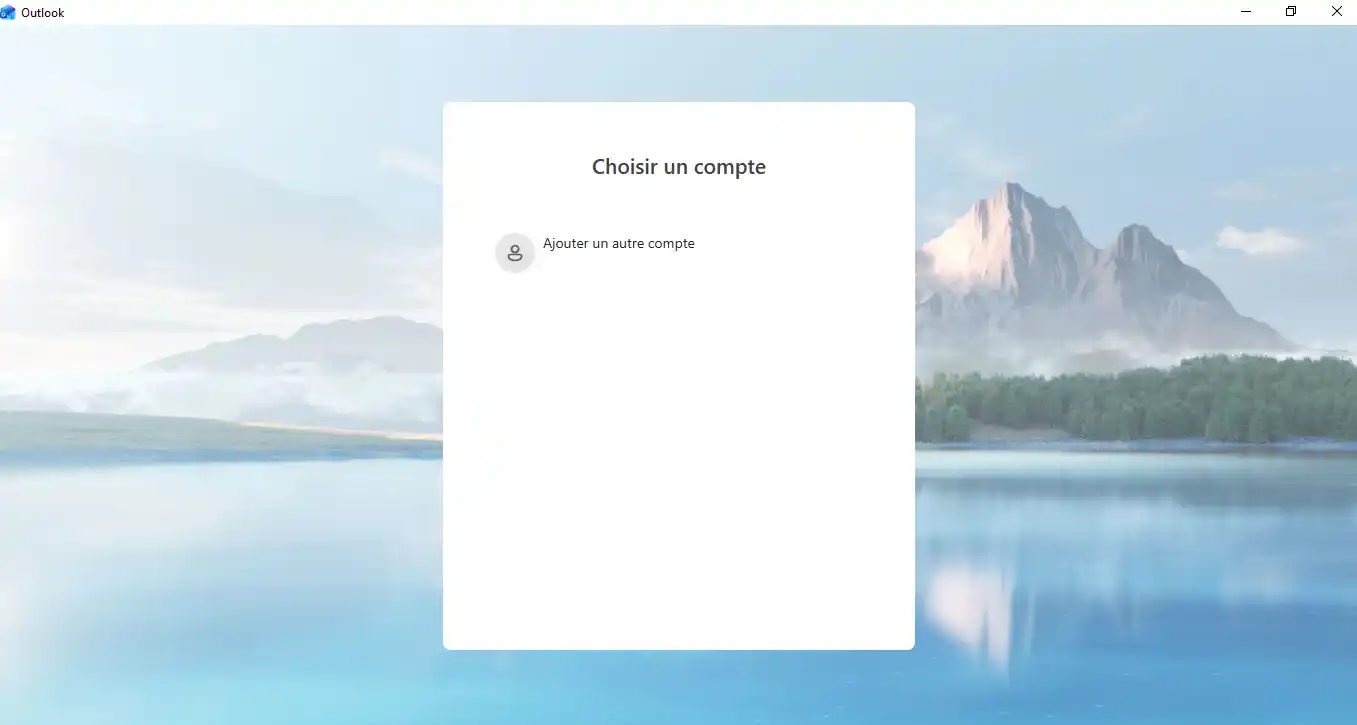
If no address is configured yet, [ADDRESS] the account add screen.
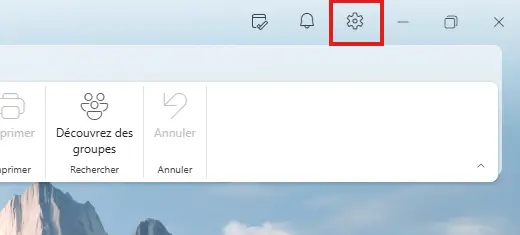
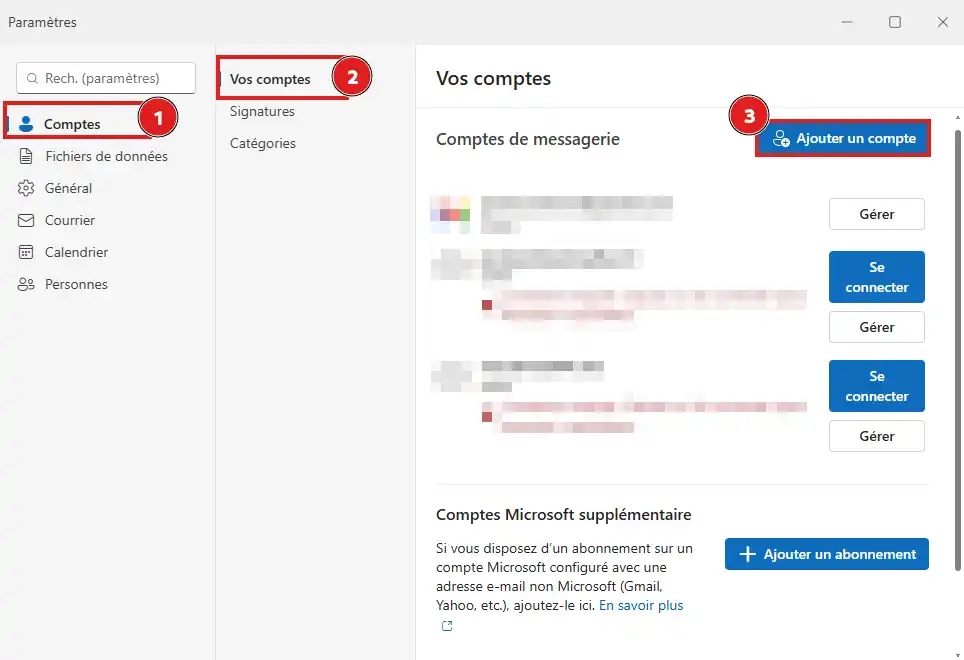
When another account is already present:
Enter your full LWS email address, for example:
[EMAIL]
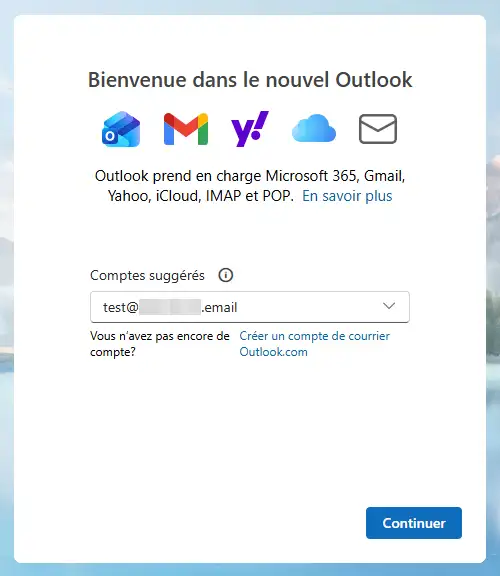
Then click Continue.
Outlook tries to automatically identify your email provider.
If a list of providers or account types appears, choose IMAP.
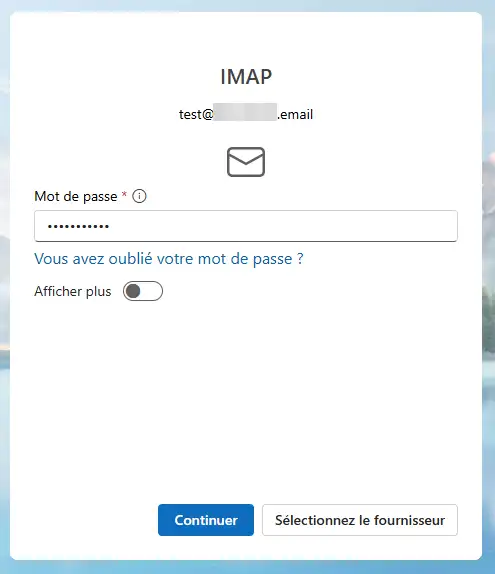
Depending on the [PERSON_NAME] version, you may need to click Advanced setup, Manual setup, or Show more to access the server settings.
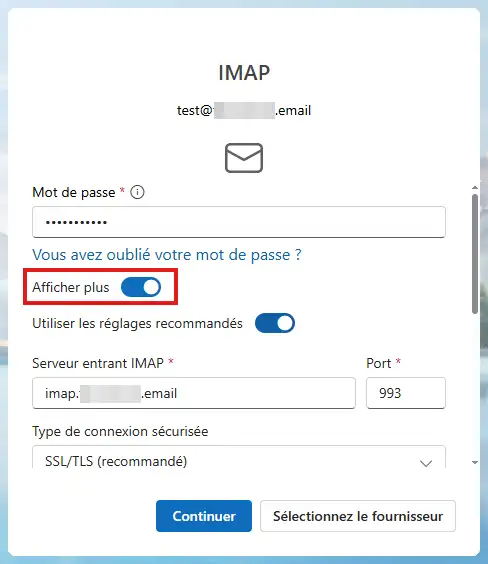
In the incoming mail section, [PERSON_NAME]
993;SSL/TLS;Do not use the password for logging in to your LWS client area.
In the outgoing mail section, enter:
465;SSL/TLS;If Outlook displays the Outgoing server requires authentication option, enable it.
Then click Continue or Connect.
The new Outlook may display a message indicating that your IMAP account must be synchronized with the Microsoft cloud.
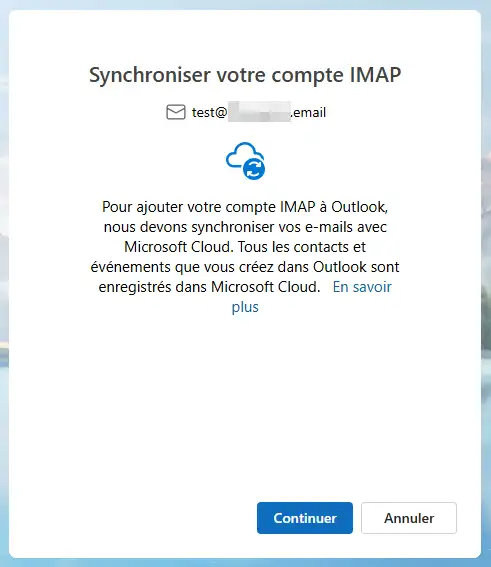
This step is part of how the new Outlook works. Your email address and domain remain managed by LWS, but Outlook may keep a synchronized copy of your messages on Microsoft services.
Click Continue to finish adding the account.
[PERSON_NAME] you do not want to use synchronization with the Microsoft cloud, you can configure your address in another IMAP-compatible software, such as Thunderbird or classic Outlook.
Once the connection is complete, your address appears in the left column. The first synchronization may take a few minutes when the mailbox contains many messages or folders.
Send a first message from the new Outlook to another address, for example a Gmail or Outlook.com address.
From that other address:
If you can send the first message and receive the reply, the SMTP and IMAP servers are configured correctly.
I do not see the IMAP option
After entering your address, look for an option called Advanced setup, Manual setup, [PERSON_NAME] more, or Choose a provider.
[PERSON_NAME] it saved an incorrect configuration, cancel the account addition, then start again by manually selecting IMAP.
Outlook rejects my password
Make sure you are using:
[PERSON_NAME] also try logging in to LWS Webmail with the same credentials. [PERSON_NAME] fails as well, change the address password from your client area.
I receive messages, [PERSON_NAME] cannot send them
Check the outgoing server settings:
465;SSL/TLS;The outgoing server must use the same password as the incoming server.
Outlook shows “You may need to use an app password”
This message may be displayed by the new Outlook even when the LWS address uses its usual password.
Start by:
When the address works in Webmail and in another program, but is still refused only by the new Outlook, the problem may come from the Microsoft application. You can then temporarily use Thunderbird or classic Outlook.
My folders or new messages are not displayed
[PERSON_NAME], open the View tab, [PERSON_NAME] on Sync.
Also check that the account was correctly configured in IMAP and that IMAP access has not been disabled in the restrictions for your LWS email address.
My LWS calendar and contacts do not appear
An IMAP configuration synchronizes emails and their folders. It does [PERSON_NAME] automatically synchronize a calendar or address book [PERSON_NAME] LWS.
This behavior is normal and does not indicate a configuration error.
Outlook refuses to connect even though all my settings are correct
The new Outlook may sometimes refuse to connect even though the email address, password, and IMAP and SMTP settings are correct.
This problem may come from the Microsoft servers used by the new Outlook. Microsoft uses different IP addresses [PERSON_NAME]. Some of these addresses may have been used abusively and be temporarily blocked by LWS security systems.
[ADDRESS], open a ticket from the Support section of your LWS client area. Indicate that the connection works from Webmail, but fails in the new Outlook despite correct settings.
An agent will be able to analyze the connection attempts and lift the block on the IP address used by Microsoft when possible.
Ask the LWS team and the community. Answers are published after moderation.
 About LWS :
LWS is a 100% French web hosting company that focuses on quality and innovation and offers a responsive and competent technical service at affordable prices.
About LWS :
LWS is a 100% French web hosting company that focuses on quality and innovation and offers a responsive and competent technical service at affordable prices.



 Yes
Yes No
No