
Online help
The web host accessible to all
Procédure
To remove a PrestaShop store from your LWS Panel hosting, use the « ⋮ » menu on its row, in PS Manager or in the active installations of the Auto-installer (Software section), then the entry « Delete the PrestaShop instance ». The store and its database are deleted. Then check that there is no folder left, no unnecessary database, and no subdomain you no longer need.
Log in to your LWS account and access the hosting where the store is located. In the Software section, click PS Manager.
In the Manage installations list, find the store row by checking its address in the Domain column. Click the three vertical dots ⋮ at the end of the row, to the right of the MANAGE button, then click Delete the PrestaShop instance.

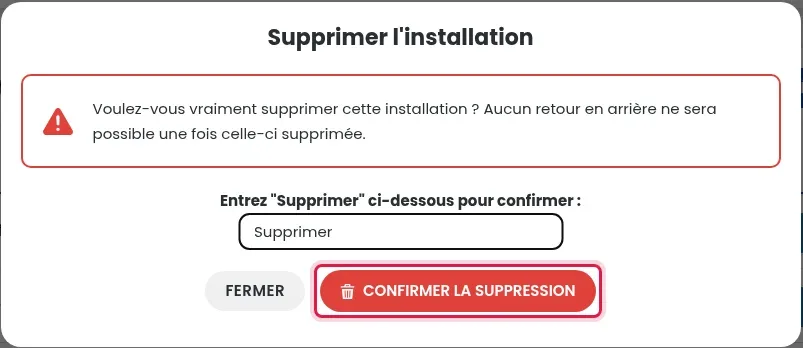
The Delete installation window opens. Above the field, the sentence « Enter "…" below to confirm » indicates the text to enter: copy it exactly into the field, then click CONFIRM DELETION. Stay on the page until the progress bar reaches 100%.
The same menu exists in the Auto-installer, which lists all applications installed with it (WordPress, PrestaShop and others).
In the Software section, click Auto-installer, then VIEW ACTIVE INSTALLATIONS.
On the store row (check the address in Installation URL), click ⋮ to the right of MANAGE, then Delete the PrestaShop instance. The menu may appear above the neighboring row: make sure the entry is indeed named PrestaShop before clicking.
Type the requested text (here Delete) in the field, then click CONFIRM DELETION. Deletion takes a few seconds to 2 minutes: stay on the page until 100%.
Once the deletion is complete, the store row disappears from the list. Then make these checks:
Ask the LWS team and the community. Answers are published after moderation.
 About LWS :
LWS is a 100% French web hosting company that focuses on quality and innovation and offers a responsive and competent technical service at affordable prices.


 Yes
 No