
Online help
The web host accessible to all
Procédure
When LWS Panel Mail Tracking shows “Success” and “The email has been delivered,” the mail server has indeed placed the message in your mailbox. If it does not appear there, it was filed in another folder, or later moved or deleted by a filter or by a device connected to the mailbox. The checks below go from the simplest to the most technical: stop as soon as you have found the message.
This help article covers only the case of a message marked as delivered. If Mail Tracking shows “Error” or does not show the message at all, see Using mail tracking on the LWS Panel.
Choose a missing message and note the sender’s address, your address (the recipient’s), as well as the approximate date and time it was sent. All the checks below start from this example.
In your customer area, click Manage next to your domain name, then, in the Email addresses section, click Mail Tracking.
Enter the sender’s address in the search field, specify the send date, then click Search. Then click Info on the right of the message row.
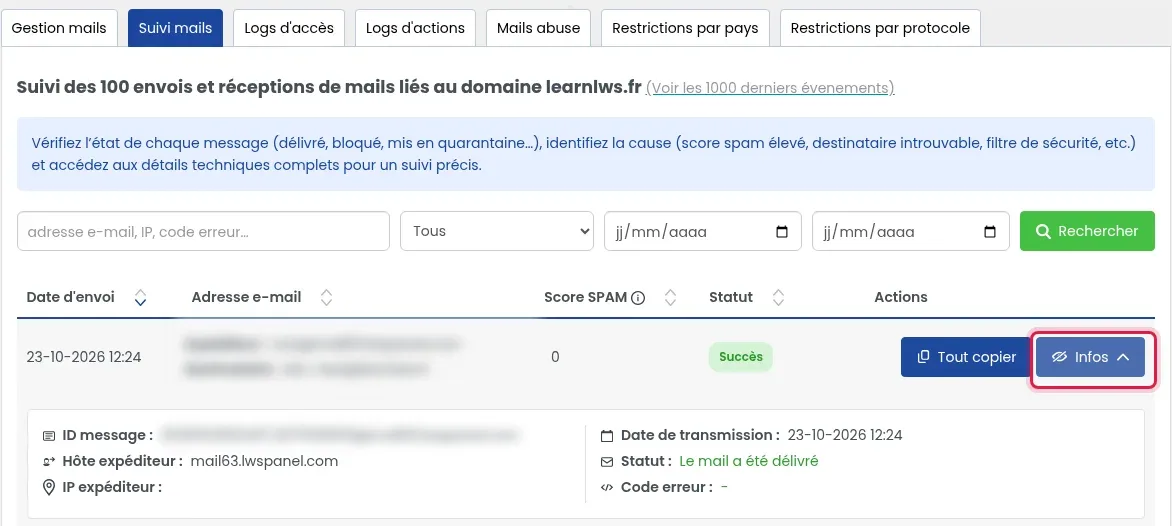
The status “The email has been delivered” confirms that the message was delivered to your mailbox. Also look at the SPAM Score column: on receipt, a message whose score reaches 8 or more is placed in the mailbox’s junk mail folder.
The table shows the last 100 sent and received messages. For an older message, click the View the last 1000 events link above the table.
Log in to Roundcube webmail with the relevant address (see How do I access the Roundcube webmail for my LWS mail service?).
Run a search on the sender’s address or on the message subject. Open the search options (search icon) and set the Scope to All folders: the search will then cover all mailbox folders, including junk mail and the trash.
A mailbox with many folders or filters often files the message somewhere other than the inbox. The message may also already have been read, or may have received a reply (reply arrow next to the message).
On the Mail Tracking page, click the Access logs tab. In Access and IP block history, enter your email address in the Email address field, then click Search.
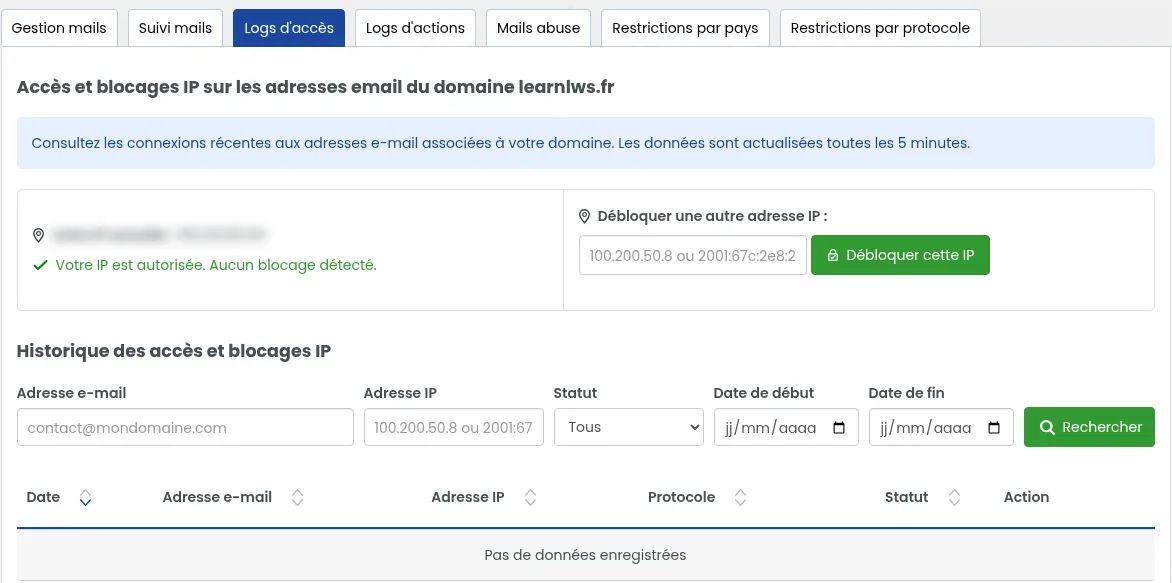
Look at the Protocol column:
If POP connections appear, the message is probably on the device that retrieved them. The IP Address column helps you identify it: open the Access Logs page from the device you suspect; its address appears next to “Your current IP.” The data is updated every 5 minutes.
To keep messages visible everywhere, set this device to IMAP, or at least configure it to leave a copy of messages on the server. The help article Choosing between POP or IMAP to retrieve your emails explains the difference.
In Roundcube, click Settings, then Filters. Open each enabled filter and look at its action:
If a filter matches the missing message, look for it in the folder or at the address indicated, then modify or disable the filter if needed. For details, see How do I create a filter in Roundcube webmail? and How do I forward emails with Roundcube?
A mailbox can be opened by several people or several devices: a colleague, a phone, a tablet, an email client at the office. In IMAP, a message deleted or moved on one of them is also deleted or moved on all the others and in webmail. Ask the other users whether they handled the message, and check the trash on each device.
If the message is still missing, ask the sender to send it again, or send yourself a message from another address (for example, a Gmail address). Then check that it appears as delivered in Mail Tracking, and then that it is present in webmail.
Your test message appears in Mail Tracking with the status “The email has been delivered,” then in webmail, and it is still there after your other devices have retrieved the mailbox.
First check the dates and text entered in the search, then the View the last 1000 events link. If the message still does not appear or has the status “Error,” it is not a delivered message: the help article Using mail tracking on the LWS Panel explains how to read these statuses.
These are test messages sent by LWS support during the diagnosis of your email service. They are not spam.
Contact LWS support from your customer area. Give your specific example (sender address, recipient address, date and time) and paste the message information obtained with the Copy all button in Mail Tracking.
Ask the LWS team and the community. Answers are published after moderation.
 About LWS :
LWS is a 100% French web hosting company that focuses on quality and innovation and offers a responsive and competent technical service at affordable prices.


 Yes
 No