Wordpress CMS6 November 2026By Aurélien T. 1 min read
First steps with Wordpress
Procédure
To get started with WordPress on an LWS Panel hosting plan, install it with the Auto-installer in the Software section: it creates the database, files, and your administrator account itself in one to two minutes. You then log in to the WordPress dashboard to build your site. This help article summarizes these two steps; the installation is detailed in the help How do I create a WordPress website?.
What is WordPress?
WordPress is an open source website creation tool, written in PHP: a content management system (CMS). It makes it easy to create a showcase site, a blog, or an online store, and adapts to all projects thanks to several thousand plugins and themes. You do not need any programming knowledge to create your site.
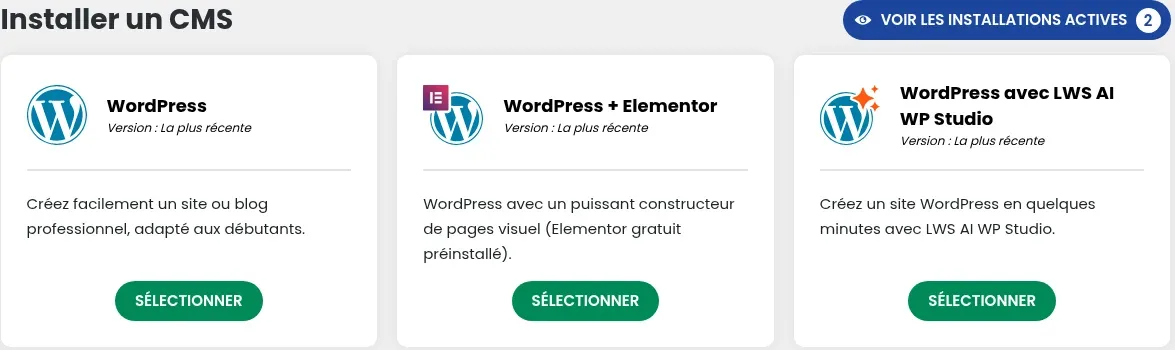
In the Software section, click Auto-installer. On the WordPress card, click SELECT. You can also start from WP Manager: its INSTALL buttons open the same form.
Choose your site address
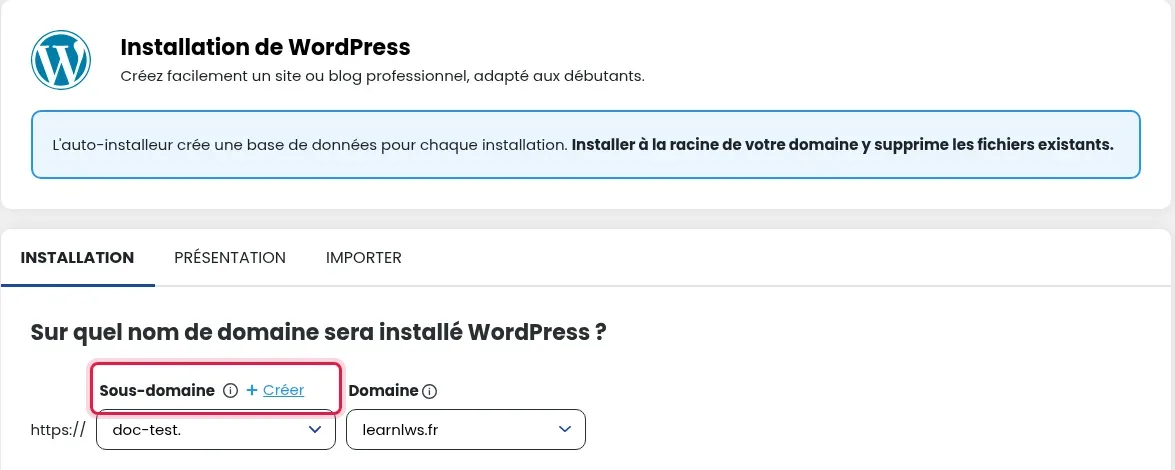
Under On which domain name will WordPress be installed?, choose the Subdomain and Domain: leave www. to install WordPress on your domain itself, or choose a subdomain (the + Create link adds one without leaving the form). There is no folder or database choice: the Auto-installer creates a database for each installation itself.
Fill in your site and administrator account details
Enter the Site Name, the Site Description or slogan, then the Username, Email, and Password for your administrator account (the Generate button suggests one). You can keep the suggested choices for updates, plugins, and the theme.
Start the installation
Check the address shown under Send installation details to:, then click INSTALLATION. Stay on the page until the progress bar reaches 100%: this takes 1 to 2 minutes.
Access the WordPress dashboard
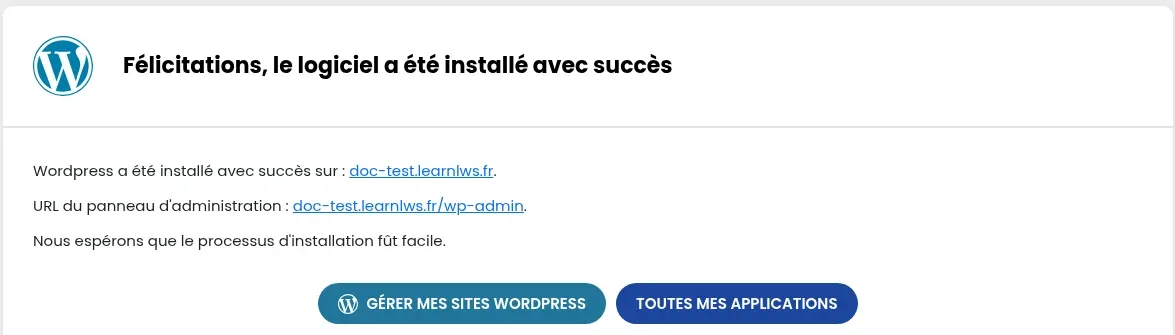
The WordPress dashboard is located at your site address followed by /wp-admin (for example https://example.com/wp-admin): this is the administration panel URL shown at the end of the installation. Log in with the username and password chosen in the form.
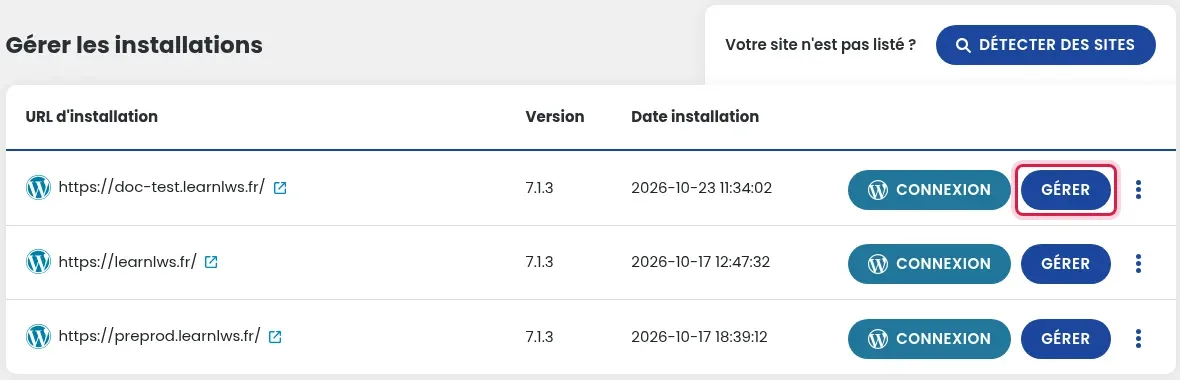
You can also log in without a password from the LWS Panel: Software section, WP Manager, then the LOGIN button on your site’s row.
Frequently asked questions
I can no longer find the address or login details for my administration area
The address appears on the installation completion screen and in the installation details email (remember to check your spam folder). Without login details, use the LOGIN button in WP Manager, or reset your WordPress password.
Can I install WordPress in a folder, for example mydomain.fr/blog?
Not with the Auto-installer, which does not offer a folder option: instead, create a subdomain (blog.mydomain.fr). See how to create subdomains on LWS Panel.
Bonsoir
je me permets de venir vers vous, je ne comprends pas pourquoi je ne vois pas les extensions sur mon site ainsi que les pages elle n'apparaissent pas sauf une
dans l'attente de votre retour, restant à votre disposition
cordialement
Régine
F✓
fabrice-LWS Official answer
23 Sept 2022
Bonjour, vous pouvez visualiser les extensions installées sur Wordpress en vous rendant sur votre Tableau de bord Wordpress et en cliquant sur "Extensions". Concernant vos pages, je vus invite à vérifier que ces dernières soient bien publiés et bien en mode public et non privée. JE vous invite également à vérifier que ces dernières aient bien été ajouté à votre menu Wordpress se trouvant dans "Apparence" de votre tableau de bord Wordpress.
Was this answer helpful?
D
Doom29
16 Nov 2022
Ok, mais quand on prend un deuxième domaine avec la formule Starter, faut il créer plusieurs noms d'utilisateur et comment faire ?
F✓
fabrice-LWS Official answer
19 Nov 2022
Bonjour, une fois le second domaine souscrit, il vous sera possible de le lier à votre formule LWS Starter en suivant la procédure suivante:
https://aide.lws.fr/a/334 . Si vous le désirez, il vous sera possible de créer un utilisateur FTP supplémentaire pour ce domaine en suivant la procédure suivante: https://aide.lws.fr/a/572 . Le répertoire FTP à indiquer est votre nom de domaine.
Was this answer helpful?
D
Doom29
23 Nov 2022
Ok, mais comment fait on pour accéder à son deuxième blog wordpress en passant par LWS ? Je ne connais pas mes identifiants du deuxième site wordpress et je ne sais pas où les trouver ?
F✓
fabrice-LWS Official answer
26 Nov 2022
Bonjour, si vous ne vous souvenez plus des informations de connexion WordPress, vous pouvez modifier le mot de passe en suivant la procédure suivante:https://aide.lws.fr/a/614 .
Was this answer helpful?
A question about this article?
Ask the LWS team and the community. Answers are published after moderation.
Ask the LWS team and its community a question
!
To enable this form, please tick the two consent boxes below.


 Yes
 No
 About
