Procédure
Service concerned : LWS email addresses / Mail Pro
Panel concerned : LWS Panel
Level : beginner
A catch-all allows you to receive messages sent to a non-existent address on your domain. For example, if the address contact@votredomaine.com does not exist, the message can still be received in an email box you have chosen.
This feature can be useful to avoid losing a message because of a typo in the recipient’s address. However, it should be used with caution, as it can also increase the number of spam messages received.
Before you begin
Before enabling the catch-all, you must have an existing email box where the messages will be received.
The catch-all receives messages sent to all non-existent addresses on your domain. This can greatly increase the amount of unwanted messages received. Choose a mailbox you check regularly and monitor its storage space.
Enable the catch-all
- Log in to your LWS customer area.
- Go to domain management or the relevant mail service.
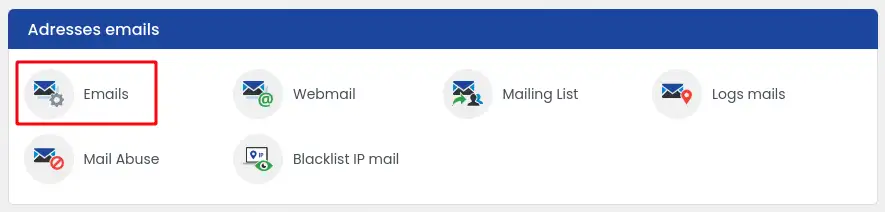
- Click Emails in the Email addresses section, depending on the display shown in your customer area.
- Find the email address that should receive the catch-all messages.
- Click the Action button on the line of that address.
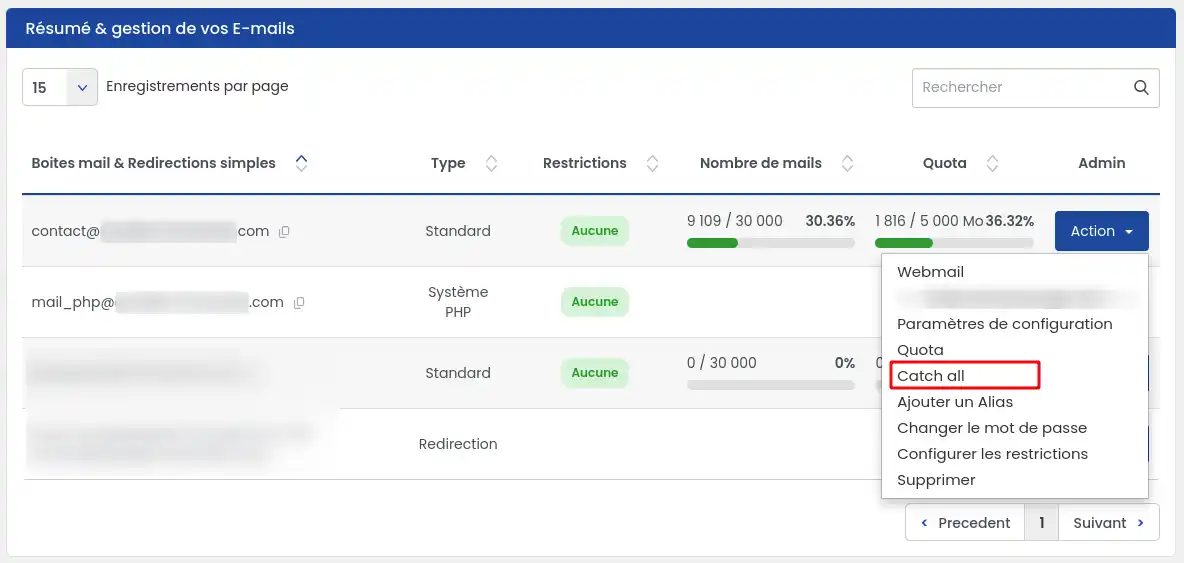
- Select Catch All.
- Click Enable to confirm activation of the catch-all on this address.
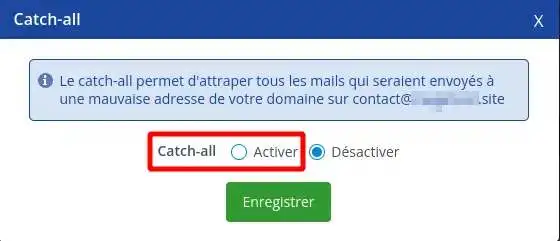
The catch-all is active when messages sent to a non-existent address on your domain arrive in the chosen email box.
Check that the catch-all is working
To verify the configuration, send a test message to an address that does not exist on your domain.
Example: if your domain is votredomaine.com, you can send a message to an address such as:
test-inexistant@votredomaine.com
Wait a few minutes, then check the email box on which you enabled the catch-all. The message should arrive in that mailbox.
Use a genuinely non-existent address for the test. If the address already exists, the message will be received by that address and not by the catch-all.
Disable the catch-all
You can disable the catch-all at any time if you no longer want to receive messages sent to non-existent addresses on your domain.
- From your LWS customer area, go to the domain management or the relevant mail service.
- Click Emails in the Email addresses section.
- Find the email address on which the catch-all is enabled.
- Click Action.
- Select Catch All.
- Click Disable to remove the catch-all feature from this address.
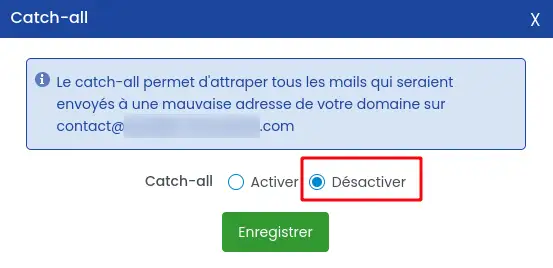
After deactivation, messages sent to non-existent addresses on your domain will no longer be received by this mailbox. However, email addresses already created will continue to function normally.
Common issues
I do not see the Catch All option
Make sure you are in the email management area for the relevant service. Depending on your plan or interface, the option may be found in the Action menu for the email address.
If you use cPanel, the procedure is different: the catch-all is configured from the Default Address tool.
The test message does not arrive
First check that the message was indeed sent to a non-existent address on your domain.
Then check the chosen email box for the catch-all, including the spam folder. If your domain uses external mail servers or a custom DNS configuration, the catch-all configured at LWS will only work if the domain emails are actually managed by LWS.
I am receiving a lot of spam since activation
This is a possible effect of the catch-all. Since all non-existent addresses on your domain become deliverable, some unwanted messages may also arrive in your mailbox.
You can strengthen spam filtering, regularly delete unnecessary messages, or disable the catch-all if you no longer need it.



 Yes
Yes No
No About
About 