
Online help
The web host accessible to all
Procédure
Your WordPress site displays a 500 error, a blank page, or the message “There has been a critical error on this website,” and you can no longer access the administration area? The SOS tab in WP Manager, in your LWS Panel, repairs the site without going through WordPress: it disables the offending plugin, restores the .htaccess file, or reinstalls the WordPress files. Follow the solutions in order and stop as soon as your site displays again.
In your client area, “Domain(s) & Hosting(s)” section, click Manage next to the site’s hosting. In the Software section, click WP Manager.
In the “Manage installations” table, click MANAGE on your site’s row.
Click the SOS tab, between “BACKUPS” and “ADVANCED”. You can also go through the BASIC tab, “Quick actions” section, “Crash SOS Tool” link.
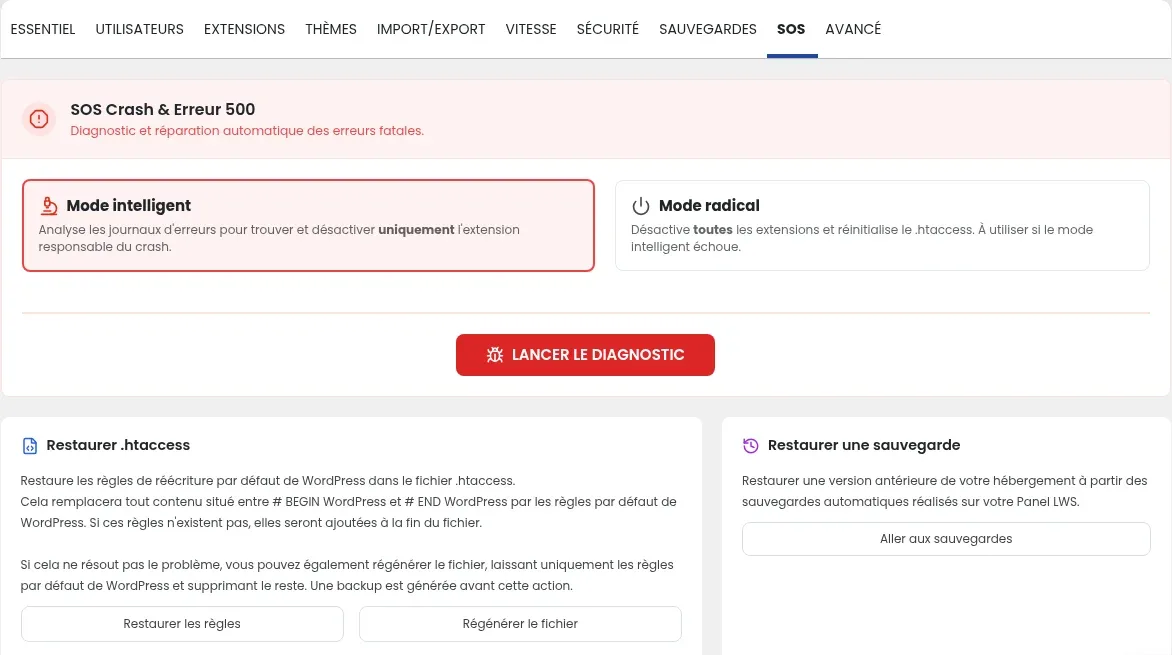
The “SOS Crash & 500 Error” tool looks for the error blocking your site and fixes it. It offers two modes: always start with intelligent mode, which affects as little as possible.
Select Intelligent Mode, then click LAUNCH DIAGNOSIS. This mode reads your site’s error logs and disables only the plugin responsible for the crash.
Then refresh your site in the browser (Ctrl + F5). If it displays, go to the verification section at the bottom of this page.
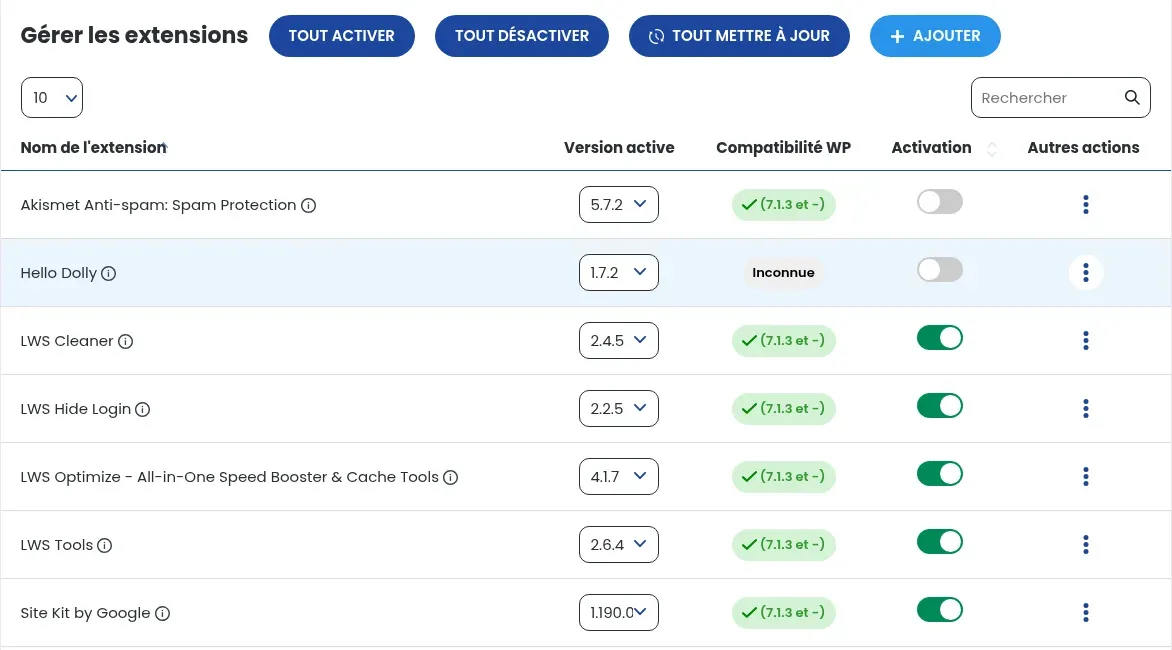
To go back: the disabled plugin remains installed. You can reactivate it whenever you want in the PLUGINS tab, “Activation” column.
Select Radical Mode, then click LAUNCH DIAGNOSIS. This mode disables all plugins and resets the .htaccess file. Then refresh your site.
If the site displays after radical mode, open the PLUGINS tab. Reactivate only one plugin using its switch in the “Activation” column, then refresh your site. Repeat plugin by plugin.
When the error returns, the plugin you just activated is the cause: disable it again and leave the others active. Do not use the ACTIVATE ALL button: it would also reactivate the plugin blocking the site.
These repairs are located below the diagnosis, in the same tab. Try them in this order and refresh your site after each one.
The .htaccess file contains WordPress URL rules. If it is damaged, the site will return a 500 error. The “Restore .htaccess” card offers two buttons:
# BEGIN WordPress and # END WordPress lines with WordPress’s default rules. If these lines do not exist, the rules are added at the end of the file. The rest of the file is not modified.To go back, restore the snapshot created before you started.
If WordPress files themselves are damaged, the “Reinstall WordPress Core” card restores the wp-includes and wp-admin folders and the files in the site root, in the same version as the one installed, without touching your personal files. Click the “Reinstall version…” button, which indicates your site’s version.
To go back, restore the snapshot created before you started.
As a last resort, the “Restore a backup” card and its Go to backups button take you to your hosting’s automatic backups. Choose a date earlier than when the error appeared. The steps are detailed in Download or restore a backup of your web files and Download or restore a MySQL database backup.
Open your site in a private browsing window: the homepage and a few inner pages should display normally. In WP Manager, then click Admin Login: the WordPress dashboard should open. If you used radical mode, finally check that your useful plugins are correctly reactivated in the PLUGINS tab.
Click DETECT SITES in the site list. A WordPress installed manually in a subfolder may not benefit from all WP Manager features: in that case, follow the manual method in the help article Fix a 500 error on your site with LWS Panel.
Leave that plugin disabled. In the PLUGINS tab, the “WP Compatibility” column shows whether it is compatible with your WordPress version, and the “Active Version” list lets you choose another published version. If no version works, contact the plugin publisher or replace it. Plugins are managed as explained in Manage plugins and extensions with WP Manager.
This is a sign of possible hacking: a repair in the SOS tab does not remove malicious code. Run a scan in the SECURITY tab of WP Manager (“LAUNCH SECURITY SCAN”) and your hosting’s antivirus, presented in Using the antivirus and anti-malware of your LWS Panel.
The error may come from something other than WordPress: PHP memory limit, PHP version, or database. Check your hosting’s error logs (Access Apache / PHP logs) then the other solutions in the help article Fix a 500 error on your site with LWS Panel.
Ask the LWS team and the community. Answers are published after moderation.
 About LWS :
LWS is a 100% French web hosting company that focuses on quality and innovation and offers a responsive and competent technical service at affordable prices.


 Yes
 No