Dedicated VPS server with ISP Config27 July 2026By Aurélien T. 1 min read
Associate and configure a domain name on an ISPConfig VPS
Procédure
Service concerned: LWS VPS Server with ISPConfig Panels concerned: LWS Panel, ISPConfig Level: intermediate
This guide explains how to associate a domain name with your ISPConfig VPS server. The domain can be registered with LWS or with another provider.
You can use the automatic tool offered by LWS, point only the website to the VPS IP address, or entrust all DNS zone management to ISPConfig.
Which method should you choose?
The choice mainly depends on where you want to manage the domain DNS zone and e-mails.
Use automatic configuration
This method is recommended if you are looking for the simplest solution.
The tool available in the LWS Panel automatically adds the domain in ISPConfig and creates the main associated services, including an e-mail inbox, an FTP account and a database.
When the domain is managed at LWS, its DNS servers are also automatically adjusted to point it to the VPS.
Point only the website to the VPS
Choose this method if you want to:
host the website on the VPS;
keep the DNS zone at LWS or with your current provider;
possibly keep e-mails with another provider.
You will only modify the DNS records used by the website, usually the entries corresponding to the main domain and www.
Manage the entire DNS zone in ISPConfig
This method lets you manage from ISPConfig:
the website;
e-mails;
subdomains;
DNS records;
the validations required by external services.
It requires more checks, because changing the DNS servers switches all domain services to the zone created on the VPS.
access to the DNS zone or DNS servers for the domain.
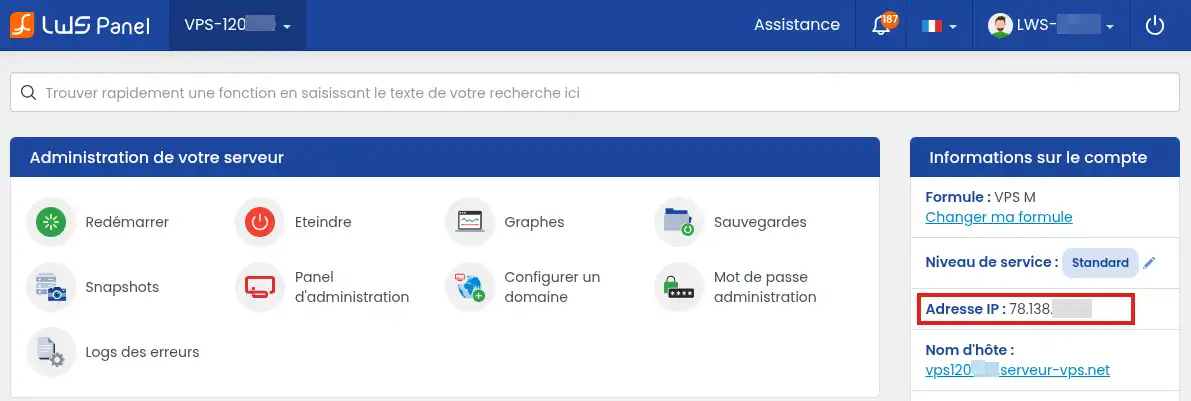
The VPS IPv4 address and hostname are available in your LWS customer area, in the Servers section, after clicking Manage for the relevant server.
If the domain is already in use, keep a copy of its current DNS zone before modifying it. In particular, note the records related to e-mails, subdomains and external services.
If e-mail addresses are already being used with the domain, do not change the DNS servers before recreating the mailboxes and the required records in the new configuration.
An incomplete DNS zone can interrupt the website, e-mails or certain subdomains.
Automatically configure the domain from the LWS Panel
This method is recommended if you want to quickly create the main domain services in ISPConfig. It allows you to add the website and automatically prepare the associated resources, such as an e-mail address, an FTP account and a database.
Requirements for automatic configuration
The domain must not already be configured, even partially, on the VPS.
Before launching the tool, make sure that no website, mail domain, DNS zone or other configuration for this domain is already present in ISPConfig. An existing or incomplete configuration can prevent the tool from completing its action correctly.
If the domain has already been added manually in ISPConfig, back up the files, databases, e-mails and settings you want to keep, then delete its configuration before relaunching the automatic tool.
The LWS Panel must also be able to connect automatically to the VPS to perform the various operations.
This connection works when:
the admin password has never been changed since the VPS was delivered;
the password has been changed or reassigned from the LWS Panel.
If the password was changed directly from ISPConfig, the LWS Panel no longer knows the information needed to connect automatically to the server. The domain configuration then fails.
In that case, reset the password from the VPS management section in the LWS Panel. You can choose a new password or reassign the same one. The important thing is to perform the operation from the LWS Panel so that it can use the automatic connection again.
For the tool to also automatically modify the domain name configuration, it must meet these two conditions:
be managed by LWS;
be attached to the same customer area as the VPS from which the configuration is launched.
If the domain is managed with another provider or in another LWS customer area, the tool will not be able to intervene automatically on the DNS servers or DNS Zone. You will need to complete the pointing from the interface that manages the domain.
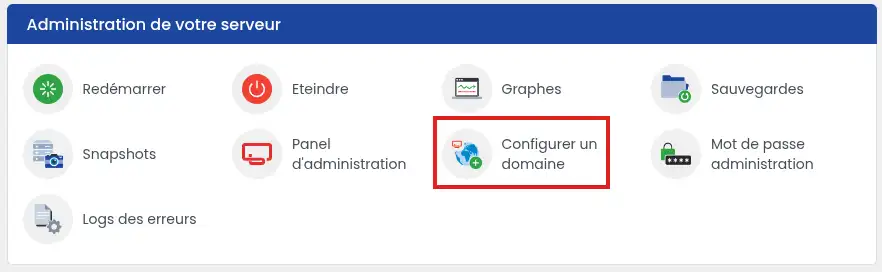
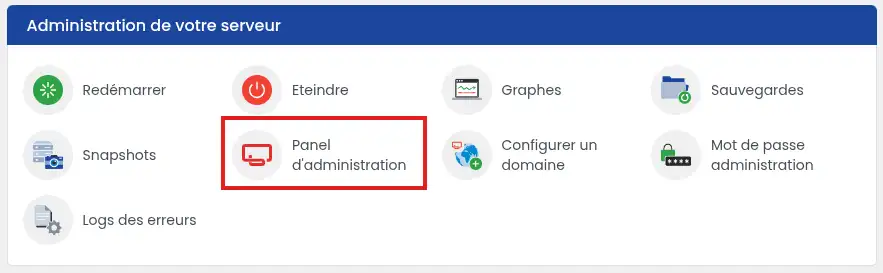
Click "Configure a domain" in the "Server administration".
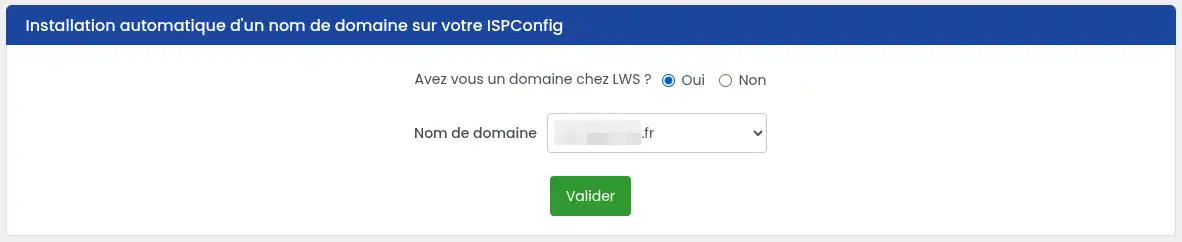
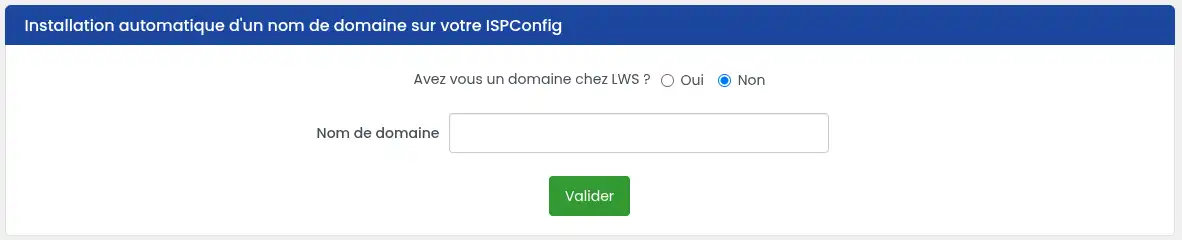
Indicate where the domain is registered:
if the domain is managed at LWS, select it from the proposed list;
if the domain is managed by another provider, enter its name without www, http:// or https://.
Check the domain entered, then validate the configuration.
The tool adds the domain in ISPConfig and automatically creates an e-mail inbox, an FTP account and a database.
If the domain is managed by LWS in the same customer area
The LWS Panel acts on both the VPS and the domain. The DNS servers are automatically adjusted to link the domain to the server.
After DNS propagation, you can move on to the Check that the domain works section.
If the domain is external or managed in another LWS customer area
The tool can configure the required services on the VPS, but it cannot modify the domain automatically.
You must complete the association from the customer area or panel that manages the domain, by choosing one of the following methods:
modify the website DNS records so they point to the VPS IP address;
replace the current DNS servers with those configured in ISPConfig.
The domain is with LWS, but its DNS servers have not been changed
Check that the domain and the VPS are attached to the same LWS customer area.
A domain managed by LWS in another customer area is considered an external domain with respect to the LWS Panel from which the VPS configuration is launched. The panel therefore cannot automatically modify the DNS servers.
Log in to the customer area that contains the domain, then manually point it to the VPS. You can also transfer the domain into the same customer area as the server if this setup suits your needs.
Manually configure the domain on the VPS
Add the website in ISPConfig
The domain must be declared in ISPConfig so the server knows which website to display when it receives a visit.
Log in with your ISPConfig credentials if autologin does not work
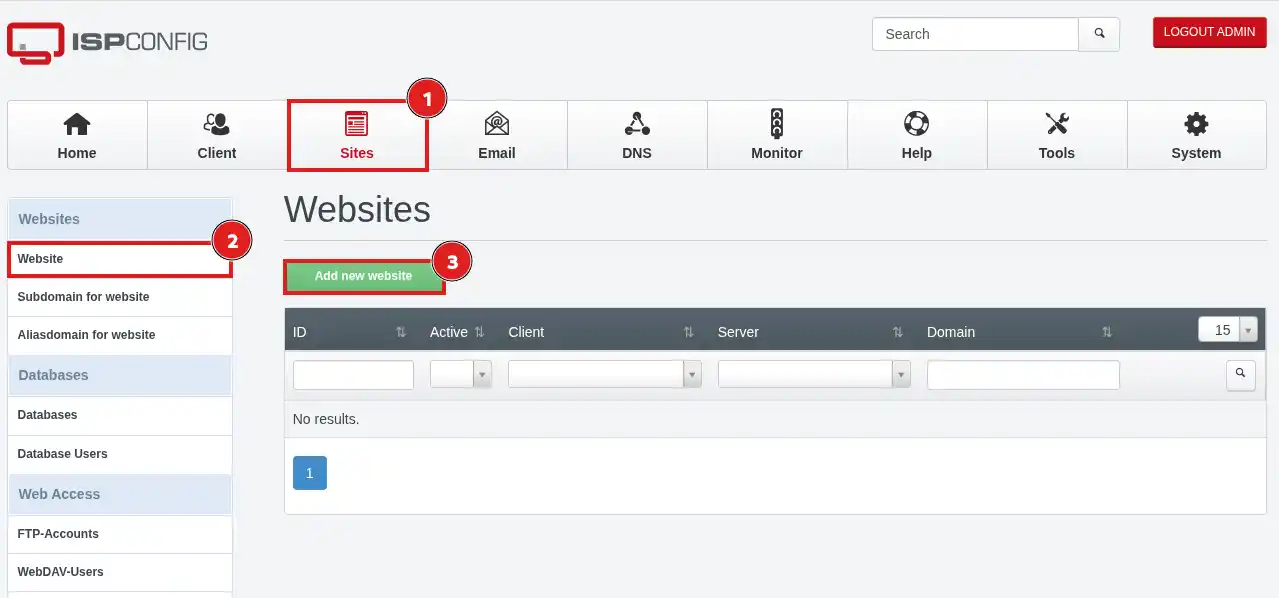
Open the Sites (1) tab.
In the Websites (2) section, click Add new website.
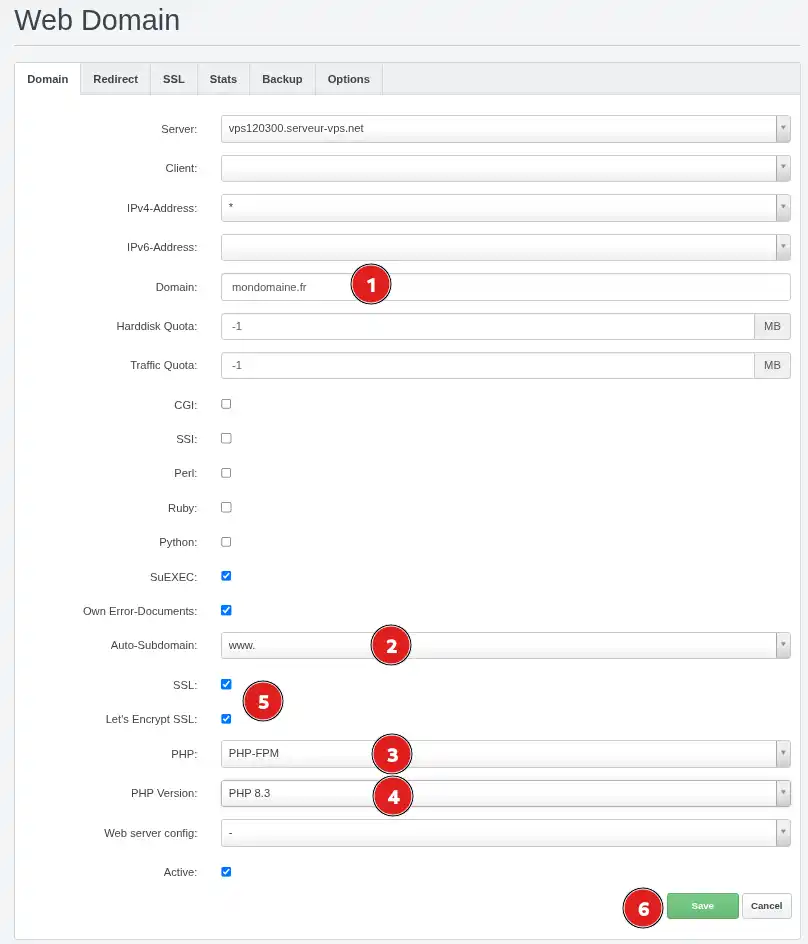
In the Domain (1) field, enter only the domain name, for example:
mywebsite.com
Do not add www, http:// or https://.
In the Auto-Subdomain (2) field, select www. if you want the website to also be accessible at www.yourdomain.fr.
If your website uses PHP, which is the case for most CMSs such as WordPress or PrestaShop, select PHP-FPM (3) in the PHP field.
In the PHP Version (4) field, choose a version compatible with the site or application you want to install.
The PHP version must be suited to your website. An outdated version may present security risks, while a version that is too recent may not be compatible with certain themes, extensions or applications.
If you want to limit the disk space used by your website, fill in the Harddisk Quota section with the number of MB desired. Only this section allows the restriction to be set. The equivalent section in the FTP user creation form is not active.
Enable Let’s Encrypt SSL (5) only if the domain already points to the VPS IP address and DNS propagation is complete.
When you check Let’s Encrypt SSL, ISPConfig automatically checks the SSL option.
Make sure the Active option is checked, then click Save (6).
Do not check Let’s Encrypt SSL if the domain or its www address does not yet point to the VPS. Certificate creation may fail.
You can enable this option after completing DNS pointing and waiting for propagation.
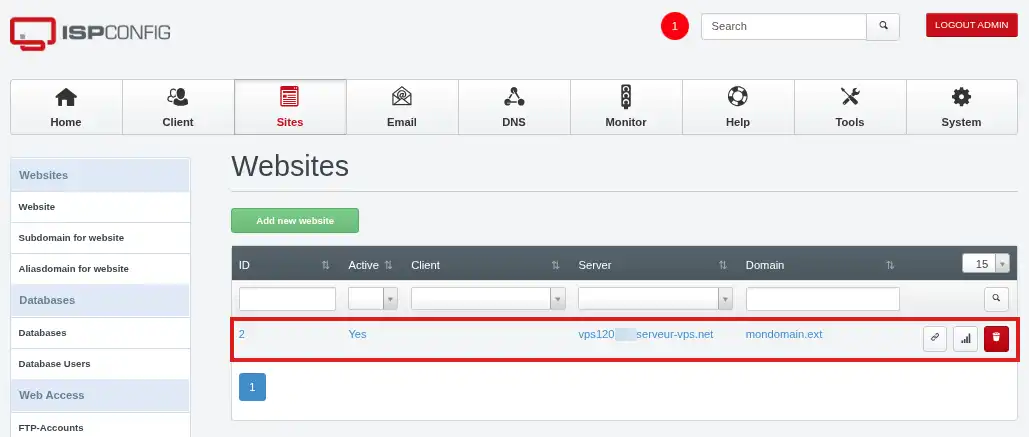
The domain now appears in the list of websites managed by ISPConfig. This operation does not modify its DNS zone.
Point the domain to the VPS IP address
This method keeps the DNS zone with its current manager. It allows you to host the website on the VPS without moving the e-mails or other services for the domain.
Use it:
after manually adding the website in ISPConfig;
after automatic configuration if the domain is external;
after automatic configuration if the LWS domain is in a different customer area than the VPS.
When the domain and VPS are managed in the same LWS customer area, the automatic tool already performs this pointing.
Settings to apply
The values are identical whether the DNS zone is managed at LWS or by another provider.
For the main domain, modify or create a record with the following values:
Type
Name
Value
A
@
VPS IPv4 address
For the www address, use one of the following configurations:
Type
Name
Value
CNAME
www
Main domain name
or:
Type
Name
Value
A
www
VPS IPv4 address
Example with the domain mydomain.fr:
the A record for @ points to the VPS IPv4 address (e.g. 8.8.8.8);
the CNAME record for www points to mydomain.fr.
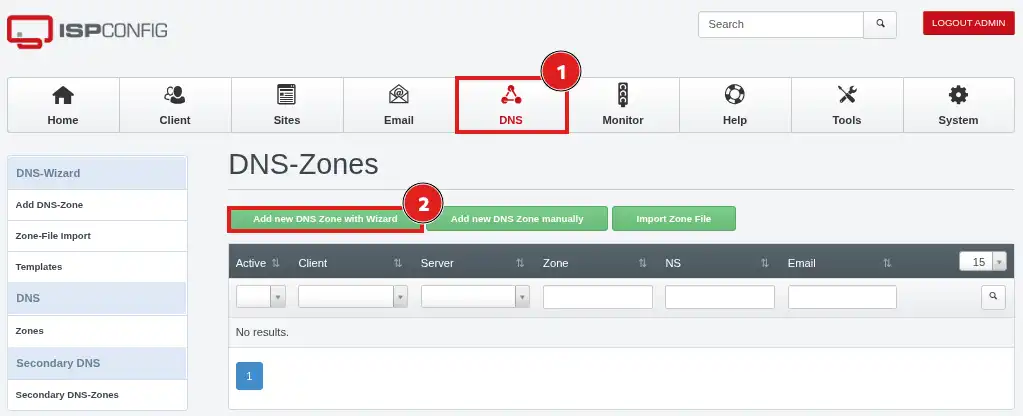
Do not modify the MX, SPF, DKIM or other e-mail-related records if you want to keep your e-mails with their current provider.
If the DNS zone is managed at LWS
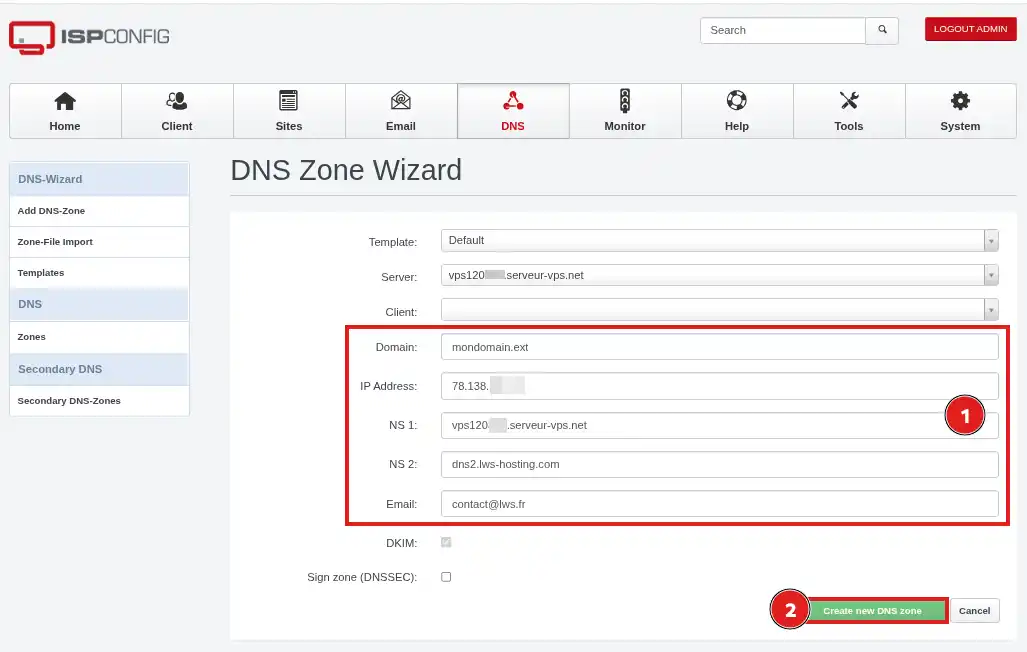
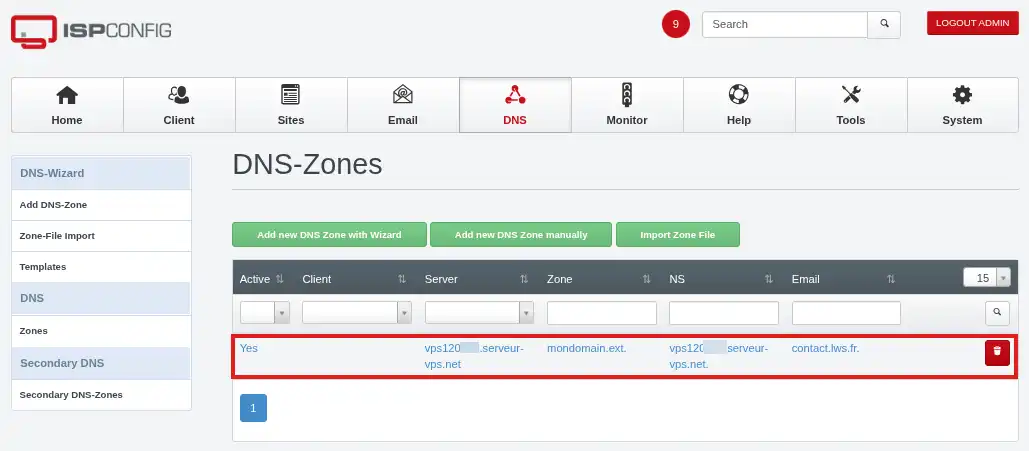
Log in to the customer area containing the domain, then modify its DNS zone with the values indicated above.
DNS Server 1: the hostname of your VPS (in the form vpsXXXXX.serveur-vps.net);
DNS Server 2: dns2.lws-hosting.com.
Check the values entered, then validate.
The request may be refused if the zone does not yet exist, if the secondary server is not correctly declared, or if the specified servers do not respond for the domain.
Change the DNS servers of an external domain
If your domain name is not managed by LWS, follow this procedure:
Log in to the provider's panel where the domain is registered.
Open the section for changing DNS servers, name servers or nameservers, then enter:
your VPS hostname: vpsXXXXX.serveur-vps.net;
the secondary DNS server: dns2.lws-hosting.com.
Then validate the change from the provider panel.
Changing DNS servers does not only affect the website. The entire domain configuration will now depend on the DNS zone created in ISPConfig.
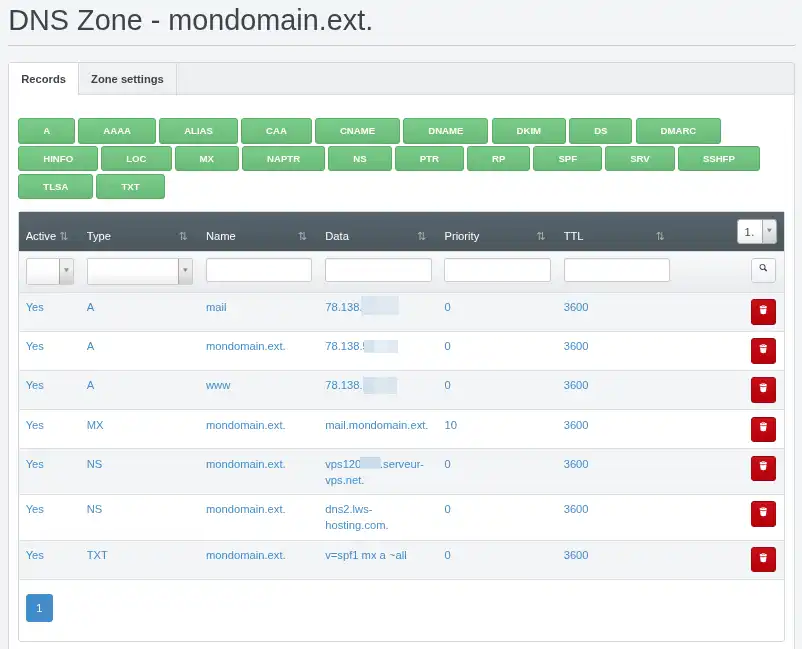
Before validating, check that this zone contains the records for the website, e-mails, subdomains and other used services.
DNS propagation time
A record change or a DNS server change may take up to 24 hours to be visible everywhere. In some cases, caches from internet providers or devices may keep the old configuration longer.
During this period:
some visitors may still access the old server;
others may already be using the VPS;
behavior may vary depending on the internet connection used.
Avoid making multiple changes while propagation is still in progress.
Check that the correct website is displayed and not the old site or a page belonging to another domain.
If the domain uses e-mails, send a message to an external address, then reply to that message to check sending and receiving.
If you replaced the DNS servers, verify that the domain is indeed using:
your VPS hostname as the primary DNS;
dns2.lws-hosting.com as the secondary DNS.
Configuration is complete when the main domain and its www address display the expected website and the other domain services, especially e-mails, still work.
Common problems
Automatic domain configuration fails
First check that the domain is not already configured, even partially, in ISPConfig.
Look for a configuration using this domain in the following sections:
Sites;
E-mail;
DNS;
FTP accounts;
databases.
If the domain is present, back up the files, databases, e-mails and settings you want to keep. Then delete the elements related to the domain and relaunch the automatic tool from the LWS Panel.
An earlier attempt may have created only part of the services. So check all ISPConfig sections, even if no website seems to be configured.
Configuration fails after a password change
The LWS Panel must know the information needed to connect automatically to the VPS.
If the admin password was changed directly from ISPConfig, the LWS Panel can no longer perform this connection and the automatic tool fails.
From the LWS Panel, use the VPS password change procedure. You can set a new password or reassign the current one.
Once this operation has been performed from the LWS Panel, relaunch the automatic domain configuration.
I cannot completely remove an old configuration
Check that all elements associated with the domain have been deleted in the Sites, E-mail and DNS sections, as well as in FTP accounts and databases.
Reinstallation completely resets the VPS. It deletes the files, databases, e-mails, certificates, accounts and settings present on the server.
Only do this if no data needs to be kept or if you have a complete, usable backup.
Once the VPS is reinstalled, check that you can access ISPConfig, then relaunch automatic configuration from the LWS Panel.
My domain still shows the old website
DNS propagation may not be complete yet.
Check that the A record is using the VPS IPv4 address or that the new DNS servers are active. Also test the domain from another connection, for example with your phone's mobile network.
If the change was just made, wait up to 24 hours before doing it again.
A default page is displayed instead of my website
The domain probably reaches the VPS, but ISPConfig has not yet associated it with the correct website.
In ISPConfig, open Sites, then Websites and check:
that the website was created correctly;
that the domain is entered without www, http:// or https://;
that there are not two websites configured with the same domain;
that the website files were uploaded to the correct directory.
The website works without www, but not with www
The DNS record for www is probably missing or incorrect.
In the active DNS zone, add one of the following:
a CNAME record for www pointing to the main domain;
an A record for www using the VPS IPv4 address.
Also check the value of the Auto-subdomain field in the ISPConfig website configuration if this option is present.
The external domain does not work after automatic configuration
The LWS tool can create the services in ISPConfig, but it cannot modify DNS servers managed by another provider or if the domain is on a different LWS customer account than the VPS.
Log in to that provider's panel (or the LWS customer account managing the domain) and do either:
a pointing of the domain to the VPS IP address;
a DNS server change to the ones configured with ISPConfig.
My e-mails no longer work after changing the DNS servers
The new ISPConfig zone probably does not contain all the necessary mail records.
Check in particular:
MX records;
the mail server hostname;
SPF, DKIM and DMARC records;
the creation of domains and e-mail boxes in ISPConfig.
If mail must remain with the old provider, copy into ISPConfig the records they provide.
The new DNS servers are refused
Check the following points:
the domain zone has been created in ISPConfig;
the VPS hostname is entered correctly;
dns2.lws-hosting.com is entered as the secondary DNS;
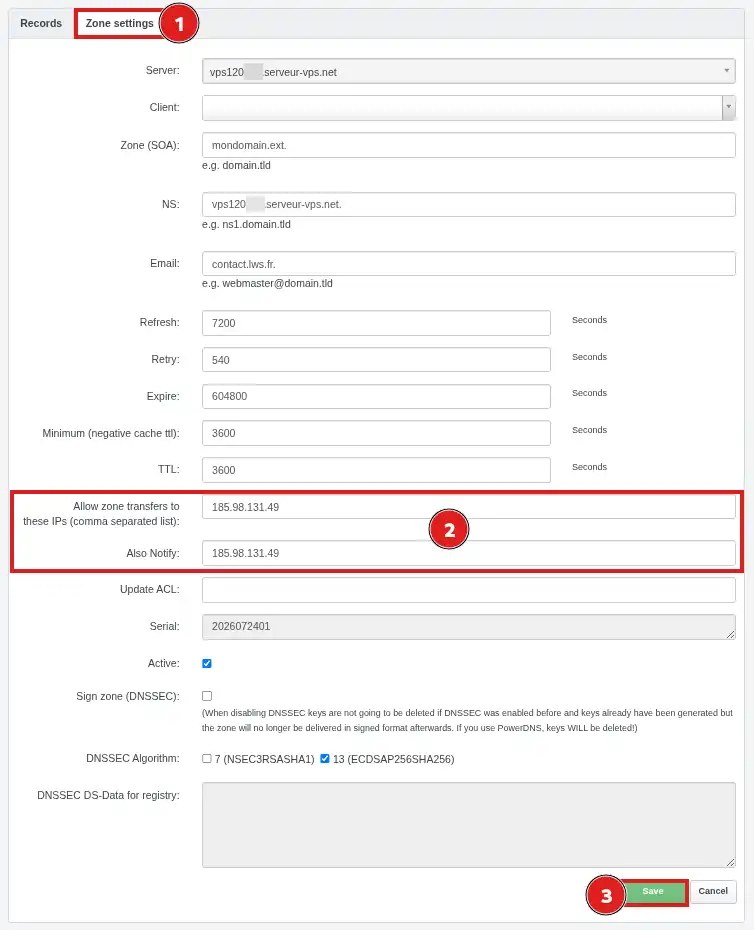
zone transfer to 185.98.131.49 is allowed;
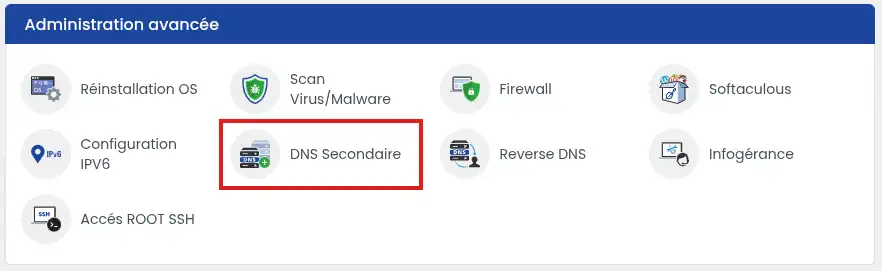
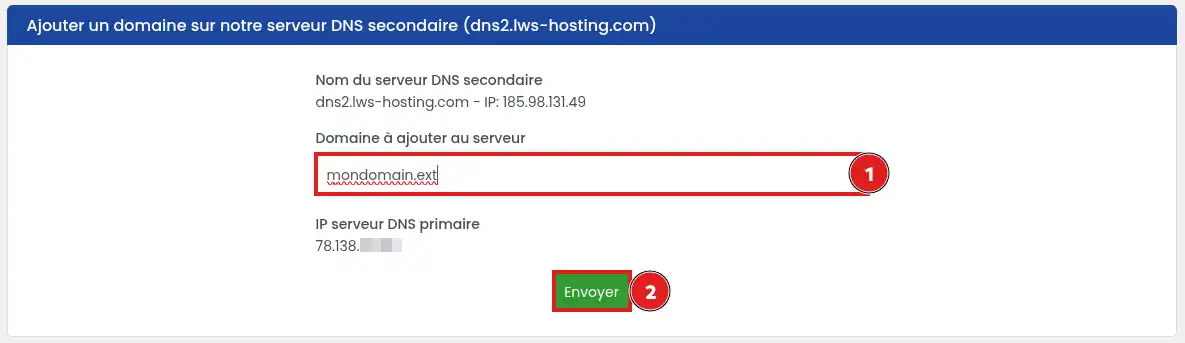
the domain has been added in the Secondary DNS section of the LWS Panel;
the zone contains coherent NS records with the declared servers.
Some registries also apply controls specific to the domain extension.
The Let's Encrypt SSL certificate does not activate
Before requesting the certificate, check that:
the main domain points to the VPS;
www also points to the VPS if you want it included in the certificate;
no old AAAA record is still directing the domain to another server;
Can I add several domain names to my vps using this method?
B✓
Benjamin-LWS Official answer
6 Jan 2023
Bonjour,
Oui tout à fait.
Après avoir ajouté votre domaine à votre VPS, voici une documentation pour configurer votre domaine nouvellement ajouté : https://aide.lws.fr/a/1285
Was this answer helpful?
M
Misslolo
22 May 2023
J'ai demandé un transfert de domaine qui est actuellement encours,est t'il possible de republier mon ancien site sur ispconfig... pendant le transfert en cours?
B✓
Benjamin-LWS Official answer
25 May 2023
Bonjour,
Merci de votre retour.
C'est assez déconseillé de publier votre site après\pendant transfert d'un domaine, mais c'est tout à fait possible.
Je vous remercie de votre attention et reste à votre disposition pour toute autre question ou complément d'information.
Nous vous invitons à contacter notre service support à travers votre espace client, afin de vous apporter une aide si vous rencontrez des difficultés quelconque. (Contacter le support LWS)
Cordialement, L'équipe LWS
Was this answer helpful?
J
julioA
7 Aug 2024
Bonjour, je souhaite ajouter l'IP de ma box pour avoir mon site web depuis chez moi. Après ce changement je utilise [domaine masqué] pour voir si mon domaine correspond à l'IP public de ma box, mais il donne erreur. Qu'est ce que je peux faire?
A✓
Aurelien-LWS Official answer
12 Aug 2024
Bonjour,
Pour lier votre nom de domaine sur votre Serveur NAS par exemple pour auto-héberger votre site Internet, vous devez effectivement configurer l'enregistrement de Type A de la Zone DNS de votre domaine pour le faire pointer sur l'IP du Serveur.
L'IP à renseigner est dans le cas le plus courant l'IP Publique de votre connexion Internet. Veillez à bénéficier d'une IP Fixe auprès de votre opérateur, sinon vous devrez refaire le réglage à chaque changement d'IP.
Ensuite, vous devrez configurer votre Box qui sert également généralement de routeur pour configurer que les connexions entrantes depuis votre nom de domaine soient redirigées vers votre serveur NAS. Enfin, vous devrez configurer votre serveur NAS pour traiter les connexions entrantes via votre nom de domaine.
Comme ces configurations dépendent du modèle de Box Internet et du modèle de Serveur NAS, je vous invite à vous reporter au mode d'emploi de ces deux appareils pour vérifier ou mettre en place votre configuration.
Cordialement, L'équipe LWS
Was this answer helpful?
L
LAMINE
il y a 5 mois
Bonjour mon abonnement pour mon nom de domaine tire a sa fin dois je le renouveler avant de prendre le VPS oui bien puis je prendre un abonnement incluant le VPS Merci
J✓
Jordan-LWS Official answer
il y a 5 mois
Bonjour,
Le nom de domaine et le VPS sont deux services distincts.
Si votre nom de domaine arrive prochainement à expiration, il sera nécessaire de le renouveler afin de conserver sa propriété et d'éviter toute interruption de service.
Vous pouvez tout à fait souscrire à un VPS dès maintenant, mais cela n’inclura pas automatiquement le renouvellement de votre nom de domaine sauf indication contraire dans l’offre choisie.
Je vous remercie de votre attention et reste à votre disposition pour toute autre question ou complément d'information.
Cordialement, L'équipe LWS
Was this answer helpful?
A question about this article?
Ask the LWS team and the community. Answers are published after moderation.
Ask the LWS team and its community a question
!
To enable this form, please tick the two consent boxes below.



 Yes
Yes No
No About
About 