Wordpress CMS6 November 2026By Aurélien T. 2 min read
How do you create a WordPress website?
Procédure
What is Wordpress?
Wordpress is a content management system, CMS, you have the basic functions to edit text, modify it, and add images. It is possible to install extensions to add new features to the site such as:
Content editor with link and media insertion
Agenda / Calendar
Sending and downloading files
Photo, video, and music galleries
Online store
Project management
Internal messaging
Forum
Chat
etc.
Is Wordpress included in all plans?
Wordpress can be installed on all LWS Linux web hosting plans. The only exception is the domain plan, which hosts only HTML pages, without PHP or a database. WordPress cannot run there: you first need to switch to a web hosting plan (Perso, Starter or Performance).
How do I install Wordpress with the auto-installer?
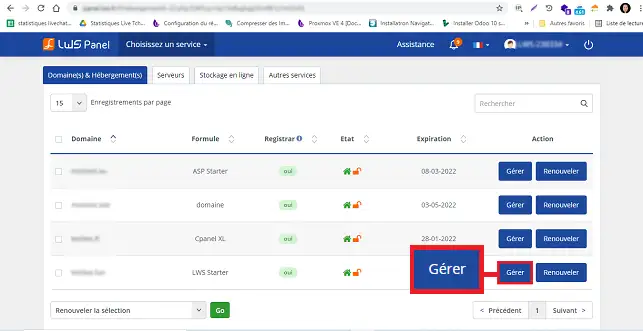
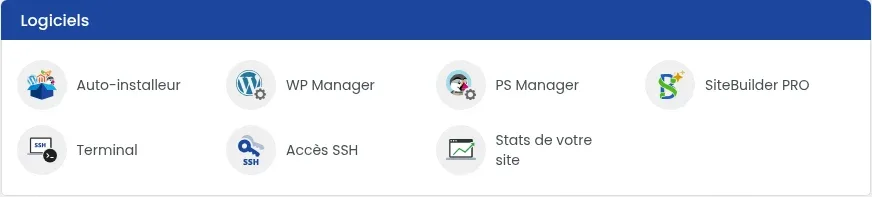
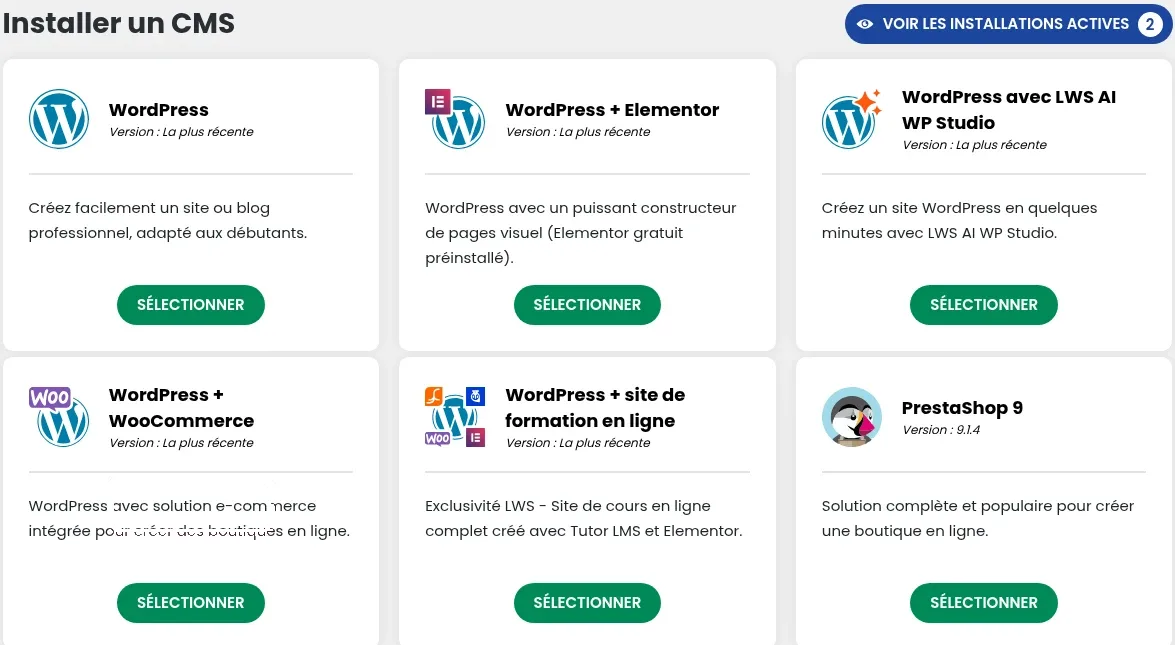
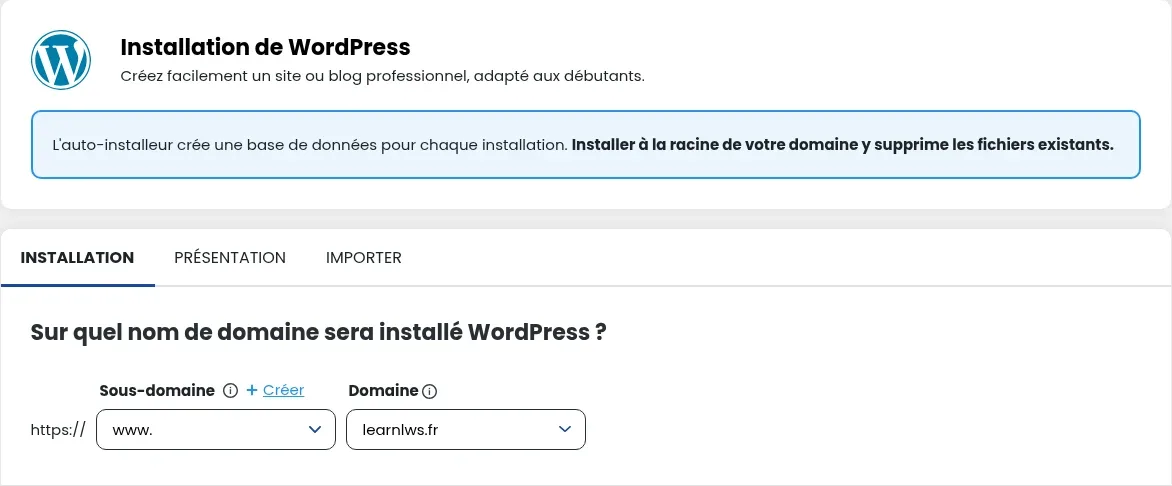
On the LWS Panel, WordPress is installed in just a few clicks with the Auto-installer: it creates the database itself, installs the files and the administrator account. The details of choosing the address are also explained in the help article how to install WordPress with the LWS auto-installer.
There is no folder choice: WordPress is installed at the selected address, and the Auto-installer creates your site’s database itself.
Enter your site and administrator account details
Fill in the « Site name », the « Site description or slogan » and check the language. In « Administrator account settings », enter the « Username », the « Email » and the « Password » (the « Generate » button suggests one). You can keep the suggested choices for automatic updates, extensions and the theme.
Start the installation
Check the address shown in « Send installation details to: », then click the « INSTALLATION » button.
Stay on the page until the progress bar reaches 100%: the process may take 1 to 2 minutes.
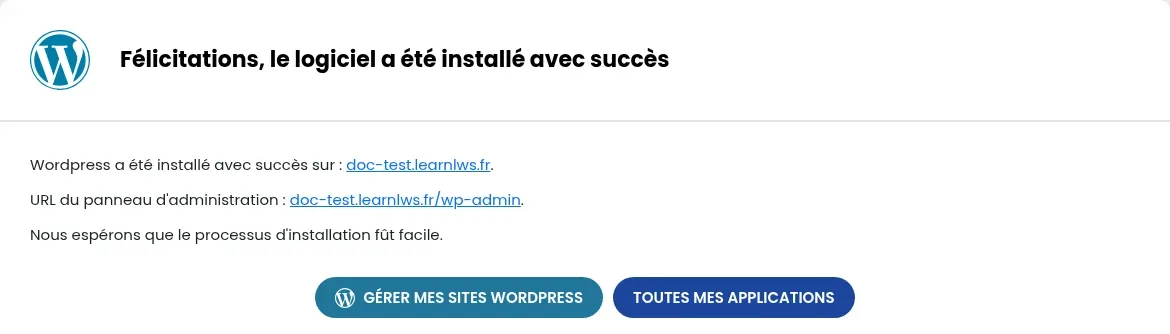
Once the installation is complete, the « Congratulations, the software has been successfully installed » screen shows your site address and that of its administration (« Administration panel URL »). The login details for the Wordpress dashboard are also sent to you by email, to the address indicated in the form.
How do I change my password and username in Wordpress?
11. Go to your Wordpress administration. (In this form example.com/wp-admin/) Your Wordpress may be in a subdomain. (More explanations about subdomains here)
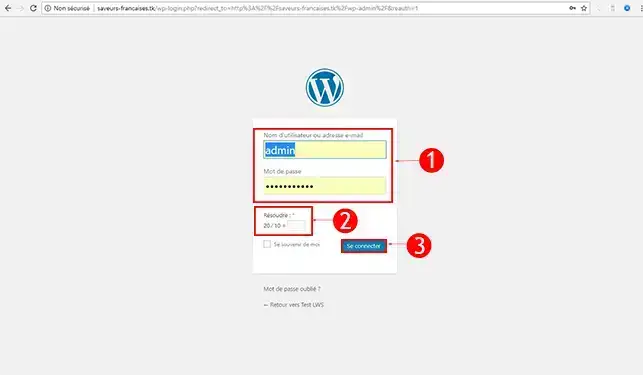
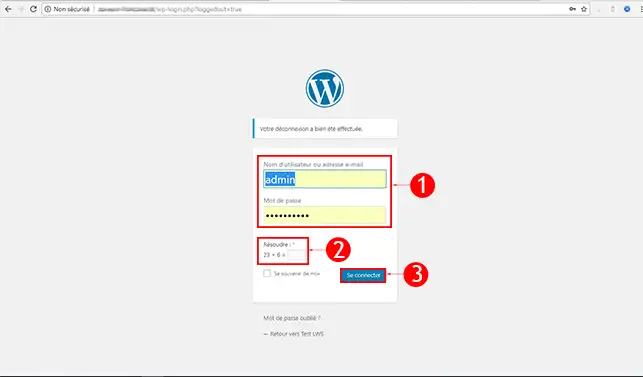
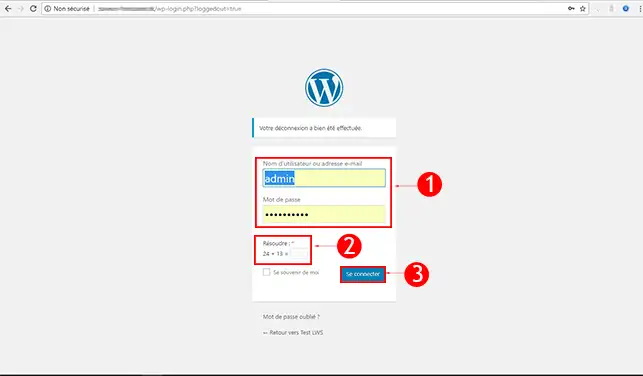
22. Enter your login details to sign in (the details were sent to the address indicated in « Send installation details to » during installation). The login details may arrive in your email SPAM folder. If, however, you did not receive the login information, it is possible to reset the Wordpress password.
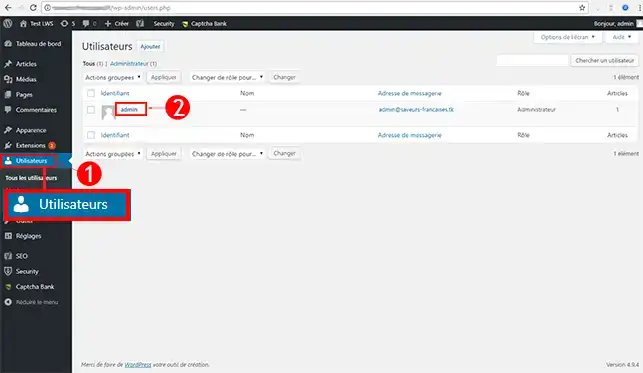
33. In the left menu, click the Users tab then click the user you want to modify. For security reasons, it is recommended to change the username "admin". Indeed, this is the default name used during Wordpress installation.
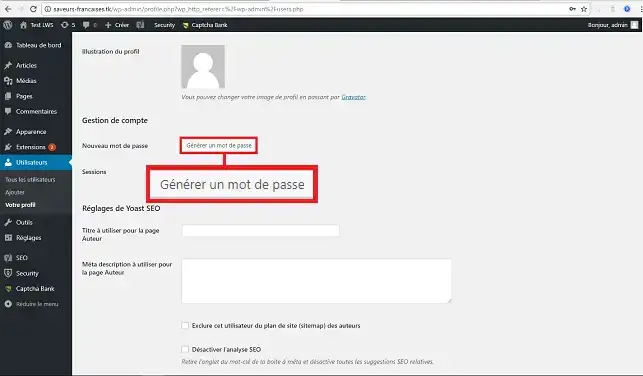
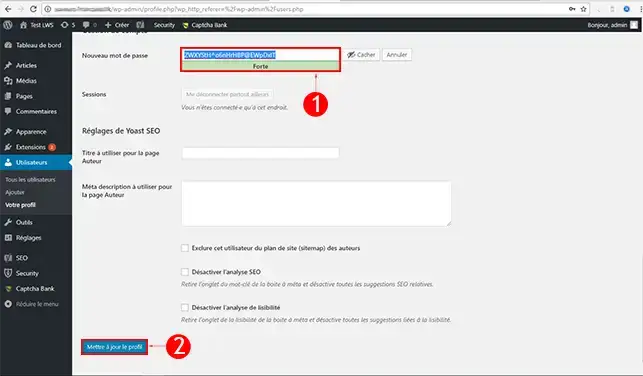
44. Click the "Generate password" button. The password generator lets you benefit from a strong password that is difficult for a hacker to find.
55. Choose your new Nickname as well as your new Password then click Update Profile to save. For the password, it is better to use a strong password of 8 to 10 characters.
How do I add a post in Wordpress?
11. Go to your Wordpress administration. (In this form example.com/wp-admin/) Your Wordpress may be in a subdomain. (More explanations about subdomains here)
22. Enter your login details to sign in (the administration details were sent to the address indicated during installation)
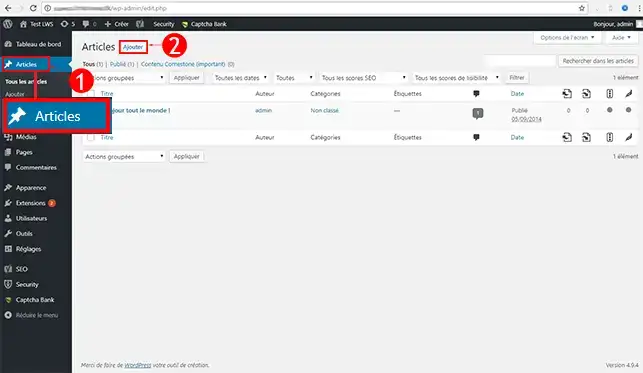
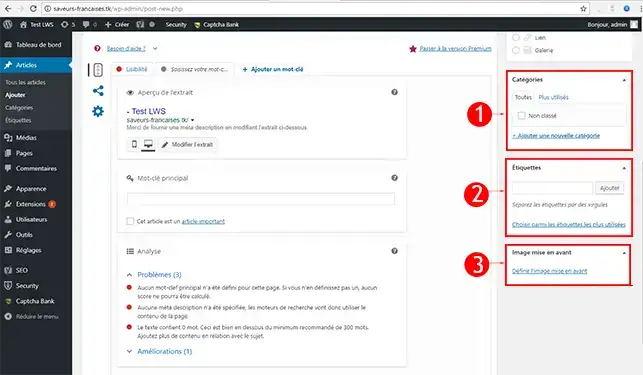
33. In the left menu, click the Posts tab then click Add New
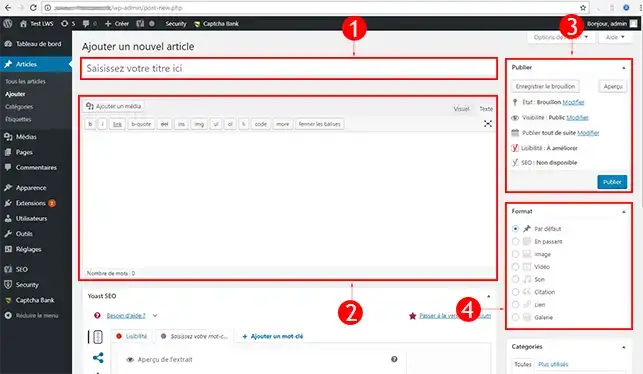
Enter the Title of your article (It will be displayed at the top of your page and on your homepage, so it is important to target the keywords you will use carefully)
Write the Content of your article (You can add images, change the text size, make text bold, italic, underlined...)
Choose the Status of your article (Be sure to check this part; if it is set to unpublished status it will not be visible on your site. Choose "Public" if you want it to be visible to everyone)
Choose the Format of your article (If you are talking about a trip for example, it is more interesting to use the "Gallery" format than "Default")
Add the Keywords for your article (So that the article is referenced on certain terms. Keywords will be used to find your article more easily in search engines, for example Google)
Add a Featured Image for your article (An image will be present on your site’s homepage, allowing you to highlight your article.)
Choose the Category for your article (It will be classified on the site in this category. For example, if you are talking about a dog you would put the article in the "animals" category)
How do I install an extension in Wordpress?
11. Please go to your Wordpress administration. (In this form example.com/wp-admin/) Your Wordpress may be in a subdomain. (More explanations about subdomains here)
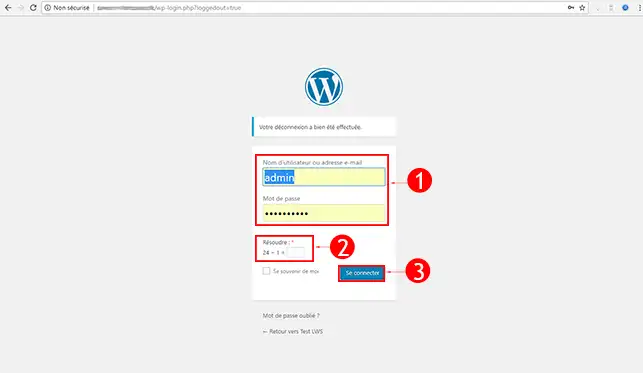
22. Enter your login details to sign in (By default Username: admin)
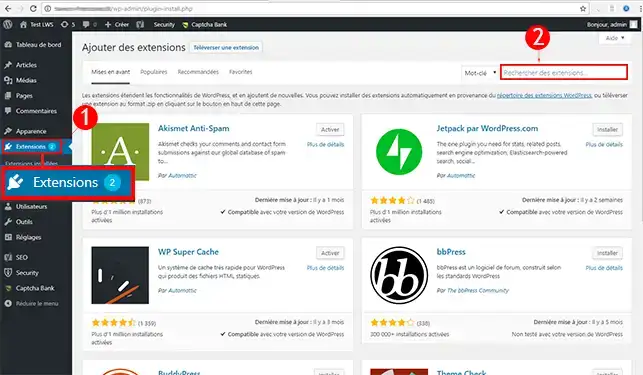
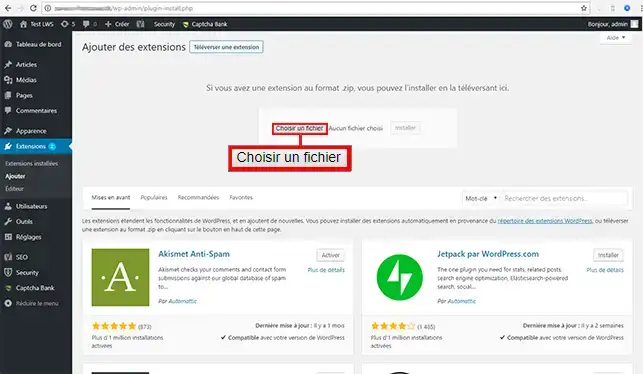
33. In the left menu, click the Extensions tab then click Add New, and Search for the plugin you want to install.
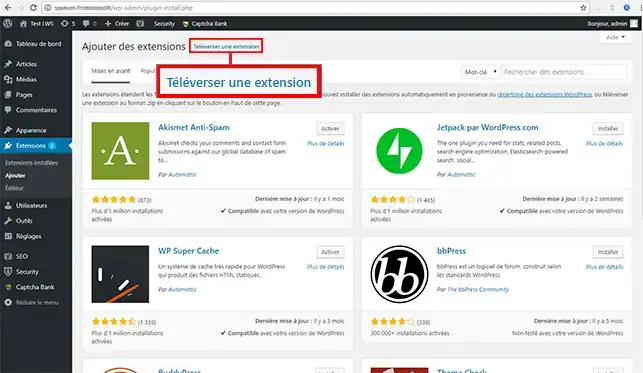
44. You can also Upload a plugin manually via an archived file (Zip). Click Upload Plugin.
55. Select your .zip file then click Install
How do I change the graphic template in Wordpress?
Discover thousands of graphic templates suited to any activity from our partner Themeforest
11. Please go to your Wordpress administration. (In this form example.com/wp-admin/) Your Wordpress may be in a subdomain. (More explanations about subdomains here)
22. Enter your login details to sign in. (the administration details were sent to the address indicated during installation)
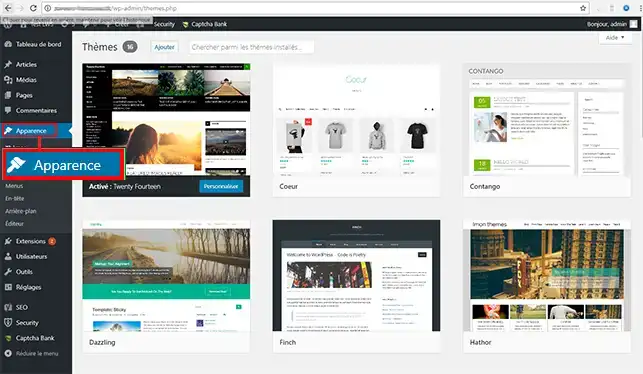
33. In the left menu, click the Appearance tab then choose your theme, then click the Activate button.
Create a Wordpress website easily, 30 minutes are enough! Complete Wordpress tutorial
How do I install Wordpress with the auto installer?
Wordpress Themes
Discover thousands of graphic templates suited to any activity from our partner Themeforest
Wordpress Online Store
Discover the WooCommerce extension to easily create an online store with Wordpress: the « WordPress + WooCommerce » version of the Auto-installer installs it at the same time as WordPress.
You are now able to automatically install your website on Wordpress. Wordpress allows you to create a blog or showcase website without any special coding knowledge. It has several thousand themes and extensions allowing you to create your website.
Pour changer le pied de page de votre site WordPress cela dépend de quel éditeur vous utilisez.
Alors, nous vous invitons à contacter notre système de support client pour obtenir de l'aide spécifique à votre situation. Nous avons une équipe de professionnels qualifiés prêts à vous aider et à répondre à toutes vos questions avec précision et rapidité. (Contacter le support LWS)
Merci de votre compréhension et nous espérons pouvoir vous aider bientôt.
Cordialement, L'équipe LWS
Was this answer helpful?
A question about this article?
Ask the LWS team and the community. Answers are published after moderation.
Ask the LWS team and its community a question
!
To enable this form, please tick the two consent boxes below.





 Yes
 No
 About
